
Purchase Order
Creating Purchase Orders enables labels to be printed for ordered items, then scanned to confirm all items are received complete.
Create Purchase Orders
Orders can be created manually, one at a time, or in bulk via spreadsheet upload.
Create a Purchase Order manually
To view only Purchase Orders, click the Purchase tab.
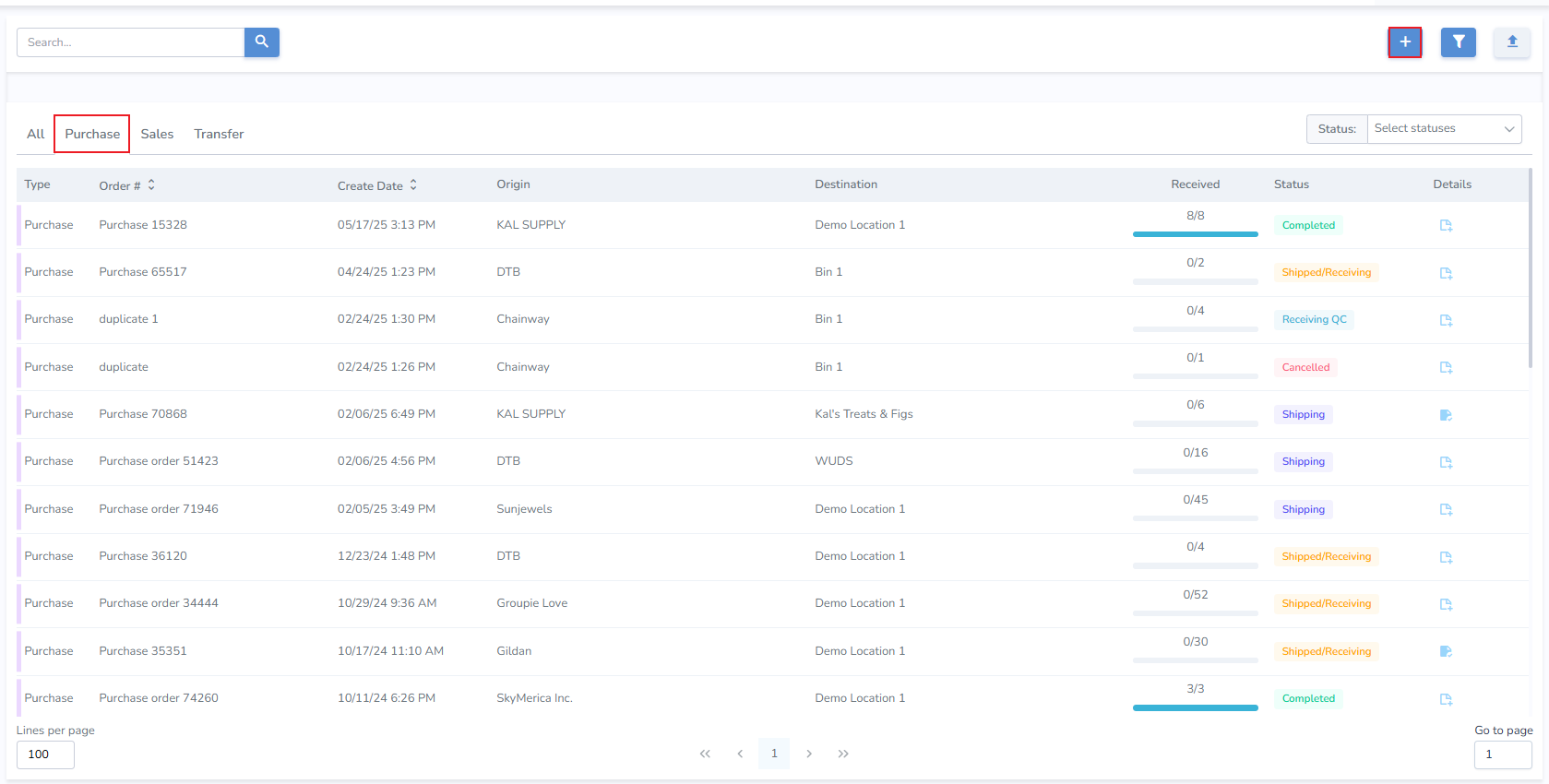
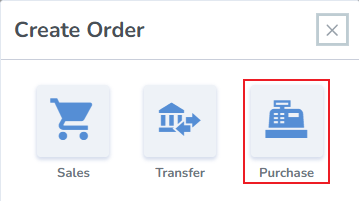
- From the Pop-up select Purchase
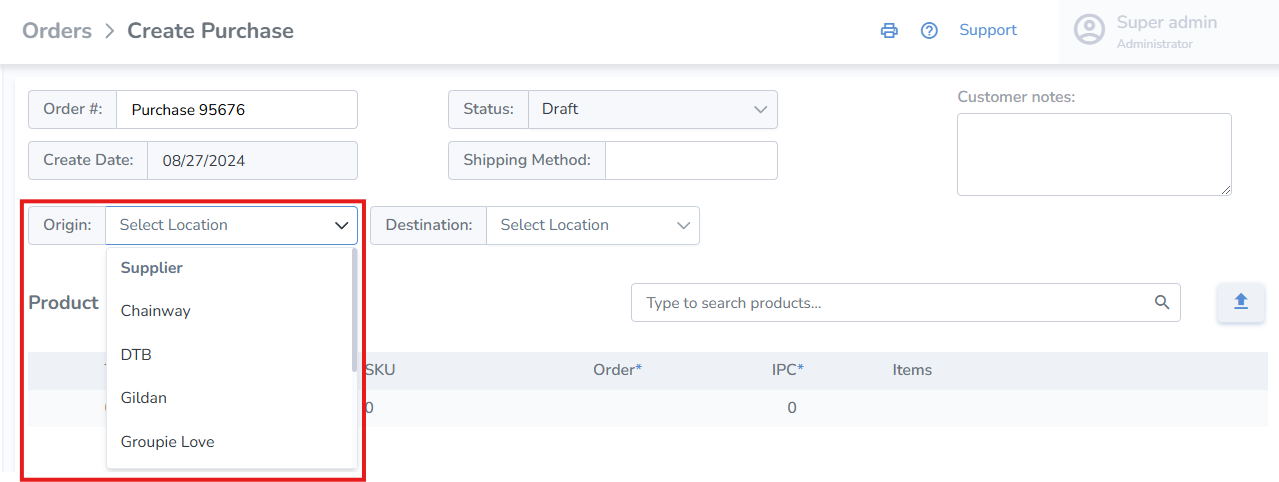
Create Purchase page
- Order Number - the system generates an order number, or enter your own
- Origin - select the location of the Supplier which fulfilled the order.
- Destination - select the location where the order will be received (your Distribution Center (DC) or Store location)
- Add Products & Quantities - search and add products manually, or upload them via spreadsheet upload
If the desired Supplier is not present, create them from the Locations tab.
- Click Save
- Once the Purchase order is updated to Shipping status, labels can be printed for the order
- The Purchase Order can also be verified for accuracy using mobile Receive.
Please set the order status to Shipped/Receiving to make "Verify" button appear in the order Products tab on Mobile.
- Once the order has been verified on Ship or Receive, a corresponding progress bar will display the completeness of the order
