
Add Details to Print Job from Excel
Add details to a print job using a spreadsheet. Use our formatted spreadsheet template, or use your own template.
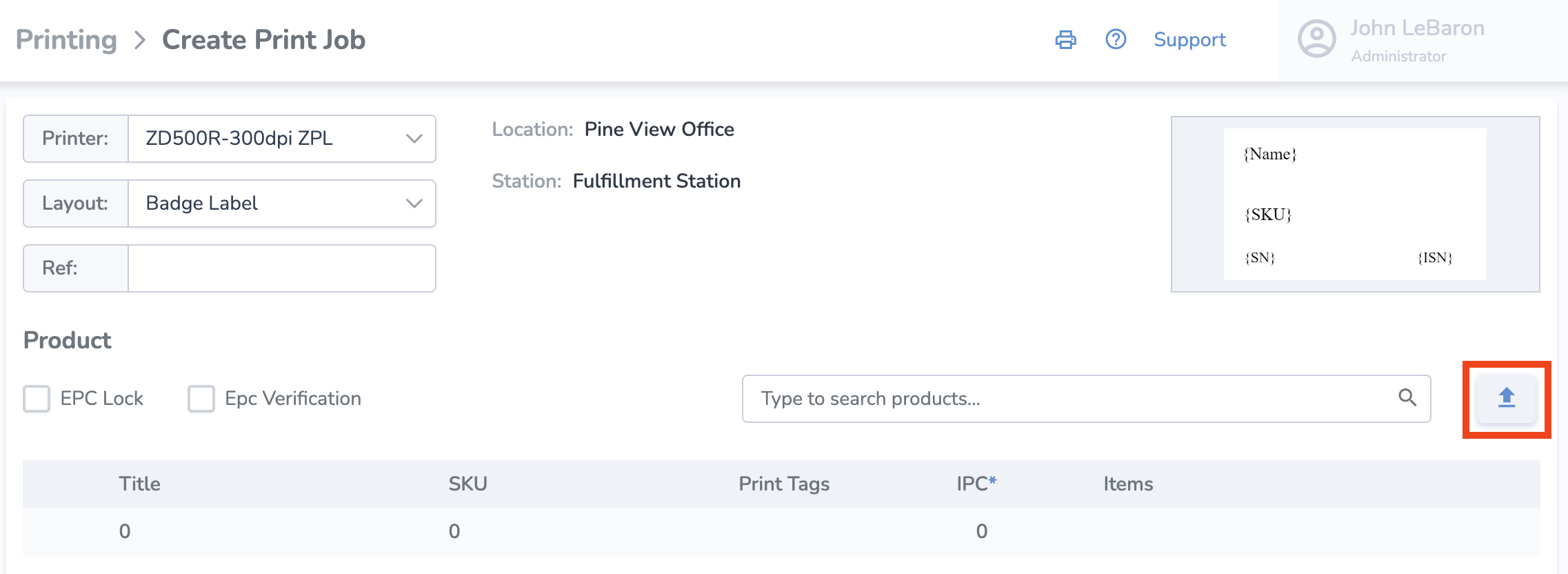
Inside the Printing > Create Print Job page, click the upload button on the right
If you'd like to use our spreadsheet template and input data there, in the new pop up window, click on the “Get Template” button. Then fill out the information for your print job and save the spreadsheet.

- Back on the web, click the '+ Choose' button and select the file with the information you saved
- Once the file has been selected, click 'Import'
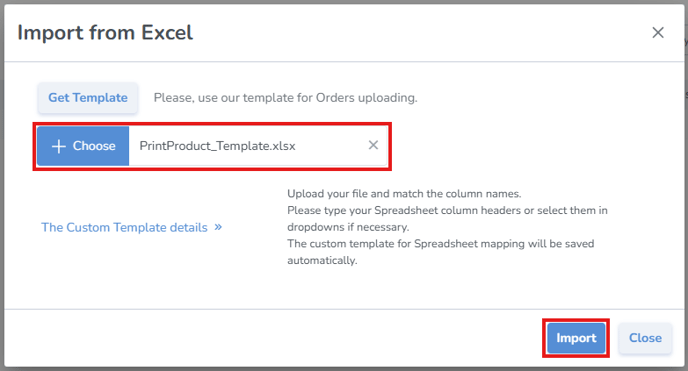
Next, if you're using your own existing spreadsheet instead of the template, click "The Custom Template details" and select which columns contain the corresponding information.
It will then add all the items to the print job, which you can print immediately or postpone.
Note: If any of the information from the uploaded spreadsheet is invalid, you'll see this validation error on that item in the list
A good practice is to scan the labels and upload them to verify that all tags have been printed correctly.