Search Tags
From the home screen click Search Tags
From the input window, enter the item you wish to locate, and select it
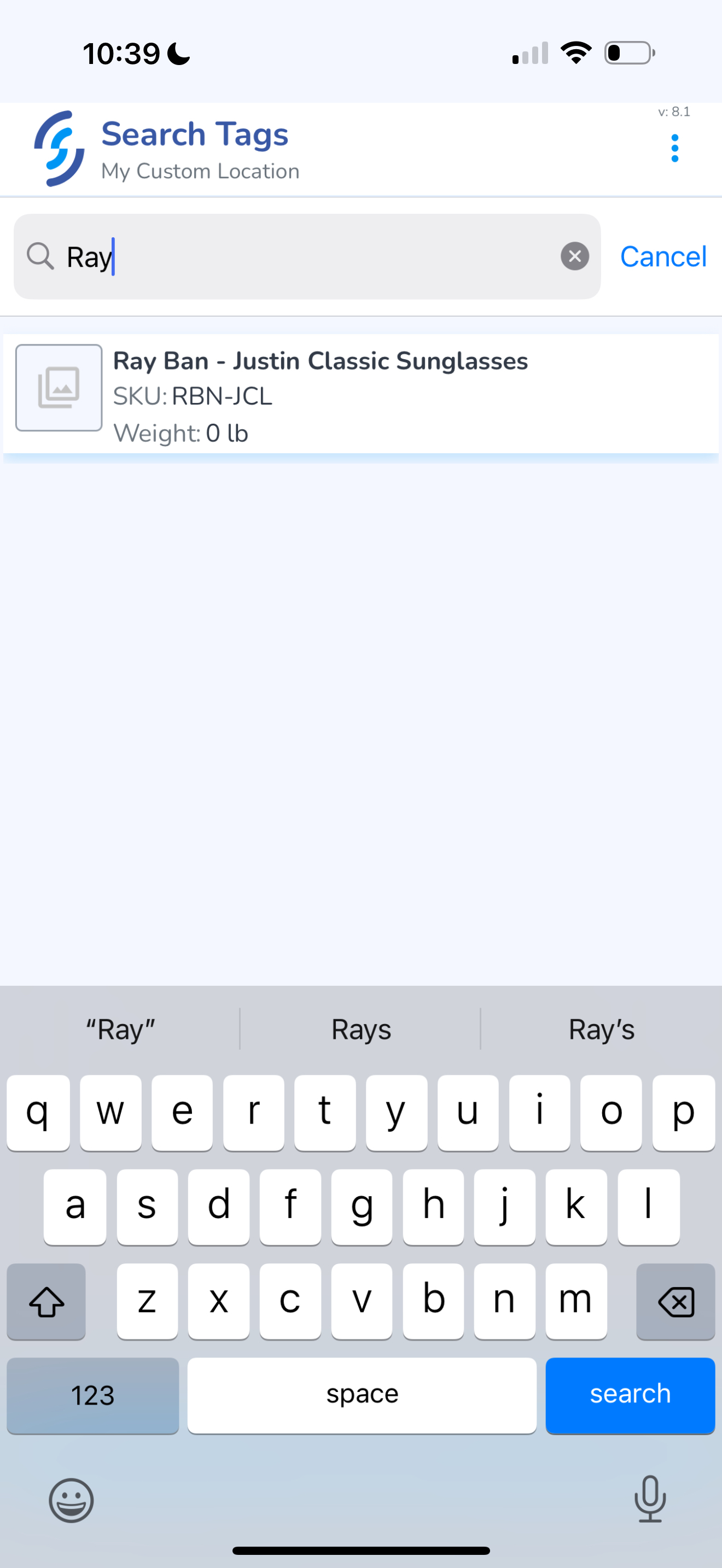
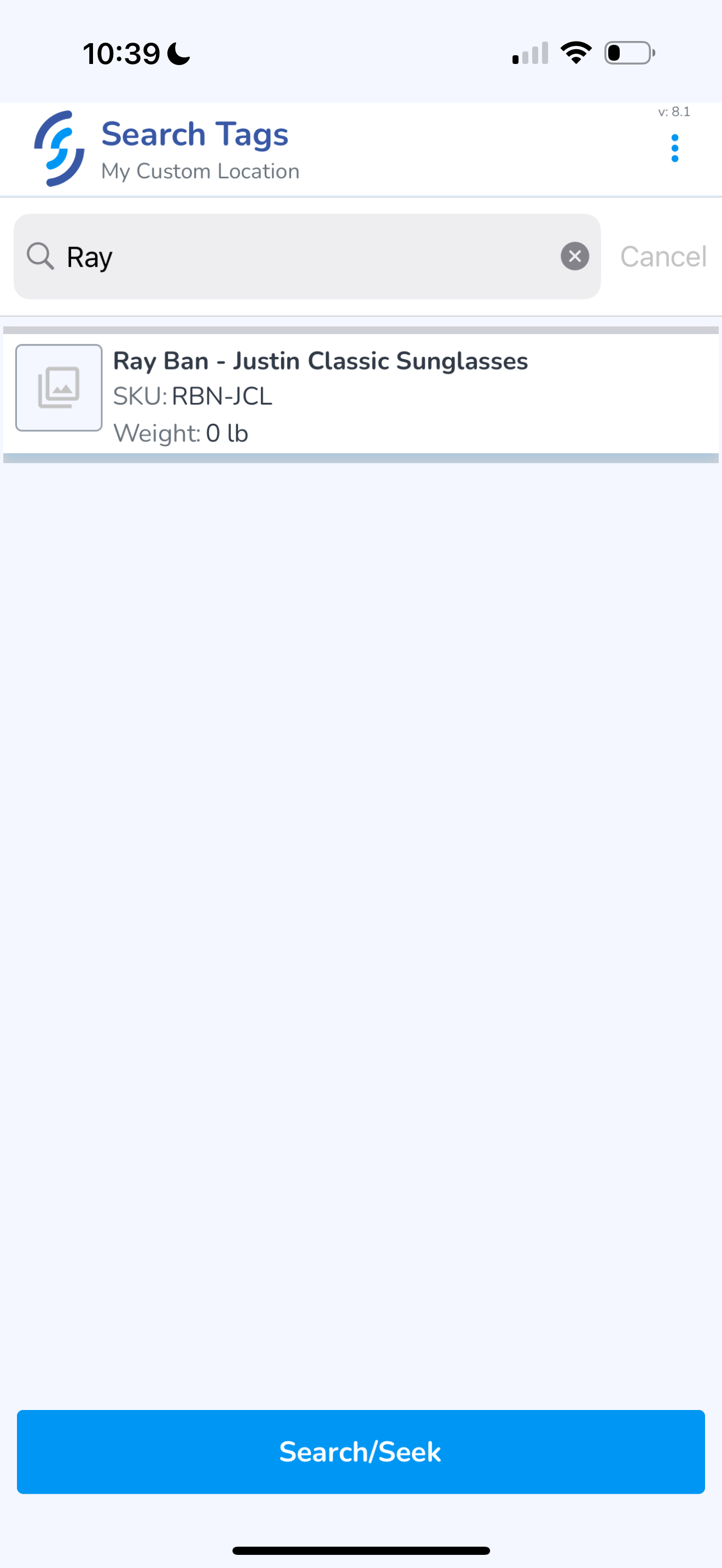
Once it is selected, click the Search/Seek button
This will initiate Search mode.
Choose Near, Middle or Far option to adjust the power.
Tip: Some environments may produce more reflection causing the reader to produce false positive results making it appear that the item is closer than it actually is. In these instances, once the signal is detected choose a lower power setting to reduce the read range which will help reduce the false positive signal
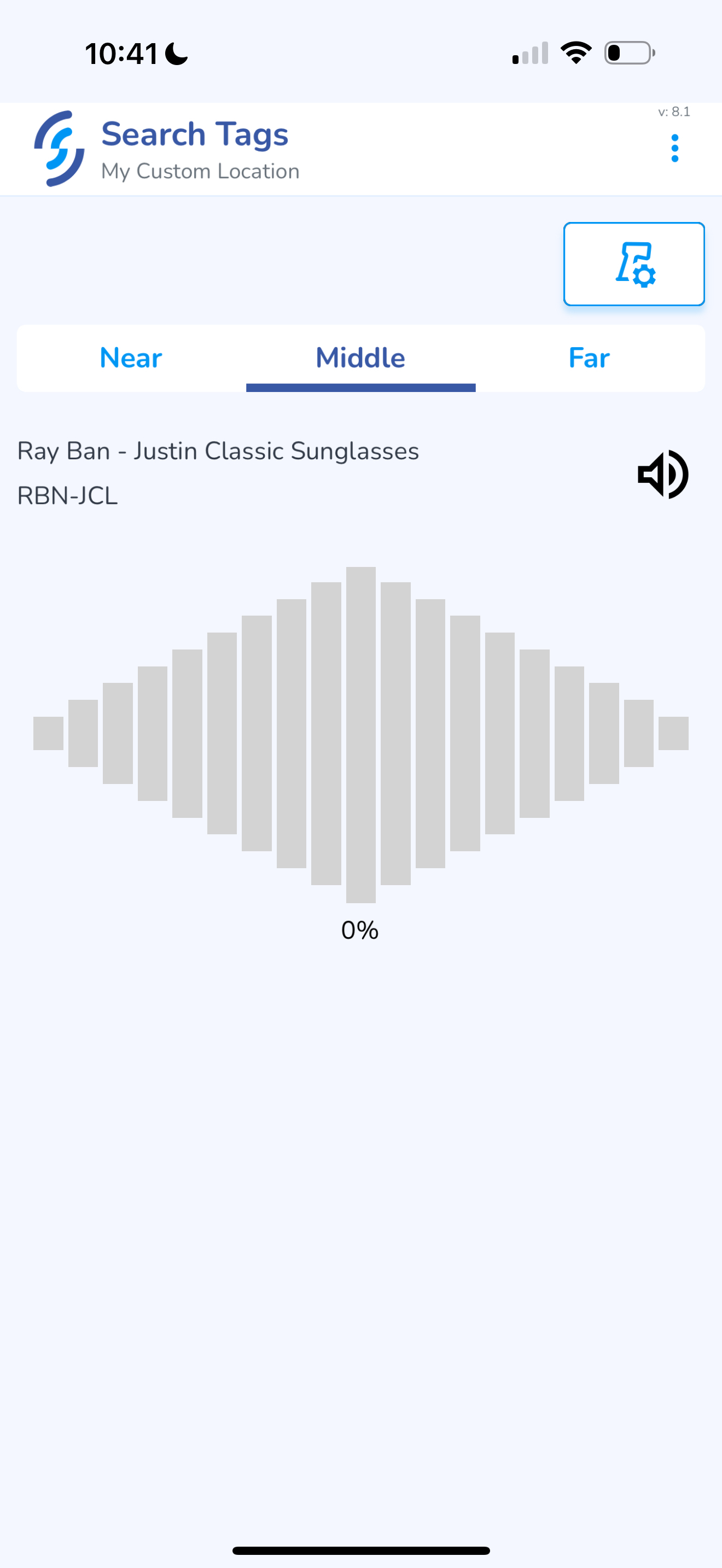
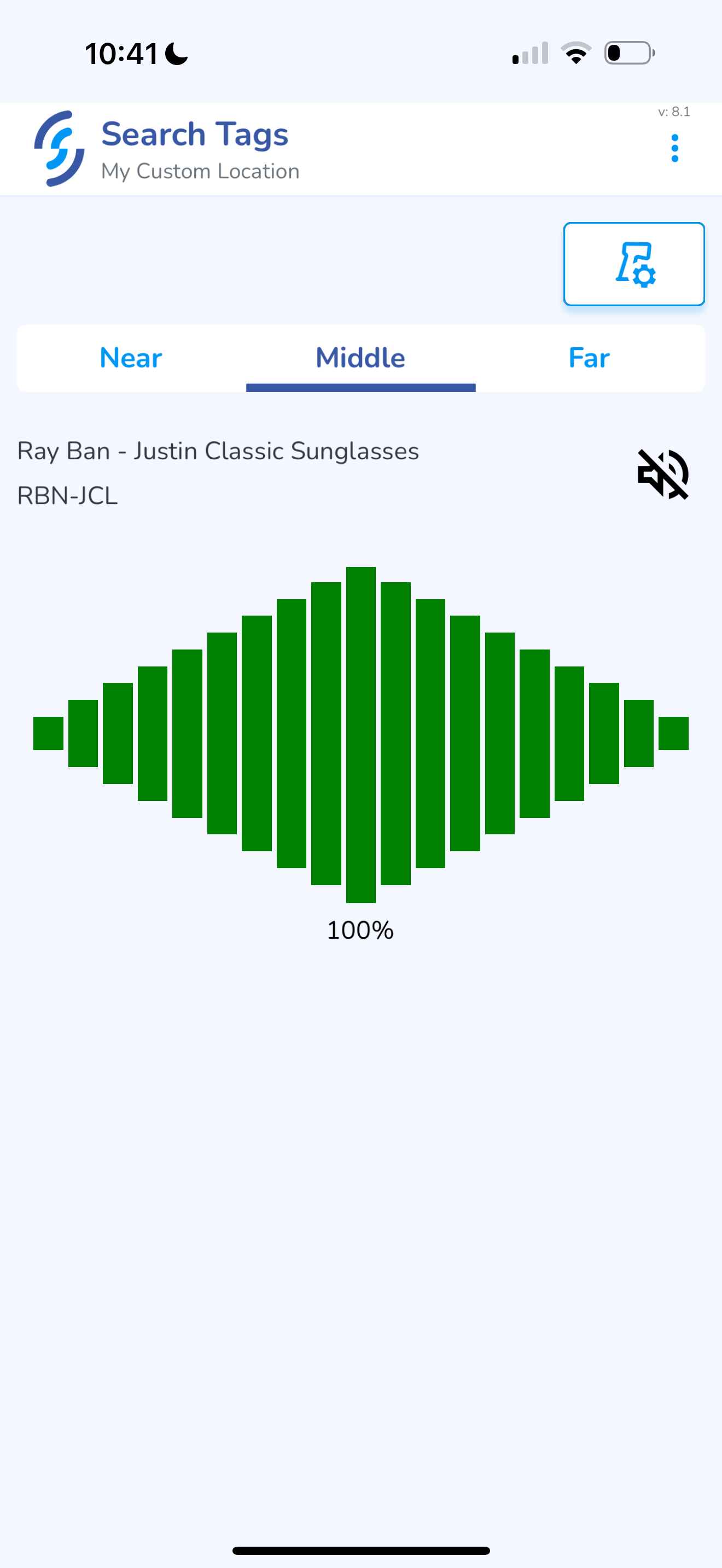
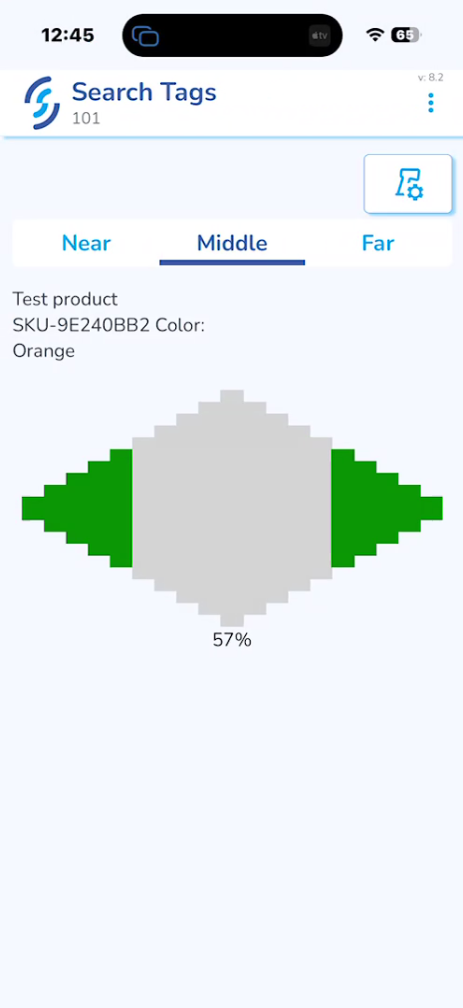
Pull the trigger on the reader. If the item is within range the signal will indicate
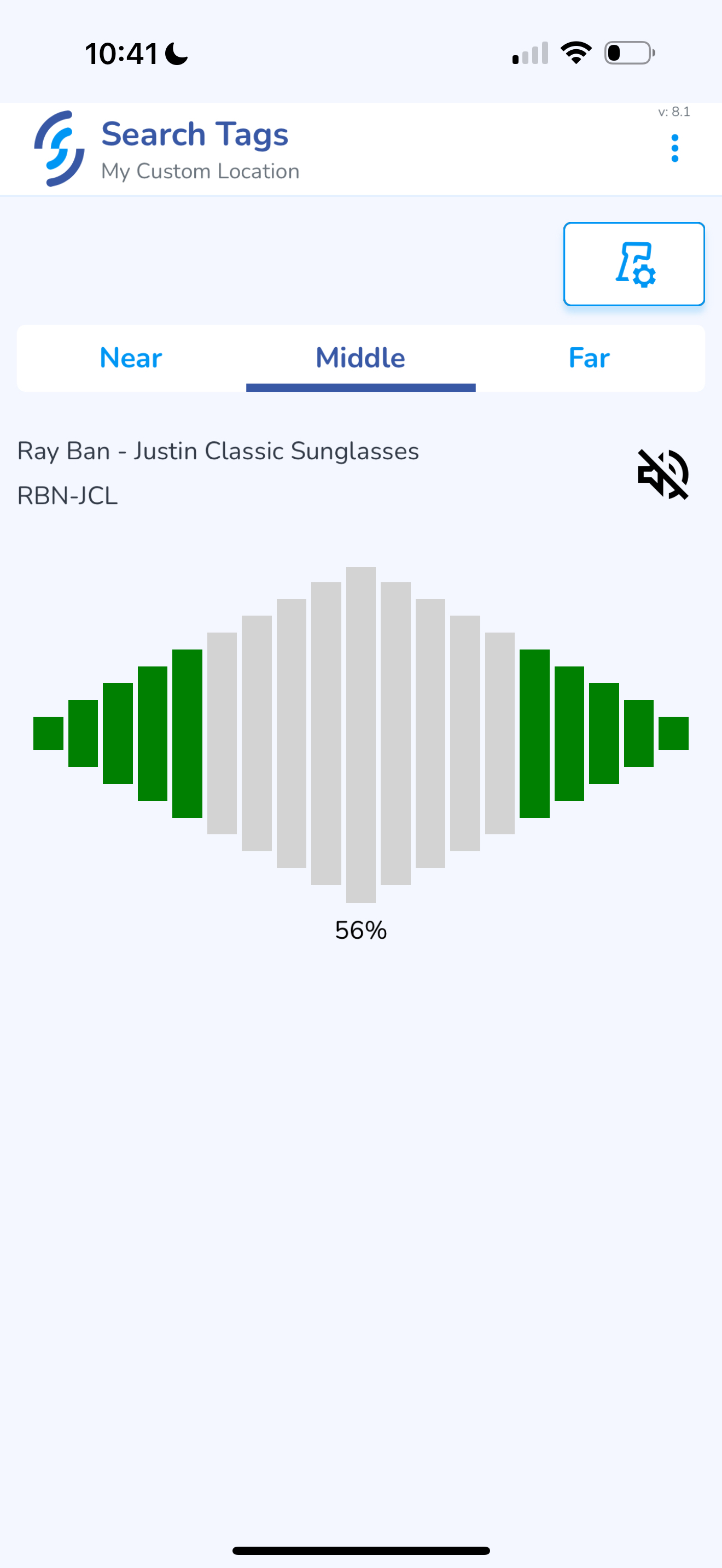
The grid will display 100% when the item is within 6"
Alternative Access to Search Tags feature
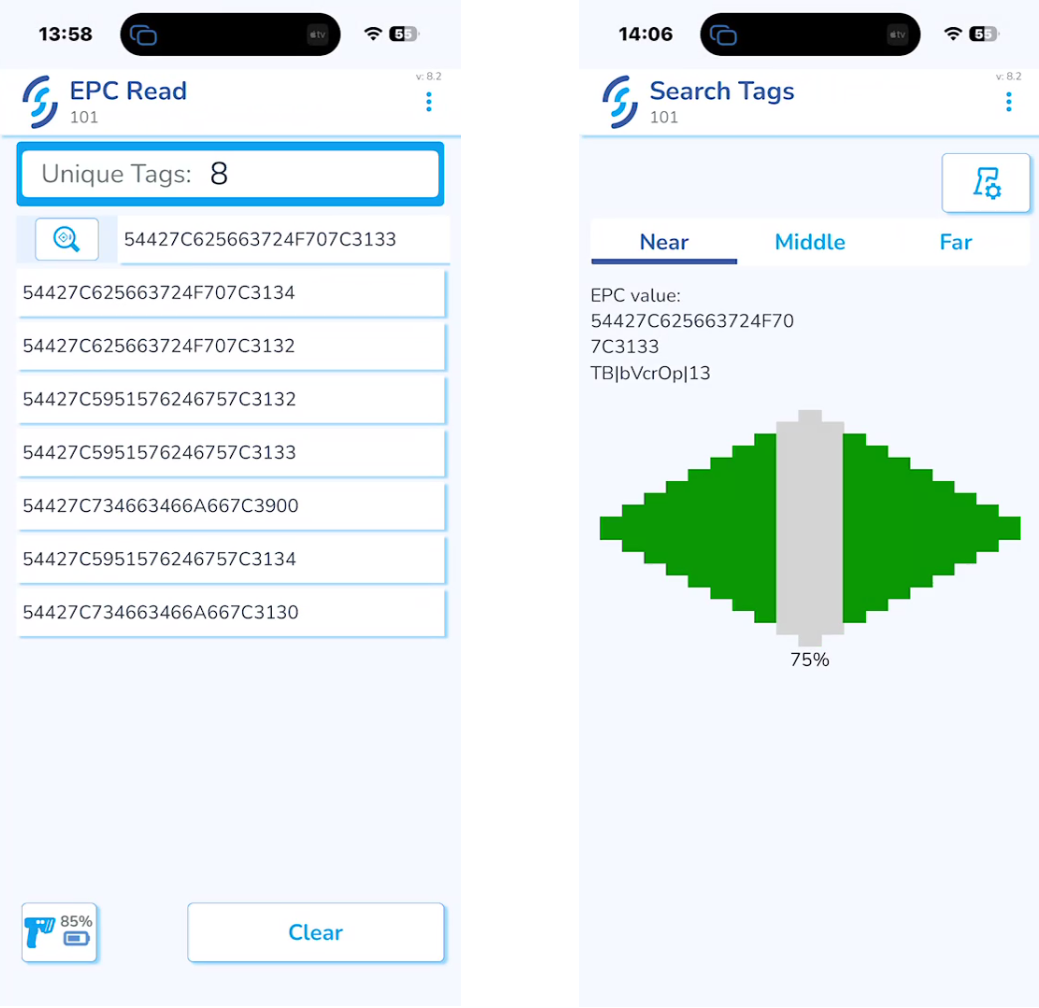
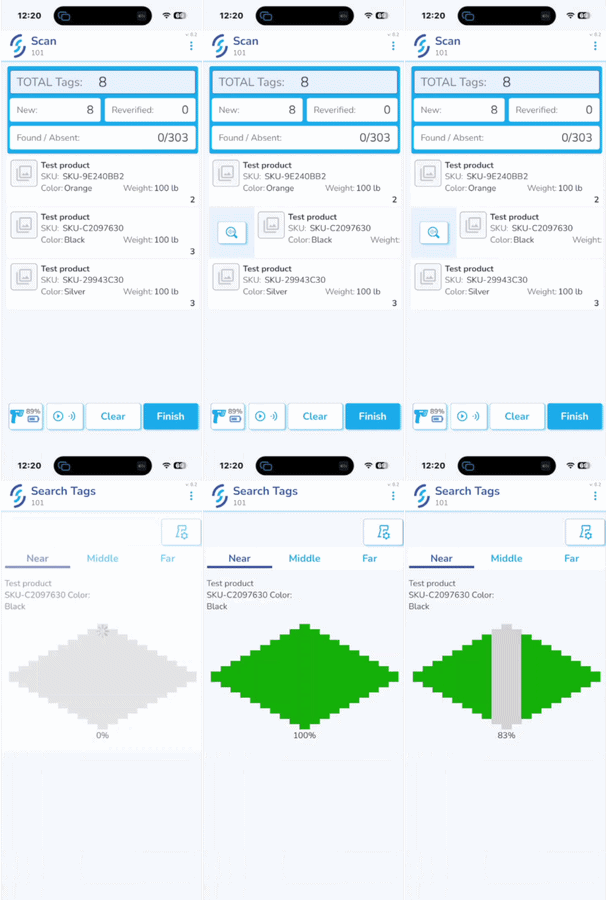
In addition to the standard Home Screen access, Search Tags can be accessed directly from the multiple locations, like Scan, Archive, Ship, Receive, EPC Read, Audi & Compare in the same way as it is shown in the example below:
This process can be used to search for unknown tags as well
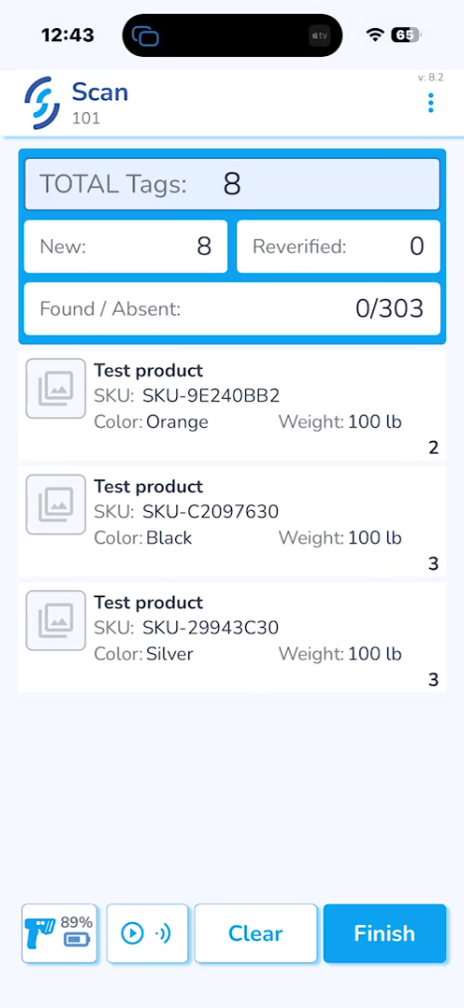
Swipe right on the product row.
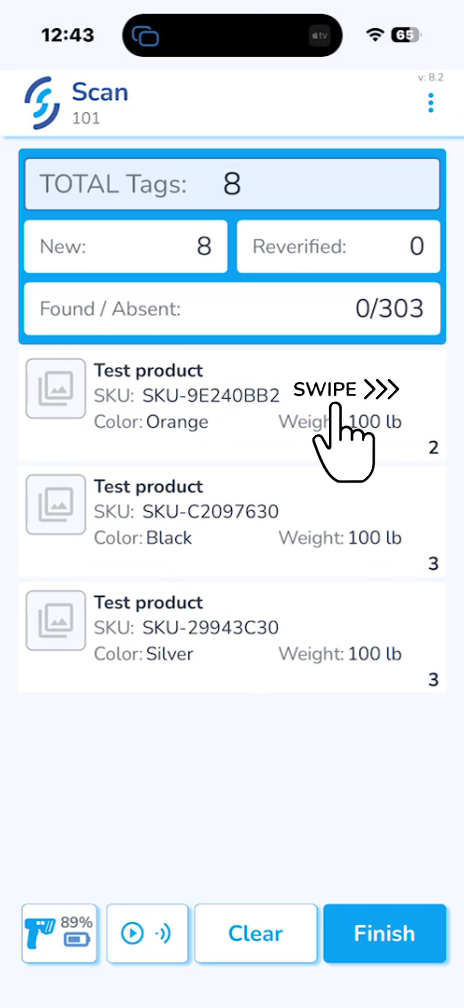
A small icon will appear to the left of the product. Press this icon to jump immediately into the Search Tags feature with that item pre-selected.
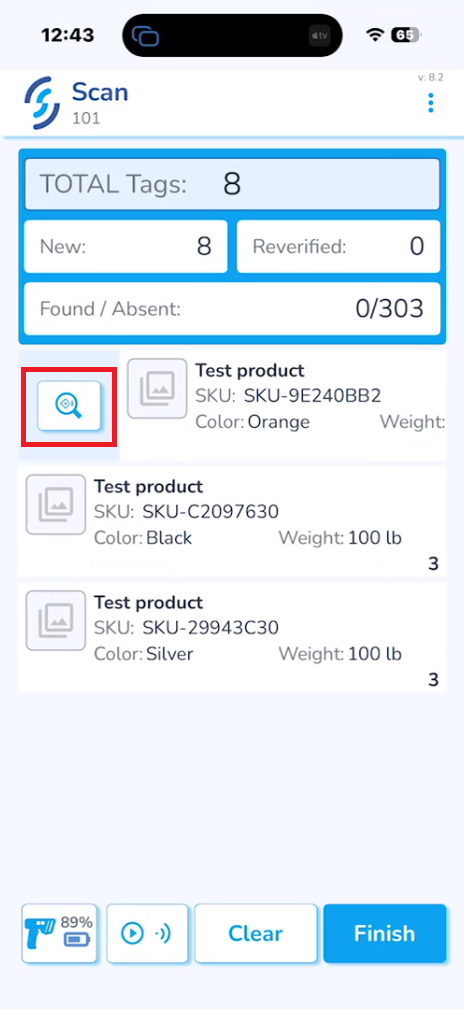
Pull the trigger on the reader. A signal will appear if the item is nearby.
Functionality of the Search Tags from the Scan menu:
If using Search Tags feature from EPC Read menu it will be searching specifically for tags and not the whole products