
Mobile App: Audit: Create and Start an Audit
Audit
The following outlines the process of creating, and performing audits for your inventory
- Open the Mobile App
- From the Home screen click the Audit button
Audit List
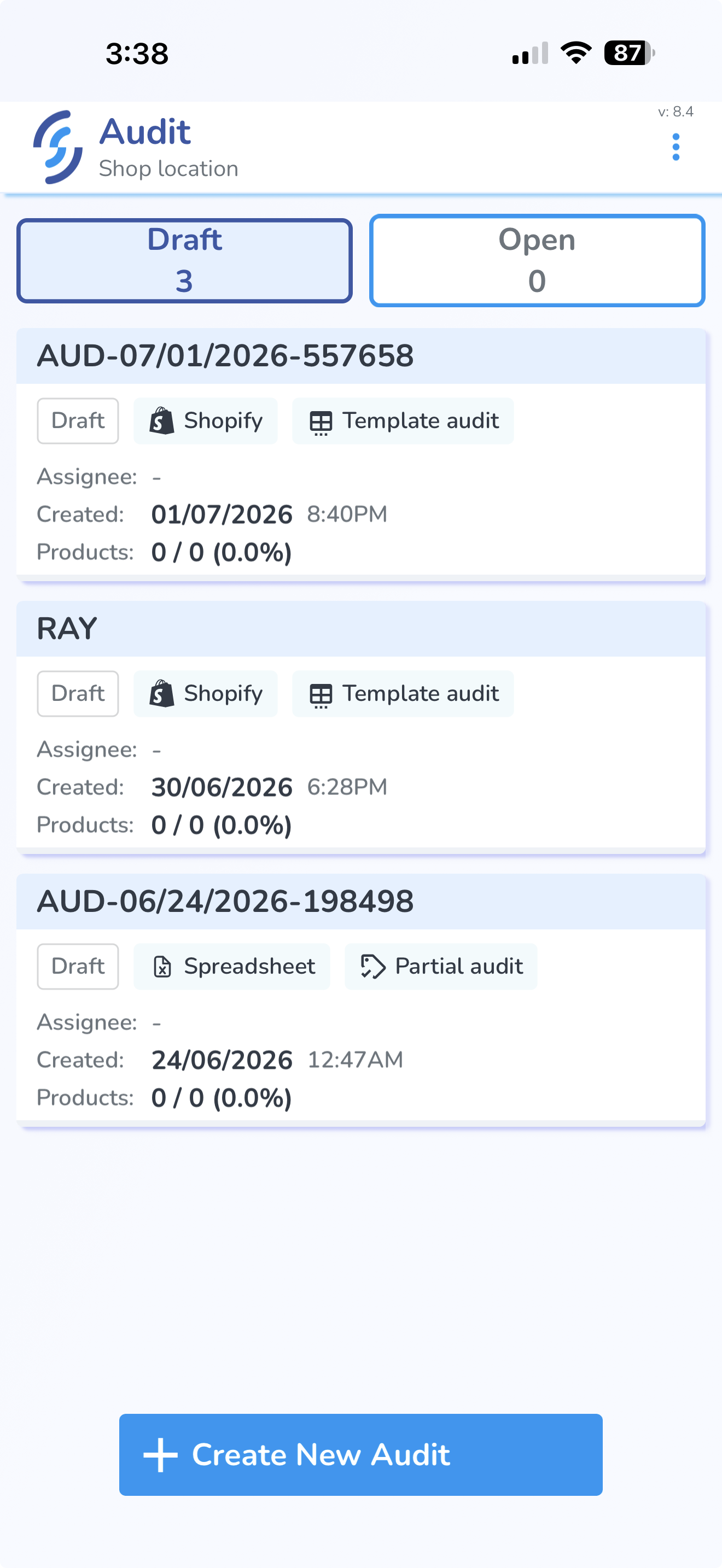
From the Audit List view the user will see all Draft and Open Audits, and can Create a New Audit.
Draft Audits are audits which have been created but not Started.
Open Audits are all audits which have been Started but not Completed.
Tap the + Create New Audit button on the bottom of the page to Create a new Audit.
Create New Audit
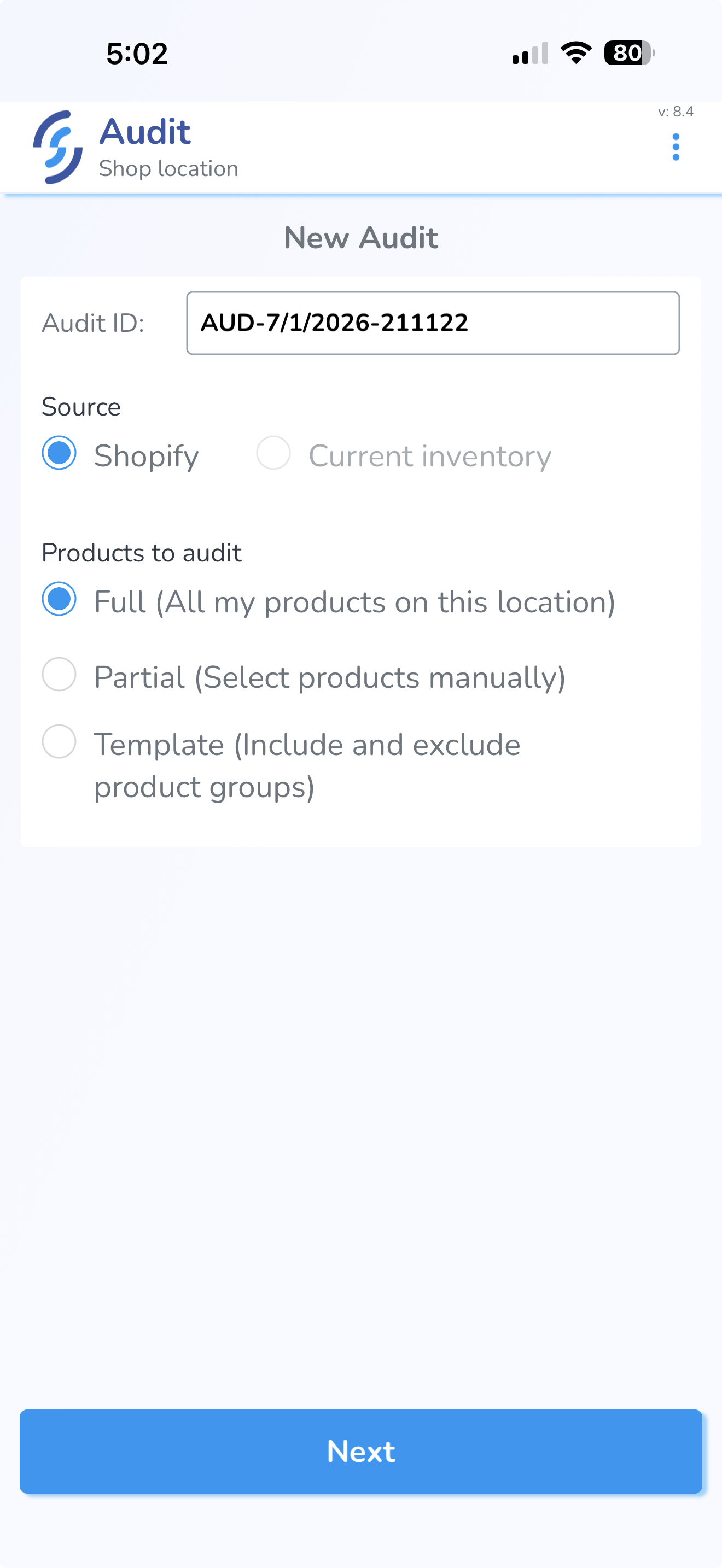
Enter the Name of the Audit, the Source of the comparison, the Location where the audit is being conducted, and the Products being audited
Name:
- This is a free text field to name the audit anything you choose. If you choose to keep this field blank the system will auto-generate an Audit Name for you.
Source:
- Integrated Platform: Shopify, Apparel Magic, etc.
- Manual Input: This allows the user to use their own Custom Source such as a spreadsheet
- Current Inventory: Not yet implemented.
Location:
- Choose the location where the audit is being conducted
Products:
- Full: All of the products in your location
- Partial: Specific products that you define
- Template: Products from a reusable template you define
Click "Create" to create
- The Audit will be created in Draft status.
Add Products to an Audit
Product inventory quantities are not displayed until you click Start Audit.
When you start an Audit, Simple RFID retrieves the latest inventory quantities from the selected Source (such as Shopify or Apparel Magic). These quantities become the baseline for comparing your RFID scan results during the Audit.
Important: Once you click Start Audit, the Audit is locked. You will no longer be able to add or remove products from the Audit.
Full Audit
If you selected Full, you do not need to manually add products.
When you click Start Audit, all active products from the selected Source and Location are automatically loaded into the Audit along with their current inventory quantities.
Partial Audit
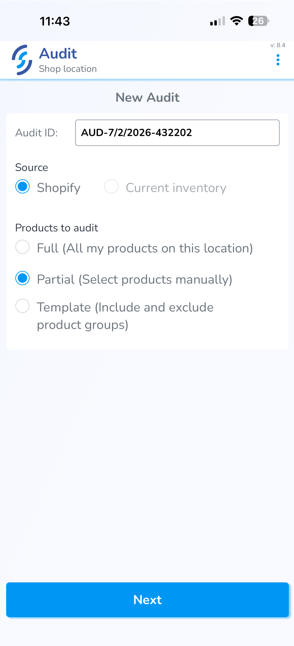
If you wish to manually add items to an Audit, select Partial.
Then, at the bottom of the screen, click "Next".
Select Products
Click "Select Products" to manually add items.
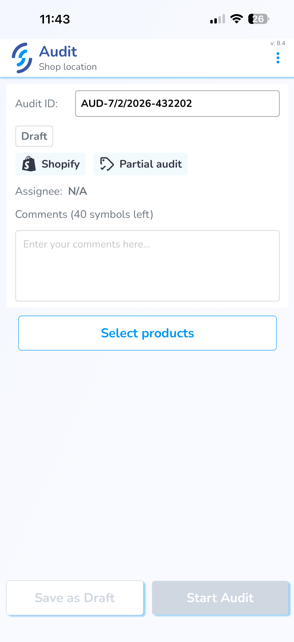
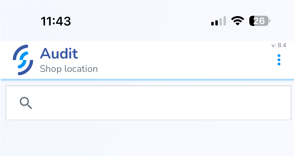
This will open the search window which will allow you to locate the desired items.
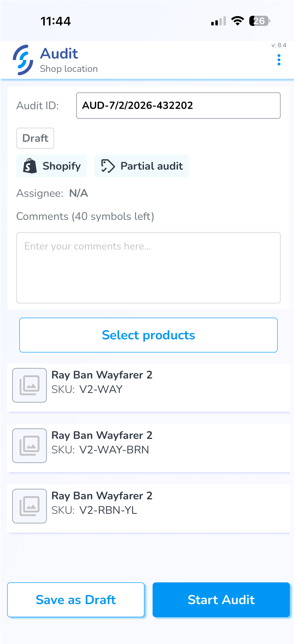
Once located, click on the Product to add.
Once all Products have been added, click "Start Audit"
Template Audit
If you selected Template, a window will open displaying your saved Audit Templates.
From this window, you can:
- View existing templates.
- Create a new template.
- Edit an existing template.
- Delete a template.
To create a new template or modify template settings, click the Configuration icon. This opens the Templates side panel, where you can view, create, edit, and manage your reusable Audit Templates.