# Mobile App: Audit: Create and Start an Audit

#### ****Audit****

****The following outlines the process of creating, and performing audits for your inventory****

- Open the Mobile App
- From the Home screen click the Audit button

![File (3).png](https://kb.simplerfid.com/uploads/images/gallery/2026-07/scaled-1680-/file-3.png)#### ****Audit List****

<span style="white-space: pre-wrap;">From the Audit List view the user will see all </span>****Draft**** <span style="white-space: pre-wrap;">and </span>****Open**** <span style="white-space: pre-wrap;">Audits, and can </span>****Create a New Audit.****

****Draft Audits****<span style="white-space: pre-wrap;"> are audits which have been created but not Started.</span>

****Open Audits****<span style="white-space: pre-wrap;"> are all audits which have been Started but not Completed.</span>

<span style="white-space: pre-wrap;">Tap the </span>****+ Create New Audit****<span style="white-space: pre-wrap;"> button on the bottom of the page to </span>****Create a new Audit****.

[![File (5).png](https://kb.simplerfid.com/uploads/images/gallery/2026-07/scaled-1680-/file-5.png)](https://kb.simplerfid.com/uploads/images/gallery/2026-07/file-5.png)

#### ****Create New Audit****

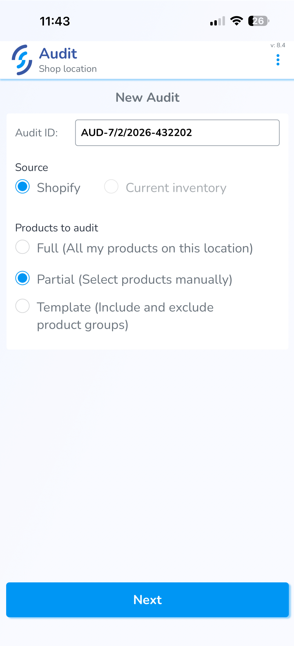
<span style="white-space: pre-wrap;">Enter the </span>****Name****<span style="white-space: pre-wrap;"> of the Audit, the </span>****Source****<span style="white-space: pre-wrap;"> of the comparison, the </span>****Location****<span style="white-space: pre-wrap;"> where the audit is being conducted, and the </span>****Products****<span style="white-space: pre-wrap;"> being audited</span>

****Name****<span style="white-space: pre-wrap;">: </span>

- This is a free text field to name the audit anything you choose. If you choose to keep this field blank the system will auto-generate an Audit Name for you.

****Source:****

- ****Integrated Platform:****<span style="white-space: pre-wrap;"> Shopify, Apparel Magic, etc.</span>
- ****Manual Input:****<span style="white-space: pre-wrap;"> This allows the user to use their own </span>[Custom Source](https://kb.simplerfid.com/books/software-web-portal/page/audit-custom-source-this-page-may-be-deprecated)<span style="white-space: pre-wrap;"> such as a spreadsheet</span>
- ****Current Inventory:****<span style="white-space: pre-wrap;"> Not yet implemented.</span>

****Location:****

- Choose the location where the audit is being conducted

****Products****:

- ****Full****: All of the products in your location
- ****Partial****: Specific products that you define
- ****Template****: Products from a reusable template you define

Click "****Create****" to create

- <span style="white-space: pre-wrap;">The Audit will be created in </span>****Draft****<span style="white-space: pre-wrap;"> status. </span>

[![File (6).png](https://kb.simplerfid.com/uploads/images/gallery/2026-07/scaled-1680-/file-6.png)](https://kb.simplerfid.com/uploads/images/gallery/2026-07/file-6.png)

---

### Add Products to an Audit

<p class="callout info"><span style="white-space: pre-wrap;">Product inventory quantities are not displayed until you click </span>****Start Audit****.</p>

<p class="callout info"><span style="white-space: pre-wrap;">When you start an Audit, Simple RFID retrieves the latest inventory quantities from the selected </span>****Source****<span style="white-space: pre-wrap;"> (such as Shopify or Apparel Magic). These quantities become the baseline for comparing your RFID scan results during the Audit.</span></p>

<p class="callout warning">****Important:****<span style="white-space: pre-wrap;"> Once you click </span>****Start Audit****, the Audit is locked. You will no longer be able to add or remove products from the Audit.</p>

### Full Audit

<span style="white-space: pre-wrap;">If you selected </span>****Full****, you do not need to manually add products.

<span style="white-space: pre-wrap;">When you click </span>****Start Audit****<span style="white-space: pre-wrap;">, all active products from the selected </span>****Source****<span style="white-space: pre-wrap;"> and </span>****Location****<span style="white-space: pre-wrap;"> are automatically loaded into the Audit along with their current inventory quantities.</span>

### Partial Audit

<span style="white-space: pre-wrap;">If you wish to manually add items to an Audit, select </span>****Partial****.

Then, at the bottom of the screen, click "Next".

<span style="white-space: pre-wrap;"> </span>[![image.png](https://kb.simplerfid.com/uploads/images/gallery/2026-07/scaled-1680-/Uwnimage.png)](https://kb.simplerfid.com/uploads/images/gallery/2026-07/Uwnimage.png)

##### ****Select Products****

Click "Select Products" to manually add items.

[![image.png](https://kb.simplerfid.com/uploads/images/gallery/2026-07/scaled-1680-/nOZimage.png)](https://kb.simplerfid.com/uploads/images/gallery/2026-07/nOZimage.png)
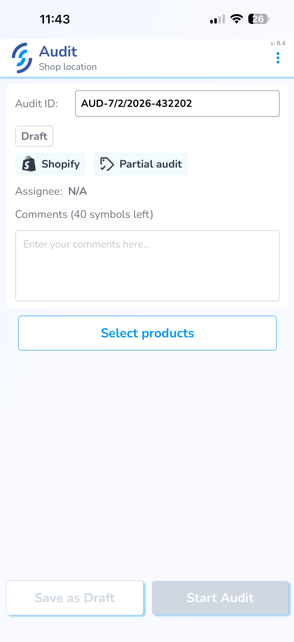
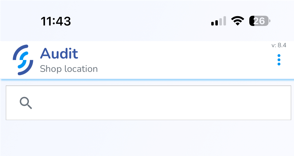
<span style="white-space: pre-wrap;">This will open the search window which will allow you to locate the desired items. </span>

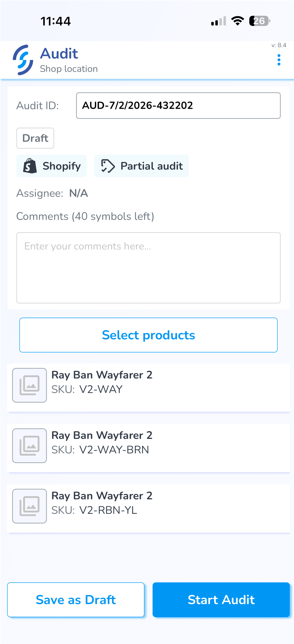
Once located, click on the Product to add.

[![image.png](https://kb.simplerfid.com/uploads/images/gallery/2026-07/scaled-1680-/tf4image.png)](https://kb.simplerfid.com/uploads/images/gallery/2026-07/tf4image.png)
Once all Products have been added, click "Start Audit"

[![image.png](https://kb.simplerfid.com/uploads/images/gallery/2026-07/scaled-1680-/YfLimage.png)](https://kb.simplerfid.com/uploads/images/gallery/2026-07/YfLimage.png)
### Template Audit

<span style="white-space: pre-wrap;">If you selected </span>****Template****, a window will open displaying your saved Audit Templates.

From this window, you can:

- View existing templates.
- Create a new template.
- Edit an existing template.
- Delete a template.

<span style="white-space: pre-wrap;"></span>

<span style="white-space: pre-wrap;">To create a new template or modify template settings, click the </span>****Configuration****<span style="white-space: pre-wrap;"> icon. This opens the </span>****Templates****<span style="white-space: pre-wrap;"> side panel, where you can view, create, edit, and manage your reusable Audit Templates.</span>