
Mobile App: Audit: Scan Items in Audit
Scanning Items from the Mobile App & Performing Control Scan
From the Mobile App users can scan items included in the Audit to identify any discrepancies between your partner system's inventory (such as Shopify or Apparel Magic) and the inventory detected through RFID scanning.
To begin scanning:
- Open the Audit page in the Simple RFID Mobile App.
- Select the Audit you want to perform.
- Tap Start Audit to begin scanning RFID tags.
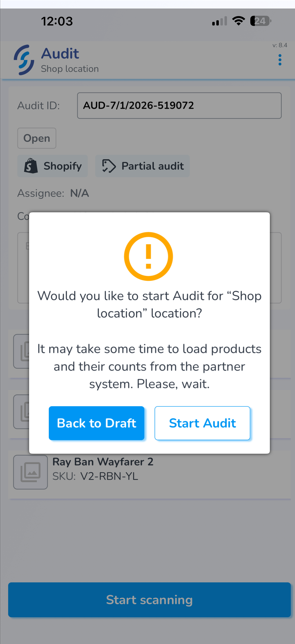
Initially items will load with 0 quantity and display as "Under Expected"
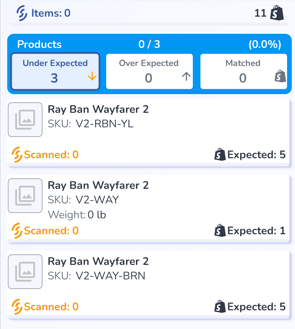
Under Expected, Over Expected, and Matched
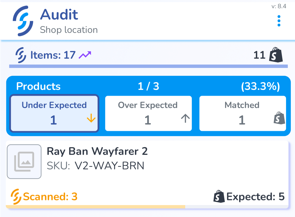
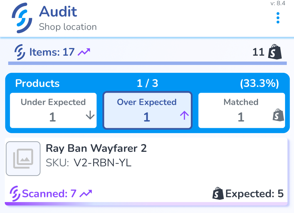
As products are scanned, each product is categorized based on the comparison between the Expected and Scanned quantities:
Under Expected – Fewer items were scanned than were expected.
Over Expected – More items were scanned than were expected.
Matched – The scanned quantity matches the expected inventory quantity.

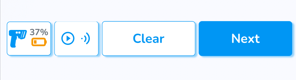
When you are satisfied with the scan results, click Next to proceed to the Upload prompt
Control Scan
From the Audit Summary screen the user will see the totals from their Audit.
Here they can choose to perform a Control Scan
What is a Control Scan? The Control Scan changes the settings in the app, putting the reader in "Density" scan mode which helps locate tags which were missed during the initial pass.
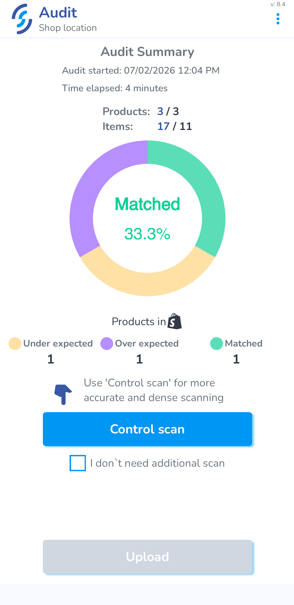
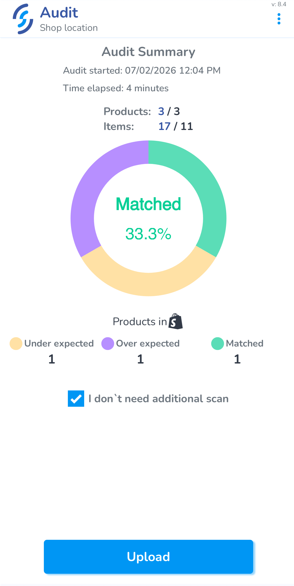
You may choose to bypass this Control scan and upload immediately by clicking the "I don't need additional scan" checkbox, then click "Upload" however we strongly recommend performing the Control Scan as it typically assists users to locate the missing 5-10% of items.
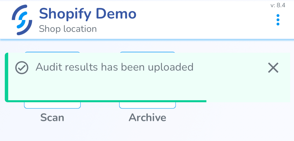
Once uploaded a toast pop-up message will appear indicating that the scans were uploaded successfully.
You may repeat the scan process as many times as necessary while the Audit remains Open. Additional scans are combined with previous scan results, allowing you to continue improving the Audit's accuracy.
Important: Clicking Complete Audit closes the Audit and prevents any additional RFID scans from being uploaded. Before completing the Audit, ensure all scans have been performed and uploaded successfully.
After the Audit has been Completed, navigate to the Resolve & Sync page on the Web Portal to review any inventory discrepancies, resolve outstanding issues, and sync the updated inventory quantities back to partner system.