
Print Labels from Spreadsheet Upload
You can upload a spreadsheet to create a print job.{{@52}}
Inside the 'Printing V2 > Create Print Job' page,clickthe upload button on the right

In the new pop up window,clickon the “Get Template” button

Fill outthe spreadsheet with the needed information and save itBack on the web,clickthe '+ Choose' button and select the file with the information you savedOnce the file has been selected,click'Import'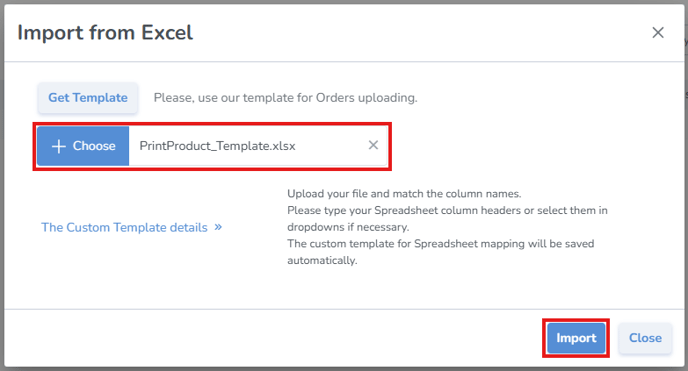
It will then add all the items to the print job, which you can print immediately or postpone (see Print Labels One-by-one).
Note: If any of the information from the uploaded spreadsheet is invalid, you'll see this validation error on that item in the list
A good practice is to scan the labels and upload them to a temporary location to verify that all tags have been printed correctly.When you have successfully printed a few out, learn how to Scan and Upload Tags.However, if the printer isn't working correctly, take a look at Printers or Printing Issues