
Printer Offline
If you're unable to print, follow these steps to troubleshoot. After each step, check to see if you can print; if you still can't, then move on to the next step.
Before you start, take the time to identify your printer model so you know which instructions apply to you.
Step 1: Make sure the printer isn't paused.
Printers will not print if they're paused. Depending on the model of your printer, you'll see different indicators if the printer is paused.
T800: "OFFLINE" in top-right corner
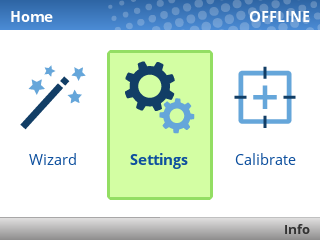
The OFFLINE text means the printer is paused. Unpause it using the green pause button [ I I ] below the screen.
ZD621R: Pause indicator above screen

If the PAUSE light is lit up yellow, the printer is paused. Unpause it using the Pause button [ I I ] to the right of the screen.
ZD500R: PRINTER PAUSED message flashing on screen
If the printer's screen flashes PRINTER PAUSED, unpause it using the Pause button [ I I ] to the right of the screen.
Step 2: Refresh the Print Client.
Using the Support Tool, select the Refresh Print Client option.
If you haven't installed the Support Tool, follow these instructions: https://kb.simplerfid.com/books/support-tool/page/installation
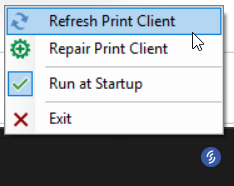
Do not select the "Repair Print Client" option unless instructed by our support team. Doing so will require us to manually re-assign your station, leaving you unable to print until then.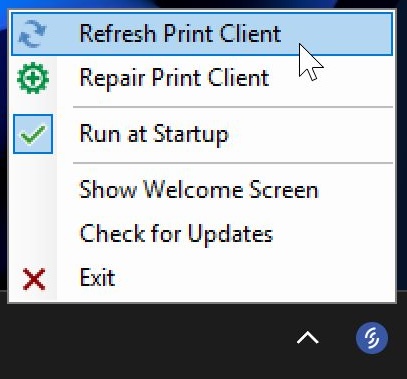
If you find that you have to Refresh the Print Client often, it may help to adjust the sleep settings on your host PC.
Step 3: Check the printer's USB connection.
Occasionally, the Host PC will put certain USB ports to sleep in order to save power.
Unplug the USB cable from both ends then plug it back in.
Step 4: Power cycle the printer.
Printers can encounter software errors which cause them to stop responding to the host.
Turn the printer off for 30 seconds, then turn it back on.
- T800: Turn the printer off using the power switch on the back.
- ZD621R: Turn the printer off by holding down the Power button to the left of the screen.
- ZD500R: Turn the printer off using the power switch on the back.
Step 5: Completely reinstallRepair the Print Client.
IfRepairing the Print Client still remains offline and all the steps above are exhausted, you can completely uninstall the Print Client and install it from scratch.
If this step is applied, your host PC will get unassigned and should be assigned again by our team. It will take some time
Make surethat you have Print Client installed:1)Go toWindows Control Panel > Programs and Features2)FindSimple RFID Print Client Updater(if absent, pleaseinstall)ReinstallPrint Client:1)Go toWindows Control Panel > Programs and Features2)UninstallSimple RFID Print Client Updater3)Go toC:/ProgramData4)Removethe "Simple RFID" folder5)Download andinstall(seewillInstallingdownloadPrintandClient)run NotifytheSimpleinstallerRFIDin
Email: support@simpleRFID.com1. Please make "Connectsure Printer"you are using the subject2.latest In the body of your email include:• The name of your company• The Device nameversion of the hostSupport PC/Mac•Tool; Nameprevious ofversions thewill location wherereset your printerstation ispairing, connected( This refers to the physical location where the printer is located (e.g. which warehouse or store the printer is in). If you are setting up your printer before your first training, you can disregard this step asmeaning you will notneed haveto anycontact locationssupport setto upre-attach yet.your )station if you use the Repair function on those older versions.
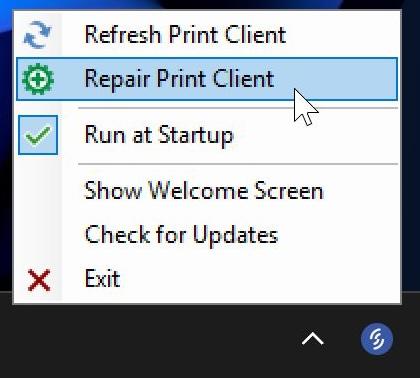
Wait a few minutes after the repair process completes for your station to come online. If you continue to face issues, please contact support.