Printing Issues
- Reset Your Printer to Factory Defaults
- Cross Encoding
- VOIDS
- Printing Alignment Issues
- Perform a Calibration
- Printer/Print Station is Offline
- Printer Offline
- Adjusting the Sleep settings on your host PC
- macOS: Troubleshooting the Print Client
- Uninstalling the Support Tool
- Troubleshooting USB Connection
- Advanced: Manual Calibration
Reset Your Printer to Factory Defaults
If you have a printer error due to running out of tags or ribbons, or if it prints "VOID" after calibration, you will want to reset the printer to factory defaults.
This article outlines the process of resetting each printer model to factory default settings.
Printronix Printers
Unlike Zebra printers, Printronix printers require extra configuration after resetting to factory defaults; for this reason, we don't recommend this as a solution for printing issues.
Please contact support if you are experiencing an issue with your Printronix printer that is not solved by calibrating.
Reset the printer to Factory Defaults
1. Turn off the printer
2. Hold Left and Bottom arrow buttons
3. Turn on the printer while holding these buttons
4. Release the buttons after 10-15 seconds after turned on
5. Press Enter key
6. Go to Misc.tools
7. Select Erase All NVRAM
8. Turn the printer off, wait about 10-15 seconds, and then turn it back on.
9. Select the country if asked (e.g. EU)
10. Press green "Pause" button twice if "Redo Calibration" error occurs
11. Configure your printer according to this article: Configuring Your Printronix Printer after a Reset
12. Calibrate the printer (follow this article Calibrate the Printer from the Web Portal or Calibrate manually (Calibrate the printer directly))
Zebra Printers
Desktop Models
ZD500R
- After starting the printer, press the home button
- Using the arrows, navigate to the right and select the “Tools” menu
- In the Tools menu, press the right arrow six times until you see “LOAD DEFAULTS FACTORY”
- Click the button under “LOAD”
- This will reset the printer to factory defaults
- Recalibrate the printer
ZD621R
- After starting the printer, use the touchscreen to click "Menu"
- On the left side of the screen, click "Settings"
- Scroll down and click "Restore Defaults"
- Click on "Restore Printer" and accept the prompt
- This will reset the printer to factory defaults
- Recalibrate the printer
Industrial Models
ZT410R
- After starting the printer, press the Home button
- Using the arrows, navigate to the right and select the Tools menu
- In the Tools menu, press the right arrow six times until you see “LOAD DEFAULTS FACTORY”
- Click the “LOAD” button
- This will reset the printer to factory defaults
- Recalibrate the printer
ZT411R
- After starting the printer, use the touchscreen to click "Menu"
- Click on "Settings"
- Click "Restore Defaults"
- Click on restore printer and accept the prompt
- This will reset the printer to factory defaults
- Recalibrate the printer
R110Xi4
- After starting the printer, use the touchscreen to click "Settings"
- Turn the printer off. Then hold down the Pause & Feed buttons while turning on the printer. Keep these two buttons pressed until the “BLOCK” message appears, releasing them
- This will reset the printer to factory defaults
- Recalibrate the printer
Cross Encoding
What is cross encoding? It's when a printer prints the
VOIDS
If you see the work "VOID", or a cross-hatch pattern printed across your labels, you will need to perform a calibration.
The default is to only allow Printers to print 3 VOIDS before pausing.
An RFID printer may mark a label as VOID when it encounters issues during the encoding or verification process of the RFID tag. Here are the main reasons this can happen:
RFID Chip Encoding Failure
- The printer tries to write data to the RFID chip, but the write operation fails.
- Causes:
- Defective RFID chip.
- Poor tag placement or misalignment.
- Electrical interference.
RFID Chip Read Failure (Post-Write Verification)
- After encoding, the printer attempts to read back the tag to verify the data was written correctly.
- If the read fails or the data doesn't match, the printer voids the label.
- Common causes:
- Weak tag signal.
- Tag too far from the antenna in the printer.
- Shielding or interference from surrounding materials.
Tag Not Detected
- The printer expects an RFID tag in a label but doesn't detect one.
- This happens when:
- The label lacks an inlay (non-RFID label mistakenly loaded).
- The inlay is out of position relative to the antenna.
- The tag is outside of the printer’s RFID read/write field.
Dirty or Damaged Printhead or Antenna
- A dirty or misaligned antenna can lead to failed encoding.
- This sometimes triggers the VOID process, especially on sensitive settings.
Printer Settings or Configuration Issues
- Mismatched label size, tag type, or encoding format (e.g., wrong EPC scheme).
- Incorrect RFID calibration.
- GS1 SGTIN-96 format errors if strict compliance is required.
Firmware or Software Errors
- If the label format or encoding instruction sent to the printer is corrupted or incomplete, it may cause a void.
- Certain printers have logic to void tags if encoding instructions are incompatible.
Lock Status or Tamper Detection
- If the tag has been previously locked or has tamper detection enabled, the printer may not be able to encode it and will void the label.
If you're seeing excessive VOID tags, it's usually best to:
- Run a calibration on the printer.
- Check the tag placement and ensure that the sensors are in the correct position.
- Ensure the information being encoded does not exceed the tag's EPC memory bank
- Zebra printers only: Reset the printer to factory defaults.
Printing Alignment Issues
Perform a Calibration
Resolve VOIDs and labels shifting by performing a calibration. There are two way to accomplish this. Please refer to our Calibration Guide.
Printer/Print Station is Offline
Printer Offline
If you're unable to print, follow these steps to troubleshoot. After each step, check to see if you can print; if you still can't, then move on to the next step.
Before you start, take the time to identify your printer model so you know which instructions apply to you.
Step 1: Make sure the printer isn't paused.
Printers will not print if they're paused. Depending on the model of your printer, you'll see different indicators if the printer is paused.
T800: "OFFLINE" in top-right corner

The OFFLINE text means the printer is paused. Unpause it using the green pause button [ I I ] below the screen.
ZD621R: Pause indicator above screen

If the PAUSE light is lit up yellow, the printer is paused. Unpause it using the Pause button [ I I ] to the right of the screen.
ZD500R: PRINTER PAUSED message flashing on screen
If the printer's screen flashes PRINTER PAUSED, unpause it using the Pause button [ I I ] to the right of the screen.
Step 2: Refresh the Print Client.
Using the Support Tool, select the Refresh Print Client option.
If you haven't installed the Support Tool, follow these instructions:
Windows: https://kb.simplerfid.com/books/support-tool/page/installation
Mac: https://kb.simplerfid.com/books/support-tool/page/support-tool-installation-mac
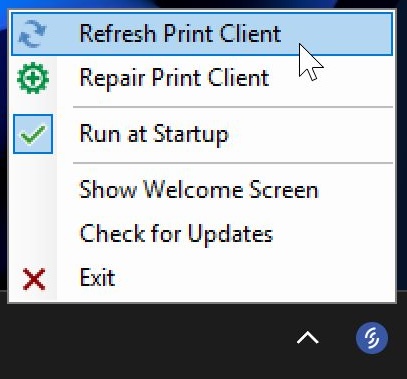
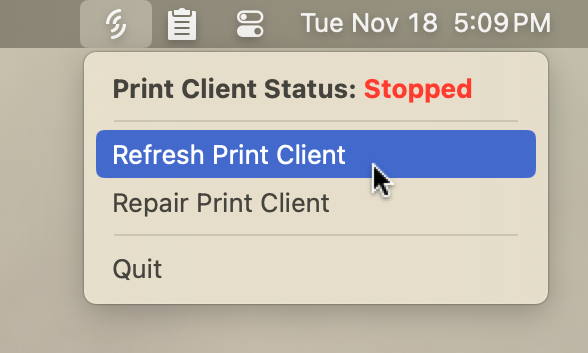
If you find that you have to Refresh the Print Client often, it may help to adjust the sleep settings on your host PC.
Mac:
https://kb.simplerfid.com/books/support-tool/page/refresh-print-client-mac
Step 3: If using USB, check the printer's USB connection.
Occasionally, the Host PC will put certain USB ports to sleep in order to save power.
Unplug the USB cable from both ends then plug it back in.
Please make sure that no USB hubs are used.
If you suspect or find your cable damaged, you can take the cable (USB A>B) from a regular inkjet/laser printer.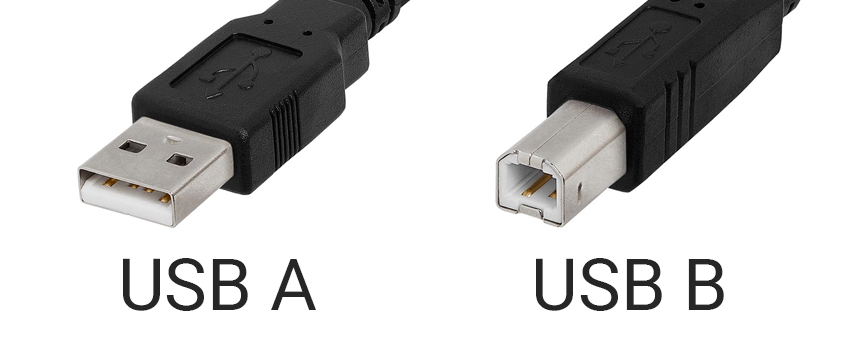
Step 4: Power cycle the printer.
Printers can encounter software errors which cause them to stop responding to the host.
Turn the printer off for 30 seconds, then turn it back on.
- T800: Turn the printer off using the power switch on the back.
- ZD621R: Turn the printer off by holding down the Power button to the left of the screen.
- ZD500R: Turn the printer off using the power switch on the back.
Step 5: Repair the Print Client.
Repairing the print client will download and run the installer in order to write over any parts of it that may have been damaged. This is particularly useful if the Refresh Print Client option throws an error.
Please make sure you are using the latest version of the Support Tool; previous versions will reset your station pairing, meaning you will need to contact support to re-attach your station if you use the Repair function on those older versions.

Mac:
https://kb.simplerfid.com/books/support-tool/page/repair-print-client-mac
Wait a few minutes after the repair process completes for your station to come online. If you continue to face issues, please contact support.
Adjusting the Sleep settings on your host PC
If your host PC keeps disconnecting from the Simple RFID website it's likely that your host PC is going to sleep. Here's how to prevent it.
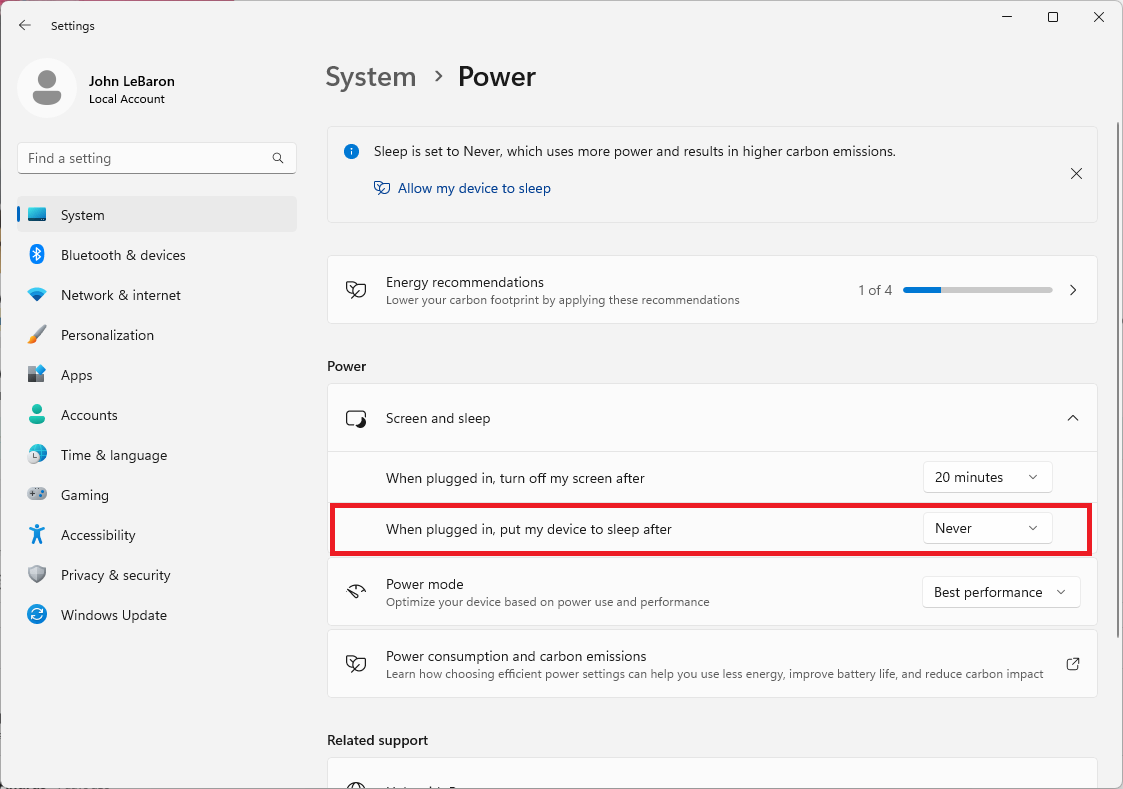
Windows 11
- From the Windows start menu, search "Sleep" and click the following result:
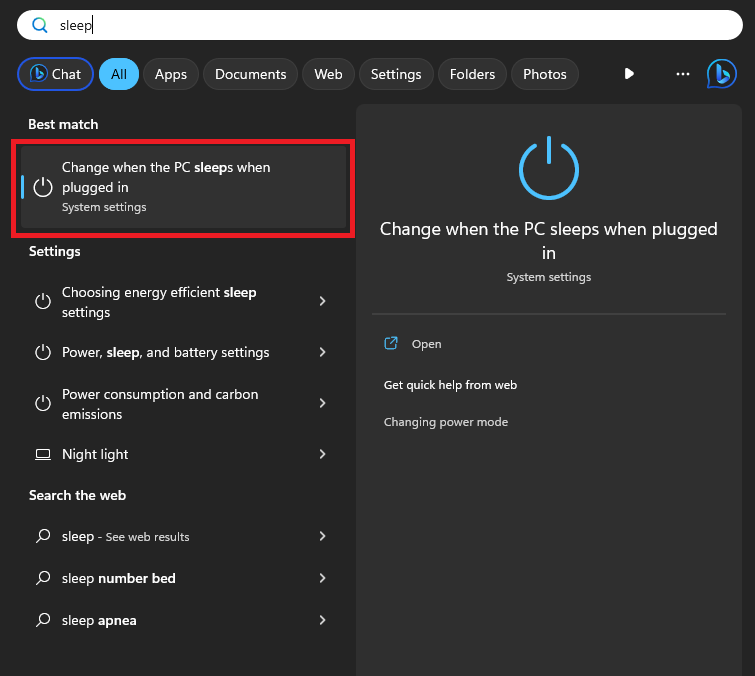
- In the Settings window that appears, set "When plugged in, put my device to sleep after" to "Never":
Windows 10
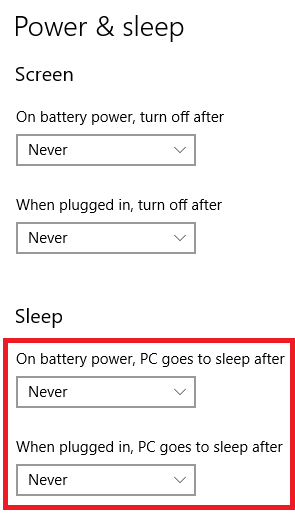
- From the Windows start menu search "Sleep"
- Then in the Settings section set the Sleep options to "Never"
macOS: Troubleshooting the Print Client
UPDATE: The macOS version of the Support Tool has been released, which provides quick access to Refresh and Repair functions. In most cases you should use the Support Tool rather than the commands below.
Introduction
The macOS Print Client is currently in beta. As such, it has a couple of known issues:
- The print client will not run if certain USB storage devices are plugged into the Mac
- The print client does not support Printronix printers via USB; use a network connection
Troubleshooting
The following commands can be copy/pasted into Terminal to take action on the print client.
These commands require Administrator access to the Mac. When using sudo, you'll periodically be prompted for your password in order to escalate your privileges. These commands can also be used in a root shell by omitting sudo.
As always, please exercise caution when using the terminal, especially with elevated privileges. Make sure you fully understand any command you're using, otherwise you may damage your system.
Get ClientId from PrintClientDatabase
The ClientId is the station's unique identifier when communicating with our servers. This value can be useful for identifying a station when troubleshooting.
sudo sqlite3 /var/root/Library/Application\ Support/Simple\ RFID/PrintClient/PrintClientDatabase.db "SELECT ClientId from RegistrationData"Refresh Print Client
sudo launchctl kickstart -k system/com.simplerfid.printclientThe print client (and its updater) are handled as services by launchd in macOS. The above command instructs launchd to refresh the print client by "kickstarting" the process, with -k indicating that the process should be killed if it is already running.
If you receive the error Could not find service "com.simplerfid.printclient" in domain for system, the print client is not installed, or has been manually disabled. Install or re-enable the print client to continue.
Disable Print Client
sudo launchctl bootout system/com.simplerfid.printclient
sudo launchctl bootout system/com.simplerfid.printclient.update
sudo launchctl bootout system/com.simplerfid.printclient.updater.selfupdate
These three commands stop the print client and its updater processes, and unload the services from the system domain. This will prevent the print client from starting or updating automatically.
While not recommended, these commands can also be used independently of each other to control specific components.
Re-enable Print Client
sudo launchctl bootstrap system /Library/LaunchDaemons/com.simplerfid.printclient.plist
sudo launchctl bootstrap system /Library/LaunchDaemons/com.simplerfid.printclient.update.plist
sudo launchctl bootstrap system /Library/LaunchDaemons/com.simplerfid.printclient.updater.selfupdate.plist
These three commands load the print client and updater services back into the system domain, effectively re-enabling them all. Since these services are not currently in the domain, we provide the full path to each service's plist.
After this is complete, launchd will continue launching these services automatically on their respective intervals.
Run Print Client manually
(cd "$(printf '%s\n' /Applications/SimpleRfid/PrintClient.[0-9]* | sort -V | tail -n1)" && ./SimpleRFID.PrintClient)The parentheses start a subshell where we temporarily cd into the target directory, run the command, and then automatically return to the original directory when the subshell exits.
The print client should function exactly the same as if it was started by launchd, except you may be able to see some output from the application, for troubleshooting purposes. If you close the terminal window or press Ctrl-C, the process will terminate.
Uninstall Print Client
: # Unload the services from the system domain
sudo launchctl bootout system/com.simplerfid.printclient
sudo launchctl bootout system/com.simplerfid.printclient.update
sudo launchctl bootout system/com.simplerfid.printclient.updater.selfupdate

: # Delete the plist files defining the services
sudo rm -f /Library/LaunchDaemons/com.simplerfid.printclient.plist
sudo rm -f /Library/LaunchDaemons/com.simplerfid.printclient.update.plist
sudo rm -f /Library/LaunchDaemons/com.simplerfid.printclient.updater.selfupdate.plist

: # Delete the SimpleRfid folder in /Applications containing the print client and updater
sudo rm -rf /Applications/SimpleRfid

: # Delete temporary files
sudo rm -rf "/tmp/Simple RFID"

: # Delete the receipts for previous installs
pkgutil --pkgs | grep com.simplerfid.printclient.updater | xargs -n1 sudo pkgutil --forget

: # OPTIONAL: Delete the Application Support data for the print client
: ## This will require you to contact support to re-attach the station to your
: ## account if you reinstall the print client in the future.
sudo rm -rf "/var/root/Library/Application Support/Simple RFID"
These commands should remove any trace of the print client from your system. You can always install the print client again using the installer from the Resources page on the web portal.
Download and install Print Client via command line
: # Download the latest installer from GitHub
curl -L0 -o /tmp/PrintClient.Updater.arm64.pkg https://github.com/simplerfid/printclient-updater/releases/latest/download/PrintClient.Updater.arm64.pkg

: # Run the installer
sudo installer -pkg /tmp/PrintClient.Updater.arm64.pkg -target /
These commands download the latest installer and run it from the command line with no GUI.
Depending on your internet speed, your terminal may sit for a while at installer: Installing at base path / while the updater downloads the latest print client files. When the process is complete, you should see installer: The install was successful.
Uninstalling the Support Tool
It may be necessary to reinstall the Support Tool to ensure you have the latest version on your computer.
To do this, log in to the computer that has the Support Tool installed. Then go to Settings > Apps > Installed apps
In the search bar that says "Search apps", type in "Simple RFID Support Tool".

Older versions of the Support Tool were named "Print Client Refresh Tool". If "Simple RFID Support Tool" does not pop up, then try this name. If neither of the names shows anything, then go straight to downloading the Support Tool here: https://kb.simplerfid.com/books/support-tool/page/support-tool-installation-windows
Click on the 3 dots on the right, and select "Uninstall". Now install the support tool and refresh the Print Client.
Please note that this will create a new Printer Station, so you will need to contact support here: https://support.simplerfid.com/support/tickets/new
Troubleshooting USB Connection
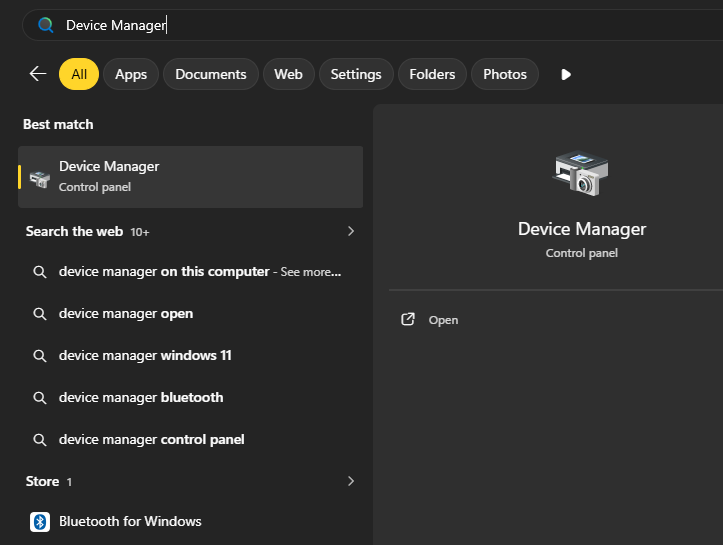
In the Windows Search bar, type Device Manager and open it.
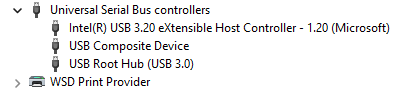
Expand the Universal Serial Bus controllers section in the Device Manager window.

Right-click the device with the warning icon, which is USB Root Hub (USB 3.0), and click Disable device.
Wait a couple of seconds for the same device to appear with the "down arrow" icon, then right-click it and select Enable Device.

a couple of seconds for the same device to appear with the "down arrow" icon, then right-click
Now, the USB Root Hub (USB 3.0) should appear with the regular icon and work properly.
Advanced: Manual Calibration
Manual Calibration: ZD500R
- Press the button under the HOME symbol.
- Use the left-right arrow keys to select TOOLS, then press ENTER.
- Use the left-right arrow keys to navigate to MANUAL CALIBRATION, then press START.
- The printer should now say LOAD BACKING, PRINTER PAUSED.
- Open the printer, remove labels from the first three inches of backing. Roll the labels back so that the empty backing is directly over the media sensor. Make sure there is still some backing over the platen roller.


- Close the printer.
- Press the Pause button to begin the calibration.
- The printer will take a few seconds to measure the sensor through the empty backing.
- When the printer says RELOAD ALL, press Pause again.
- The printer will feed labels out until it identifies the gap successfully.
- The manual calibration is now complete. Press the button under the HOME symbol twice to return to the main screen.