
Shopify Product Import: Resolving Import Issues
Simple RFID requires a unique value from the partner system be available to map data. This unique value can be either a SKU or Barcode.
Previously there was no easy way to identify product import issues, or fix them. This new feature seeks to enable users to quickly identify and resolve these import errors themselves.
Enable New Portal (beta)
First, to see the new Product import page you must request to enable New Portal (beta) via the Customer Profile > Shopify Settings. This must be completed from the Simple RFID team.
Once enabled the Products tab will be changed and will include a "platform" drop-down (Shopify).
Products
The products tab contains a list of all products which exist in YOUR Shopify catalog, regardless of if they have officially been created in Simple RFID. The reason the list does not contain all items is, Simple RFID requires a unique value to be assigned which can be either SKU or Barcode to create a product. This unique value must be unique for each variant created.
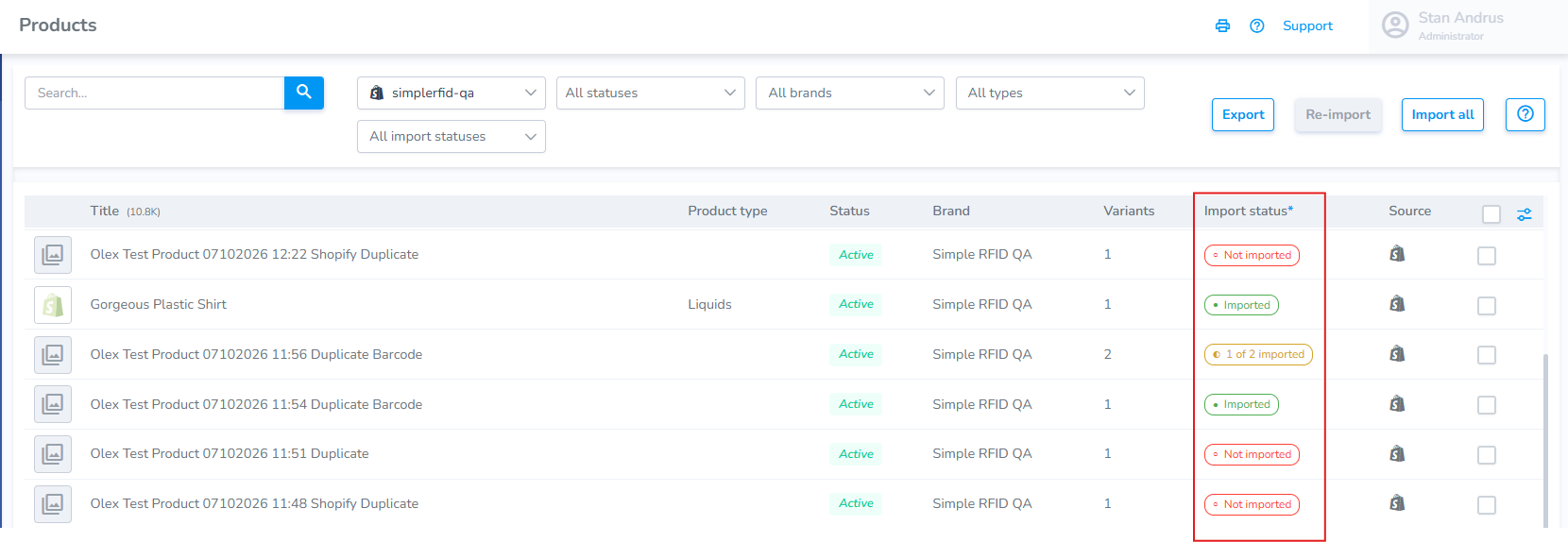
Products are typically unable to be imported for 2 reasons:
- The Product Variant has a duplicate value (two or more variants are created with the same SKU or Barcode)
- The Product Variant is missing a unique value (SKU or Barcode) assigned
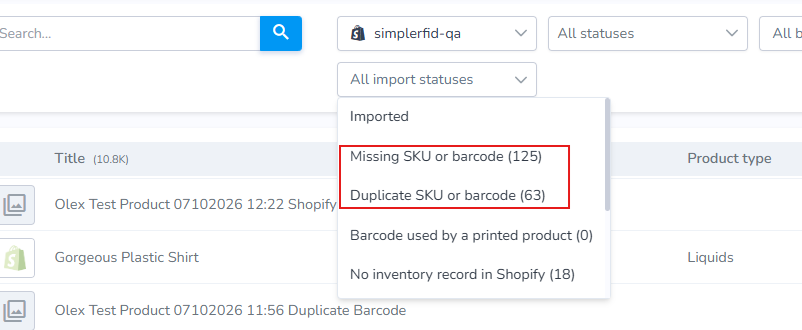
Use the "All Import Statuses" filter to view the errors and filter the desired option. The two most common reasons appear at the top.
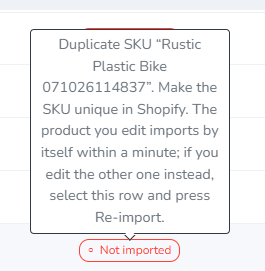
Hover over the Import Status flag to see required action.
Click on the Shopify icon on the far right to open the variant in Shopify to make the necessary changes.

Missing Value
If the variant is missing a required value (SKU or Barcode):
- Click the Shopify icon hyperlink to open the associated product.
- From inside Shopify add the missing SKU or Barcode.
- Click Save.
Result: the product is imported and ready for use.
Duplicate SKU
If the variant is a duplicate of another SKU or Barcode in your Shopify account:
- Hover over the Import Status to see the required action.
- Click the Shopify icon hyperlink to open the associated product.
- Copy the SKU or Barcode (whichever is duplicated)
- Search that SKU or Barcode in Shopify
- Locate the variant you wish to change the SKU or Barcode, then update it so that it is not a duplicate.
- Click Save.
Result: the product is imported and ready for use.