
Shopify Users: Creating, Printing, Verifying Receipt of Purchase Orders in Shopify
If you fail to see Purchase Orders in the Web Portal, you may need to update the permissions inside the Simple RFID Shopify App. Please open the app and confirm before proceeding. 
Attn: If you receive product directly into Shopify from another source you'll want to keep this setting disabled. Enabling it and verifying orders will add the scanned quantity to Shopify again.
Inside your Settings panel (Customer Profile) you'll find "Shopify Settings." Here you must enable the setting to "Receive purchase orders in Shopify on verify." 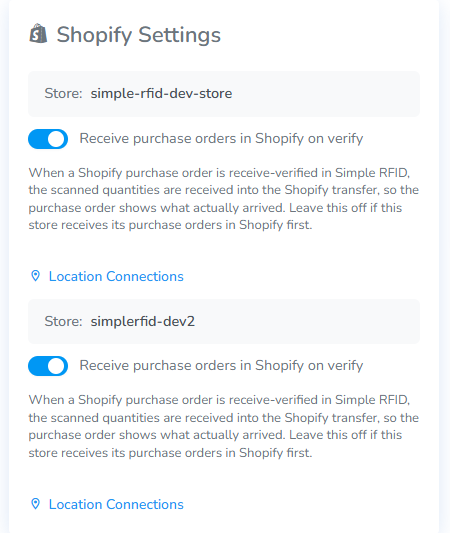
Steps:
Creating a purchase order
The first step takes care of itself. Simply create the PO in Shopify and they will automatically copy over to Simple RFID.
Printing RFID stickers
Now, with the PO appearing in Simple RFID Orders > Purchases section:
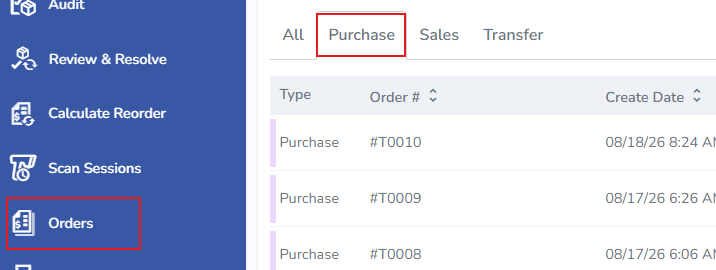
- Locate the desired order, then click on it to open it
- Inside the purchase order view, click the Print button in the right corner
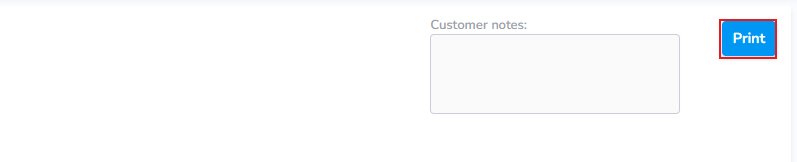
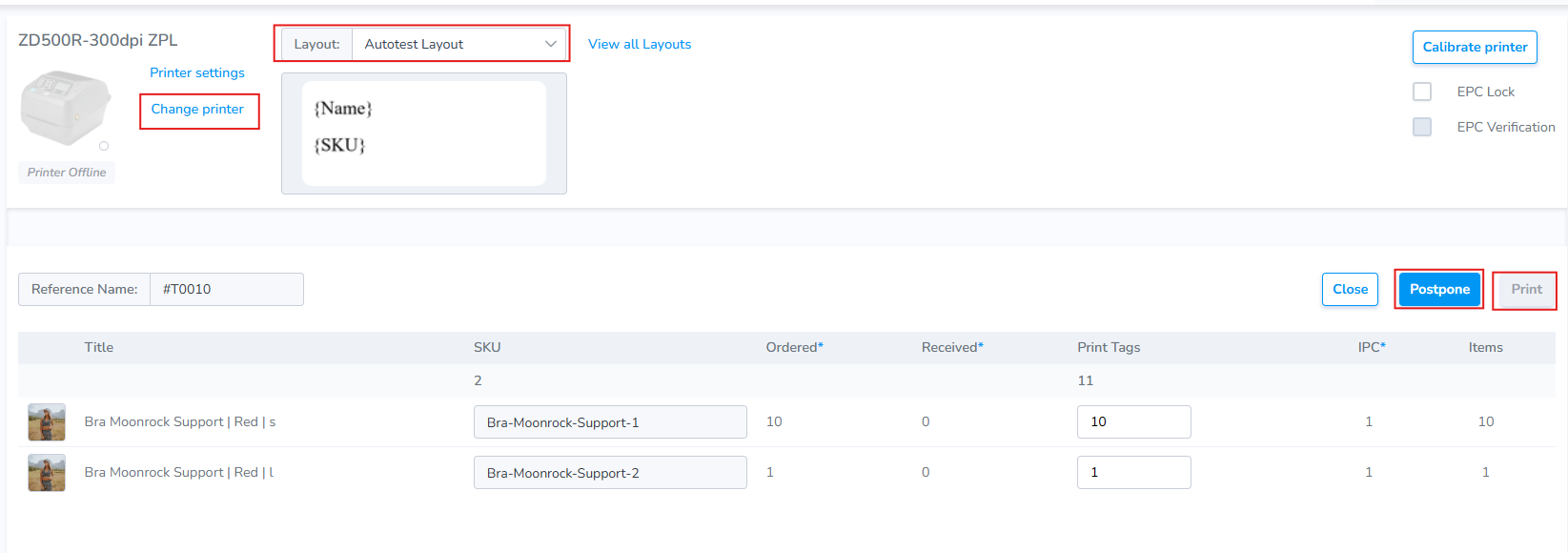
This opens the print window with the PO details loaded.
- Select the
desiredprinter & label layout you wish to use- The printer must be Online to print
- Click "Print" to initiate the job immediately, or "Postpone" to send the job to the printer in Paused status
LabelsThe labels will beginbe to printprinted
ApplyMobile LabelsApp: to Items
Print the job completely.Next, affix the labels to the corresponding products
Verify Order Completeness
- Next, open the mobile app and
gonavigate to the location where you are receiving the newproduct to.products. - Click on the Receiving tab.
- Click on the Products tab
- Click
Verify Order"Verify" - Scan Tags
- Upload
You can reference the complete flow using this article found in the Mobile Software section.
Print Missing Labels
If more tagslabels are needed, open the Web Portal and navigate the order, then click "Print." Here, you'll see the items which have already been uploaded,verified, against the ordered count, and will suggest a print job for any difference.
Repeat Verification Process
Finally, open the mobile app and repeat the steps.
Result: Your Shopify order status will be updated and the scanned quantities will be reflected as Received.