
Using the Point of Sale Interface
Access the Point of Sale interface here: beta.pos.simplerfid.com
The Point of Sale interface is currently in beta. Currently, the only function of this interface is to archive tags which are read by a connected scanner in HID mode, such as a Keonn AdvanPay.
Further integration with third-party point of sale software, such as Shopify and Square, is planned but not implemented yet.
Logging in
Log in using the same credentials you use for the Simple RFID web portal and mobile app.
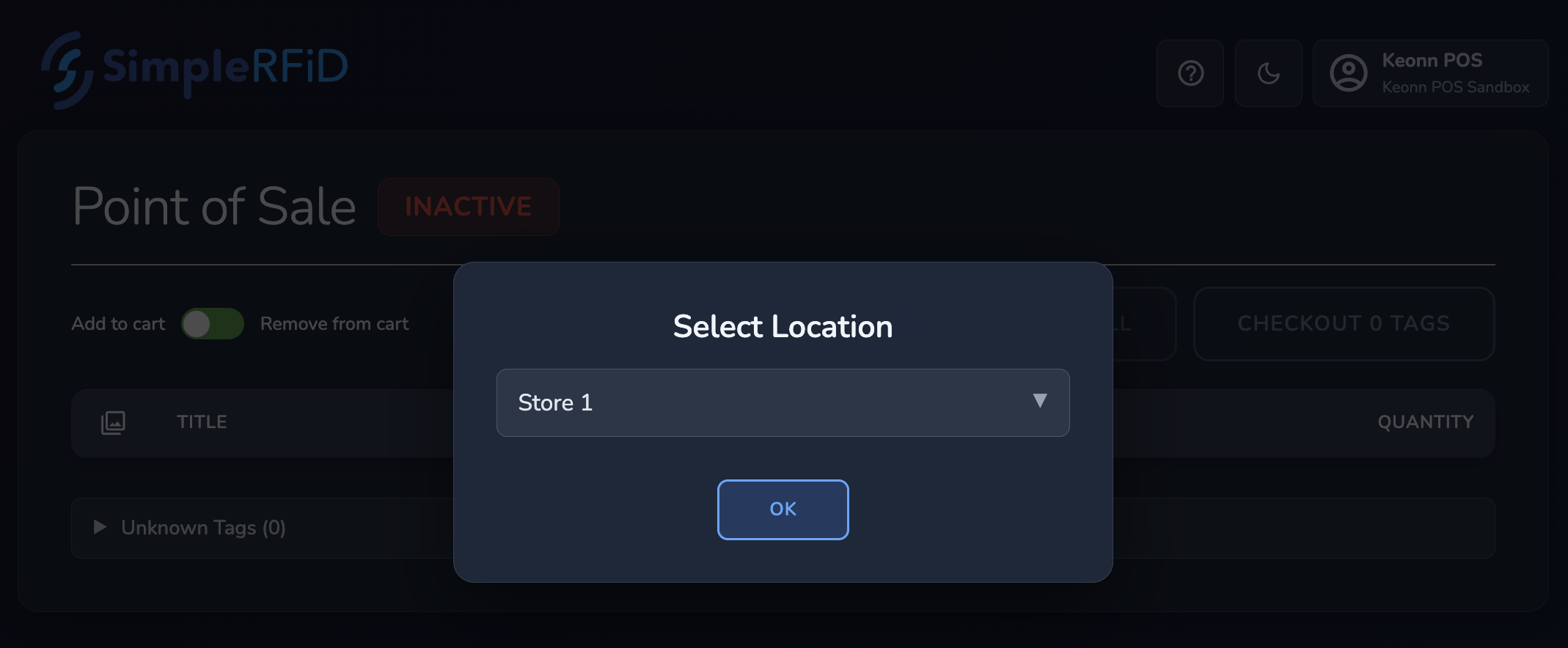
When you first log in, you'll be asked to select a location. Select the location where the scanner should be removing tags from.
Overview
The app captures keystrokes from a connected HID (Human Interface Device). The scanner, in HID mode, will send keystrokes as if it was a keyboard. As you scan tags, they will be added to the list. Then, the Checkout button will archive the tags (remove them from your active inventory.
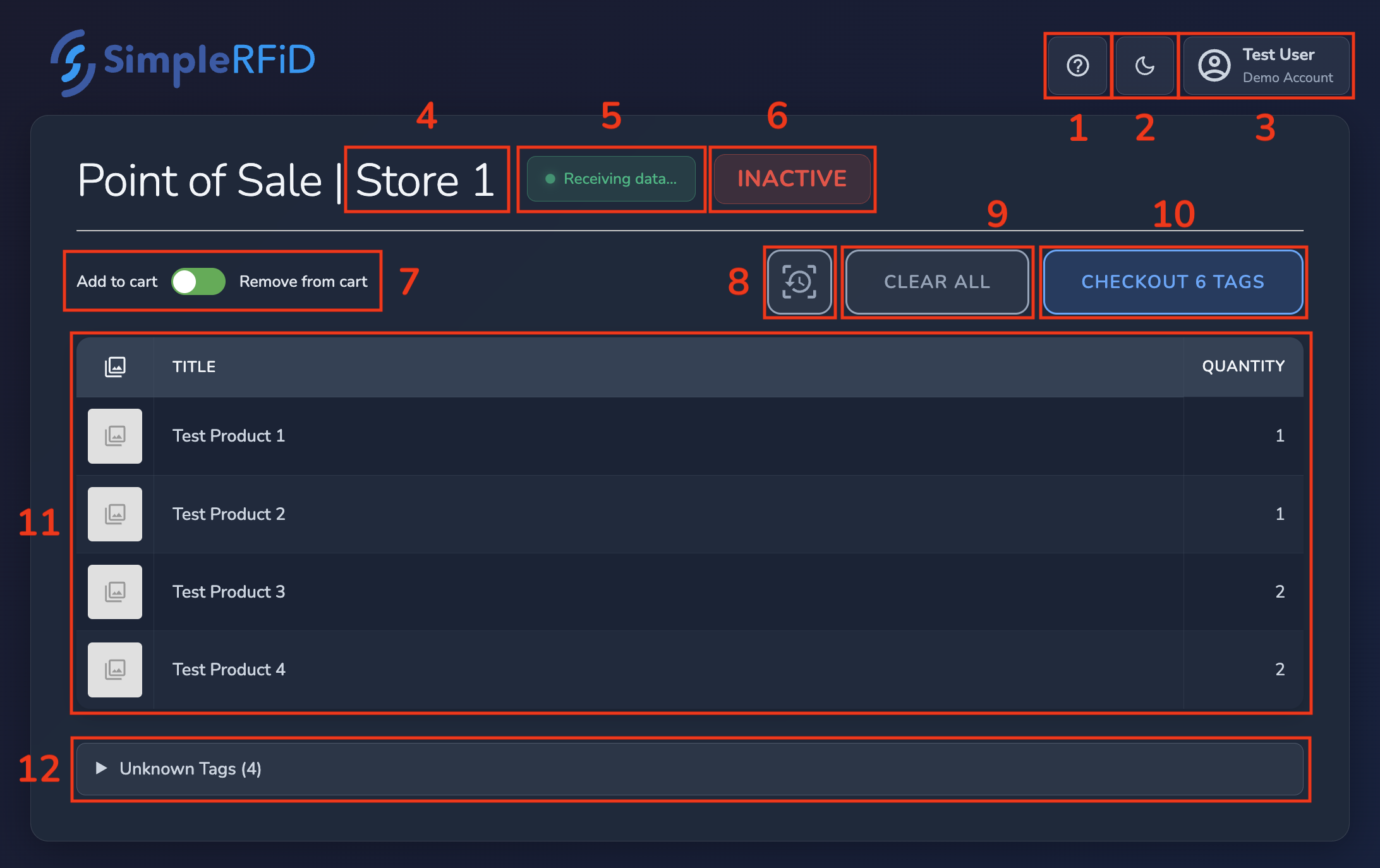
1. Help button
2. Theme switcher
3. User menu
- Change location: switch between locations. If you move the scanner between inventory locations, use this option. Otherwise, the location should remain the same.
- Log out: log out of your Simple RFID account. Note: you may choose to use a dedicated user account for the point of sale.
4. Location indicator
Appearing as part of the title, this simply indicates which location is currently selected, and where the tags will be archived in Simple RFID.
5. Receiving Data indicator
This indicator will appear when the app is receiving keystrokes from a Human Interface Device (HID). Most of the time, this will be the RFID scanner, but because your keyboard is also a HID, you'll also see this indicator if you press any keys.
Any data that is not recognized as a valid EPC from an RFID tag will be discarded, but if you press keys on your keyboard at the same time as scanning an RFID tag, you may need to re-scan the tag in order for it to register correctly.
6. Inactive indicator
This shows when the app isn’t focused (meaning the app isn't the one you’re currently using). The scanner sends keystrokes like a keyboard, so the app must be open and active to get the input. Otherwise, the keystrokes will go wherever you’re currently working.
7. Add/Remove switch
This switch is labeled Add to cart / Remove from cart and lets you switch between adding items and removing them.
For example, if you accidentally scan an extra item, switch to Remove from cart, then scan that item again to remove it. Items need to be scanned again to remove them because we use the serial number from the EPC to make sure the correct items are checked out.
Be sure to switch back to Add to cart before continuing to scan items!