ApparelMagic: Products
If you haven't connected ApparelMagic with Simple RFID yet, follow the instructions here: ApparelMagic: Setting up the integration
Overview
Access the ApparelMagic integration from the navigation sidebar:

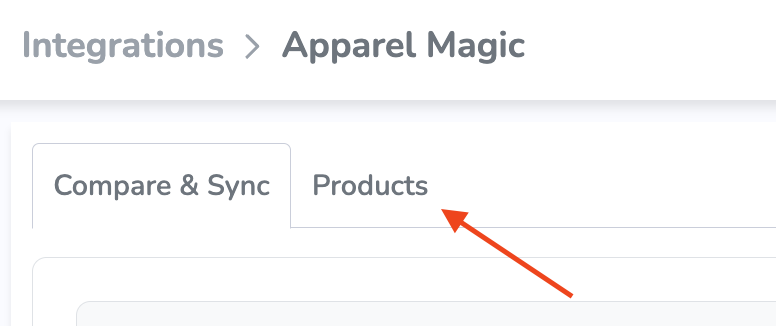
By default, you'll see the Compare & Sync view. To import products, open the Products tab at the top of the page:
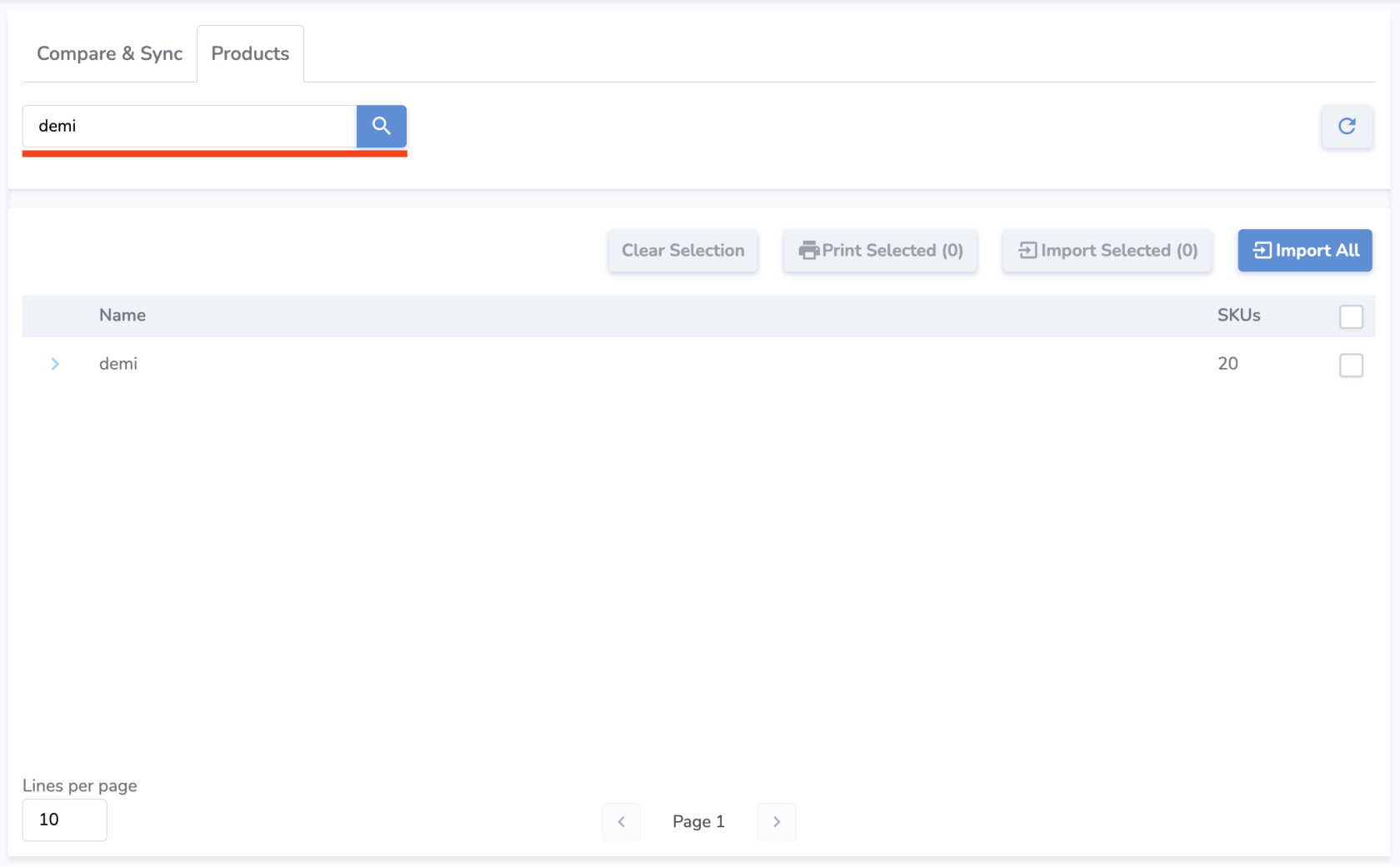
In the Products tab, you'll see your ApparelMagic products listed. From here, you can search by name or SKU to find specific products:
Parent SKUs can be expanded to show variants, and relevant information such as SKU, Name, Color, Size, Price, and Sync Status.
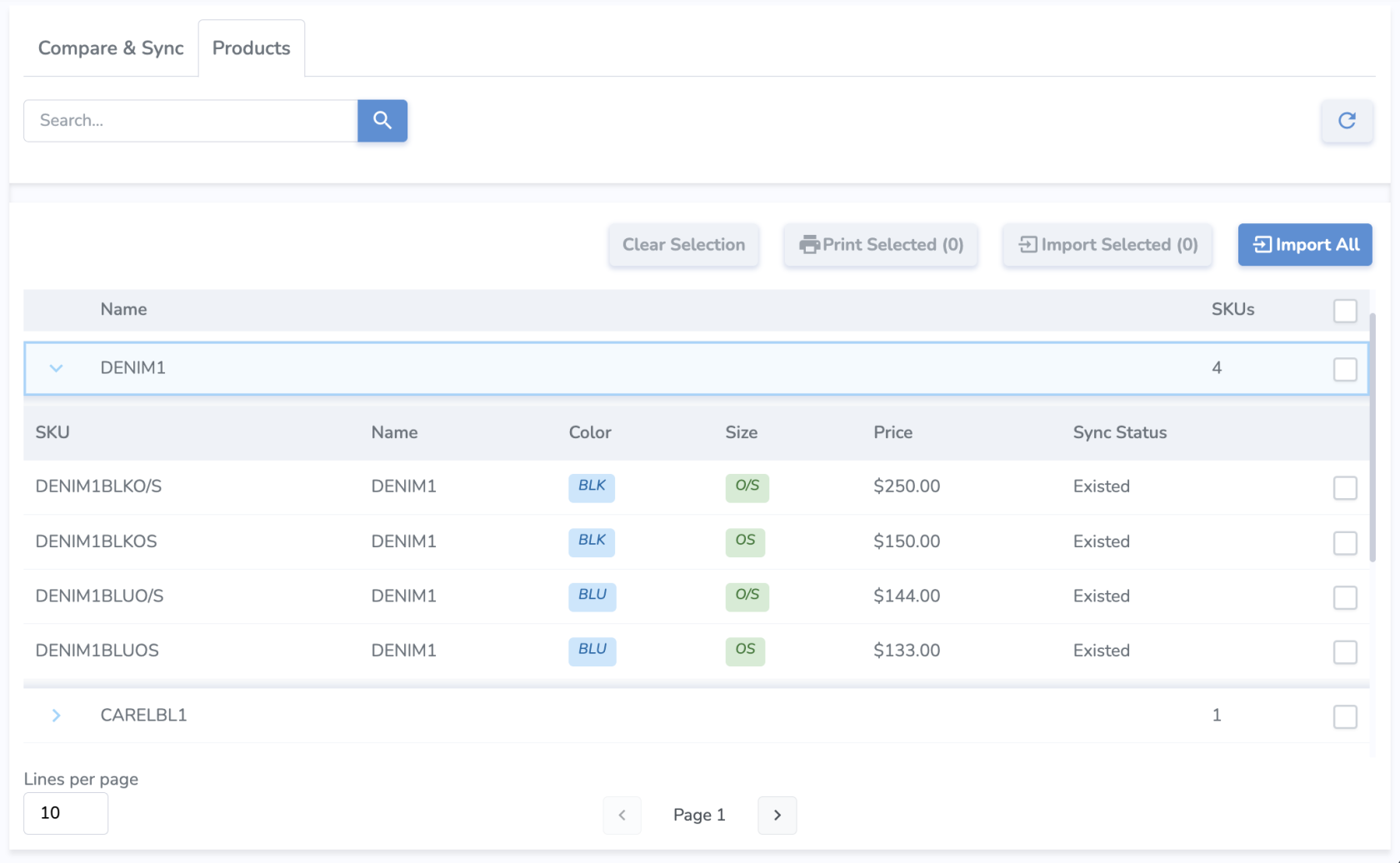
Sync Status describes the import status of each variant.
- New means the variant has not been imported yet.
- Existed means the variant already exists and is up to date in Simple RFID, so there's no need to import.
- NeedUpdate means that some product information has changed, so the product needs to be imported again with the new info.
ImportingImport Products
There are a fewcouple of different approaches you can take to import products.
Import All
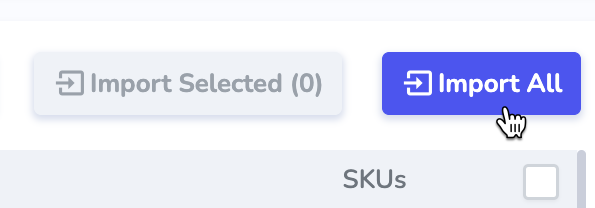
Using the Import All button will attempt to import all of your products from ApparelMagic to Simple RFID. This is generally recommended when first setting up the integration rather than copying products individually.
Import Selected
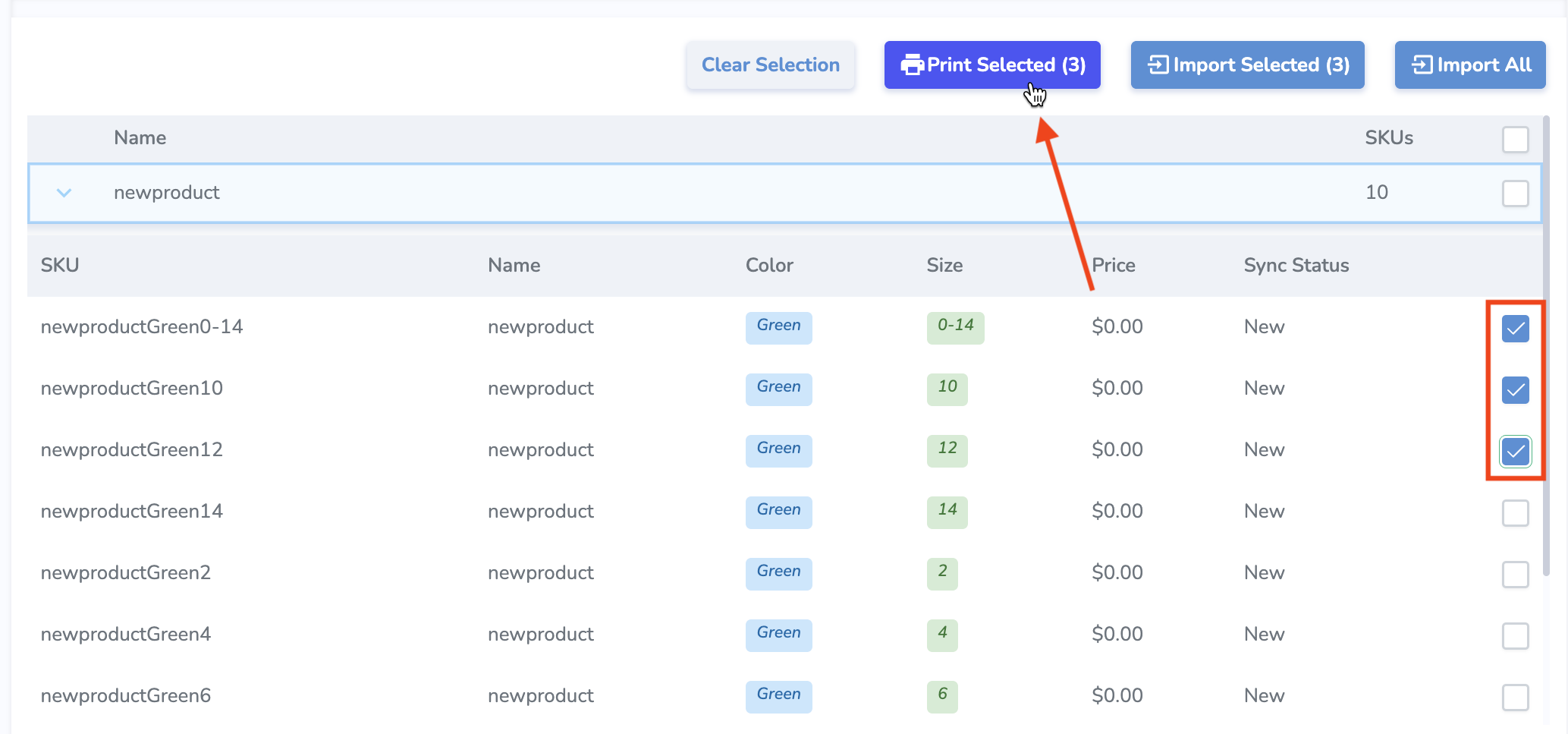
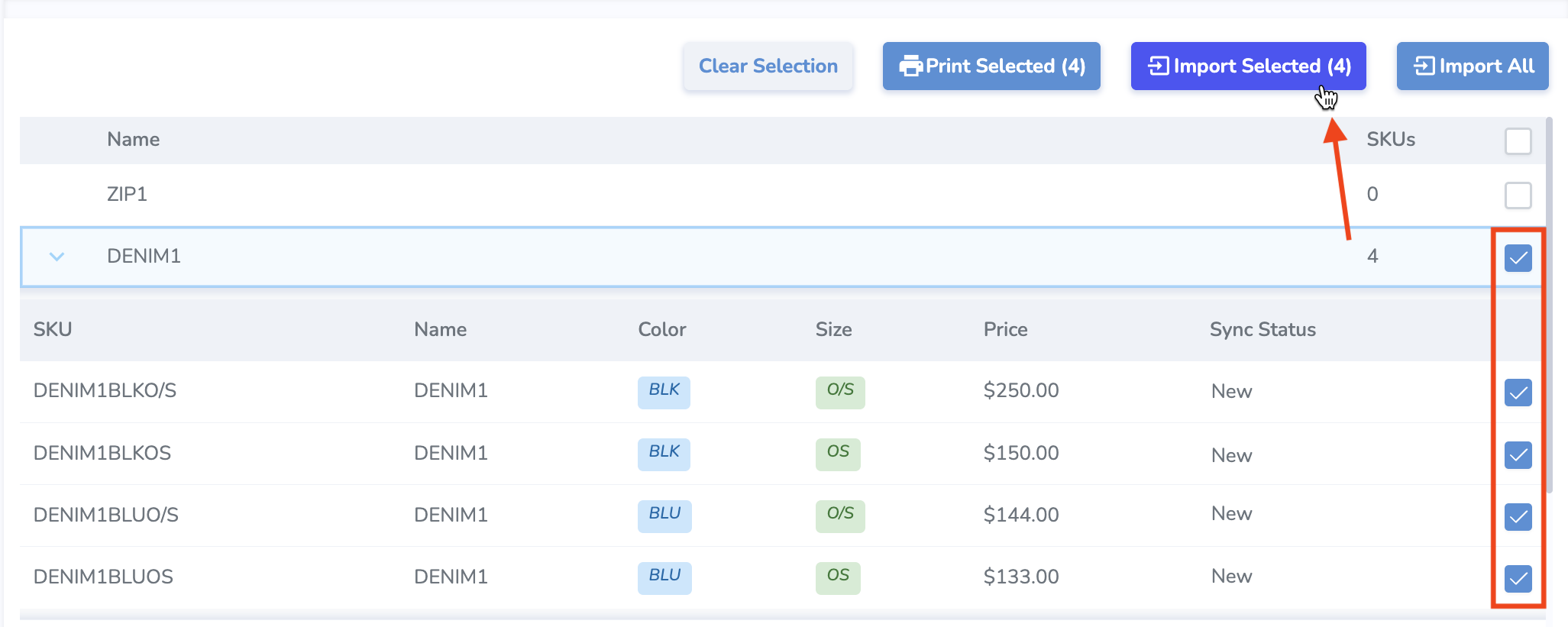
You may also wish to select a specific product or variant to import, especially after making changes to the product information in ApparelMagic. Use the checkboxes on the right side of the products/variants to select one or more items. You may select a parent SKU to include all its variants, or specific variants individually. Press the Import Selected button to import those items.
Printing tags for products
From the Products tab, you can also select specific products or variants and print tags for those products. Pressing Print Selected will bring you to the Print Jobs page where you can specify quantities, select a printer and label layout, and print or postpone the job.