
Audit - Shopify
This article describes the process of getting a fresh count of your inventory in Simple RFID
This feature is currently only available for customers using our Shopify integration. For all other customers, refer to the Audit & Compare article
What is an Audit?
An Audit is essentially a full or partial recount of your current inventory for a specific location. While you are scanning these products, you will be comparing the items the scanner picks up, and the count on Shopify. This is useful if you want the current inventory counts to be synced to Shopify. After you perform an Audit, you will need to visit the Resolve & Sync center to push these counts to Shopify.
Audit page
The Audit page is located in the Simple RFID Web Portal. Select Audit from the navigation menu
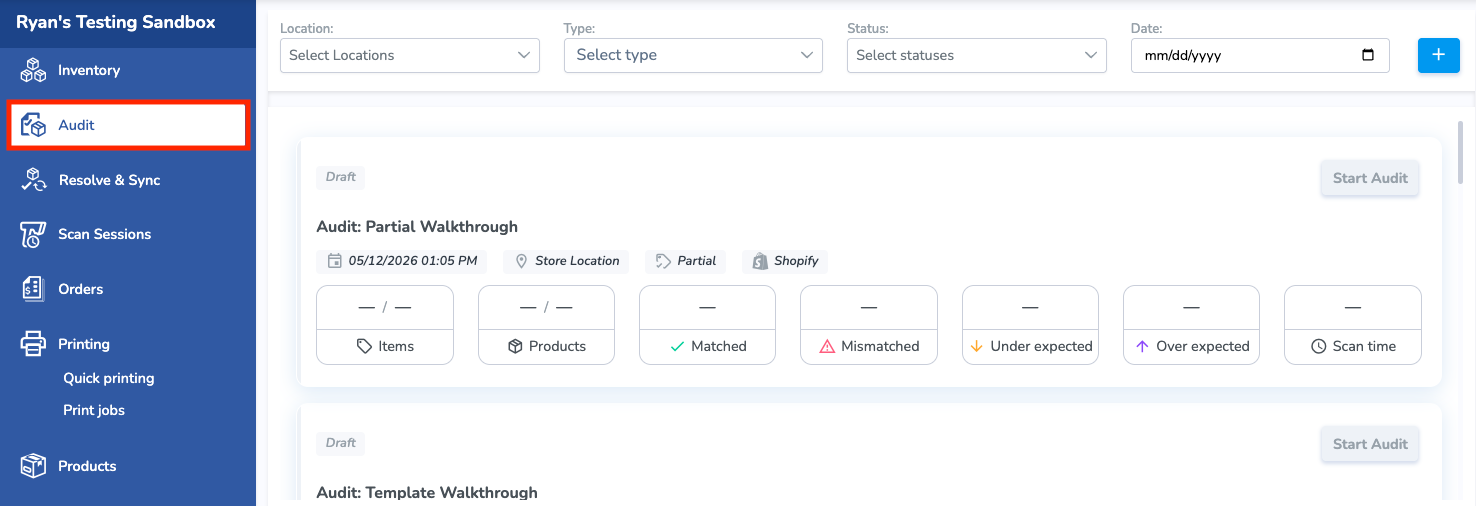
This page shows every previous Audit performed. You can view any of the previous Audits, or complete them from this page by clicking on a specific Audit.
- There are filters for the Audits that include the Location, the Type (Full, Partial, Template), the Current Status (Draft, Open, Completed, etc.), and the Date.
- Click the blue plus button on the top right of the page to create a new Audit
Create a New Audit
You can also create an Audit from the Mobile App
Select the Create New Audit button
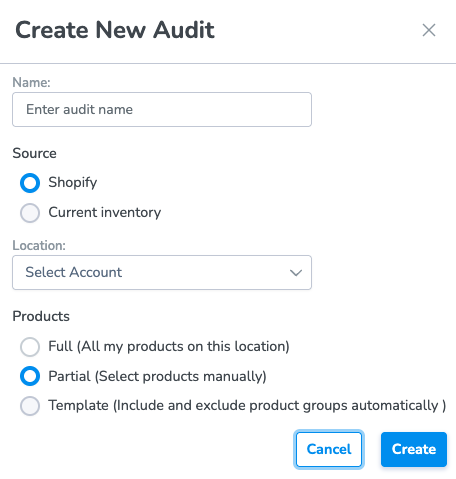
Enter the Name of the Audit, the Source of the comparison(currently only Shopify), the Location, and the Products
Products include:
- Full: All of the products in your location
- Partial: Specific products that you define
- Template: Products from a reusable template you define
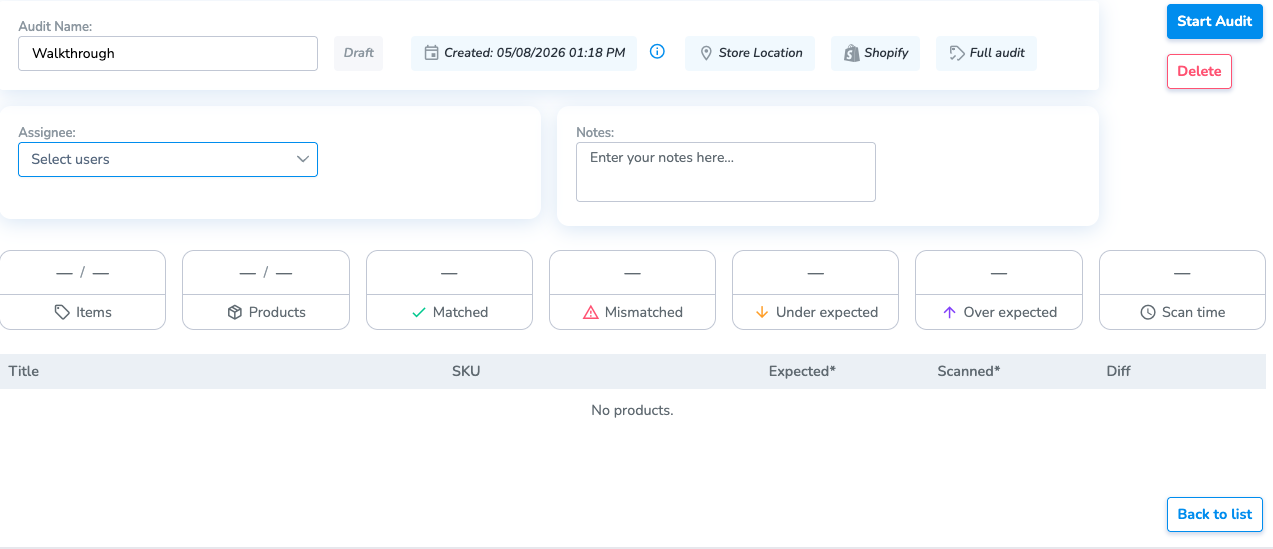
Creating the Audit will put it in Draft status. You can find this new Audit in the Audit page. From the Audit page, you can Assign a user to this specific Audit, add Notes for future reference, or Delete the audit.
Add Products to an Audit
Full Audit
There will be no products in the Product section until you select Start Audit. This will get all the products and their counts in Shopify.
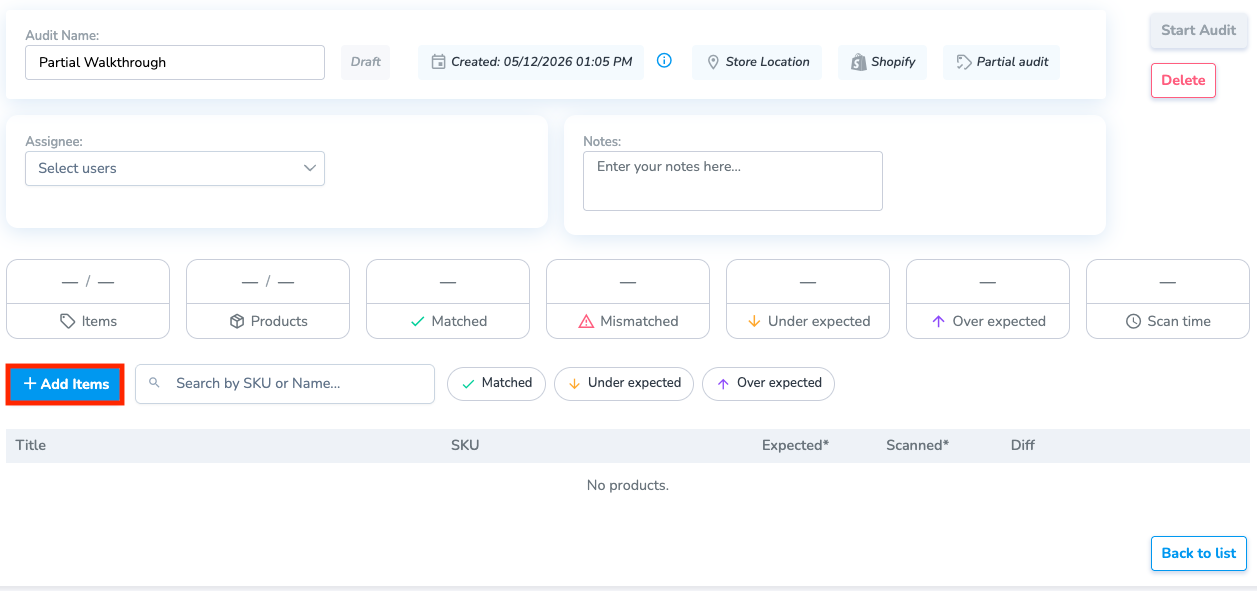
Partial Audit
Select the Add Items button, and search for the specific products you want to Audit
Template Audit
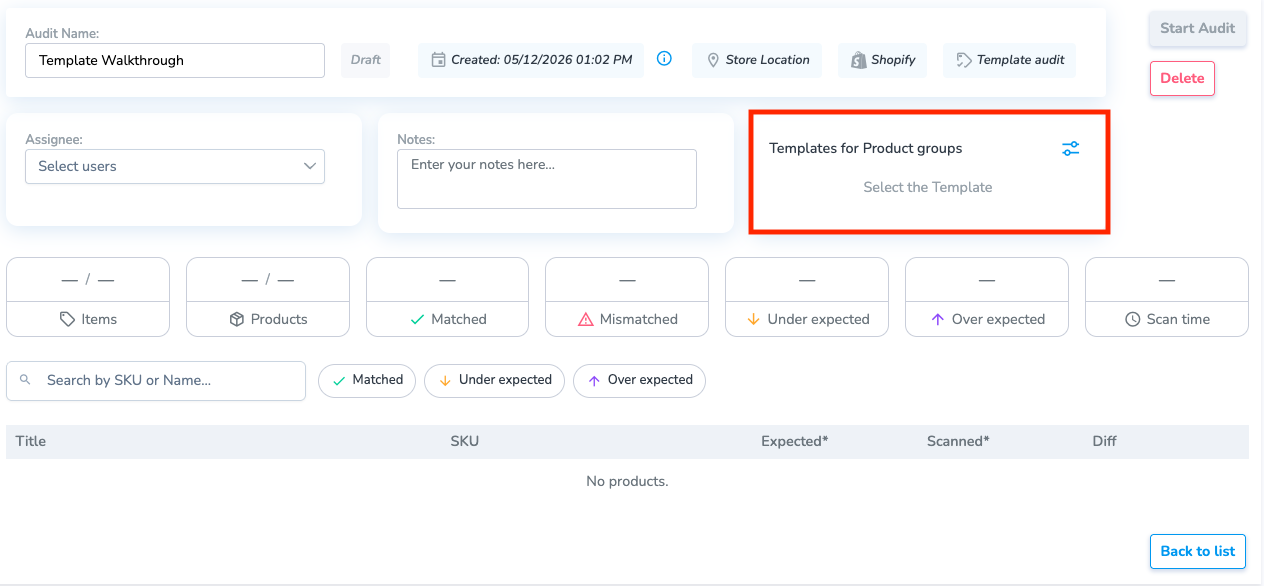
Select the Template button to view your saved templates. You can edit or delete these templates. To create a new one, select the Add button
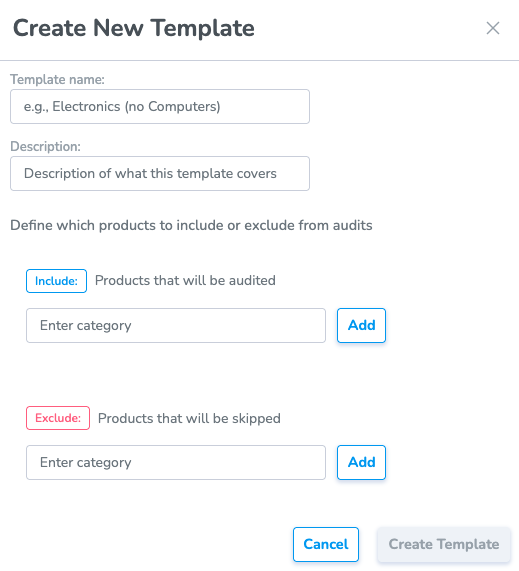
From the Add page, you can give the template a Name, a Description, and include or exclude the Category.
The Category will read from the Type field of the product in Shopify.
Performing an Audit
Once you have all of the products that you want to Audit, select the Start Audit button.
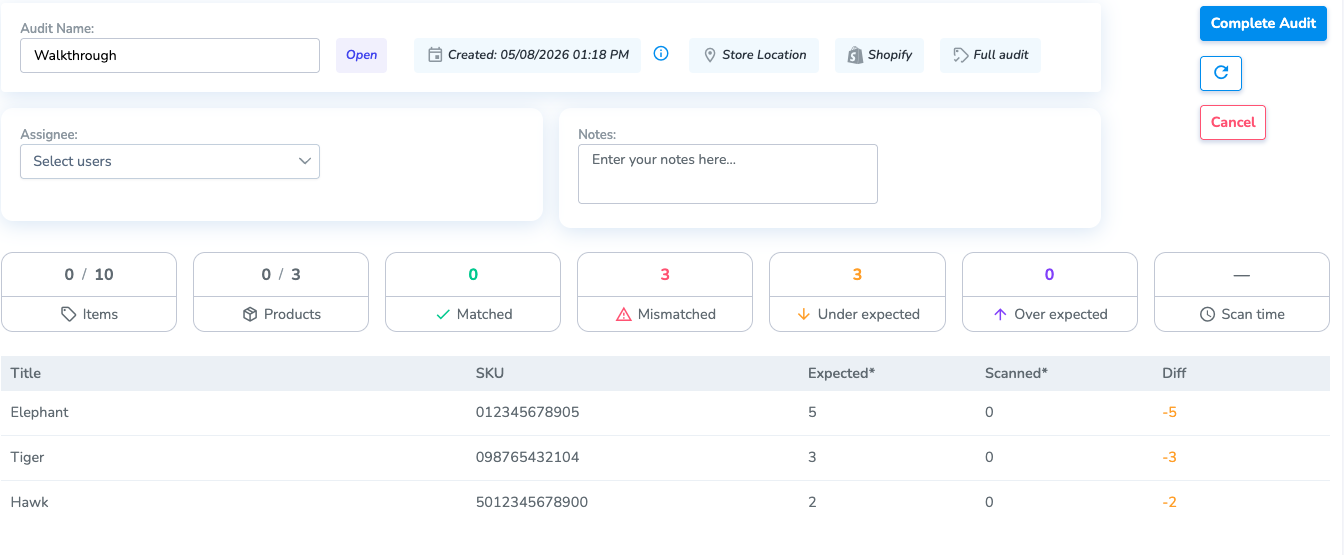
The inventory counts from Shopify will be loaded in, and the Scanned counts (this will always be 0 at the start). The Scanned count is the total amount of tags for a specific product that have been picked up in Scans for this specific Audit.
To scan items into this Audit, navigate to the Audit page on the Simple RFID mobile app.
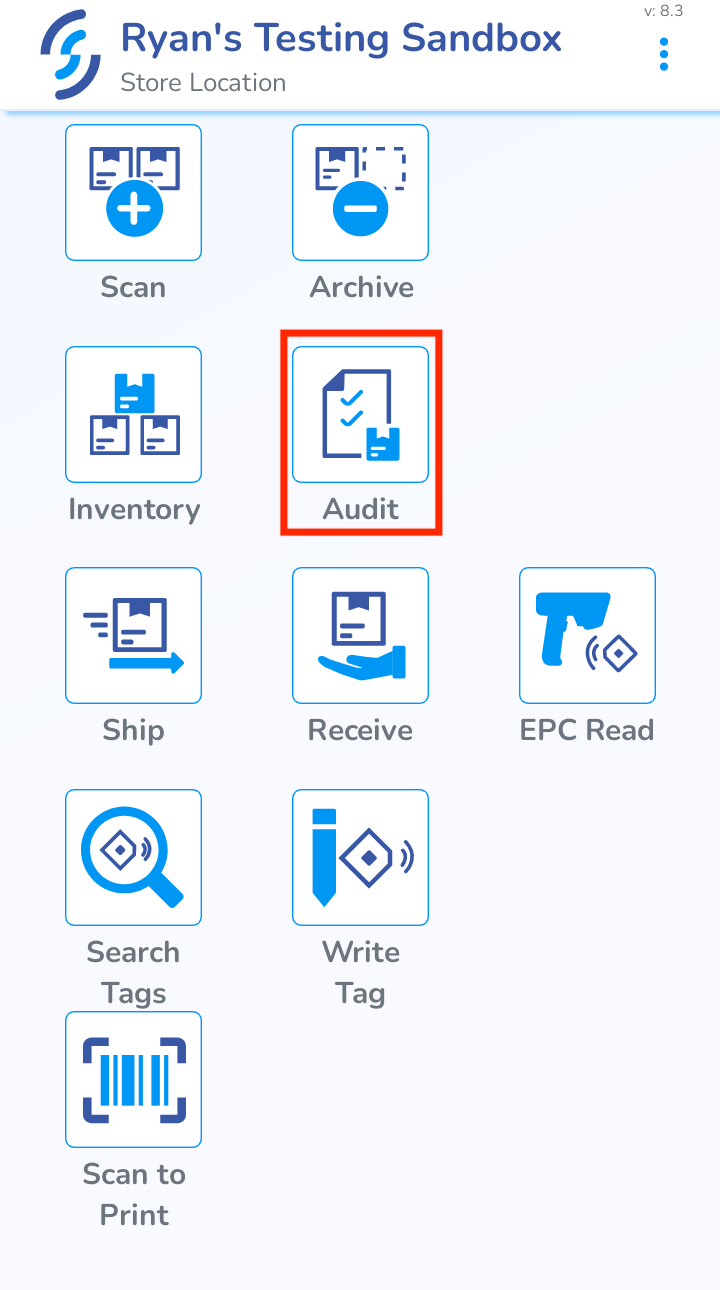
From here, you can select an Audit and start a Scan. You can also create Audits from the mobile app, or edit Audits in Draft status.
Completing an Audit
After you upload the scan, the Audit page will update to show the scanned amounts, and the difference between Shopify and all scans
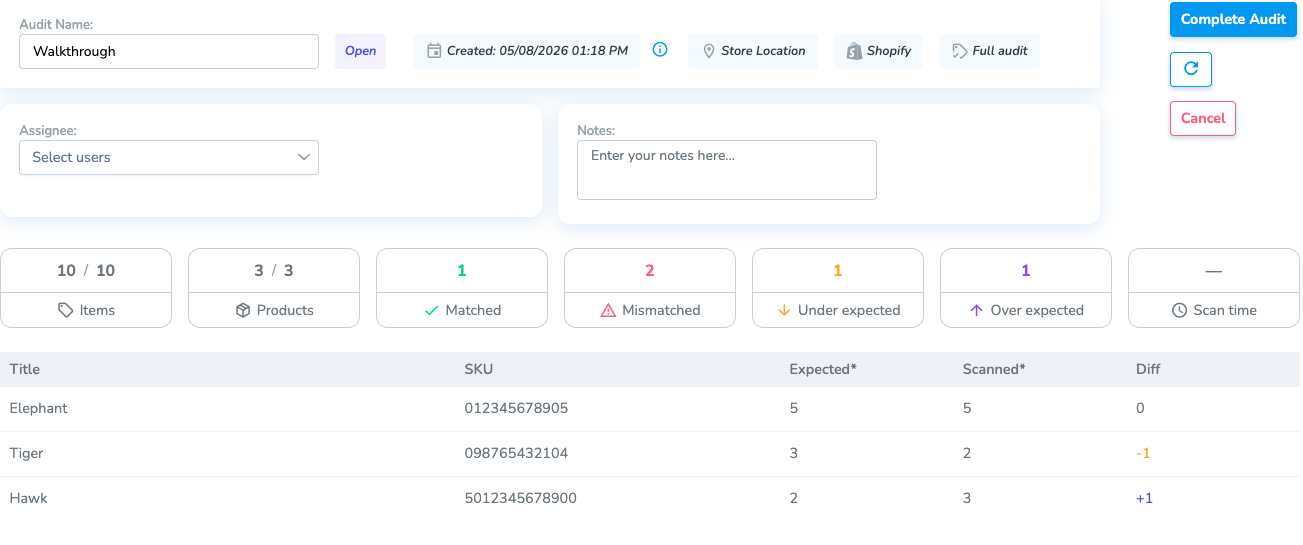
When you are finished scanning, press the Complete Audit button. This will change the Audit status to Completed.
Once you complete the Audit, you can go to the Resolve & Sync page to sync your inventory to Shopify.