
Audit
StepsThis toarticle begindescribes the process of an auditAudit
An Audit removesallows itemsyou whichto arecompare noyour longerinventory counts in inventory,Simple thatRFID wereagainst notan scannedexternal outinventory. (Archived).
To Itperform correctsan Audit, navigate to the inventorySimple byRFID identifyingWeb what is On Hand,Portal, and what is no longer present, moving missing items to 'Absent' status
From the home screen click Scan

Next, click Audit on the side bar
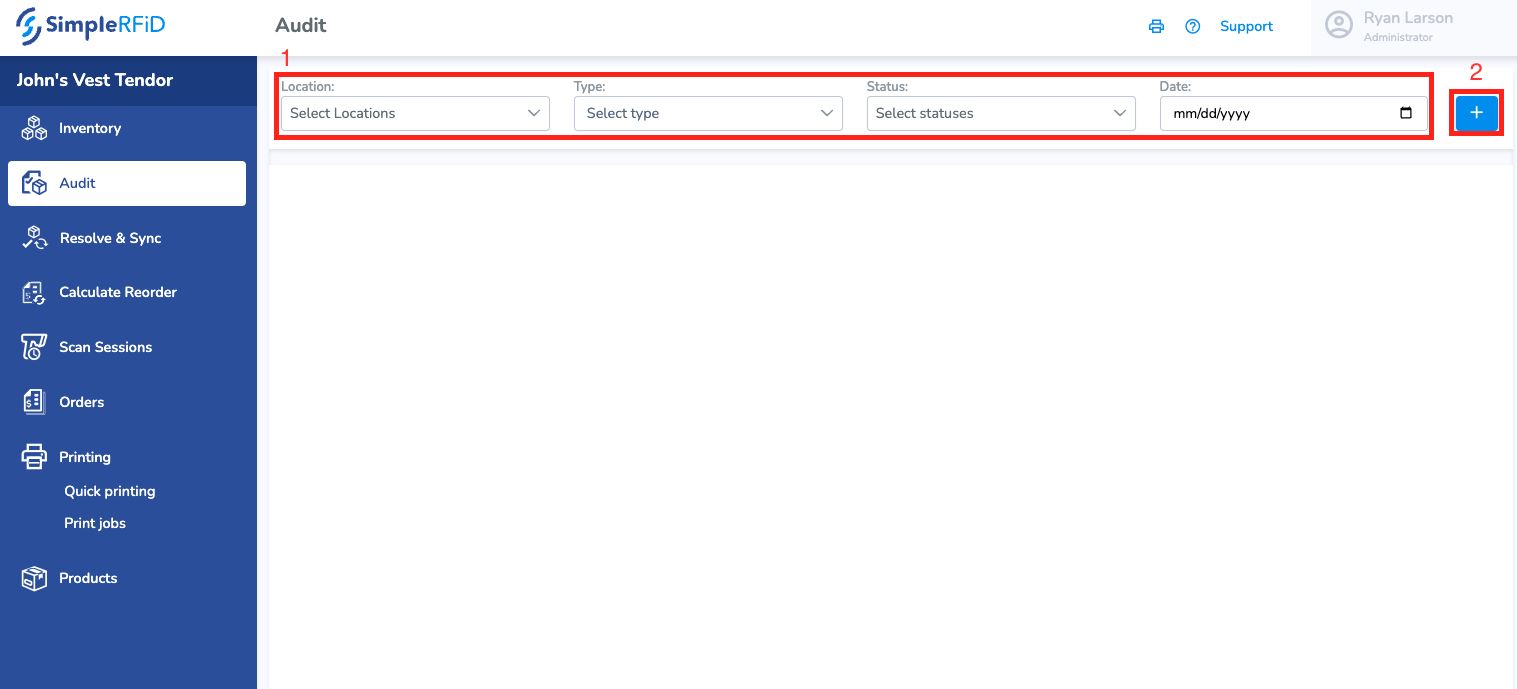
A pop-upYou will appearsee confirminga few different options.
1. Filters to see previous Audits. These include the action. Click 'Yes' to initiateLocation, the processType (Full, Partial, Template), Current Status, and Date.
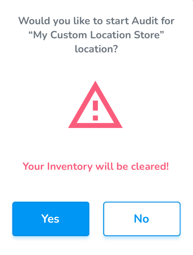
After2. clicking 'Yes,' a progress indicator will appear informing that the inventory is being recalculated
Once completed a toast pop-up message will appear indicating that the inventory has been cleared

At this point a user can StartCreate a new ScanAudit button
Create a New Audit
session & begin adding inventory forPress the location.Create ItemsNew whichAudit button
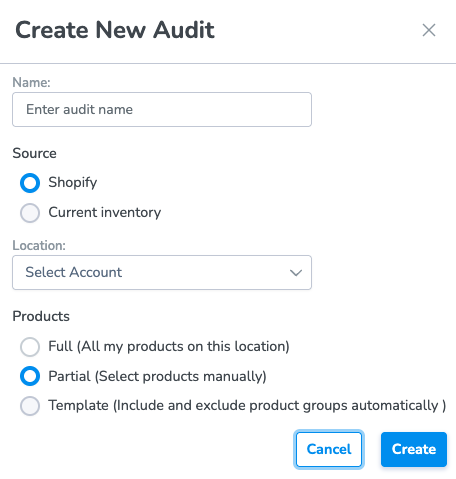
Enter the Name of the Audit, the Source of the comparison, the Location, and the Products
There are captureda arefew different types of Audits
Full: All of the products in your location
Partial: Specific products that you define
Template: To be added to Verified inventory. Items which are not captured remain Absent.
View Verified & Absent inventory viaCreating the mobileAudit app'swill put it in InventoryDraft tab
View Verified & Absent inventory via the web portal's Inventory tab
Note:mode. If you clickare doing a partial Audit, you can add the products that you want to compare.
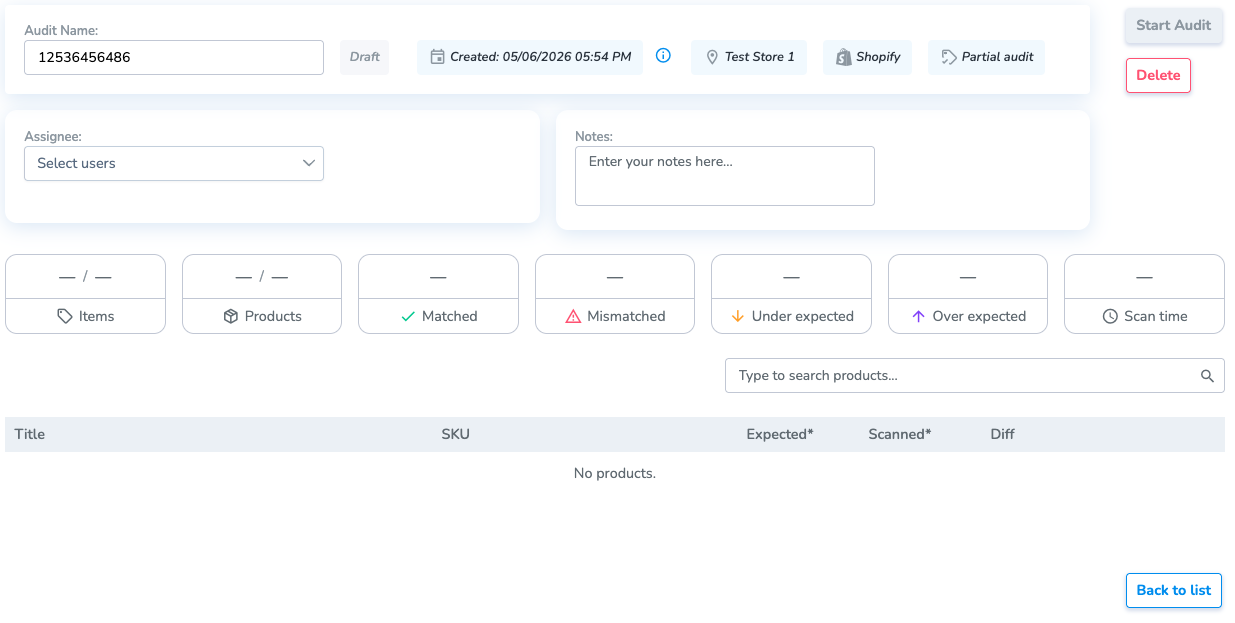
Selecting Start Audit will pull your inventory counts from Shopify, in order to compare it with a scan session
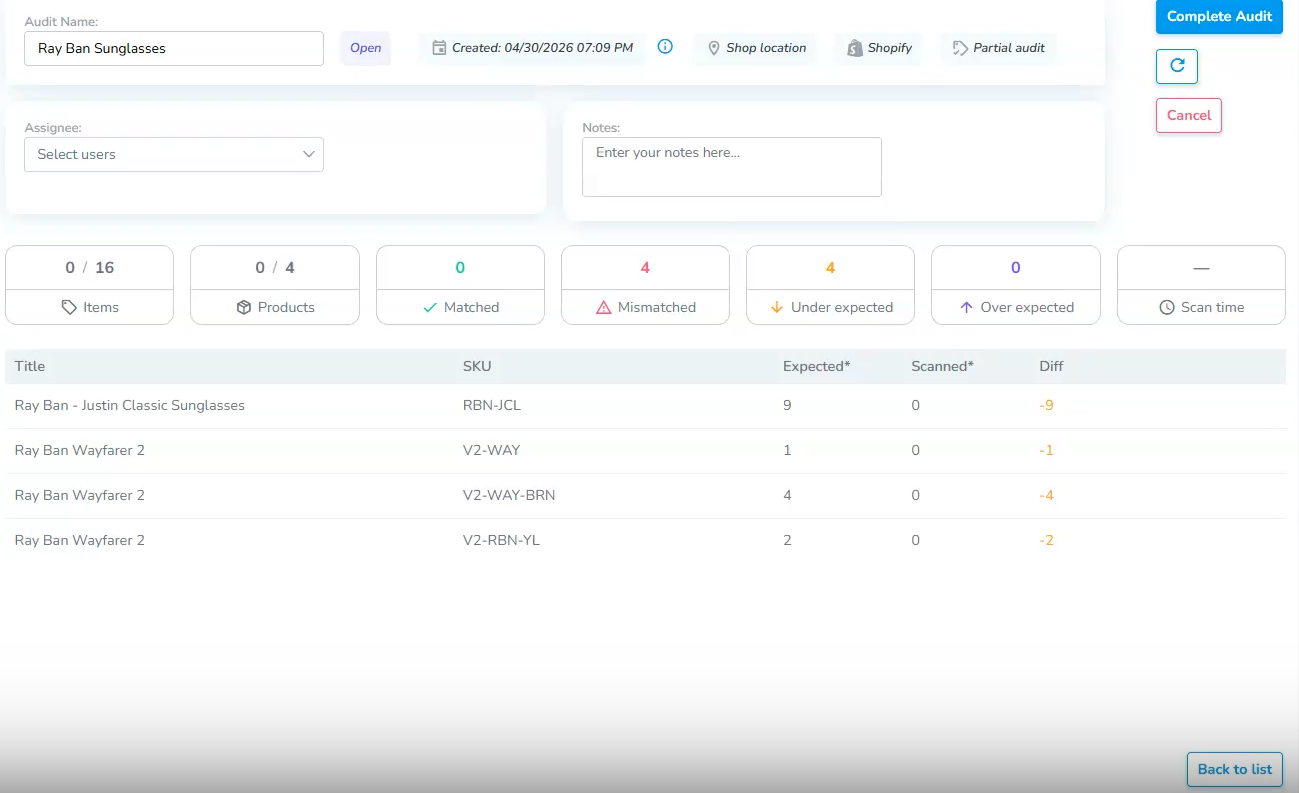
In the Simple RFID mobile app, you can find this Audit againin the Audit page. You will see the Audit you made. Click on it to see the products you will be restartingscanning, and select Start Scan. You will be taken to a scanning page, with the processproducts and willtheir loseexpected anyvalues scansin Shopify.
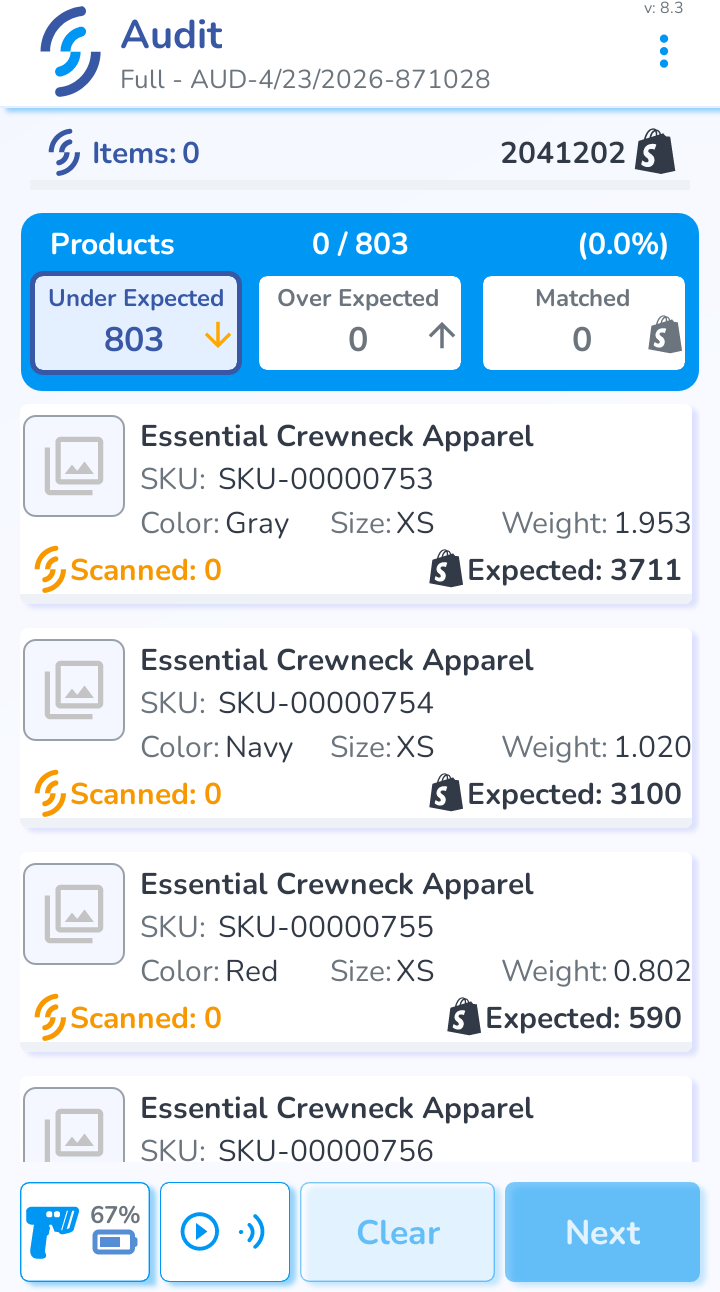
From here, you havecan uploadeddo a scan as normal, and the products will be put into three different categories:
Under Expected: Shopify has more items than you scanned
Over Expected: Shopify has less items than you scanned
Matched: Shopify and your scanned amount are the same
Once you complete the Audit, you can go to the Resolve & Sync page to sync your inventory to Shopify.