Web Portal: Review & Resolve: Review Mismatches
This article describes the process of reviewing mismatched products generated infrom an inventory audit. Based on this review process tasks are created (RFID & Partner) to ensure all steps are completed.
What is the Review Mismatches& Resolve Process?
The Review Mismatches& Resolve page displays all Mismatched Products from your audits. The user hasis the abilityrequired to applychoose reasonsone for the mismatches which falls intoof three possible outcomes:
Trust RFID
countCount - If you trust your RFID it means:- If the RFID count is greater than the Partner Count = increase Partner Count to match the RFID.
- If the RFID count is less than the Partner Count = decrease Partner Count to match the RFID.
Trust Partner
countCount - If you trust your Partner Count it means:- If the RFID is greater than the Partner Count = Perform an "Archive" scan on tags to reduce RFID count to match Partner.
- If the RFID is less than the Partner Count = Print and/or scan tags to increase RFID count to match Partner.
TrustManualNeitherCount -and perform a manual count. Of courseIf youmaytrustneed to physically inspectneither theitemsRFIDtooridentifyManualtheCountissue.itIn this case themeans:- The physical count
mymay differ from both the RFID and the PartnerCounts.Counts,Intherefore you must perform a manual count, then enter thiscasecount. - If this count differs from both the RFID and Partner Counts tasks will be generated
forto adjust both RFID and Partner.
When should you choose each Source of Truth?
RFID Count
Choose the RFID Count if you trust that every item has been tagged with RFID and that all tagged items were successfully scanned.
This option is often preferred when:
- If the Partner Count is less than the RFID Count: You want to avoid overselling by ensuring inventory is
nevernot overstated. You believeIf the RFID Count is greater than the Partner Count: The partner system quantity is too low and want to increase it to match the verified RFID scan.- You have confidence in your RFID tagging and scanning process.
When RFID Count is selected as the Source of Truth, all generated tasks will be Partner Actions, updating the partner system to match the RFID inventory.
Partner Count
Choose the Partner Count if you trust that the inventory quantity in your partner software is accurate.
This option is commonly used when:
- You are first implementing RFID and have not yet established confidence in your RFID data.
- You believe the partner system
alreadyreflects the correct inventory. - You
simply wantwish tobringalign your RFID inventoryinto alignmentwith your existing records.
When Partner Count is selected as the Source of Truth, all generated tasks will be RFID Actions, such as printing missing RFID labels or performing Add or Archive scans to match the partner inventory.
Trust Neither / Manual Count
Perhaps you don't trust either your RFID or Partner counts. In this instance you must physically count the items to determine the truth.
If the manual count differs from both, both RFID and Partner tasks will be created.
Assigning a Reason / Generating an Action
EachUsersmismatchedhaveproductthemustoptionbeofassignedassigning aReasonthat accountsreason forwhyeachthe RFID count differs from the expected quantity (e.g., missing tags, extra items, or incorrect tagging). Each Reason is linked to anAction, which defines how the discrepancy should be resolved.action.Examples:If a product is scanned-5 less than expecteddue to products missing tags, theReason would beMissing Tags. The Action would be toprint the missing tags and perform Add scans to update the RFID count.If a product is scanned+5 more than expected, theReason may beItems Double Tagged. The Action would be to remove the extra tags andperform Archive scans to remove them from the RFID inventory.If a product is scanned-1 below expected, and inspection confirms the RFID count is accurate, theReason may beShrink/Theft. In this case, no RFID adjustment is required; instead,the Action is to reduce the partner on-hand quantity.
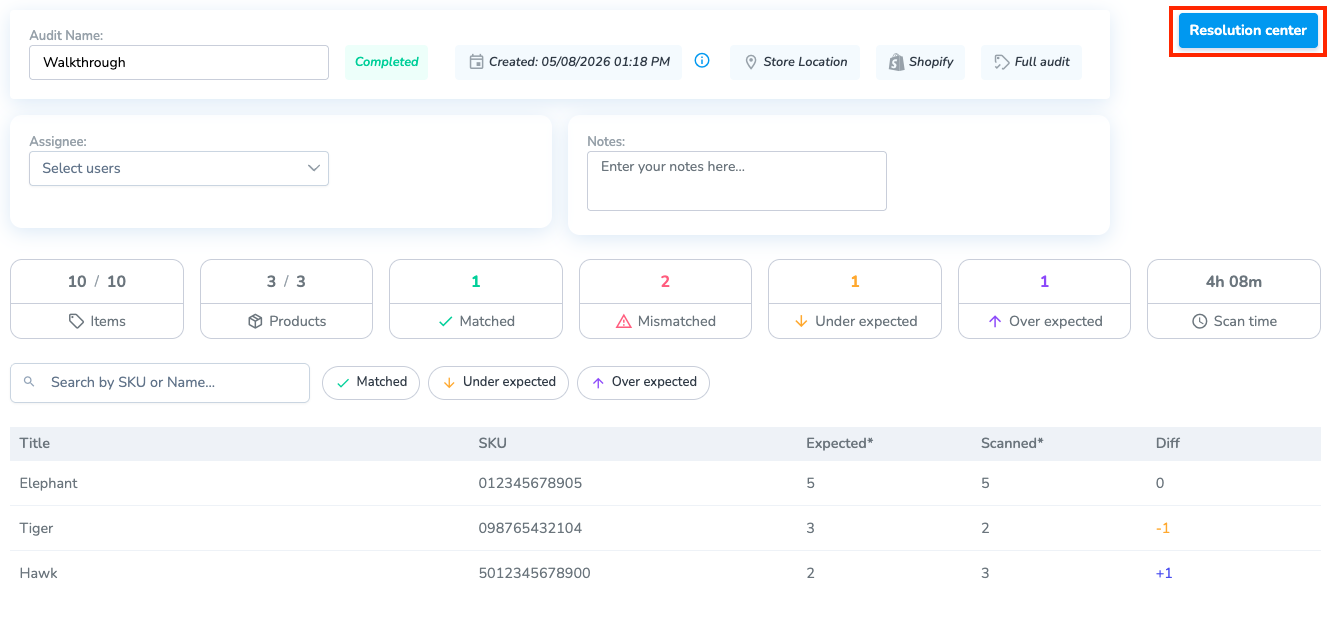
Accessing the Resolution Center
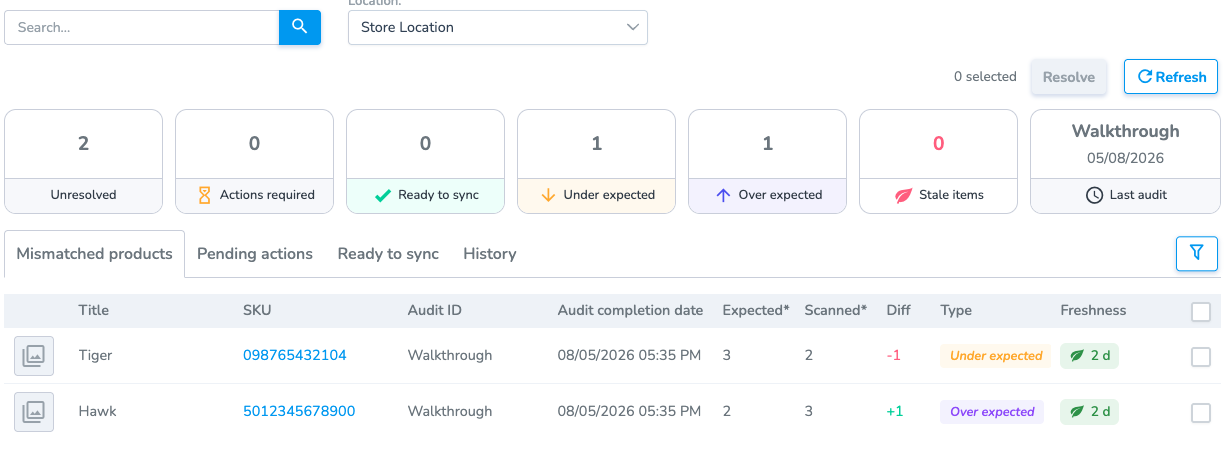
Once an audit is completed, all mismatched products are moved to the Resolution Center. From there, users can access mismatches either:
- Directly from the audit by selecting Resolution Center, or
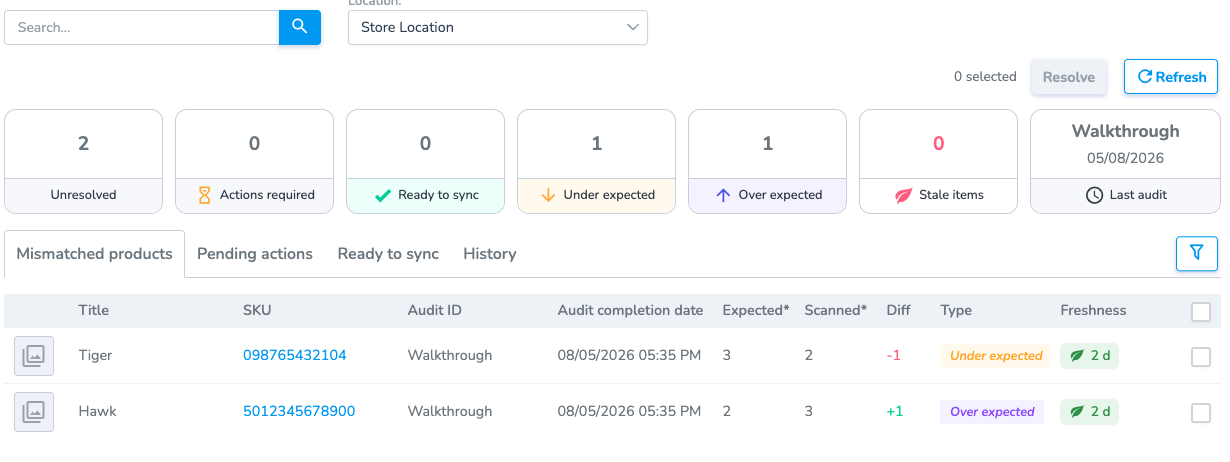
- From the left navigation menu by selecting Resolve & Sync
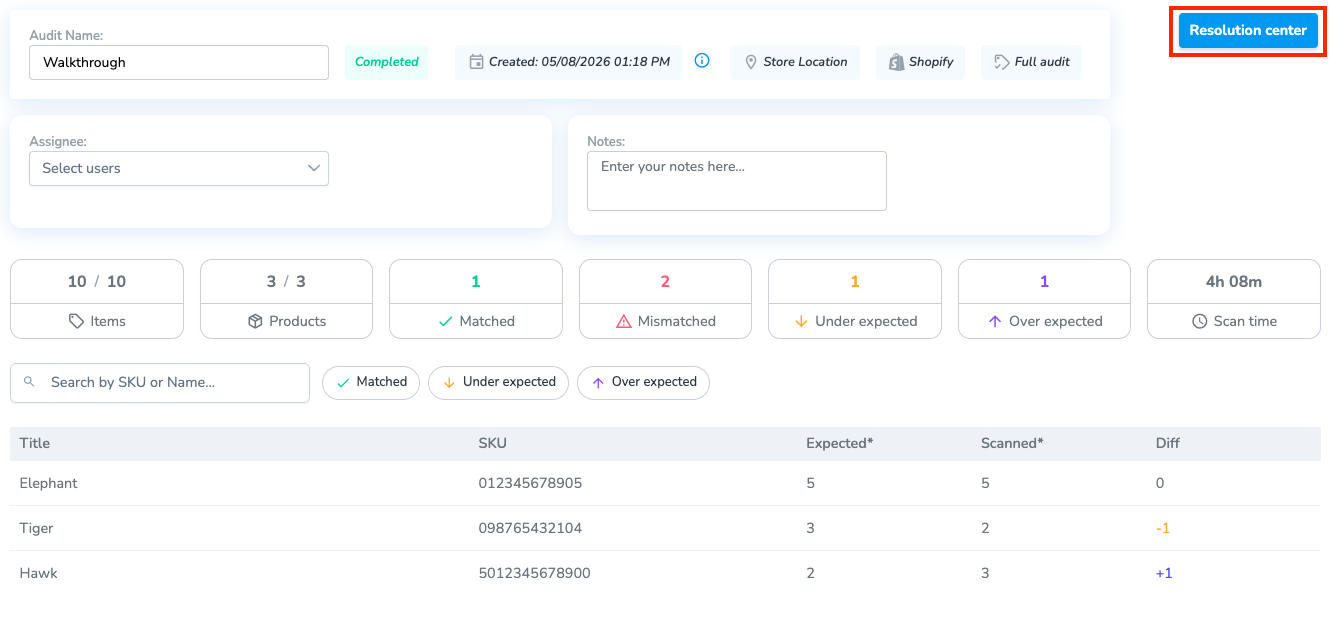
Steps
1. Review Mismatched Products
- Choose the product(s) you wish to review by clicking the checkbox(es) on the far right.
- Next, click "Resolve" to apply a reason.
2. Apply a Reason
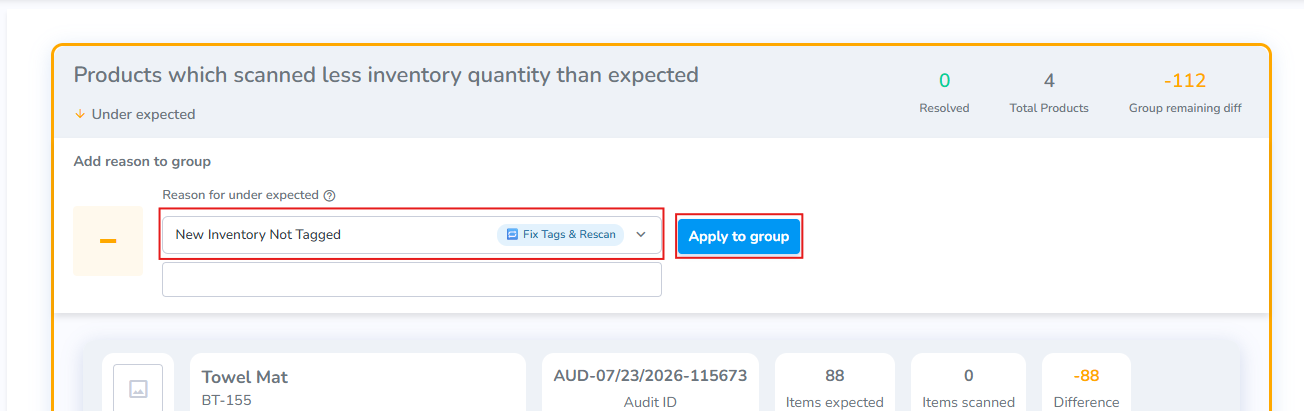
Mismatched Products are grouped and displayed as: Under Expected and Over Expected. Below are a few of the common reasons for an item being Over & Under Expected, along with the associated required Action:
Common Reasons for Over Expected
Common Reasons for Under Expected
- New Inventory Not Tagged - Items exist in inventory but aren't tagged. Print new tags, then perform Add scan to add them to RFID counts.
- Incorrect Adjustment - Partner quantity is too high and must be reduce to match with RFID counts.
- Incomplete Purchase Received - Fewer items arrived than ordered. Decrease the partner quantity to match with RFID counts.
Group or Single Reason
Group Reason
Use the "Add reason to group" control at the top of the section to apply the same reason for all selected products.
- Choose Reason
- Click "Apply to Group"
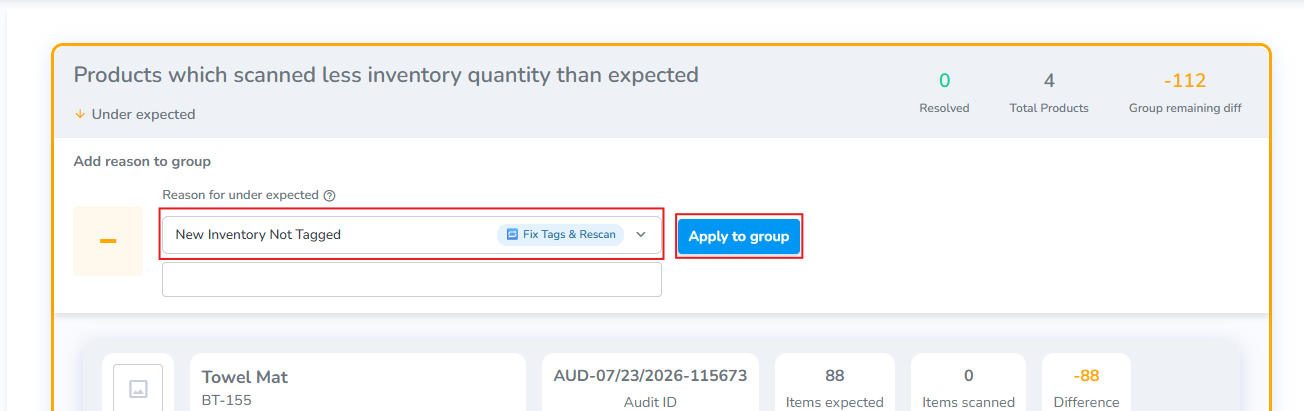
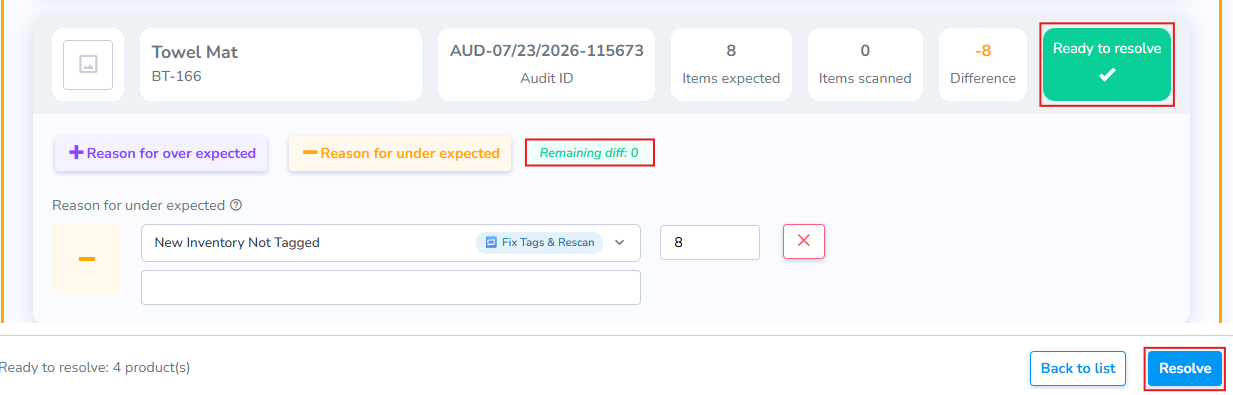
Once Applied each Product card will show "Ready to resolve", if there is no remaining difference.
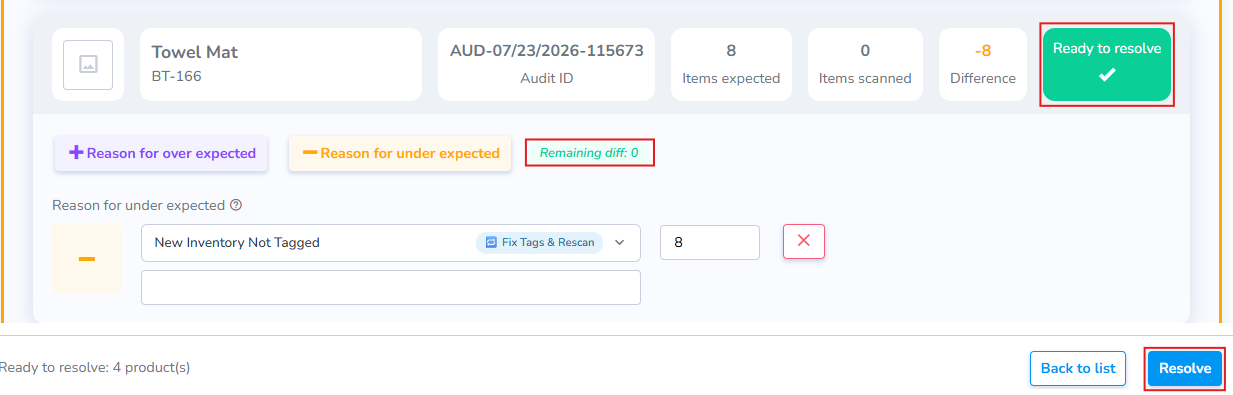
3. At the bottom click "Resolve" to generate the Tasks and clear the Mismatches from the list.
Single Reason
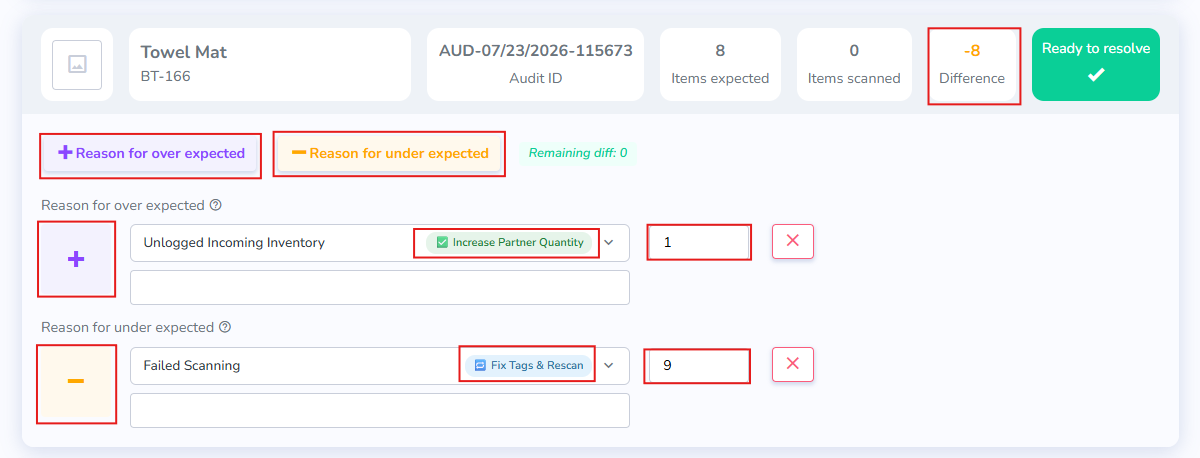
From the product card drop-down apply multiple reasons, which can be both over and under expected to a product.
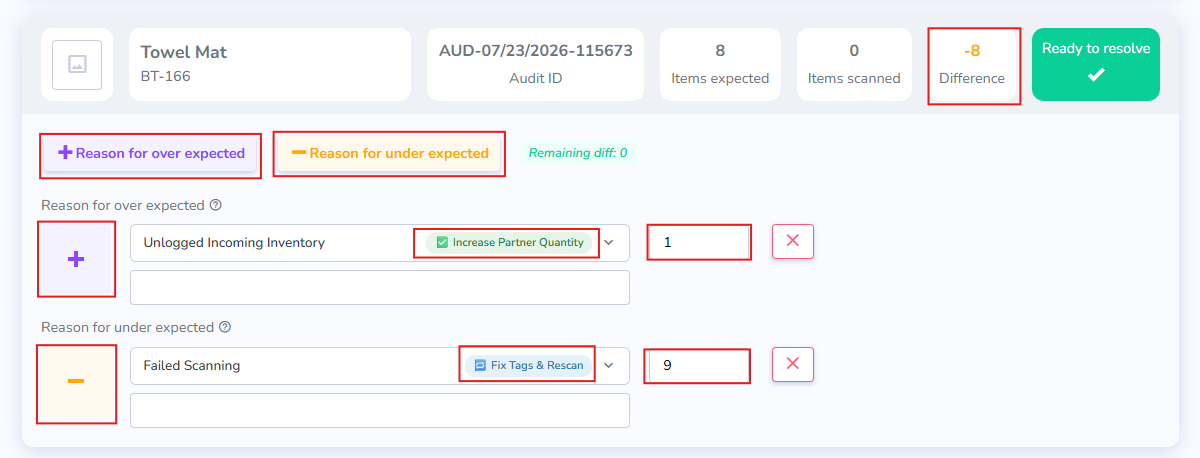
PLEASE NOTE: Applying the opposite reason to a product (E.g.. Applying an Over reason for an Under Expected product will create a greater difference to the mismatched count which must be accounted for to resolve the mismatch. As the below image shows, because we expected 8 and have marked that there is 1 unlogged item, we must print and scan 9 total tags.
Complete Required RFID Actions & Partner Corrections
Once the "Resolve" butt is clicked RFID actions, and/or adjusting the partner count by Syncing mismatches / Uploading corrections are generated. Please follow the links to complete the steps.
- The physical count