
Web Portal: Manual Input: Adding Products Manually to an Audit
Manual Input
Do you want to create an audit using data from another system? This article walks through the steps to load your own data into an audit.
Steps
To create an audit using our own data source, follow the same steps found in the Audit with an Integration article with a few small exceptions:
From the Create New Audit pop-up:
- Select Manual input as your Source
- The Products selector will defaults to Partial
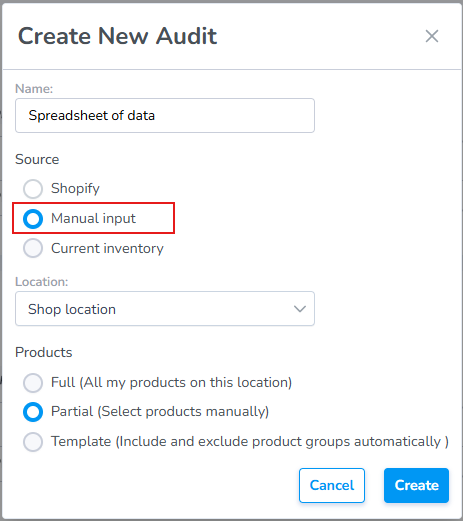
- Finally, click "Create" to create
The Audit will be created in Draft status.
Add Products Manually/Spreadsheet to an Audit
Important: Once you click Start Audit, the Audit is locked. You will no longer be able to add or remove products from the Audit.
Next, add products to your audit via two methods:
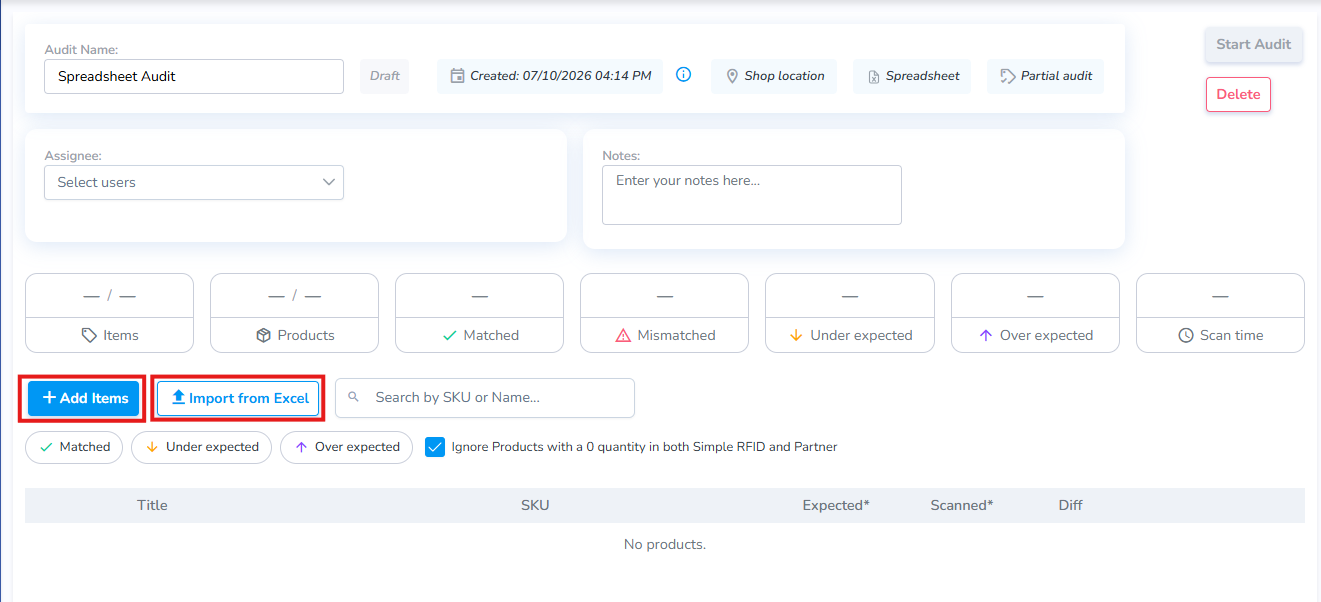
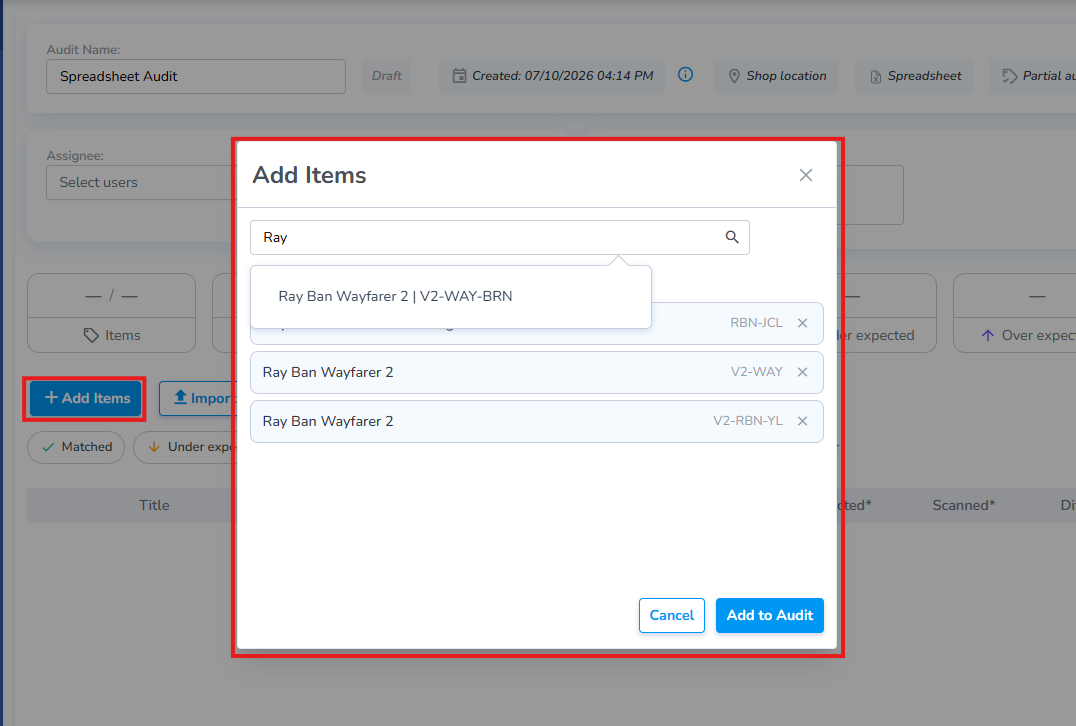
+ Add Items Manually
Clicking + Add Items opens the Add Items pop-up window which allows the user to search for and select the specific products to include in the Audit.
Import from Excel
Clicking the Import from Excel button opens the Import Pop-up.
You can use the template provided to enter details, or use your own sheet and map the corresponding columns.
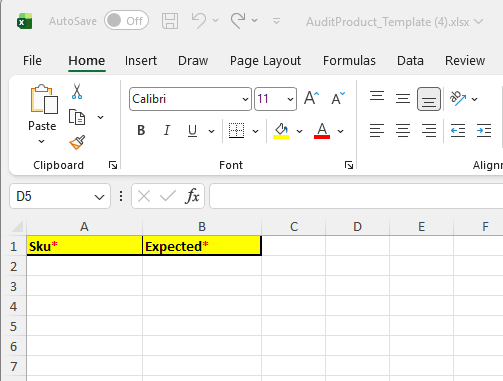
Use the Simple RFID Template
- From the pop-up window click "Get Template" to download a formatted spreadsheet
- The sheet contains two columns: SKU and Expected quantities
Use your Own Spreadsheet and Map Columns
Click the Custom column mapping link to associate the corresponding columns from your own spreadsheet.
Choose Match by Title if your sheet contains an identifiable column header

Choose Match by Index if you wish to map by the column letter: A, B, C, etc.
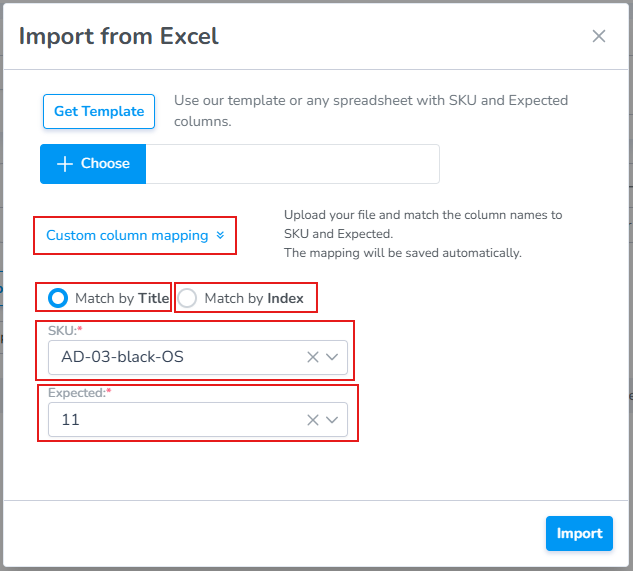
Finally, click Import to add the products to your audit.