Create Audit, Scan & Identify Mismatches
AllManual Audits ViewInput
TheDo Audityou pagewant to create an audit using data from another system? This article walks through the steps to load your own data into an audit.
Steps
To create an audit using our own data source you will follow the same steps found in the SimpleAudit RFIDwith Weban PortalIntegration servesarticle towith create,a manage,few andsmall review inventory audits.exceptions:
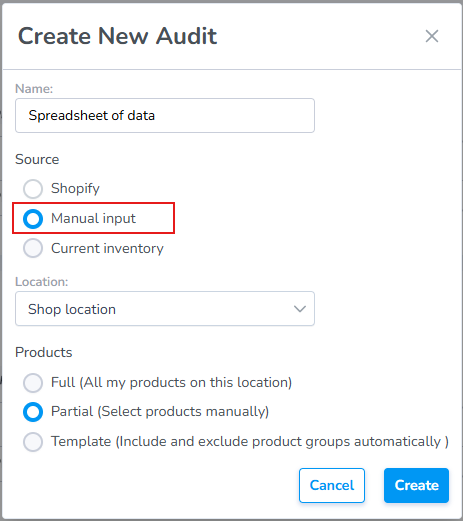
To access the page, selectSelectAuditManual inputfromastheyourleft navigation menu.Source- The
AuditProductspageselectordisplayswilla list of all Audits. Click any Auditdefaults toview"Partial"its details, progress, and results.Use the top filters to quickly locate an Audit:Location– Filter by inventory location.Type– ViewFull,Partial, orTemplateAudits.Status– Filter by the Audit's current status, such asDraft,Open, orCompleted.Date– Display Audits created or performed within a specific date range.
To create a new Audit, click theblue + (plus)button in the upper-right corner of the page.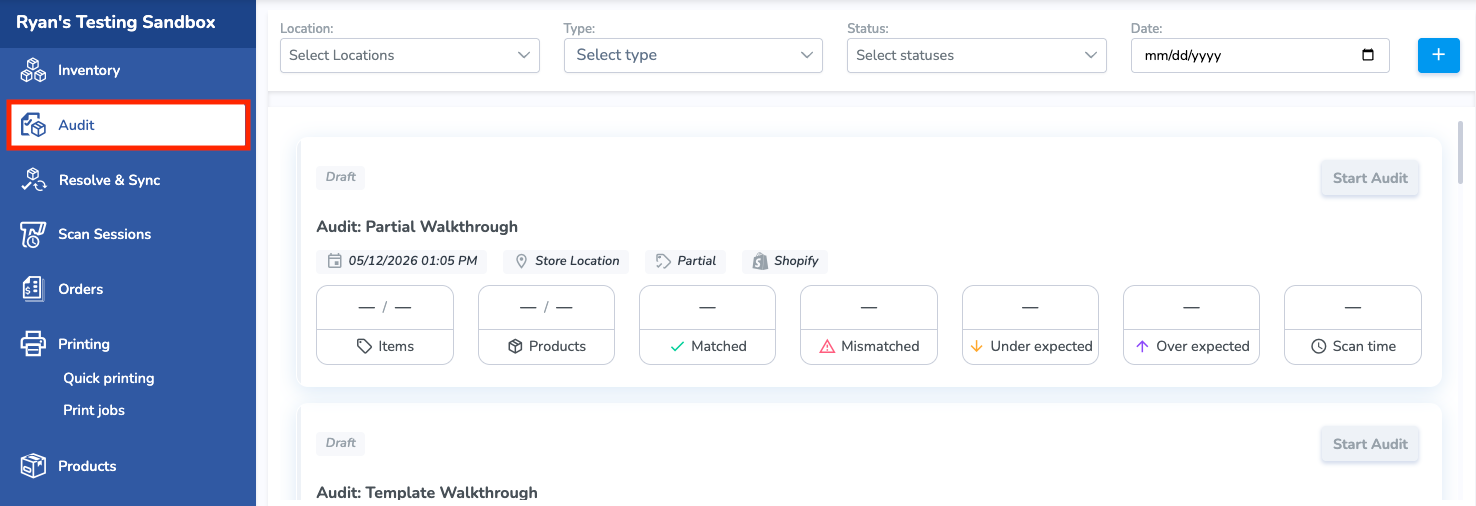
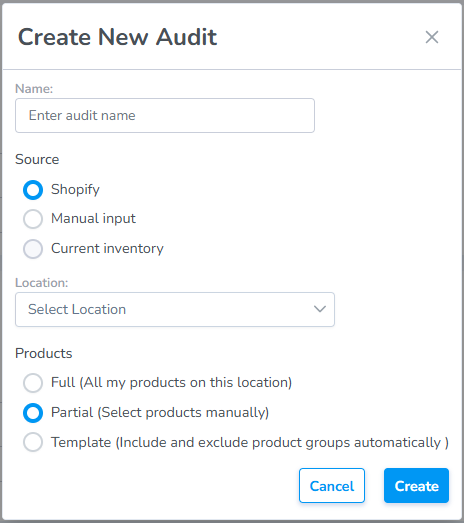
Create a New AuditYou can also create an Audit from theMobile AppFrom theCreate New Auditpop-up window, enter theNameof the Audit, theSourceof the comparison, theLocationwhere the audit is being conducted, and theProductsbeing audited: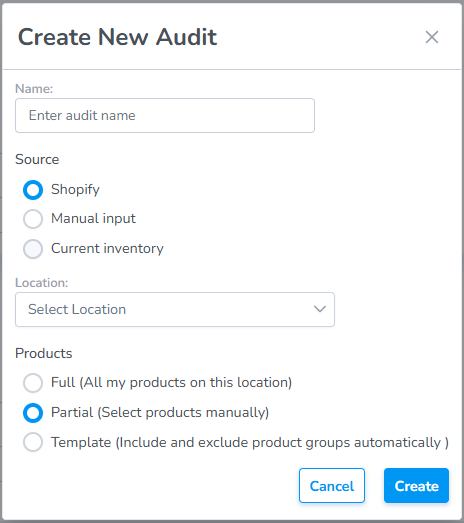

Name:
- This is a free text field to name the audit anything you choose. If you choose to keep this field blank the system will auto-generate an Audit Name for you.
Source:
- for the Source you'll choose Manual Input: This allows the user to use their own Custom Source such as a spreadsheet
Location:
- Choose the location where the audit is being conducted
Products:
- The Products radio select will default to Partial since without an integration the system doesn't know how much or what part of the inventory is being audited.
Click "Create" to create
- The Audit will be created in Draft status.
Add Products to an Audit
Important: Once you click Start Audit, the Audit is locked. You will no longer be able to add or remove products from the Audit.
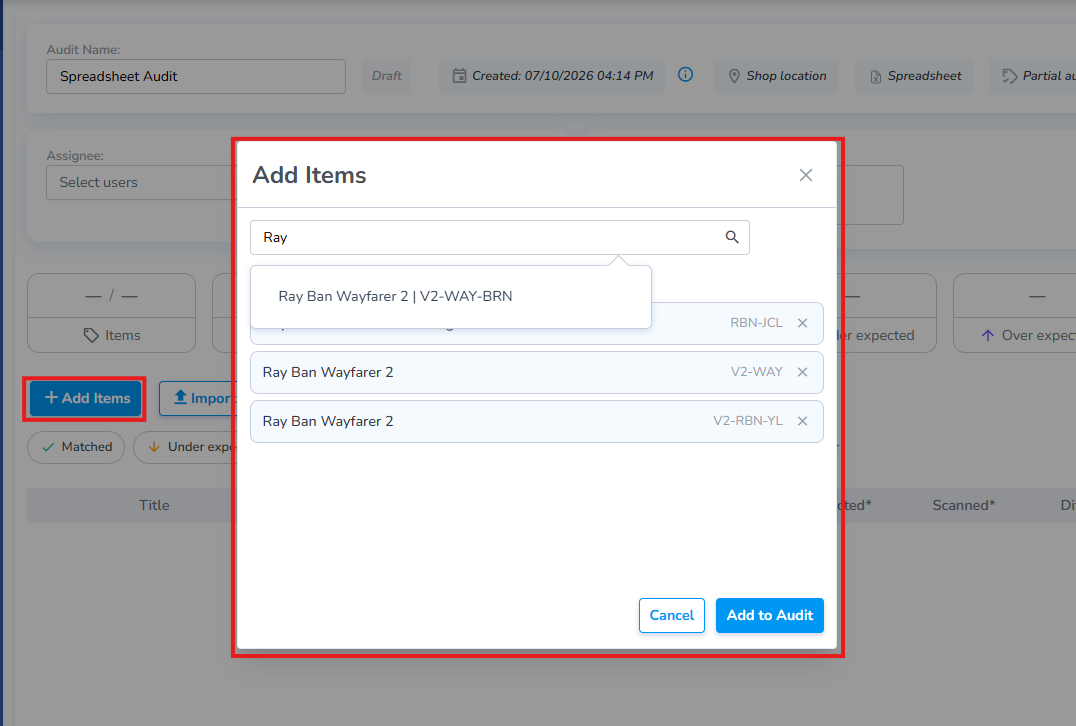
The Audit view will include two buttons, + Add Items button to search and add items manually, and a Import from Excel button to upload a spreadsheet.
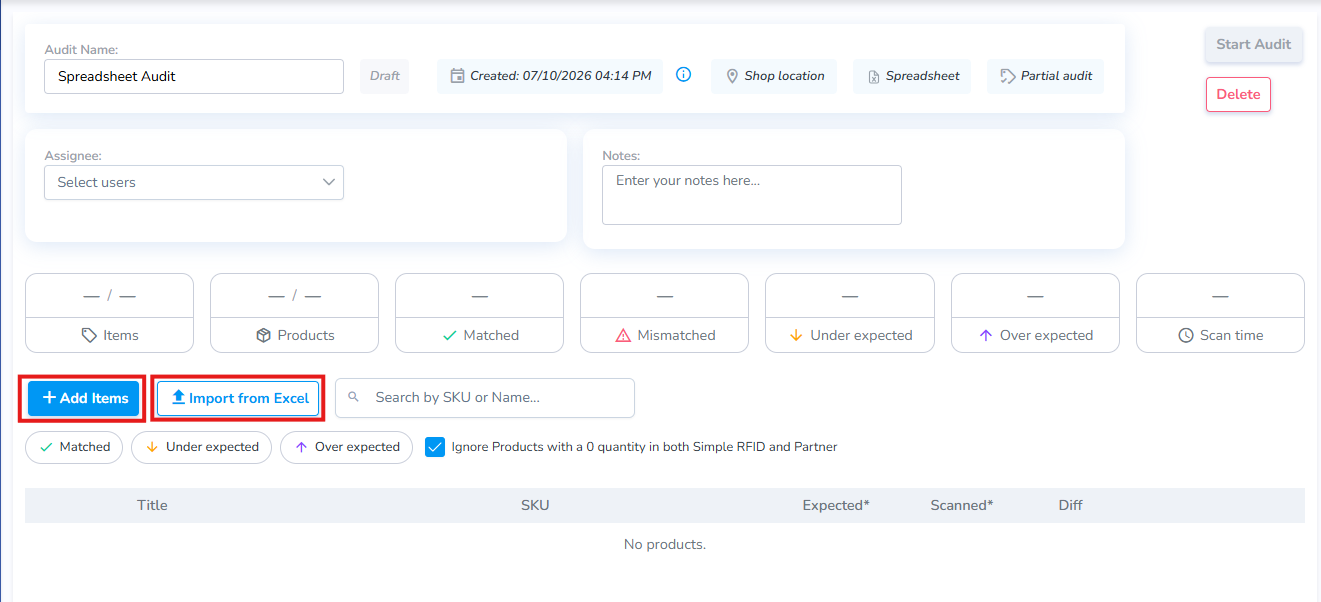
+ Add Items Manually
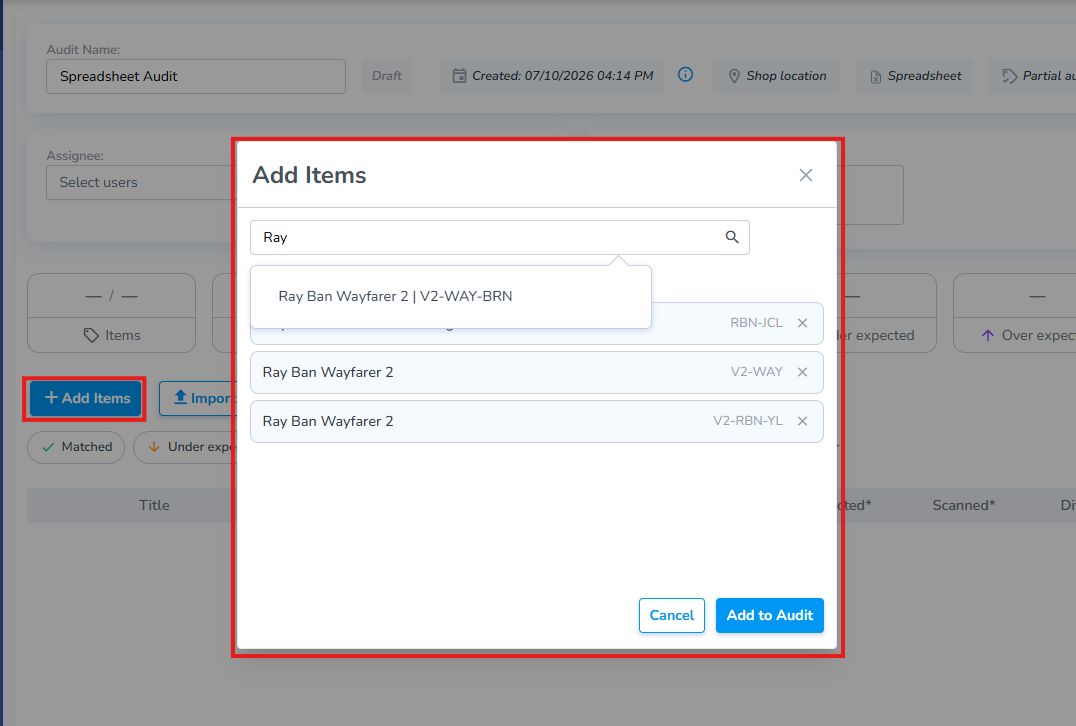
Clicking + Add Items opens the Add Items pop-up window which allows the user to search for and select the specific products to include in the Audit.
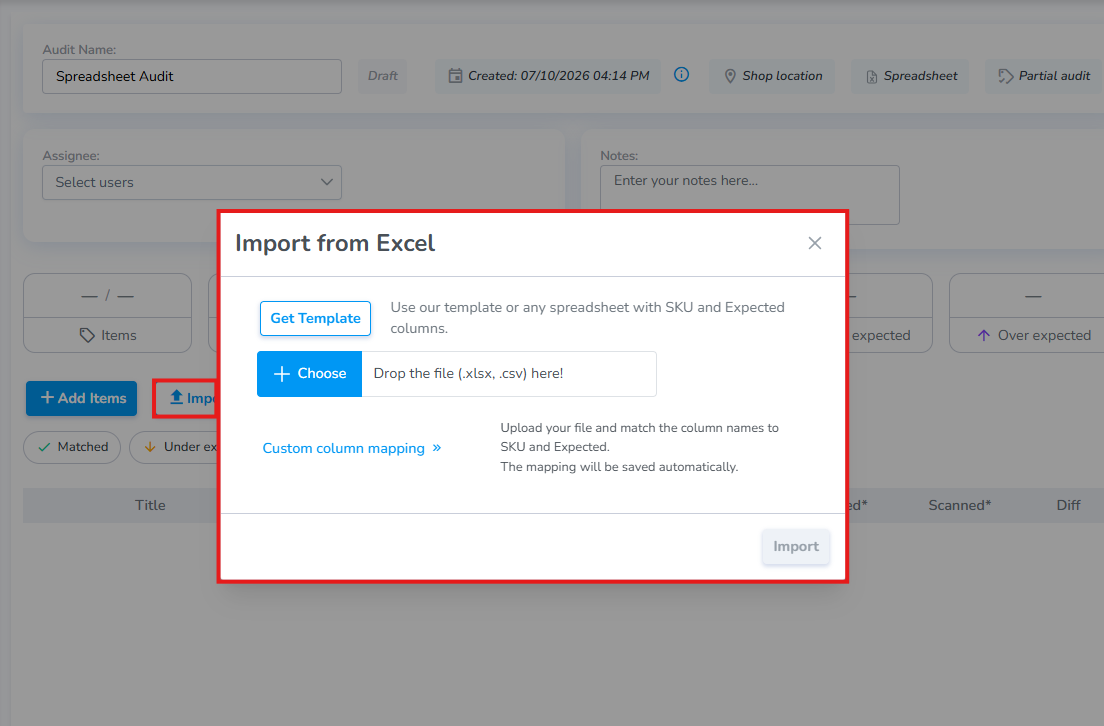
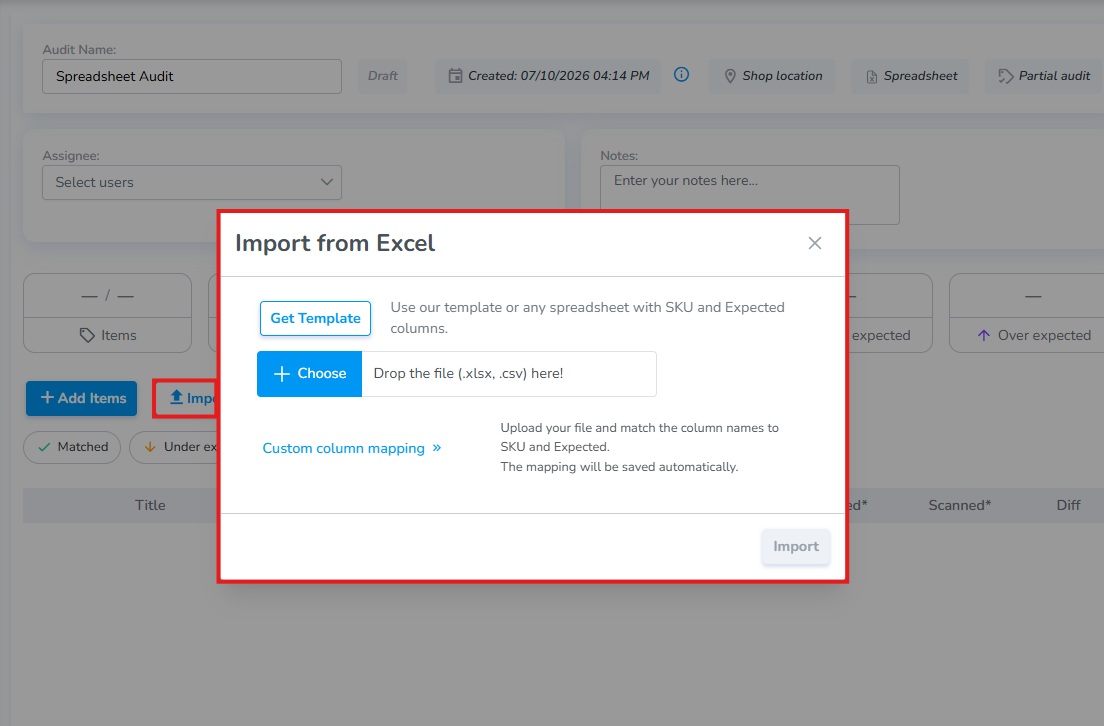
Import from Excel
Clicking the Import from Excel button opens the Import Pop-up.
Use the Simple RFID Template
From this pop-up download a formatted template to enter inventory numbers.
Use your Own Spreadsheet and Map Columns
Click the Custom column mapping link to associate the corresponding columns from your own spreadsheet.
Finally, Once you have added all desired products, click Start Audit to load their current inventory quantities and begin the Audit.