
Resolve & Sync
This article describes the process of resolving inventory count discrepancies and syncing to Shopify after you perform an Audit.
This feature is currently only available for customers using our Shopify integration
Access the Resolution Center
From an Audit, you can go to the Resolution Center. This is where you can give reasons for specific items being over expected or under expected.
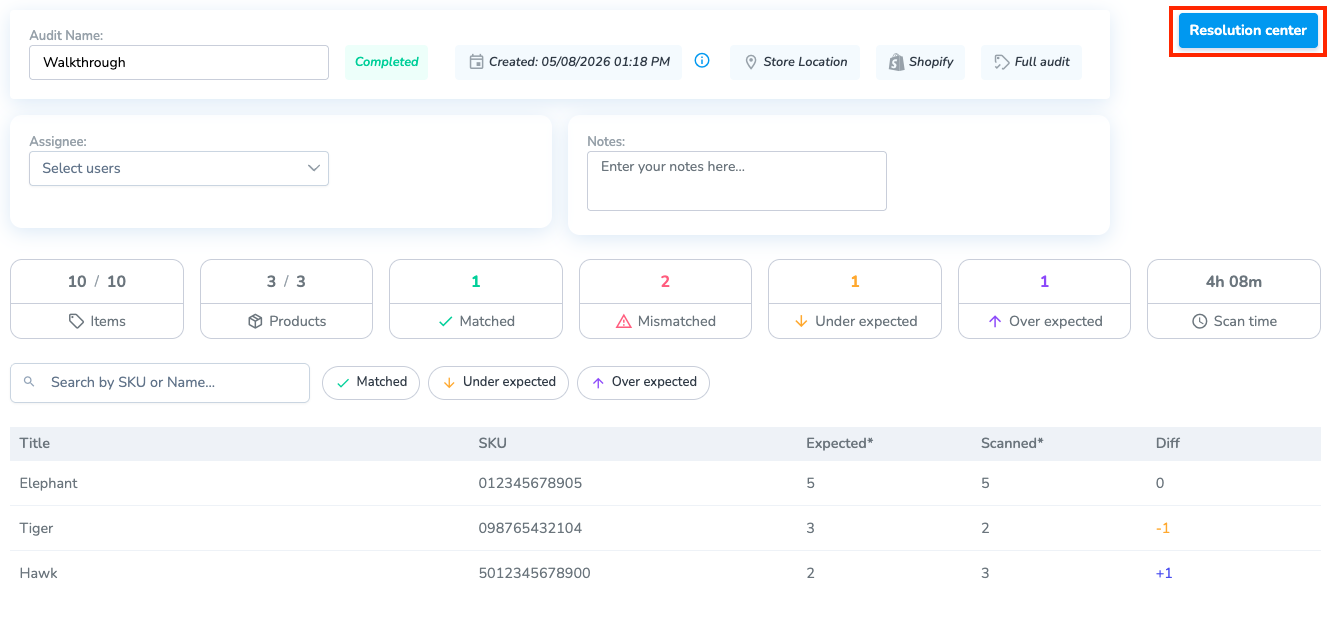
You can also access this page from the Resolve & Sync tab in the navigation menu. From this page, you will see every product that is Under Expected, and Over Expected.
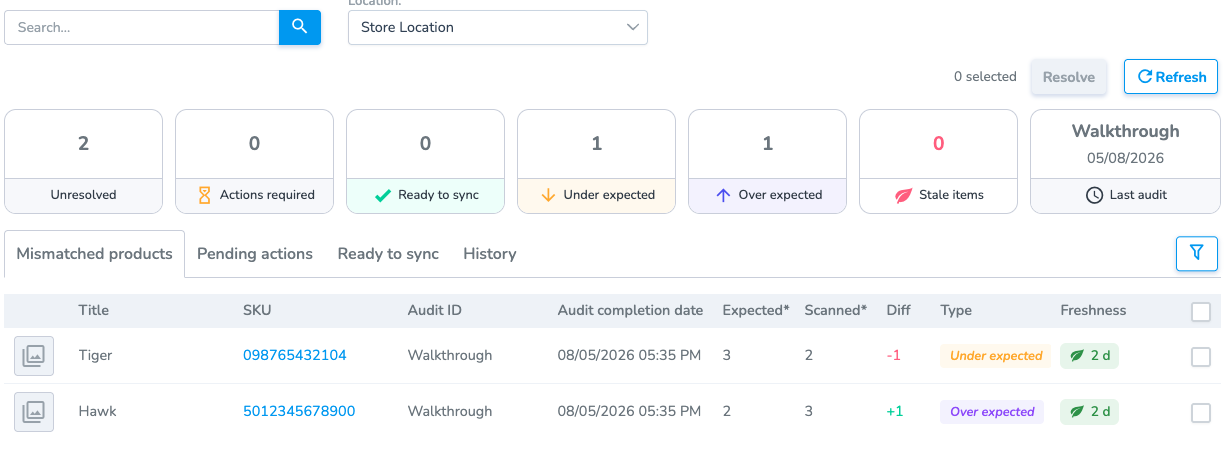
Resolve Mismatched Products
You can select one or multiple products, and click Resolve to bring you to the resolution step. There are two groups on this page, Under Expected, and Over Expected.
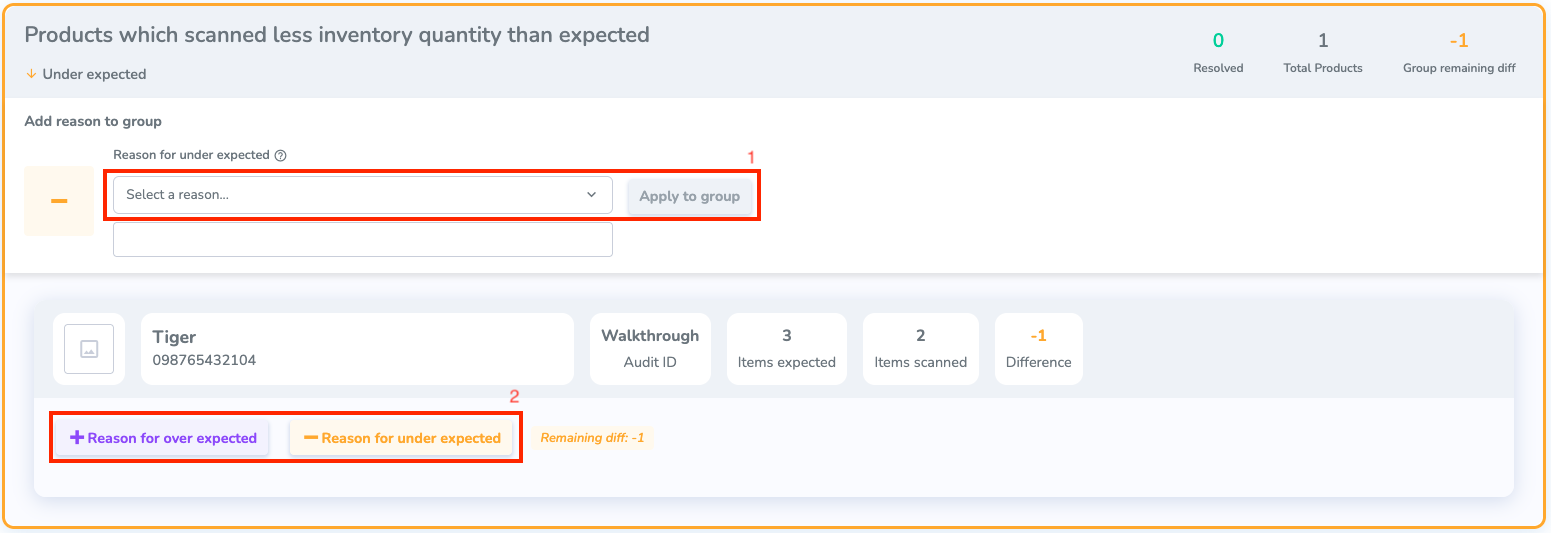
To Resolve a mismatch, you need to give it a Reason. Depending on the reason you give it, it will require a specific Action.
There are two different ways you can add a Reason:
1. Group Reason: Give the same reason for every product selected
2. Single Reason: Give a reason for a specific product
Once you have selected a Reason for all of the products, any that require an Action will be put in the Pending Actions section in the Resolve & Sync tab.
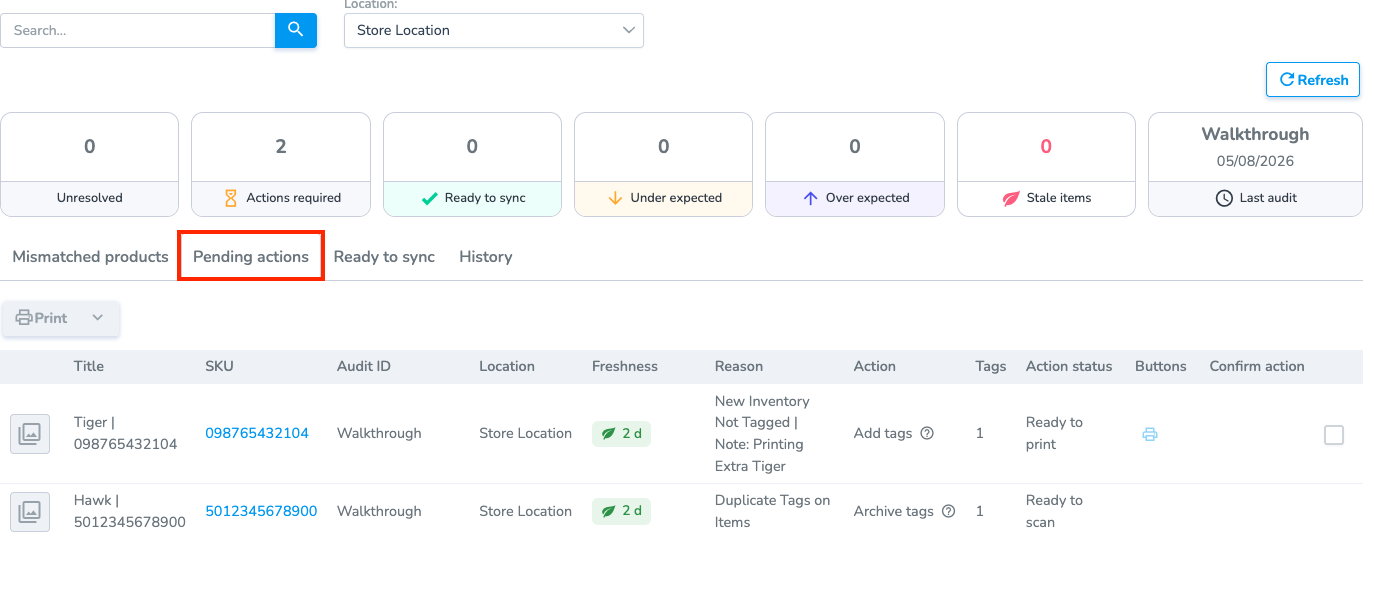
Some Actions can only be resolved on the Simple RFID mobile app. For example, archiving an extra tag.
From here, you can see the Action that needs to be taken. You can hover over the Action column to see what needs to be done. Any products that need to be synced will be in the Ready to Sync tab.