
Reset Inventory & View Absent Items
This article provides instruction for users who do not have an external inventory source to compare inventorytheir against,RFID butscans whoagainst. stillIt wishassists a user to identify what items are in inventory, and what items are no longer present.
If you wish to compare scans against custom source, such as a spreadsheet, oruse datathis from an integration such as Shopify, please refer to the following articles:article: Custom Source Audits. andIf you are comparing data from an integration (Shopify, Apparel Magic), please use this article: Audit against Integration
Navigate to Menu
Open the Simple RFID app on your scanner or phone that is paired with a scanner.
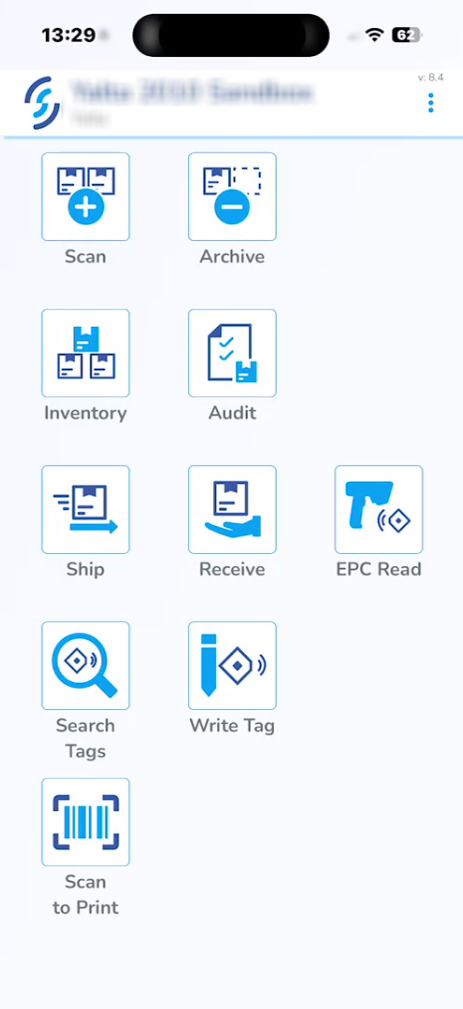
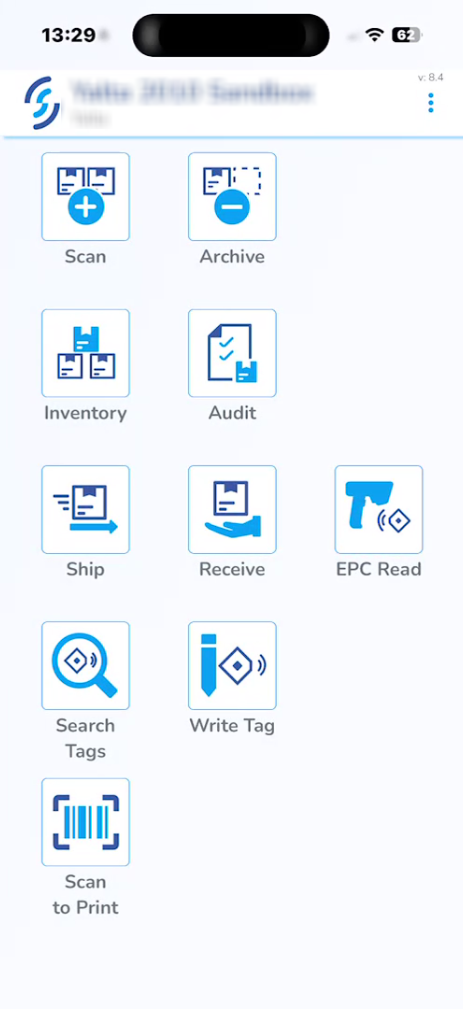
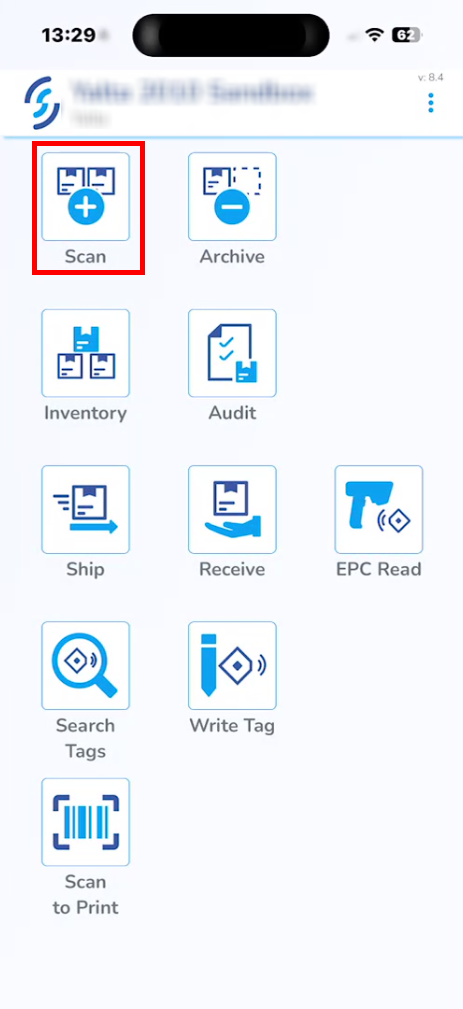
On the homepage, click Scan.
Reset Inventory
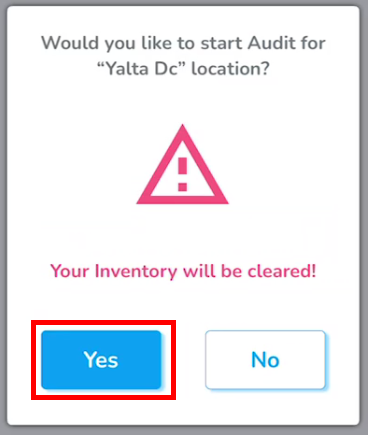
Select Audit. (in this case Audit refers to "Resetting" the inventory
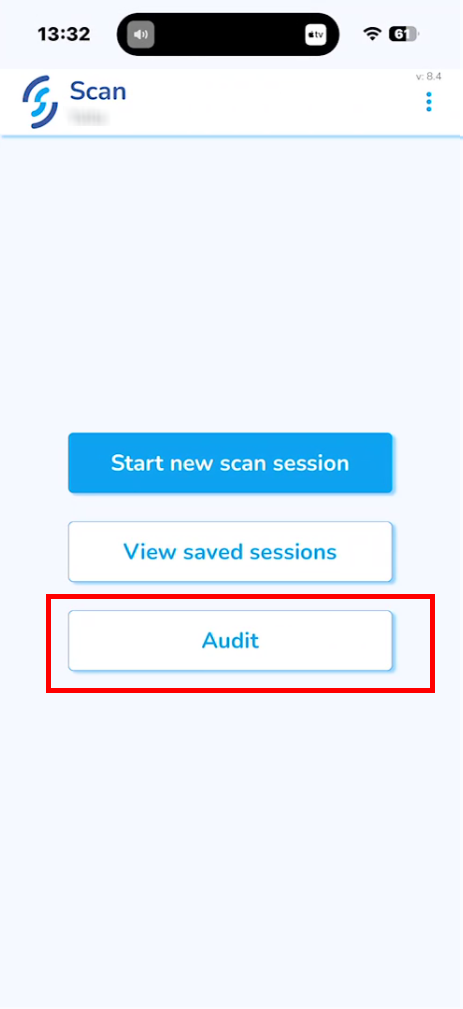
Click Yes when prompted: "Your Inventory will be cleared!"
Scanning Inventory
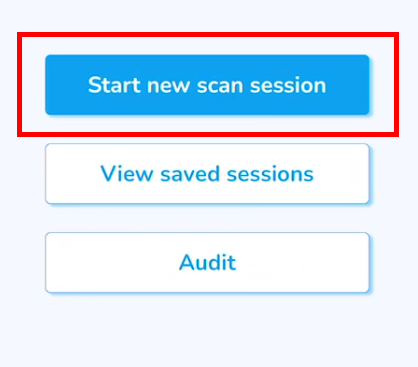
After accepting the prompt, you will be takenreturned back to the Scan menu.
Select Start new scan session.
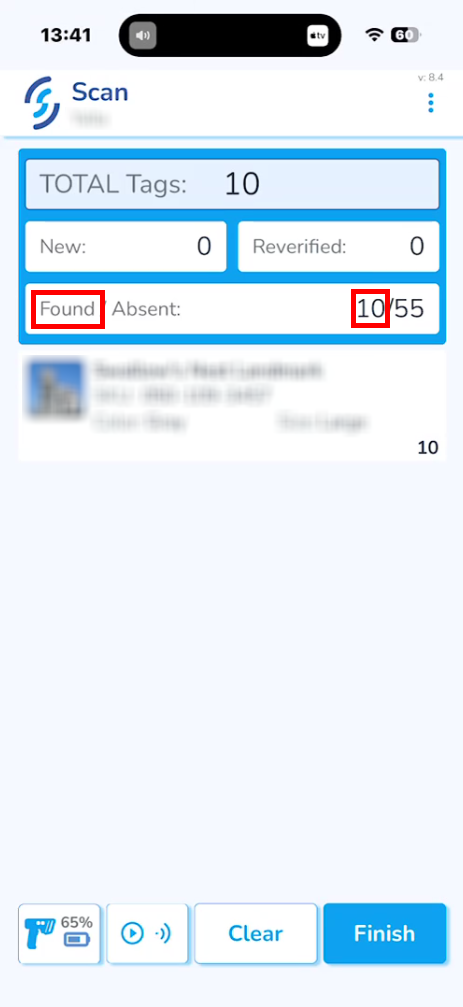
This step is similar to the regular scan.
Items that existed in the inventory before it was cleared will be marked as Found.
Items that are already in the active inventory and are scanned during this session will be marked as Reverified. Verified/Reverified items areand will not beadded countedto towardsyour inventory quantity since the mainserial quantitynumbers duringalready uploadexist toin avoidthe double-counting.inventory.
Click Upload to inventory and Ok.
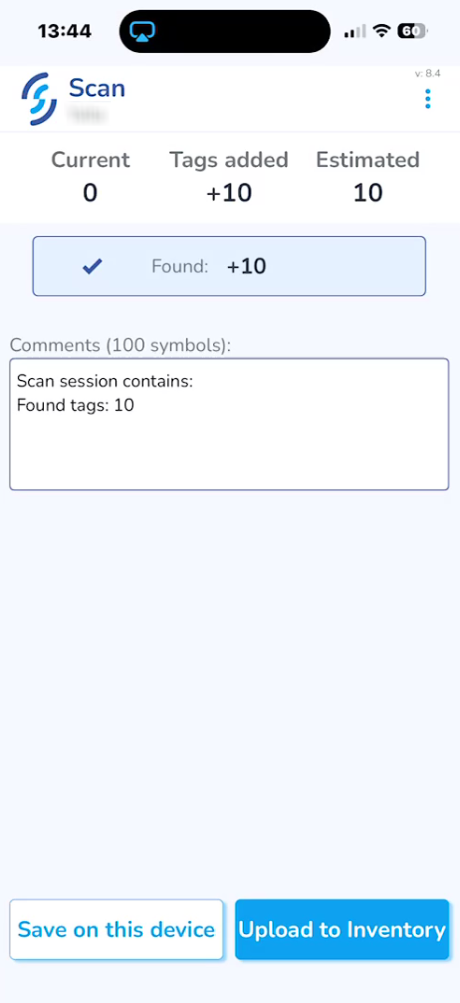
Then click "OK" on the pop-up to confirm the action.
After the scan session is uploaded, go to the SimpleRFID web portal and click Inventory.
All the Foundscanned productsitems will be under the Verified tab.
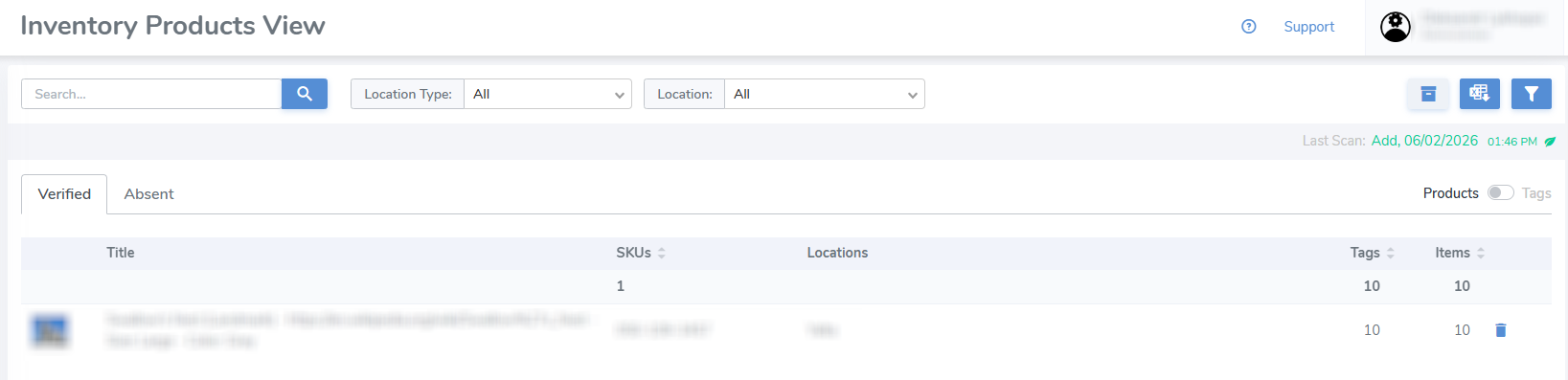
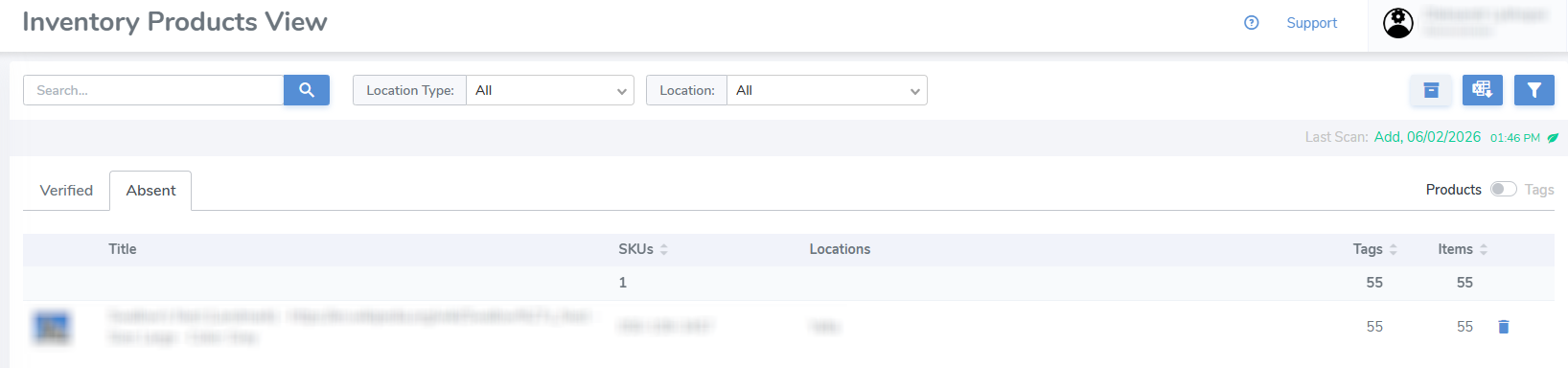
The products that were not foundscanned during the auditinventory reset scan will be under the Absent tab.
Generate Report
The report of the current inventory can be downloaded by clicking the second button in the top-right corner.
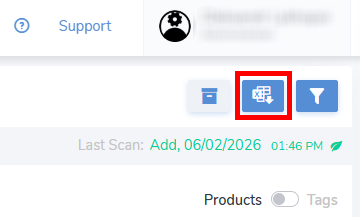
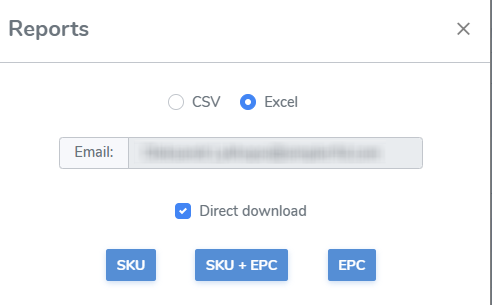
It's possible to download 2 different reports, one for Verified and another for Absent items, which depends on which Inventory tab is currently open.
Each report is meant to represent specific information, but all of them can be downloaded.
The audit scan session can also be viewed and its report obtained via the Scan Sessions tab in the navigation menu.