
Printronix: Updating Firmware via Flash Drive
Requirements:
- Flash Drive formatted with FAT32 and MBR partitioning
- Printer set up with Power
Step 1: Download the CCM Zip File
Using the zip file below download the file.
Step 2: Extract the file onto your Flash Drive
After downloading, open up file explorer to the file and Extract All from the zip file onto the Flash Drive. At this point the Flash Drive is ready. (Video instructions of this process can be found at the bottom of this article).
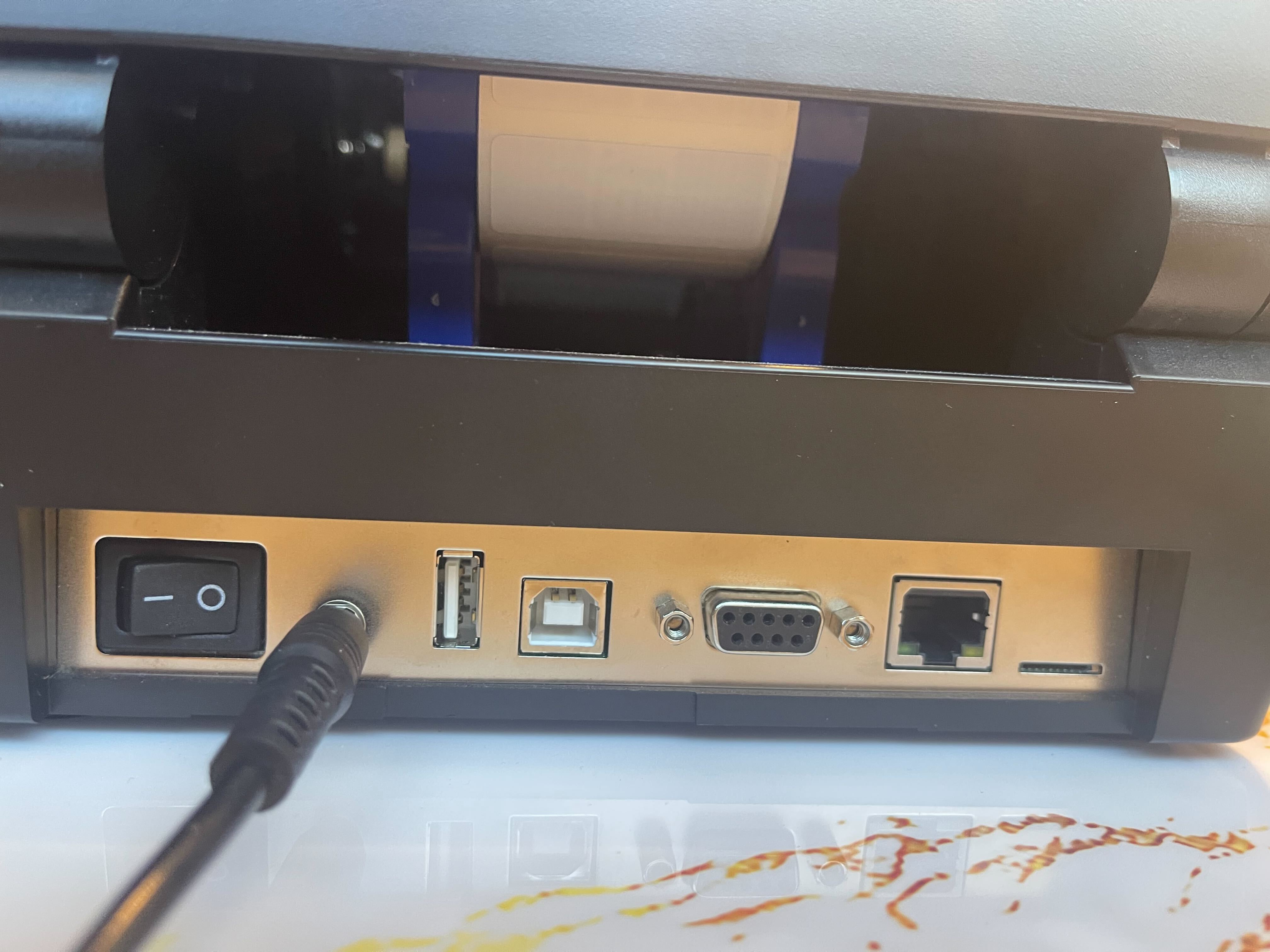
Step 3: Turn off the Printer
With the power cord still plugged in, switch the power off.
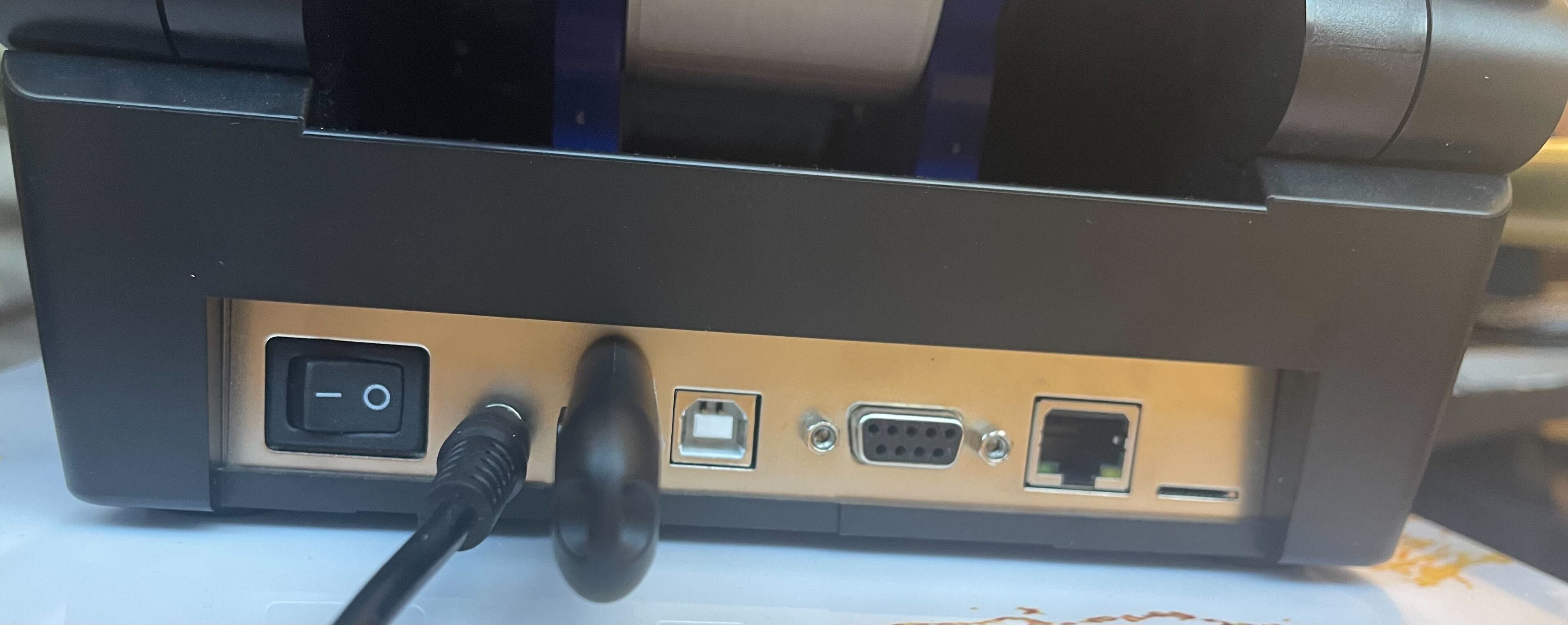
Step 4: Plug the Flash Drive into your Printer
- Plug the Flash Drive into your Printer.
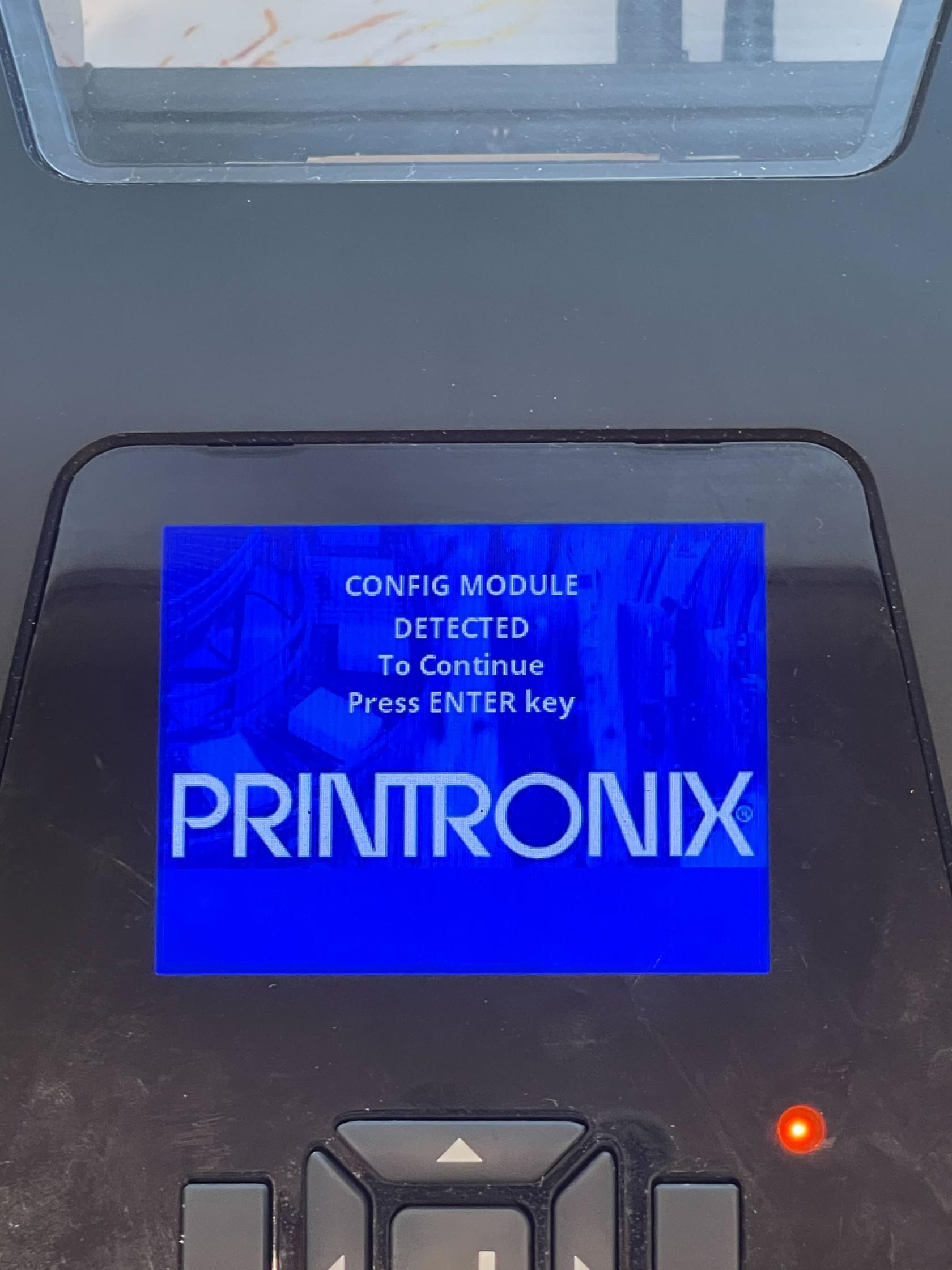
Step 5: Power on and hold down the Up Arrow
- While you flip the power switch on, hold down on the up arrow on the printer. Keep holding that down until you see "Config Module Detected" on the printer screen.
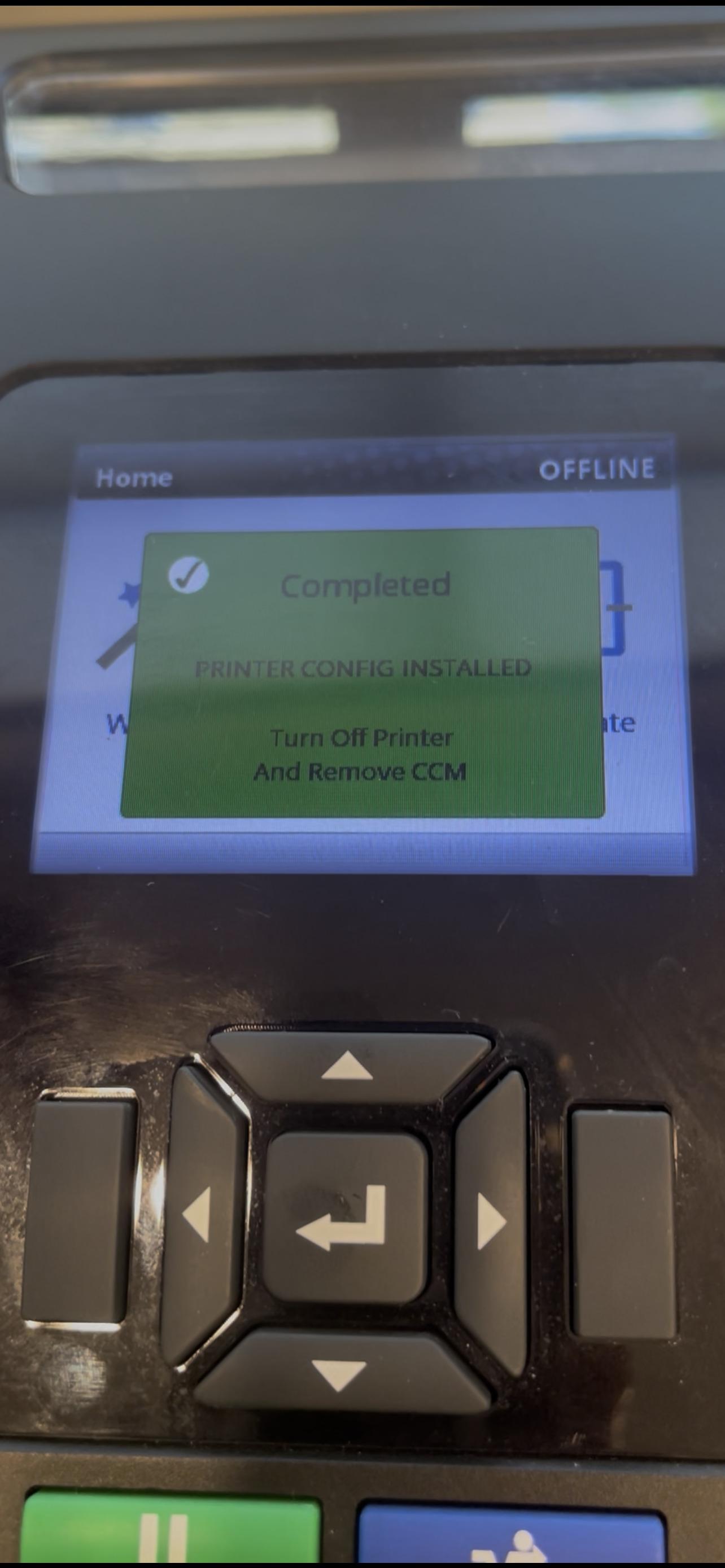
Step 6: Wait for the Printer to Reboot
- At this point you will have to wait for the printer to process the files and upgrade. Wait until you see the printer reboot (the printer may reboot multiple times) and a screen that says "Printer Config Installed".
Step 7: Unplug the Flash Drive and Turn off the Printer
- Go ahead and turn off the printer and take the flash drive out. At this point the printer is configured and updated. Go ahead and plug in the rest of your connections and power on. (Remember to Calibrate before printing again).