
Printer Setup Instructions
Step 1: Set up your printer
Watch the video corresponding to your printer model for setup instructions.
Desktop Printers
Zebra Printer (ZD621R, ZD500R)
Printronix Printer (T800)
Industrial Printers
Zebra Printer (ZT411, ZT410)
Printronix Printer (T6000e)
Printronix Printer (T4000 series)
Step 2: Install the Print Client
Step 1. Connect the printer to the device
The printer can be connected to the PC via Network or USB. Network method is generally more reliable, and therefore preferred if possible.
WARNING: MACOS DEVICES
The macOS version of the Print Client is currently in beta. As such it has the following limitations:
- The macOS Print Client requires Apple Silicon (M1 or later). Macs with Intel processors are not compatible.
- The macOS Print Client does not support Printronix printers via USB. Zebra printers can be connected via USB, but Printronix printers can only be connected via local network.
- The macOS Print Client will not work if certain USB storage devices are connected. This can include flash drives, external hard drives, or even mobile phones. If you disconnect these devices, the print client will run.
Network method
If connecting via network, use the provided CAT6 cable, or a network cable of your own, to attach the printer to your network.
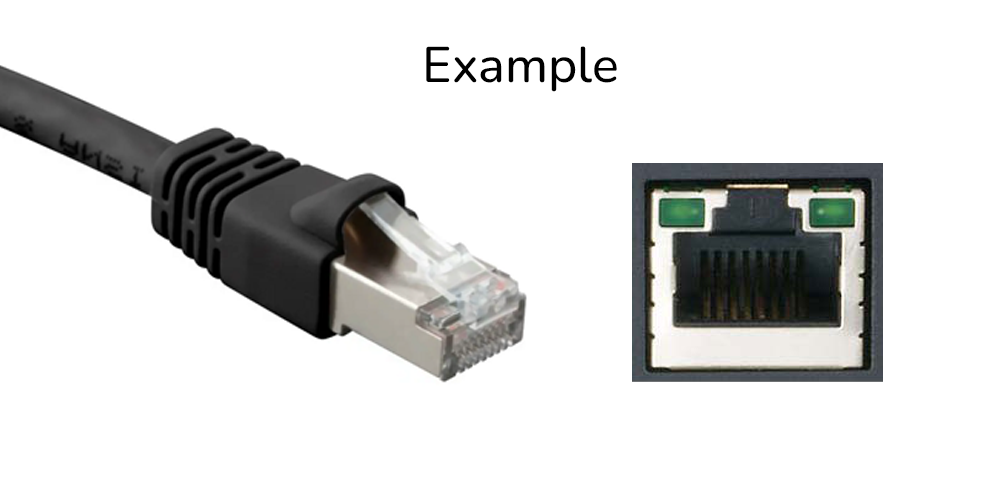
The printer must be on the same subnet as the host PC in order to be detected by the Print Client.
USB method
If connecting via USB, plug the provided USB cable into your PC and printer. The USB-A connector should be plugged into the PC, while the USB-B connecter should be plugged into the printer:
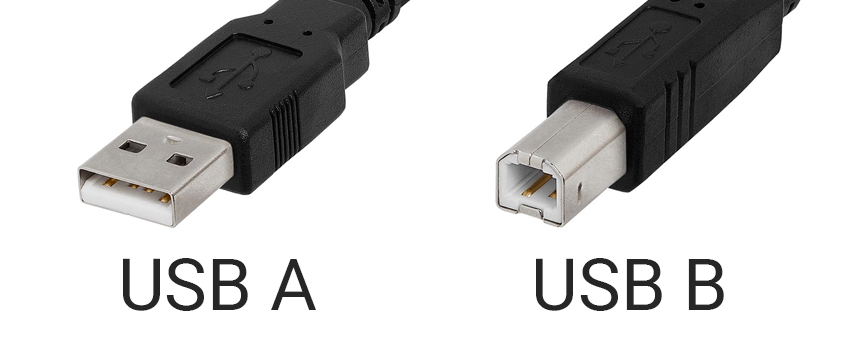
Last, for the USB method, you'll need to change the Interface setting on the printer to USB.
Such cable type is often used by regular inkjet/laser printers as well.
Step 2. Install Print Client
If you are connecting a Printronix printer via USB, you must use the Windows version currently. macOS only supports Printronix printers via network connection.
Download the Print Client:
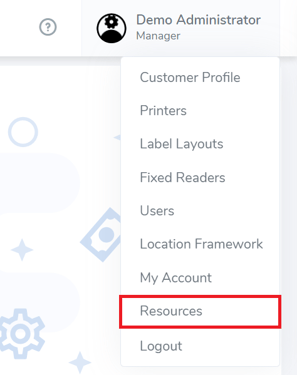
- Login to the web portal
- Click on your account name in the top-right corner
- Click "Resources"
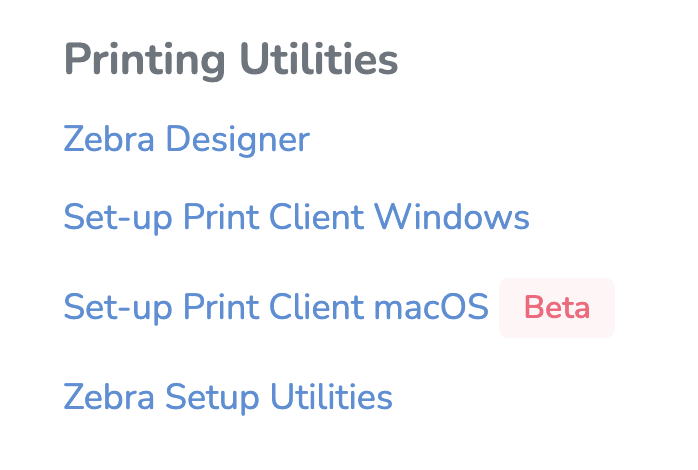
- On the resources page, under Printing Utilities, click "Set-up Print Client Windows" or "Set-up Print Client macOS" to download
Install Client
- Open the downloaded file (PrintClient.Updater.Installer.msi or PrintClientUpdater.Installer.pkg). This will launch the installer.
- Follow the steps in the installer. You will need to provide Administrator approval to complete the installation.
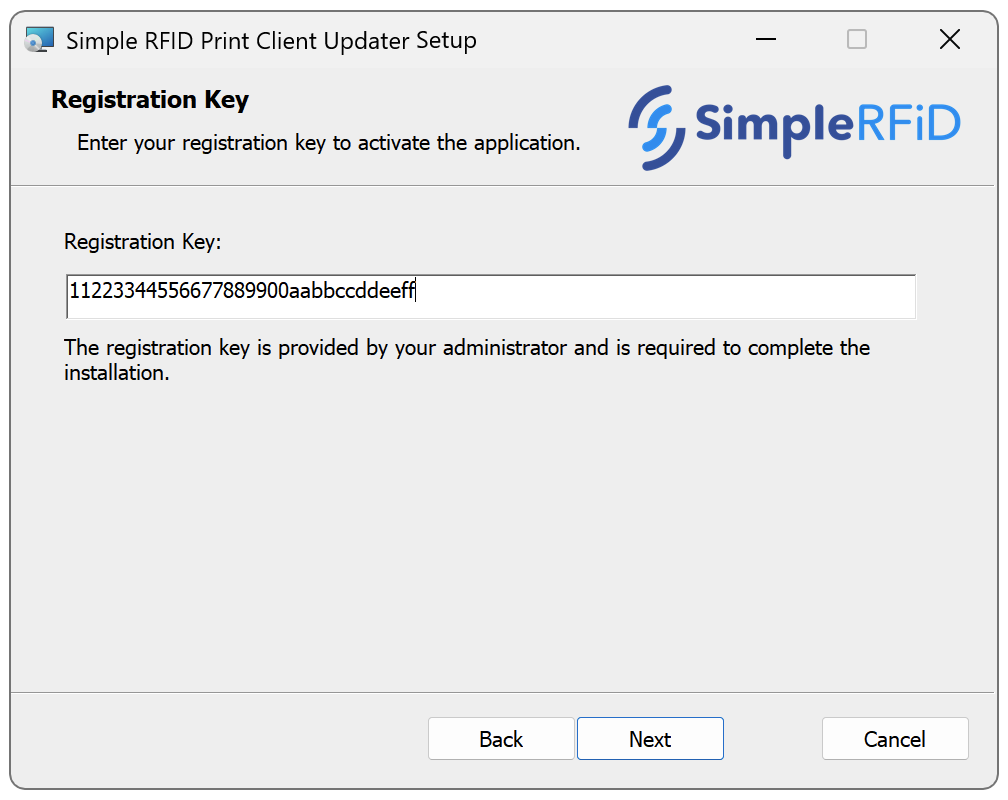
- Enter your Registration Key when prompted. You can find this key on the web portal, on the Customer Profile page under Printing Settings.
If you don't have access to the key, reach out to your manager.
If you are not prompted to enter the key, finish the installation, then reach out to Simple RFID support to connect your printer.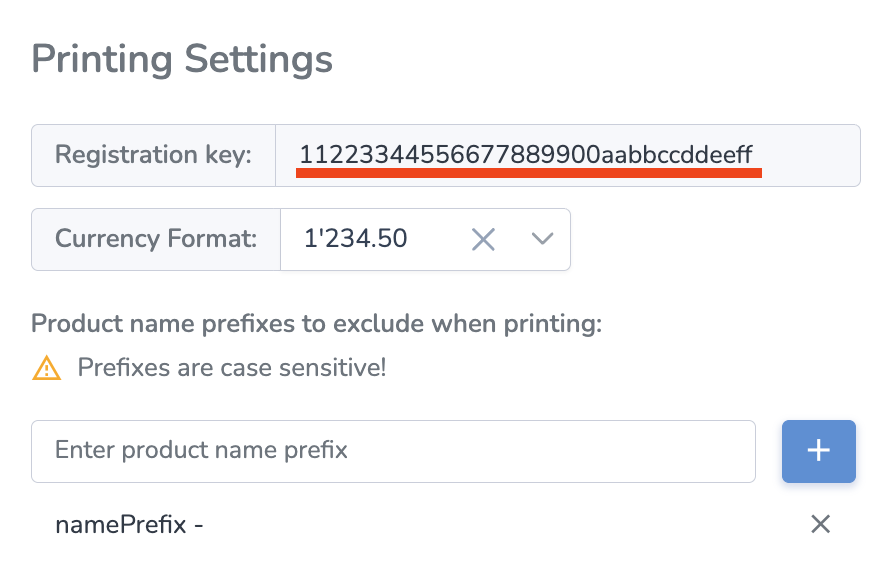
- When the installation is completed successfully, you can close the installer.
Step 3. Assign Location
Please ask your manager to assign the location.
Here are the steps for manager:
- Go to User Menu (click on the name on the top right)
- Select Printers
- Find the new Print Station (often on top, will have "Not assigned" under the location column)
- Click the gear icon (
 ) on the right from the Print Station)
 - In the Location dropdown, set the desired location
- Click Apply

Once the printer is connected, it will appear on the Printers page, and in the Available Printers menu.