
Installing Print Client
Step 1. Locate the name of the PCdevice
You will need to provide the PCdevice name to Simple RFID in order to connect the host PCstation to your account:
Windows 10/11
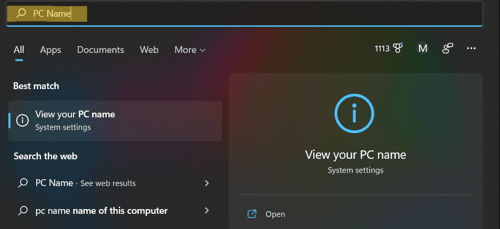
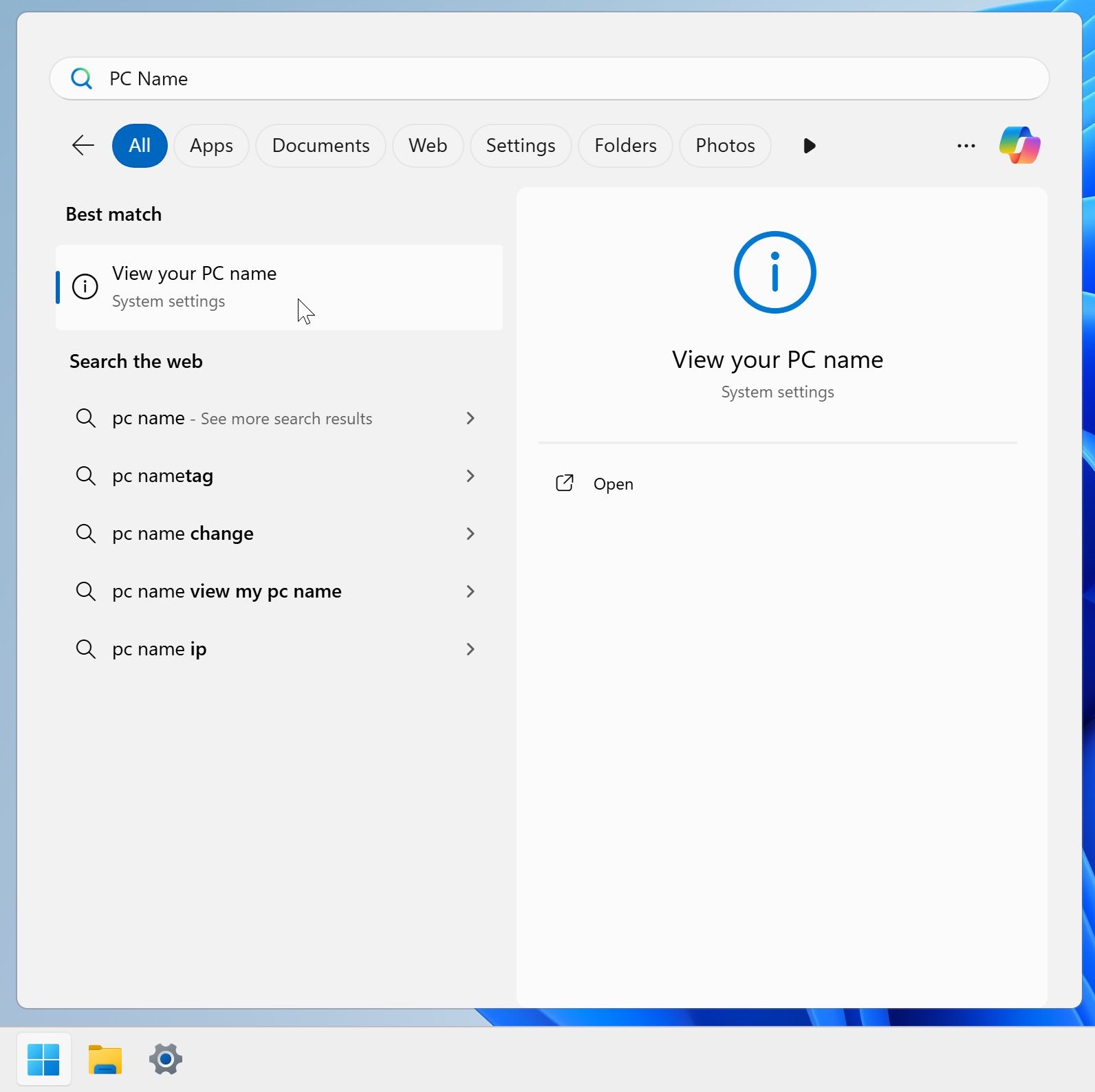
From the search window on your Windows PC, type "PC Name."Name", then click View your PC name.
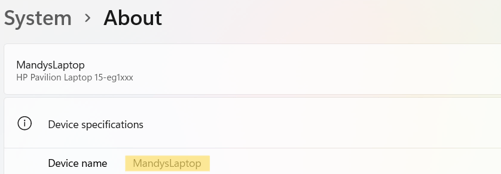
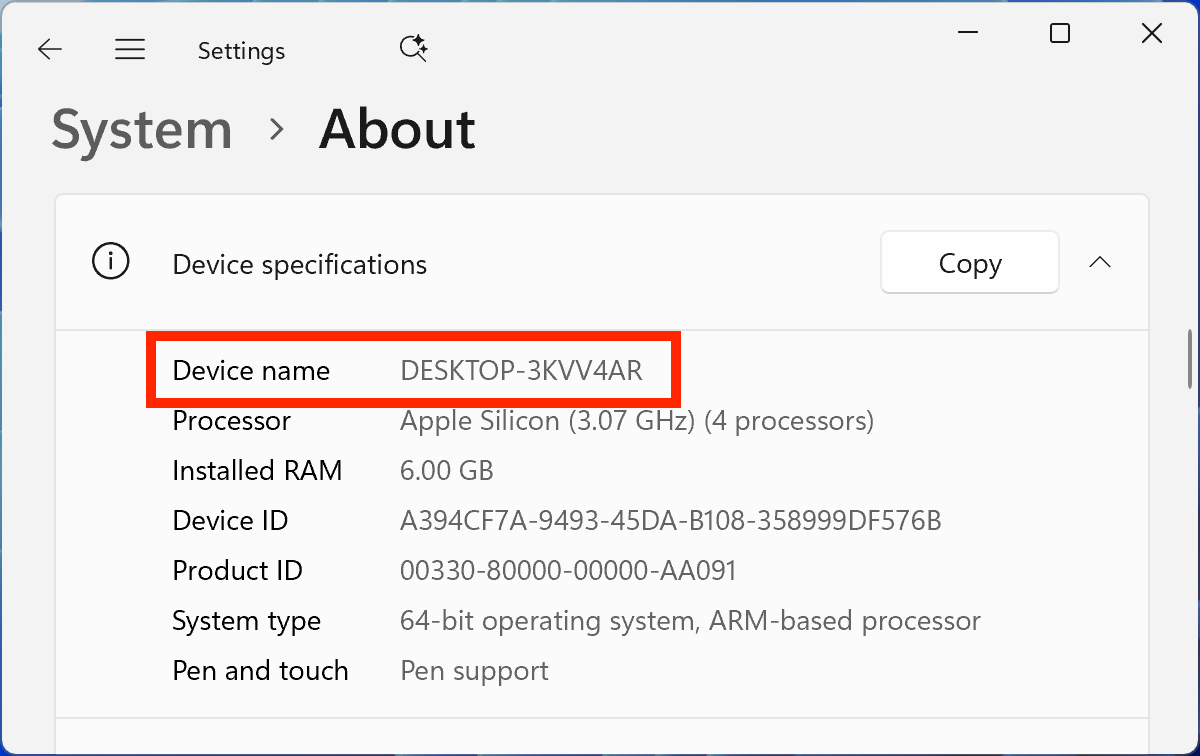
• Under System > About, you will find the name under "Device specifications"• To the right of the "Device name" you will see the name of your PC. You can keep the current device name or rename it.*.
If you rename your PC, you must restart your computer before continuing to Step 2.
macOS
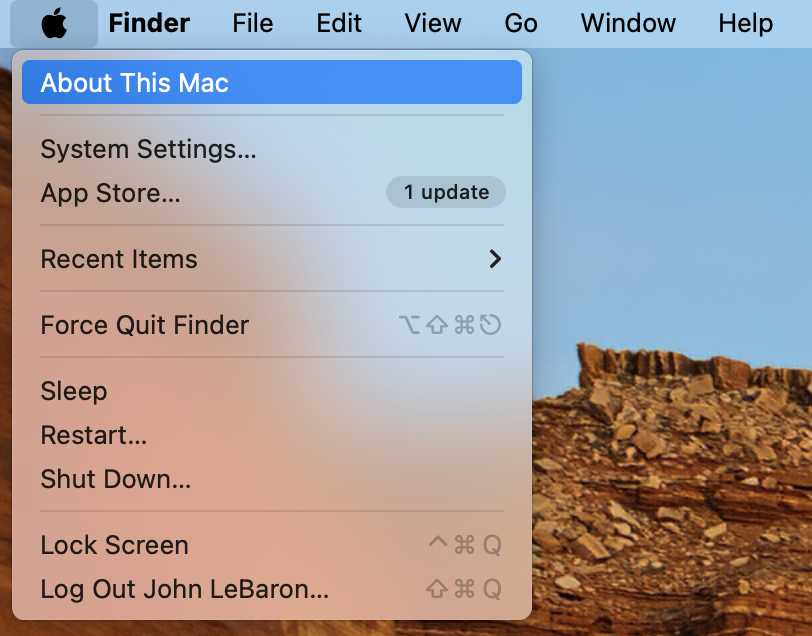
In the information window, click More Info...
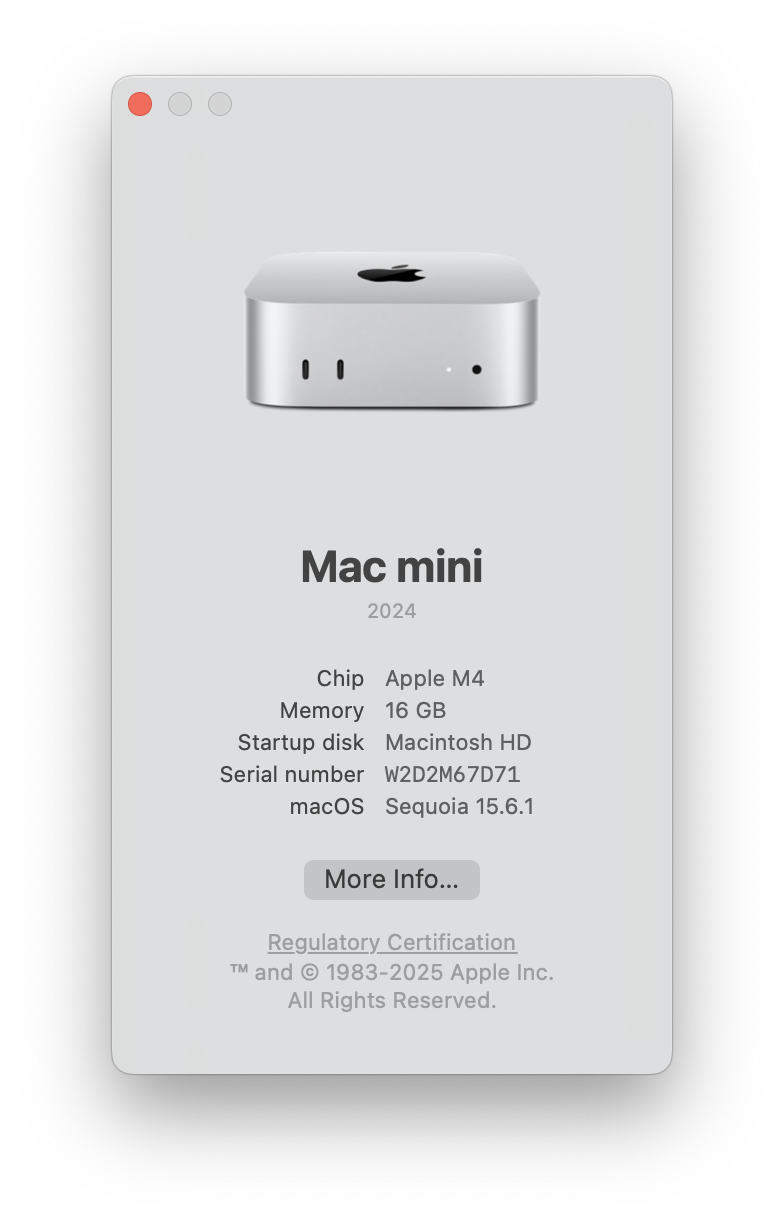
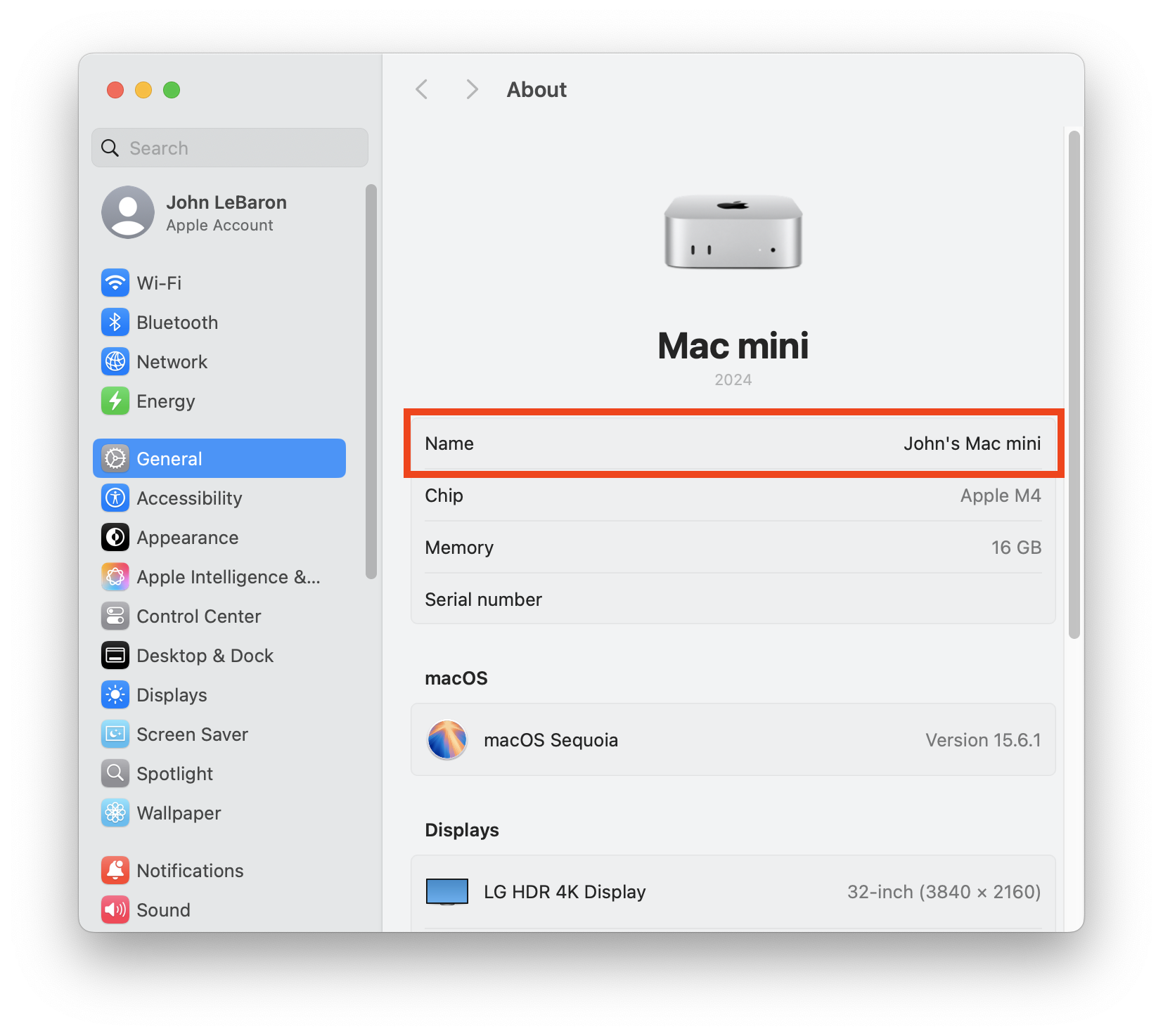
In the About window, your device name is indicated in the Name field.
Step 2. Connect the printer to the PCdevice
The printer can be connected to the PC via USB or Network.
If you connecting a Printronix printer to a Mac, you must connect the printer via network. macOS does not support Printronix printers via USB connection.
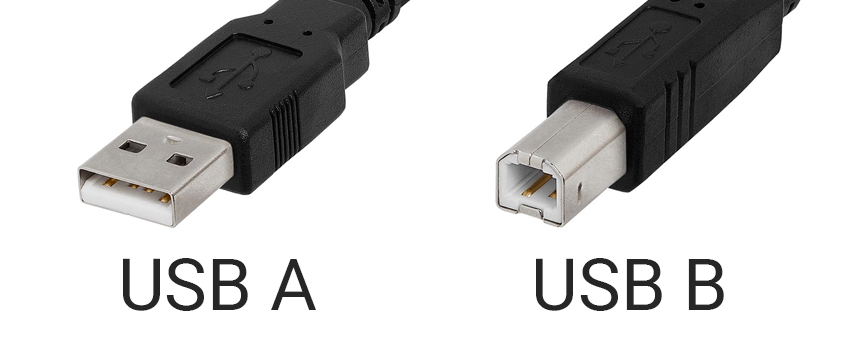
If connecting via USB, plug the provided USB cable into your PC and printer. The USB-A connector should be plugged into the PC, while the USB-B connecter should be plugged into the printer:
If connecting via network, use the provided CAT6 cable, or a network cable of your own, to attach the printer to your network.
If your printer will be connected via network, make sure the printer and the PC where the print client is installed, are on the same LAN.
Step 3. Install Print Client
Currently,If you are connecting a Printronix printer via USB, you must use the Client must be installed on a Windows PC.version currently. macOS only supports Printronix printers via network connection.
Download the Print Client:
Clickhere toDownload Print Client
or
- Login to the web portal
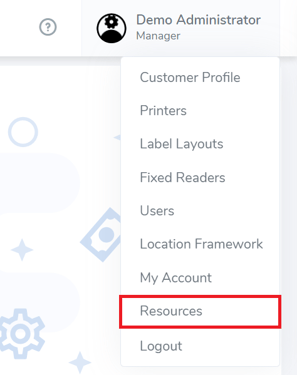
- Click on your account name in the top-right corner
- Click "Resources"
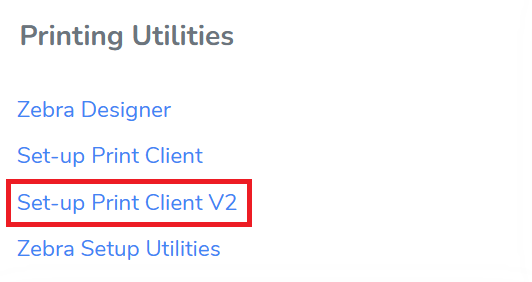
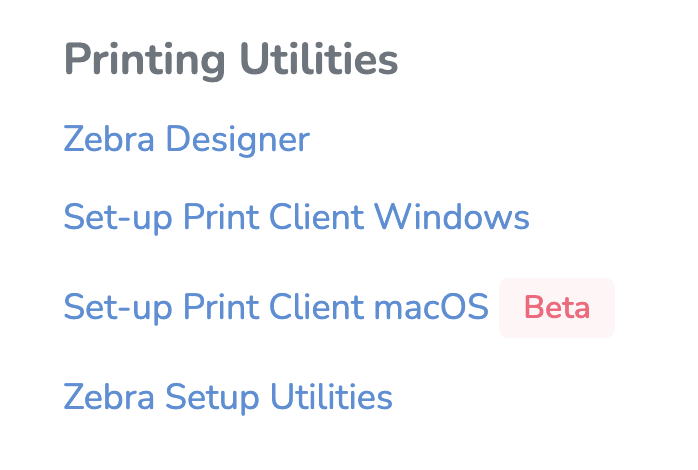
- On the resources page, under Printing Utilities, click "Set-up Print Client
V2Windows" or "Set-up Print Client macOS" to download
Install Client
- Open the downloaded file (PrintClient.Updater.Installer.
msi)msi or PrintClientUpdater.Installer.pkg). This will launch the installer. - Follow the steps in the installer. You will need to provide Administrator approval to complete the installation.
- When the installation is completed successfully, you can close the installer.
Step 4. Notify Simple RFiD
Finally, please notify us of your new device so we can connect it to your account.
Email: support@simpleRFID.com
1. Please make "Connect Printer" the subject
2. In the body of your email include:
• The name of your company
• The Device name of the host PC (this can be located in your Windows settings)PC/Mac
• Name of the location where your printer is connected
( This refers to the physical location where the printer is located (e.g. which warehouse or store the printer is in).
If you are setting up your printer before your first training, you can disregard this step as you will not have any locations set up yet. )
After sending the email, a member of our team will connect your printer
⇒ Please allow up to 8 hours for a response, notifying you that the printer is connected (expect a shorter wait time during normal business hours: 9-5pm MST)MT)
Once the printer is connected, it will appear on the Printers V2 page, and in the Available Printers menu.