
Scan to Print Feature
Print to Scan feature requires the Barcode to be unique to each product
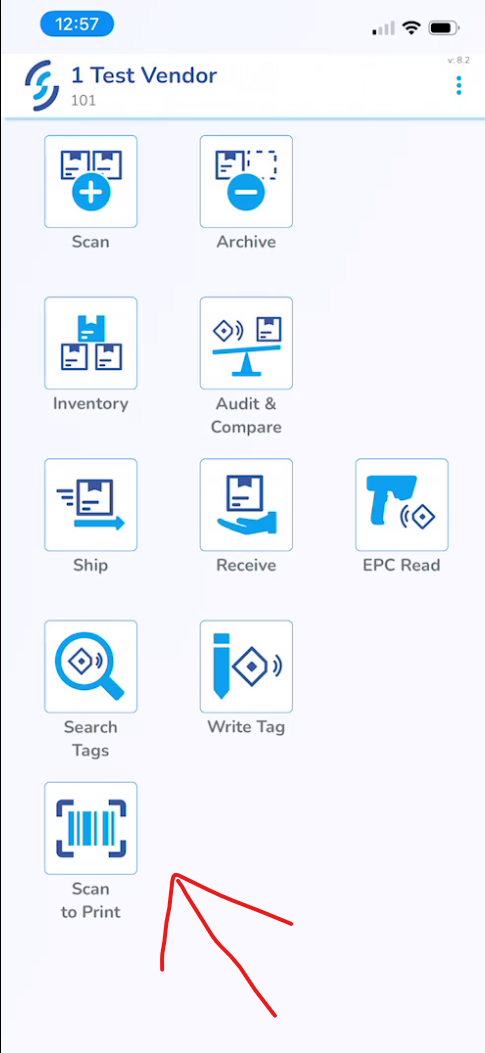
1- Login to the Simple RFID mobile app
- Select your Business and Location
2- Select "Scan to Print"
3 - Select Printer and Label Layout
- At the top of the Scan to Print page you have the option to select a printer
- At the top right of the page you can select the label layout you'd like to print
4 - Scan the unique SKU/Barcode
- At this point you are ready to start scanning tags to print
- Once scanned it will give you the option to select the quantity of tags you'd like to print
The "Instant Print" feature will instantly create a Print Job for one tag
5 - Errors?
- If you run into any errors please feel free to reach out to support with the link below
https://support.simplerfid.com/support/tickets/new