
Shopify: Compare & Sync
The following article describes the process of comparing and syncing your Simple RFID inventory to Shopify.
Comparing
On the Simple RFID app in Shopify, navigate to the Compare On Hand page
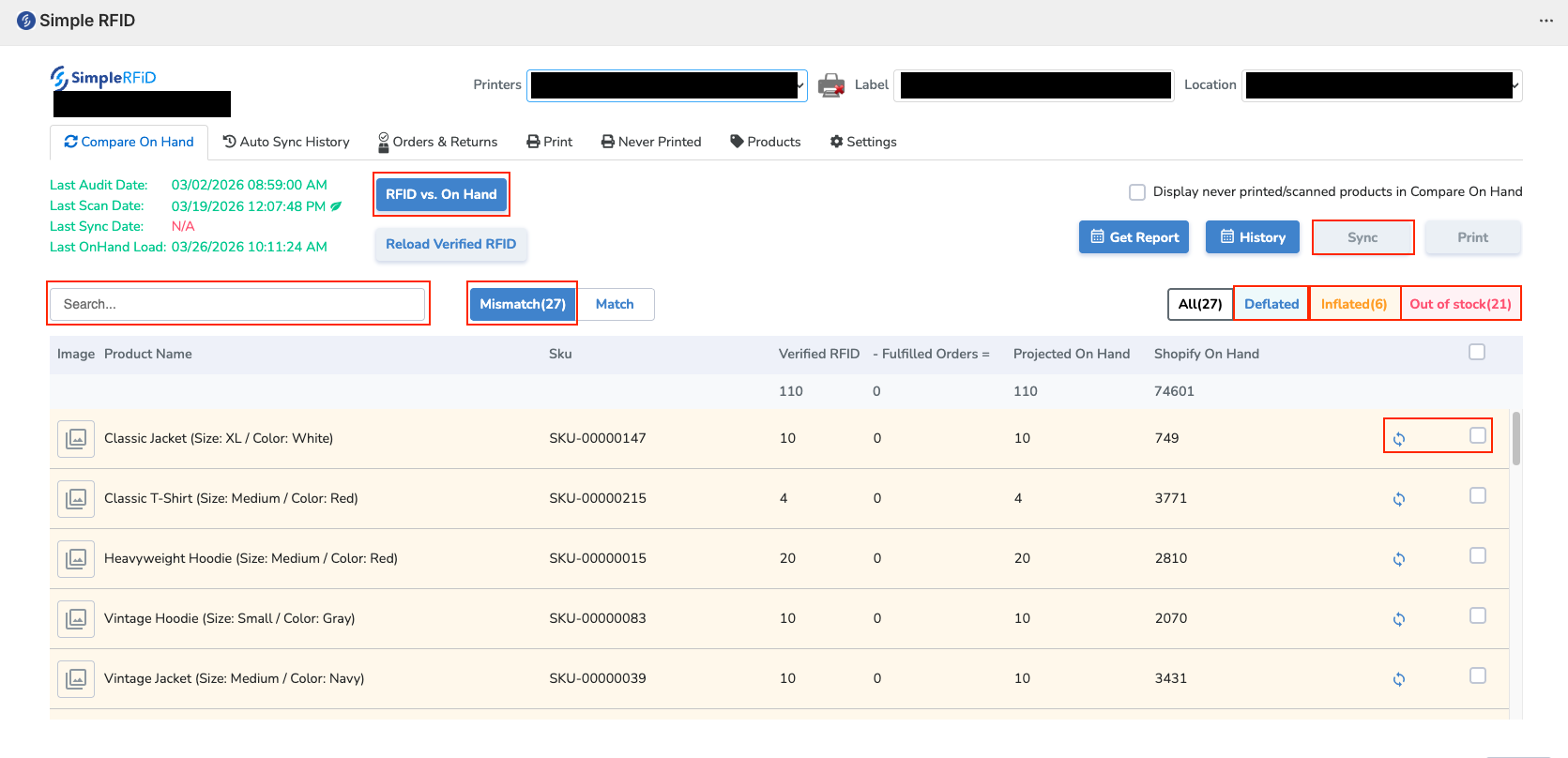
To load your inventory, select RFID vs. On Hand
If you can't find a product, it may be due to the item never being printed and/or scanned. If this is the case, click the "Display never printed/scanned products in Compare On Hand" checkbox, and reload the page.
Once your inventory is loaded, you will see each product with a few different quantities:
Verified RFID
The quantity in your Simple RFID inventory
Fulfilled Orders
The quantity ofShopify orders that were fulfilled since the last Simple RFID audit
Projected On Hand
The difference between Verified RFID and Fulfilled Orders, showing the number that will be syncedcompared to your current Shopify count
Shopify On Hand
The quantity in Shopify
The Mismatch section will show every product that is mismatched between Simple RFID and Shopify
There are three possible types of mismatches:
Deflated
Projected On Hand is higher than ShopifyShopify, possibly because items have been sold, or transferred
Inflated
Projected On Hand is lower than Shopify, possibly because tags haven't been printed or scanned
Out of stock
Projected On Hand is zerozero, possibly because tags haven't been printed or scanned
After verifying that a product has the correct quantity in the Projected On Hand, you are ready to sync.
Syncing
On the far right of each product, there is a checkbox. Selecting this will add it to the sync list. To sync the products, click the Sync button on the top right.
You can also sync a product individually by pressing the Sync button left of the checkbox
You now know how to compare and sync products from Simple RFID to Shopify!