
Audit
This article describes the process of an Audit
An Audit allows you to compare your inventory counts in Simple RFID against an external inventory.
To perform an Audit, navigate to the Simple RFID Web Portal, and click Audit on the side bar
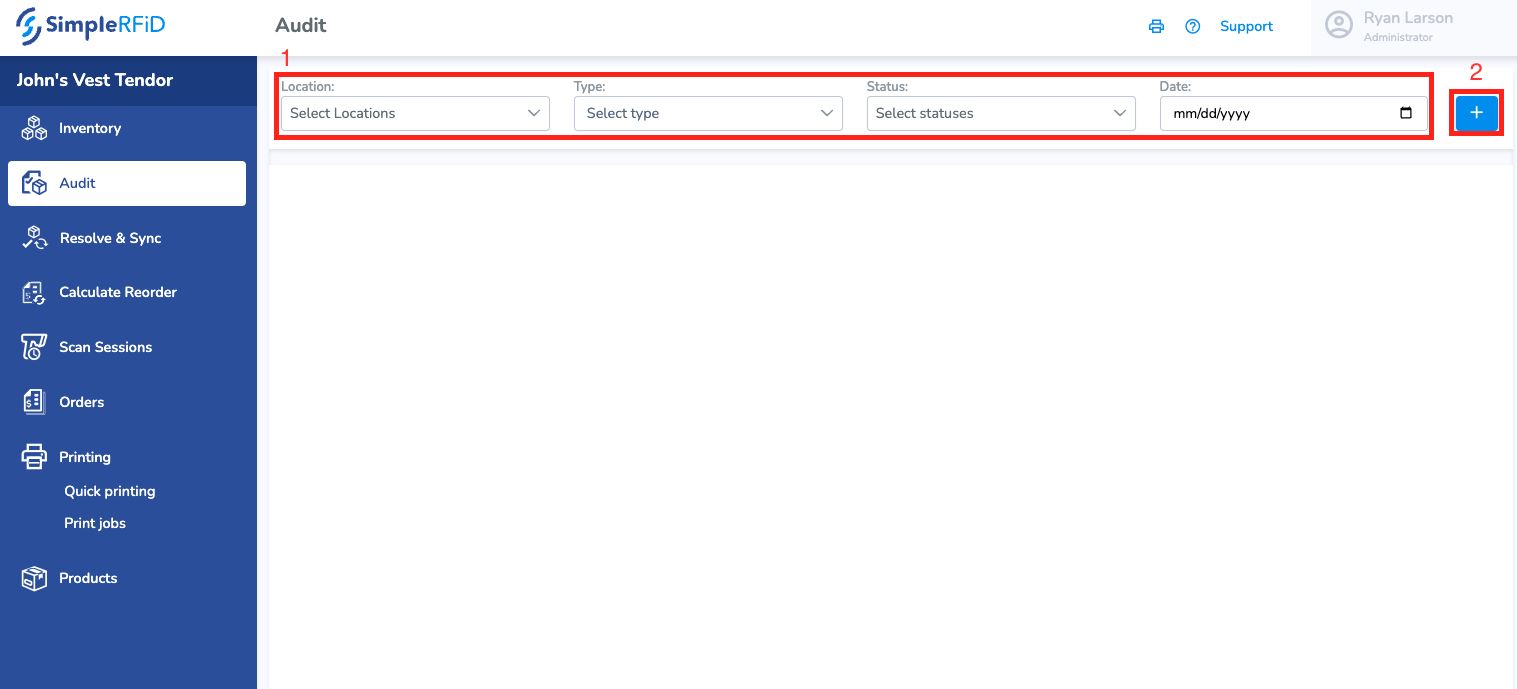
You will see a few different options.
1. Filters to see previous Audits. These include the Location, the Type (Full, Partial, Template), Current Status, and Date.
2. Create a new Audit button
Create a New Audit
Press the Create New Audit button
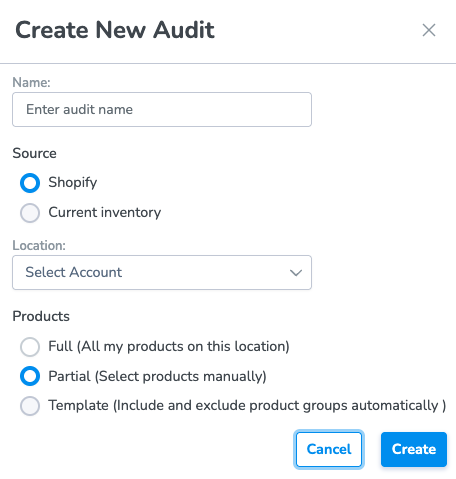
Enter the Name of the Audit, the Source of the comparison, the Location, and the Products
There are a few different types of Audits
Full: All of the products in your location
Partial: Specific products that you define
Template: To be added
Creating the Audit will put it in Draft mode. If you are doing a partial Audit, you can add the products that you want to compare.
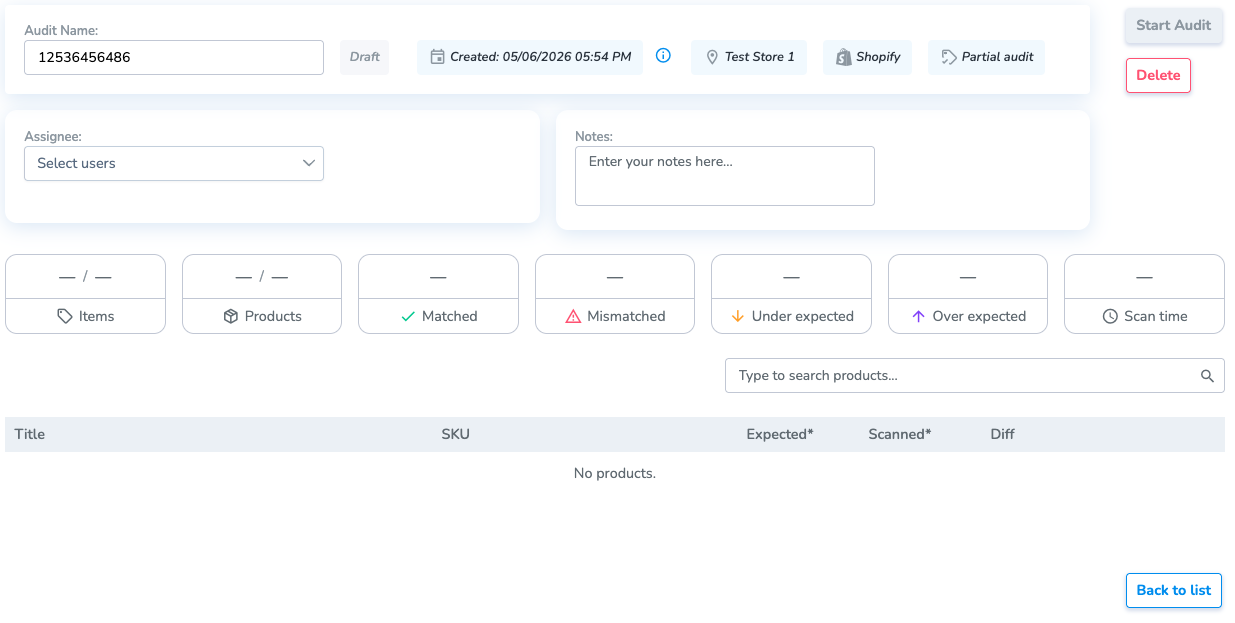
Selecting Start Audit will pull your inventory counts from Shopify, in order to compare it with a scan session
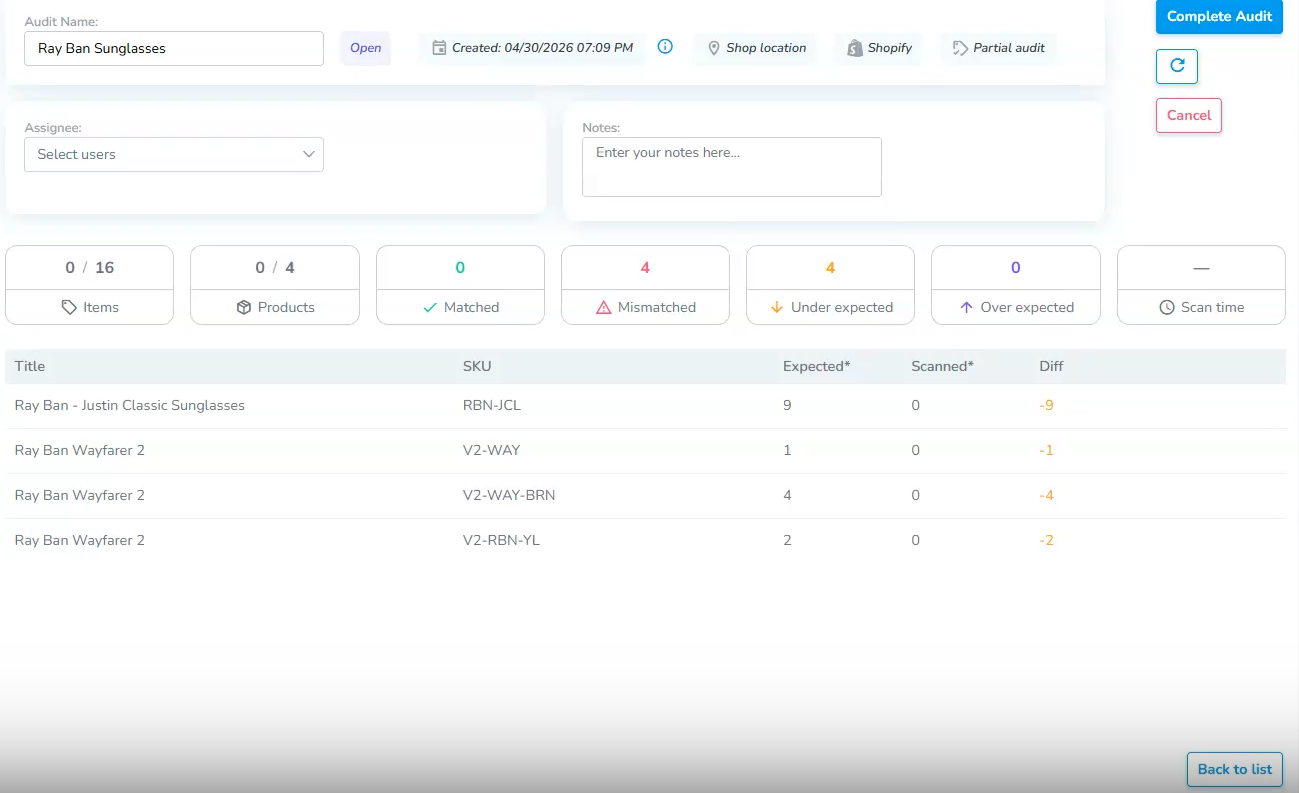
In the Simple RFID mobile app, you can find this Audit in the Audit page. You will see the Audit you made. Click on it to see the products you will be scanning, and select Start Scan. You will be taken to a scanning page, with the products and their expected values in Shopify.
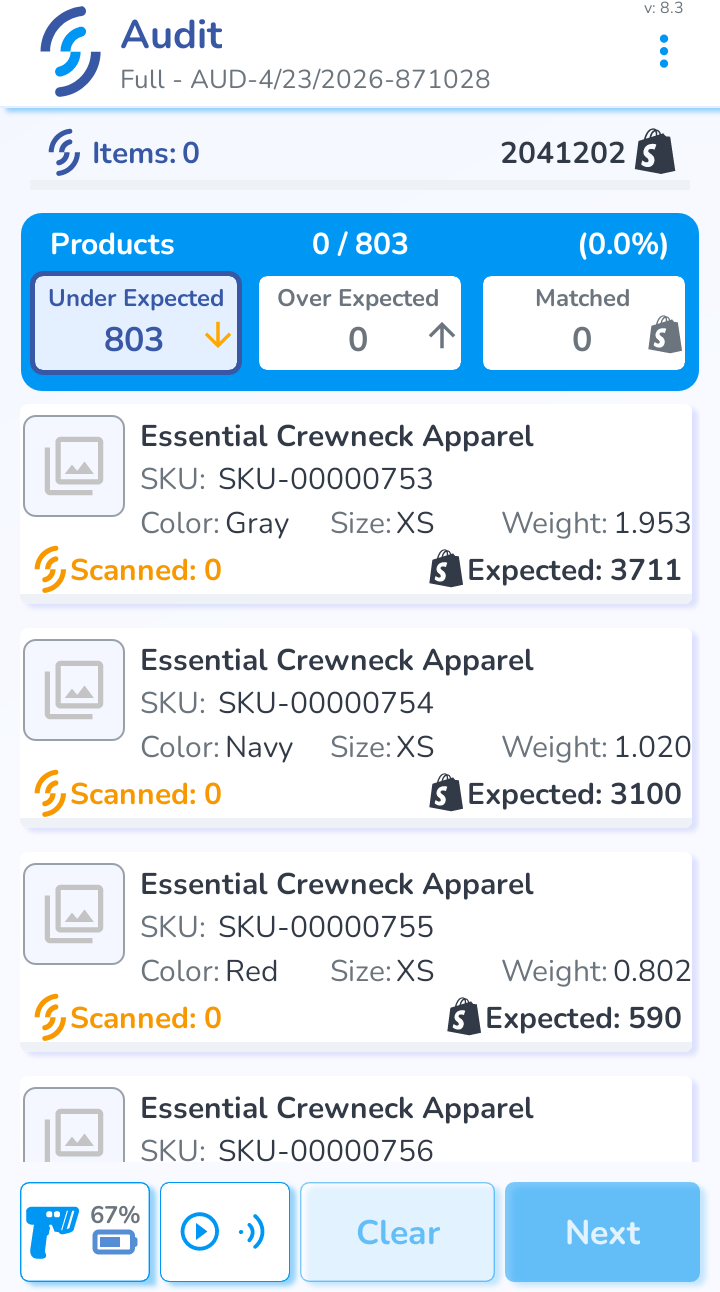
From here, you can do a scan as normal, and the products will be put into three different categories:
Under Expected: Shopify has more items than you scanned
Over Expected: Shopify has less items than you scanned
Matched: Shopify and your scanned amount are the same
Once you complete the Audit, you can go to the Resolve & Sync page to sync your inventory to Shopify.