# Update Min/Max Values via Spreadsheet

##### Instructions on how to update min/max values for products via spreadsheet.

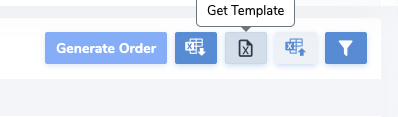
<span style="white-space: pre-wrap;"> To set min-max values via spreadsheet, navigate to the calculate reorder page and click on the "Get Template" button to download the template excel sheet.</span>

  
![Screen Shot 2022-05-02 at 2.14.10 PM](https://kb.simplerfid.dev/HubSpot%202/support.simplerfid.com/hs-fs/hubfs/Screen%20Shot%202022-05-02%20at%202.14.10%20PM0440.png?width=398&name=Screen%20Shot%202022-05-02%20at%202.14.10%20PM.png)

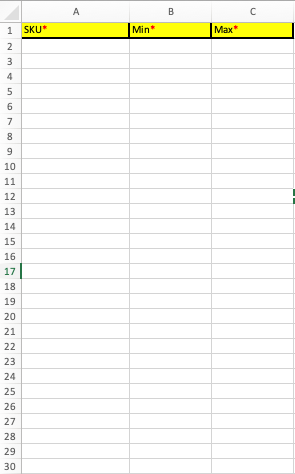
Next, fill in the required fields. Save the spreadsheet.
  
![Screen Shot 2022-05-02 at 2.04.47 PM](https://kb.simplerfid.dev/HubSpot%202/support.simplerfid.com/hs-fs/hubfs/Screen%20Shot%202022-05-02%20at%202.04.47%20PM8e31.png?width=295&name=Screen%20Shot%202022-05-02%20at%202.04.47%20PM.png)

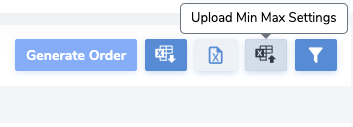
<span style="white-space: pre-wrap;">Click on the "Upload Min Max Settings" button. </span>
![Screen Shot 2022-05-02 at 2.05.44 PM](https://kb.simplerfid.dev/HubSpot%202/support.simplerfid.com/hs-fs/hubfs/Screen%20Shot%202022-05-02%20at%202.05.44%20PMbf80.png?width=353&name=Screen%20Shot%202022-05-02%20at%202.05.44%20PM.png)

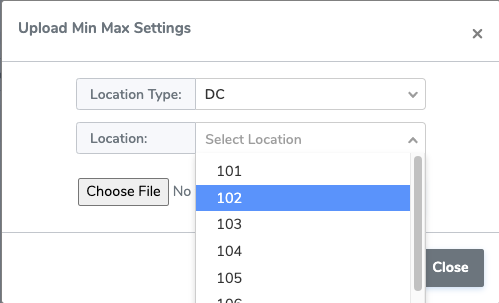
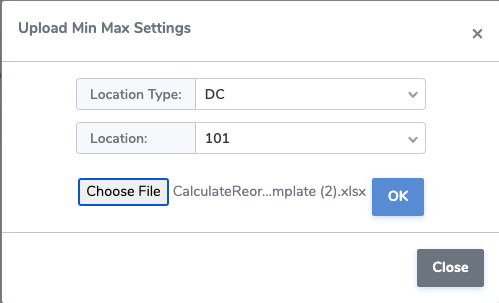
<span style="white-space: pre-wrap;">Select the location type (DC, Store, or Supplier), and select the specific location you wish to update. </span>
  
![Screen Shot 2022-05-02 at 2.06.17 PM](https://kb.simplerfid.dev/HubSpot%202/support.simplerfid.com/hs-fs/hubfs/Screen%20Shot%202022-05-02%20at%202.06.17%20PM3be1.png?width=499&name=Screen%20Shot%202022-05-02%20at%202.06.17%20PM.png)

<span style="white-space: pre-wrap;">Upload the saved template and click OK to apply changes. </span>
  
![Screen Shot 2022-05-02 at 2.06.31 PM](https://kb.simplerfid.dev/HubSpot%202/support.simplerfid.com/hs-fs/hubfs/Screen%20Shot%202022-05-02%20at%202.06.31%20PM6d51.png?width=499&name=Screen%20Shot%202022-05-02%20at%202.06.31%20PM.png)

<span style="white-space: pre-wrap;"> Note that this method only updates the specified SKUs at one location. </span>