# Sales Order
##### ****Create Sales Orders****
Orders can be created manually, one by one, or in bulk via [spreadsheet upload](https://kb.simplerfid.com/books/web-portal/page/create-multiple-orders-using-spreadsheet-upload).
---
##### ****Create a Sales Order manually****
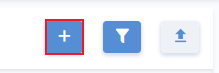
- Click the "+" button located on the Orders page
[](https://kb.simplerfid.com/uploads/images/gallery/2025-06/Cfuimage.png)
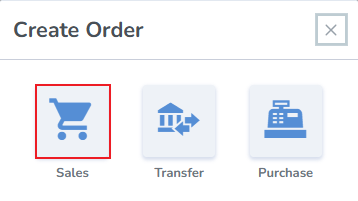
- From the pop-up window, select Sales
[](https://kb.simplerfid.com/uploads/images/gallery/2025-06/YwXimage.png)
---
##### ****Create Sales Order****
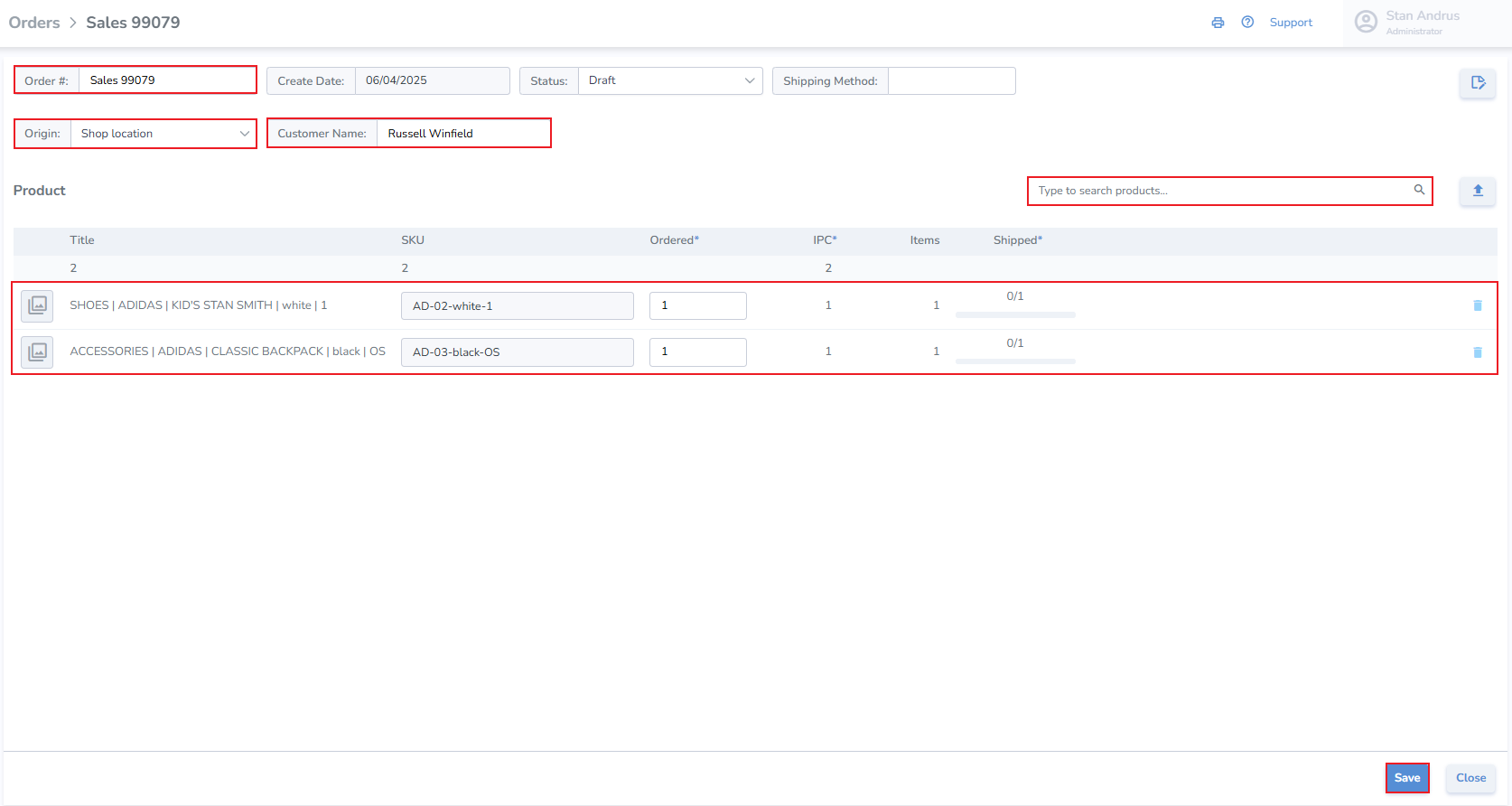
- Order Number - the system generates an order number, or enter your own
- Origin - select the location where the order is being fulfilled
- Destination - enter the customer's name
- Add Products & Quantities - search and add products manually, or upload them via spreadsheet upload
[](https://kb.simplerfid.com/uploads/images/gallery/2025-06/kTPimage.png)
- Click Save
- Once the Sales order is updated to ****Shipping status****, [labels can be printed for the order](https://kb.simplerfid.com/books/web-portal/page/generating-print-jobs-from-an-order)
- The Sales Order can also be [verified for accuracy](https://kb.simplerfid.com/books/mobile-app/page/verify-accuracy-of-sales-orders).
- Once the order has been verified, a progress bar will display the completeness of the order
[](https://kb.simplerfid.com/uploads/images/gallery/2025-06/VGRimage.png)