# Resetting Password
Instructions for how to reset your password.
From the login screen click 'Forgot password?'
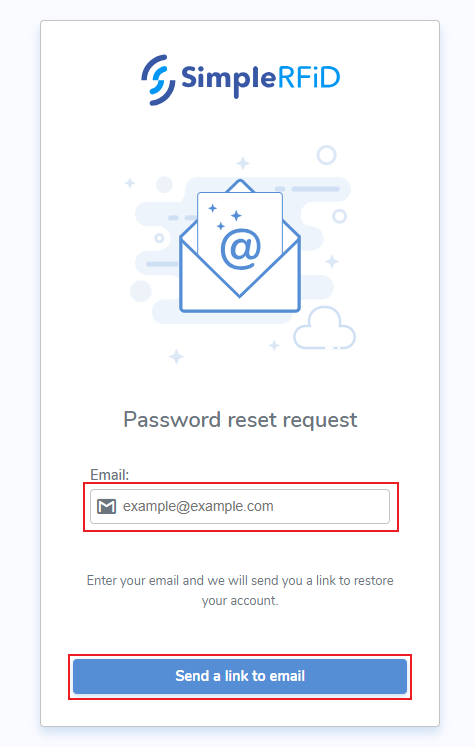
##### ****Password Reset****
- Enter the associated email address
- Click ****Send a link to email****
[](https://kb.simplerfid.com/uploads/images/gallery/2025-05/71Kimage.png)
##### ****Reset Notification****
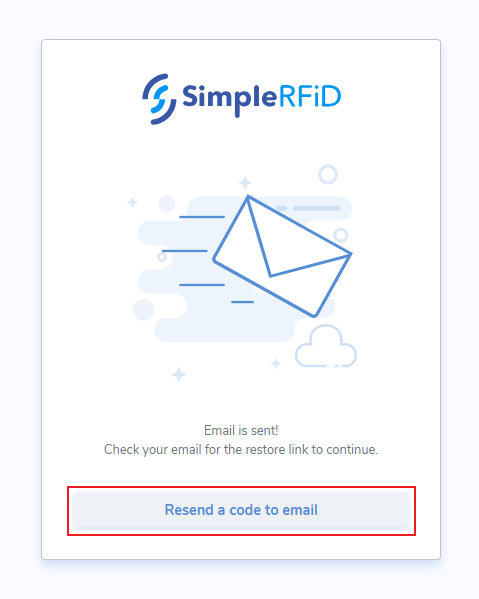
Once sent, a notification will appear advising that the email has been sent.
The pop-up also contains a link to '****Resend the code to email****'
[](https://kb.simplerfid.com/uploads/images/gallery/2025-05/DcXimage.png)
##### ****Reset Email****
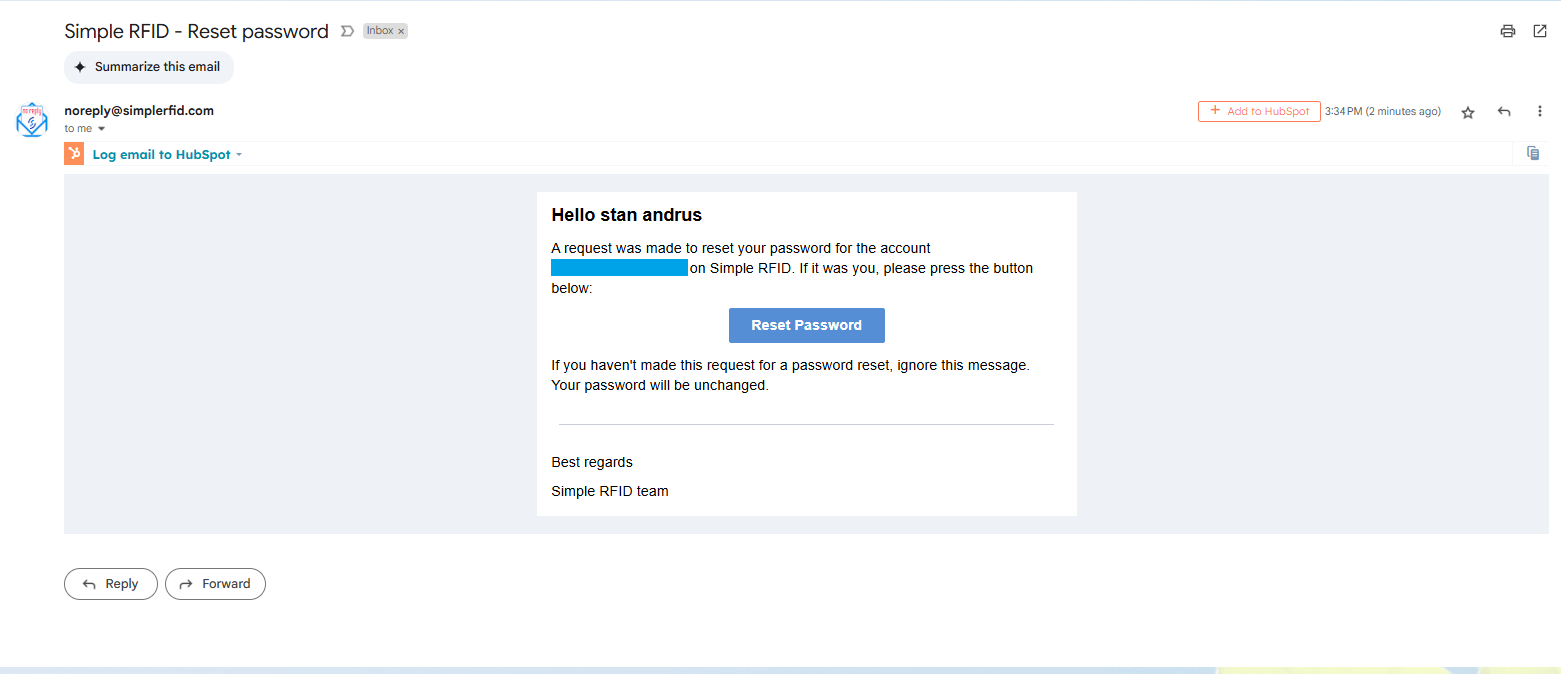
An email will then be sent to the associated email with a button to reset your password
- Click 'Reset Password'
[](https://kb.simplerfid.com/uploads/images/gallery/2025-05/z8gimage.png)
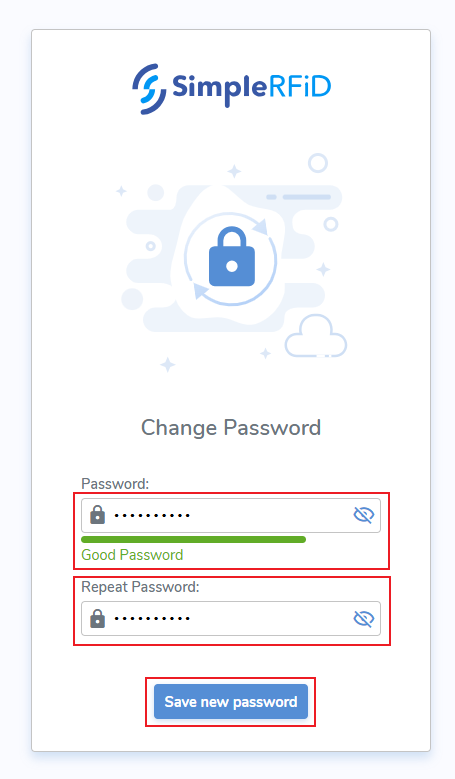
##### ****Change Password screen****
- Enter password
- Repeat password
- Click 'Save new password'
[](https://kb.simplerfid.com/uploads/images/gallery/2025-05/JSOimage.png)
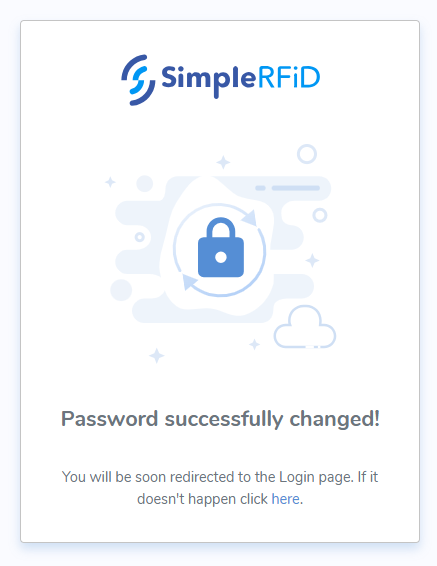
##### ****Confirmation Notification****
A pop-up message will confirm that your password was changed successfully
[](https://kb.simplerfid.com/uploads/images/gallery/2025-05/oVFimage.png)