# Printer Profile: Calibrate Printer from web
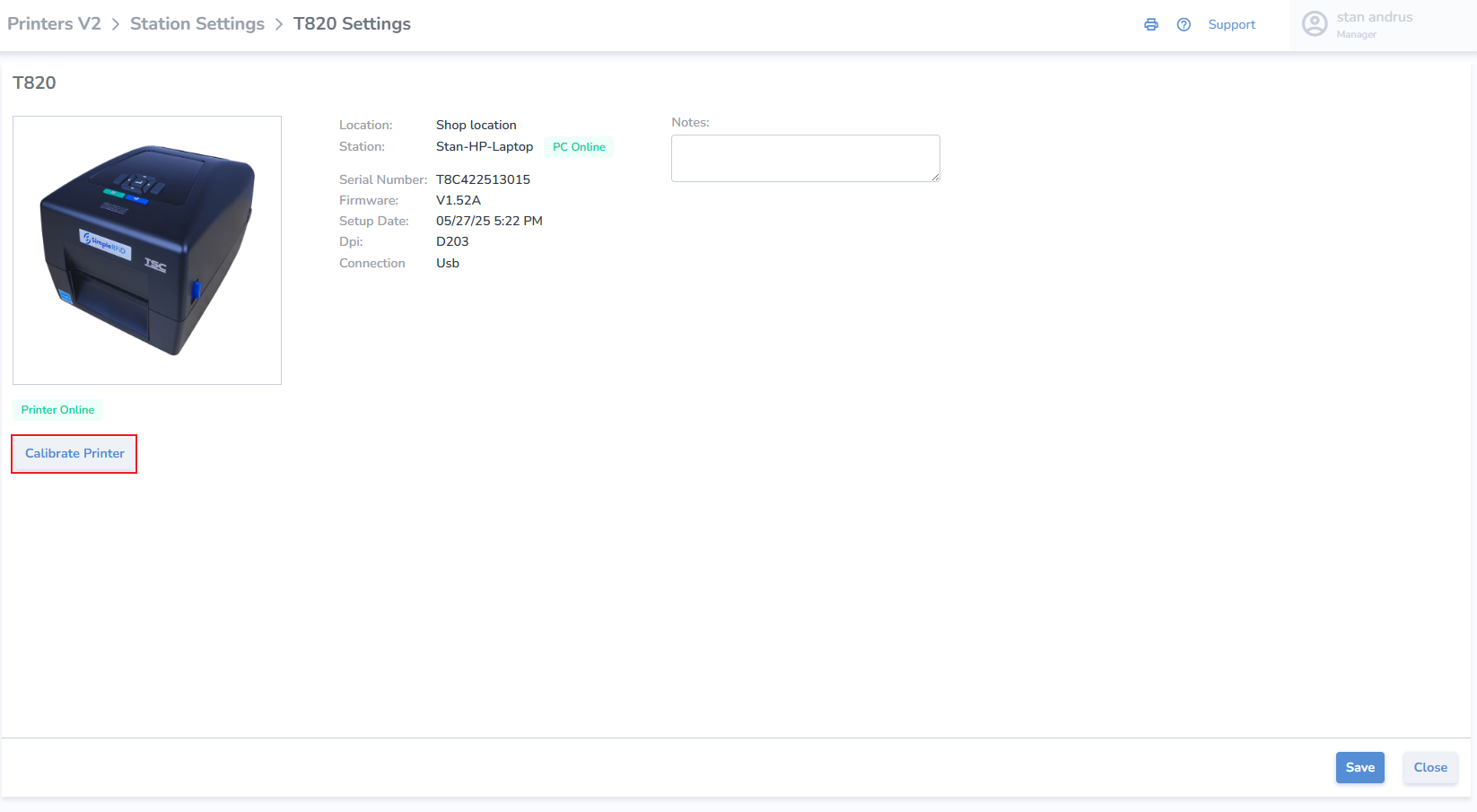
The printer profile page contains ****details**** for each connected printer. Users can navigate to this page from the [Available Printers](https://kb.simplerfid.com/books/web-portal/page/menu-bar-available-printers-calibrate-printer-from-web) pop-out menu, or the [Station Settings](https://kb.simplerfid.com/books/web-portal/page/printers-station-settings)
##### ****Printer Profile Details****
- Location the printer is connected to
- 'Station' (Host PC) the printer is connected to
- Serial Number of the Printer
- Firmware Version of the Printer
- Date the printer was setup
- Printer DPI: 203, 300, or 600
- Connection Method: USB or Ethernet
- Print Station connectivity indicator
- Printer connectivity indicator
- Notes section
- Calibrate Printer button
- Save button to save changes
- Close button to exit the page
[](https://kb.simplerfid.com/uploads/images/gallery/2025-05/FLZimage.png)
##### ****Calibrate Printer from Printer Profile****
- Calibrate click the button
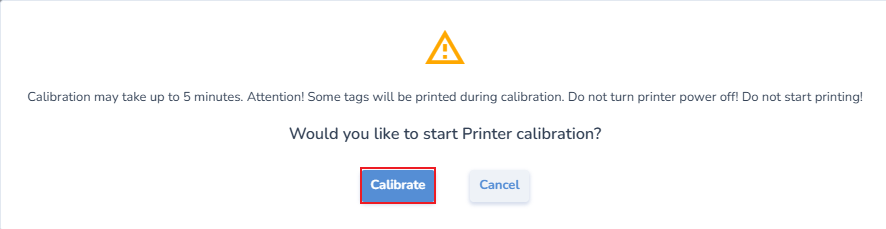
- Click 'Calibrate' on pop-up
[](https://kb.simplerfid.com/uploads/images/gallery/2025-05/1Ebimage.png)
- Accepting this prompt will then send both the media and ribbon and RFID calibrations to the printer, which will proceed automatically with the following steps:
- Media and Ribbon.
- Then a pause for roughly 10 seconds.
- And then the RF calibration, which will take longer; the labels will periodically inch out of the printer for approximately one minute. At the end of the process it will feed out 2 or 3 labels before stopping completely.
- After the calibration has completed:
- Open the printer and roll back the labels so the blank tags may be used—precision is not necessary
- Un-pause the printer
- Now you are ready to print.
If the printer continues to VOID labels, repeat the process. If the issue persists, perform a calibration directly from the printer itself.