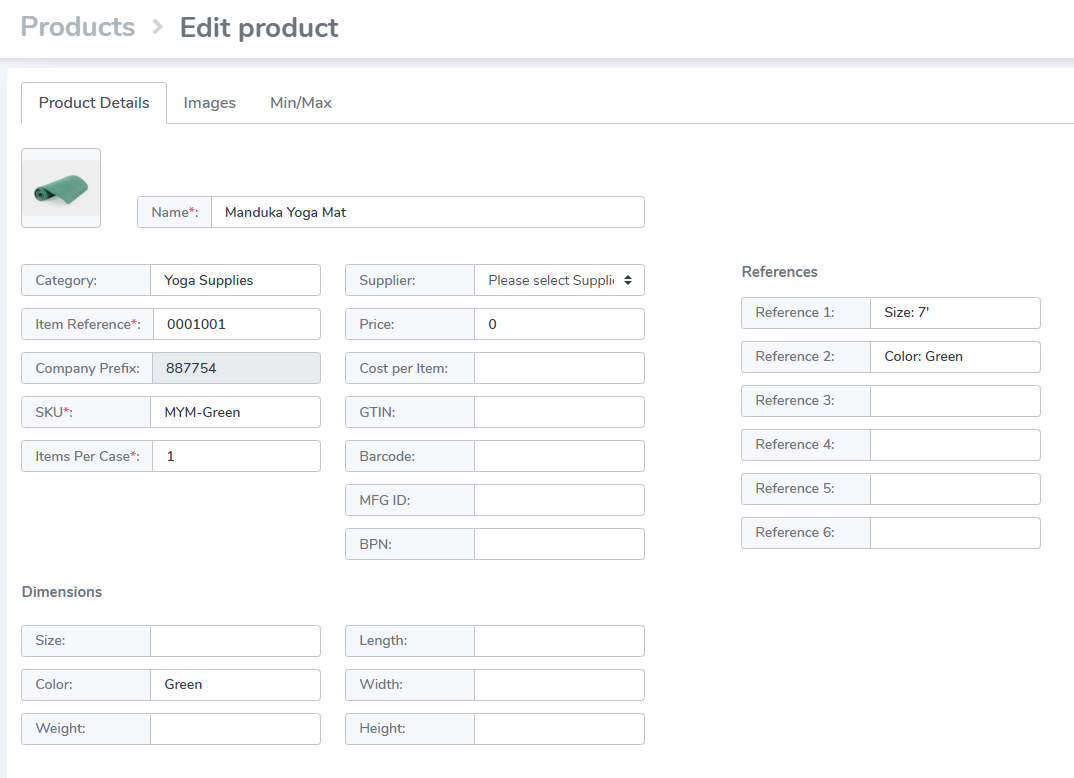
Is your printed label missing properties? Search the product you are printing and check the fields to confirm that the product contains the field.
E.g. In the example below: to print "Size: 7'" on the label, you would add a text element with {Reference1}
[](https://kb.simplerfid.com/uploads/images/gallery/2025-06/203image.png) ##### ****Overview of Label Designer**** 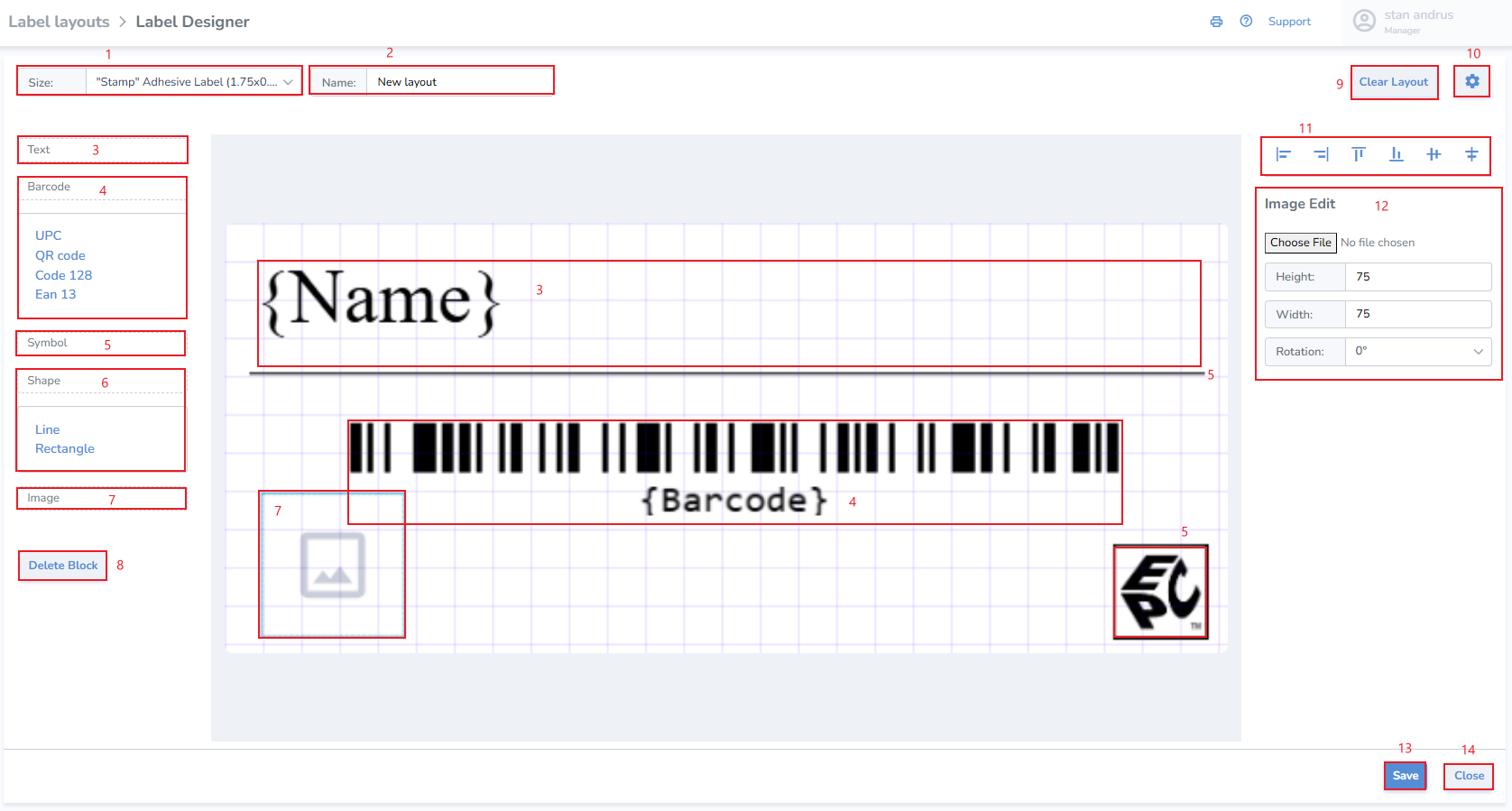****Template**** 1\. Choose label size - Don't see your label size available in the Size dropdown? Email support@simplerfid.com and notify us. 2\. Name Label ****Add Block: Text, Barcode, Symbol, Shape & Image**** 3. ****Text**** - This is any place where text will appear such as name, description, size, color, style, price, etc. in any font desired 4. ****Barcode**** - This allows you to add a barcode or QR codeUnless you have a specific barcode type, such as UPC or EAN, you'll generally want to use ****Code 128**** by default.
5. ****Symbol**** - add EPC global symbol other popular symbols 6. ****Shape**** - add basic shapes to design including line, box, circle 7. ****Image**** - upload a basic image 8\. Delete Block - remove a single block from the canvas 9\. Clear Layout - remove all blocks and clear the canvas 10\. Grid settings - adjust grid lines 11\. Align options 12\. Editor window for selected block 13\. Save button to save design. Once clicked the user is directed back to the Layouts page 14\. Close button to close the design without saving. Once clicked the user is directed back to the Layouts page ##### ****Edit Block**** Click on the Block you wish to edit ##### ****Text**** Click Text Choose the Data source: Text, Property, Custom Text & EPC Text from the right in the Text Edit section - ****Text****: ID, Name, Category, MFG ID, SKU, Price, Item Number, Barcode, QR Code, BPN, & Items Per Tag - ****Font:**** [Choose existing font or add any font](https://kb.simplerfid.com/books/web-portal/page/fonts) - ****Property****: Size, Color, Weight, Length, Width, Height, Full Description - ****Custom Text****: Pulls information from Ref 1-Ref 6 in the Products > Edit Product view - ****EPC Text****: tag level properties which include Items per tag, Cost, Cost per item, Born Date, Expiration Date, Lot Number, Sell by date, EPC, EPC ASCII, ISN, SN, or GTIN [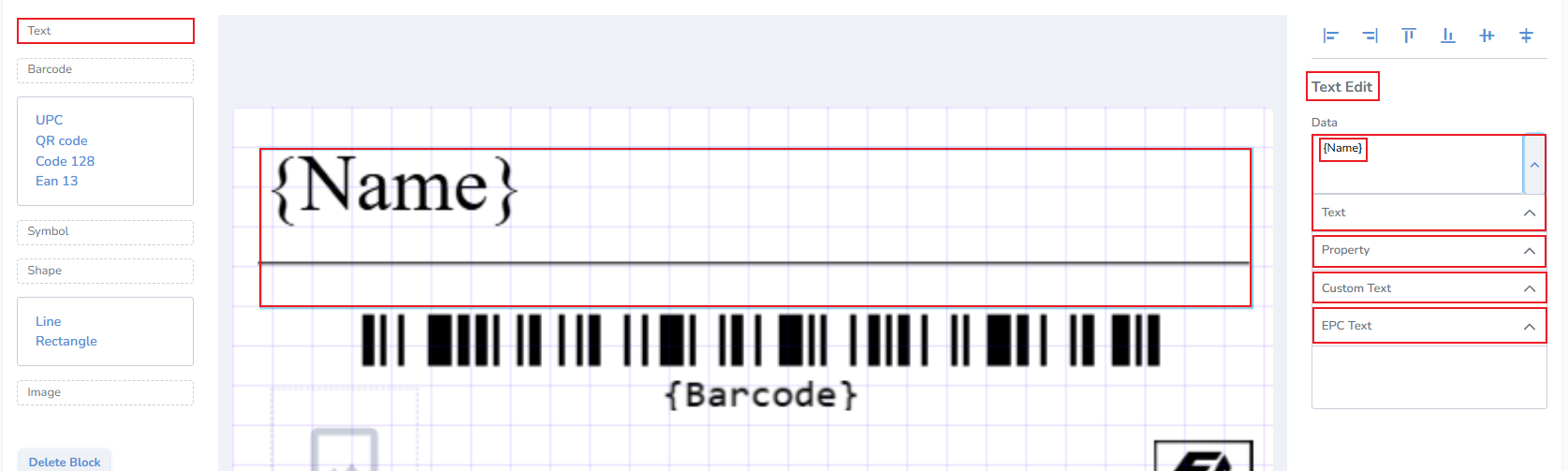](https://kb.simplerfid.com/uploads/images/gallery/2025-05/SiXimage.png) ##### ****Barcode**** Click on the Barcode option on the right to view the Barcode Edit window Choose Data source. This allows you to use any text or number from any field and turn it into a barcode or QR code ##### ****Symbol**** Add a common symbol such as ISO, Trademark, Copyright, or EPC logo [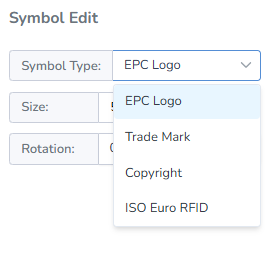](https://kb.simplerfid.com/uploads/images/gallery/2025-05/zQHimage.png) ##### ****Shape**** Add common shape like a box, circle, or line ##### ****Image****