# Inventory: Verified
##### ****Verified Status****
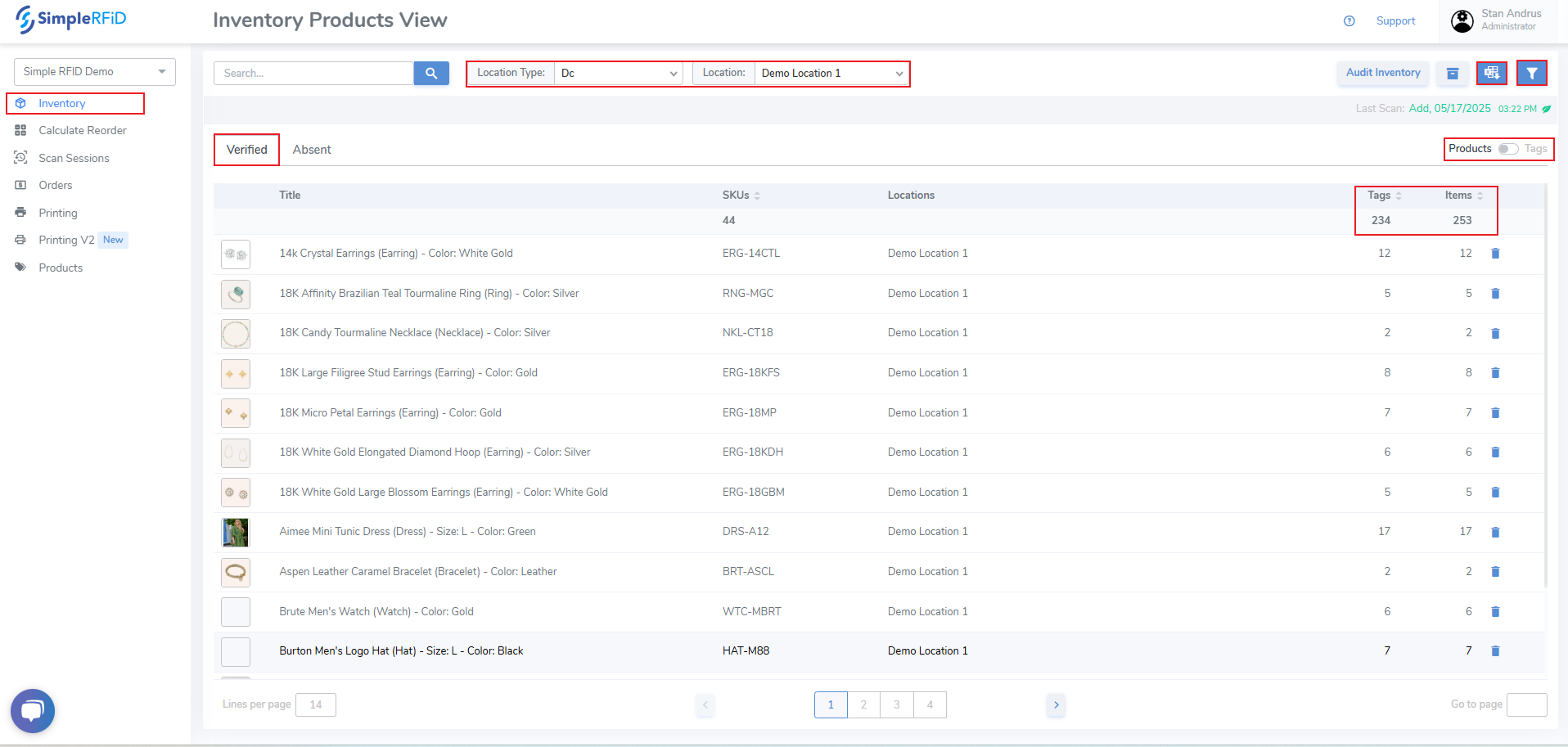
The Verified Inventory displays the current labels in the on hand inventory
- Select Location - If you have access to more than one location, select your location or select 'All' to view inventory for all locations
- Products / Tags switcher - provides ability to view inventory by product and [individual tag level detail](https://kb.simplerfid.com/books/web-portal/page/inventory-tag-level-properties)
- Products & Tags level switcher
- View items grouped by quantities
[](https://kb.simplerfid.com/uploads/images/gallery/2025-05/WDYimage.png)
##### ****Move Verified Items to Absent****
You can move items to Absent by product or tag:
****By Product**** - From the Products view, click the Trash-can icon on the far right of the product you wish to move all items to Absent status. Then accept the pop-up prompt.
****By Tag**** - Change to the Tags view. Then click the Trash-can icon on the far right of the Tag you wish to move to Absent status. Then accept the pop-up prompt.