# Inventory: Archived
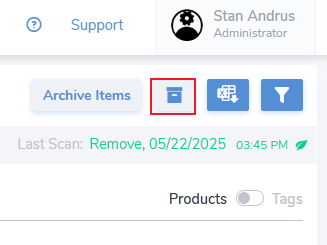
To access the Archived list click on the bankers box icon, found in the upper right corner of the Inventory Products View.
##### ****Accessing Archived****
[](https://kb.simplerfid.com/uploads/images/gallery/2025-05/t6timage.png)
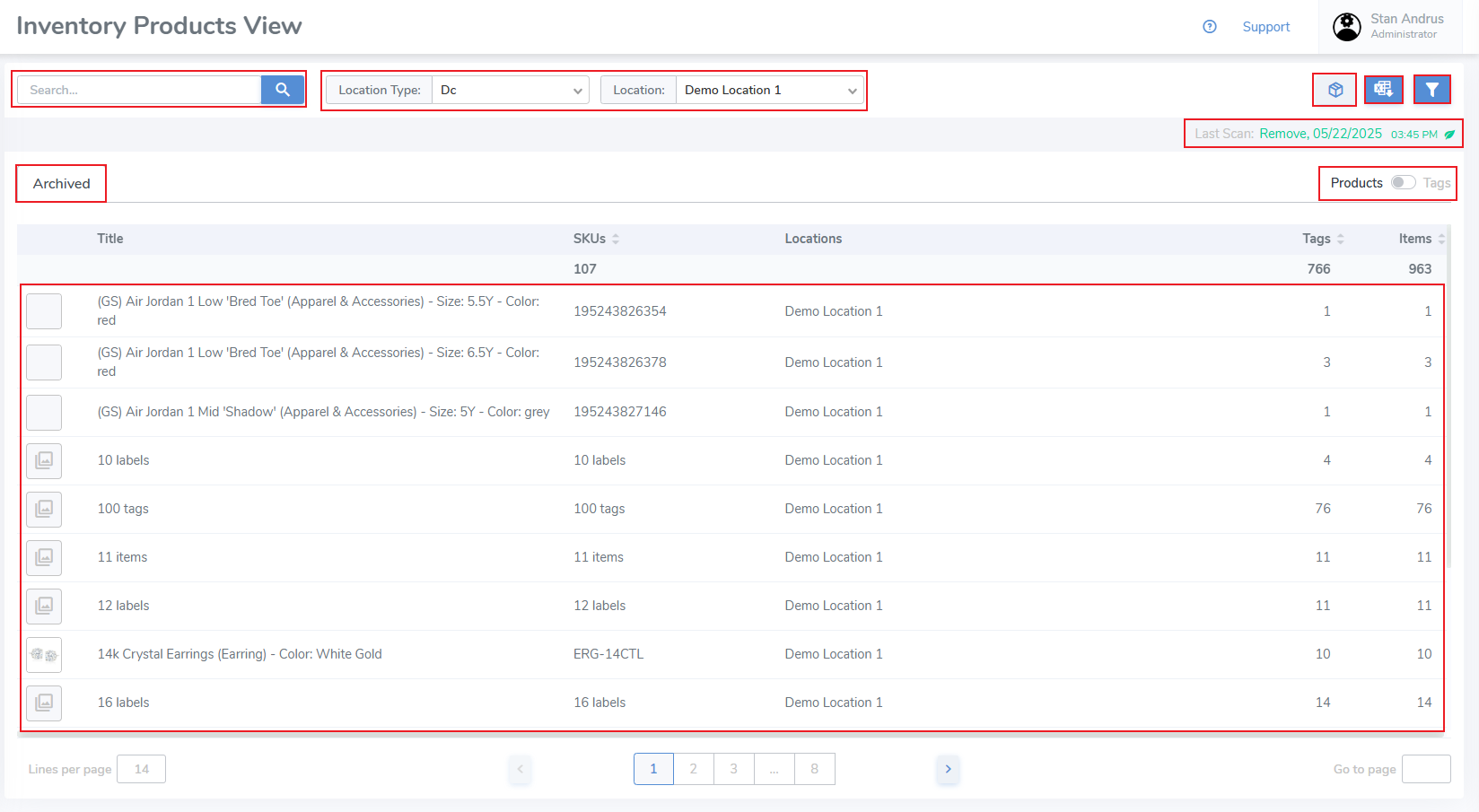
- Once clicked you will view the Archived list
- You may view Archived Inventory by single location, or by all archived items
- As with other inventory views you can view the Archived items by Product view & by Tags view.
- Tags remain in Archived State for 2 years after which they are purged.
##### ****Archived > Products view****
##### ****Archived > Products View Pop-up****
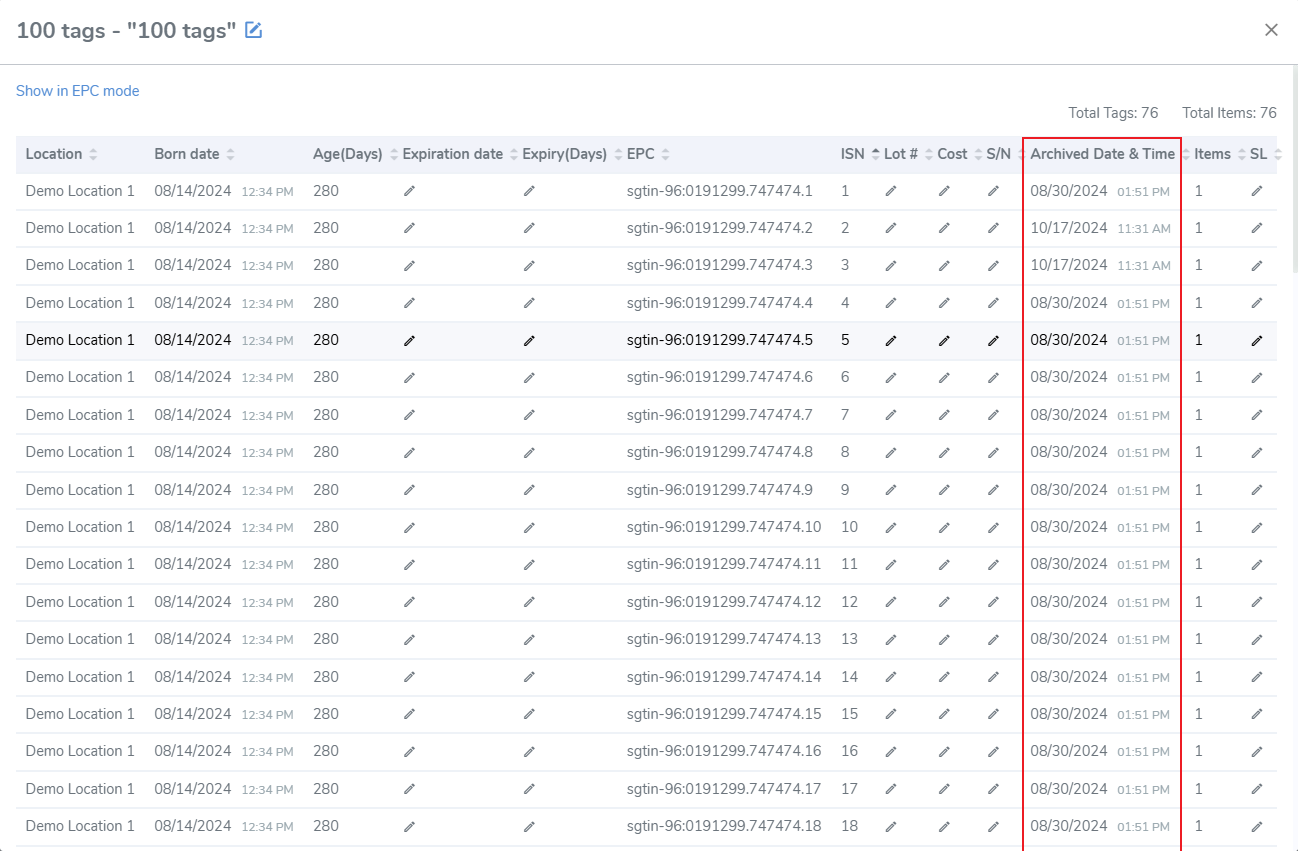
- From the Archived view you can click an individual Product to view the Archived Pop-up view. This pop-up displays item level data and includes the Archived date & time.
[](https://kb.simplerfid.com/uploads/images/gallery/2025-05/mNoimage.png)
##### ****Archived > Tags View****
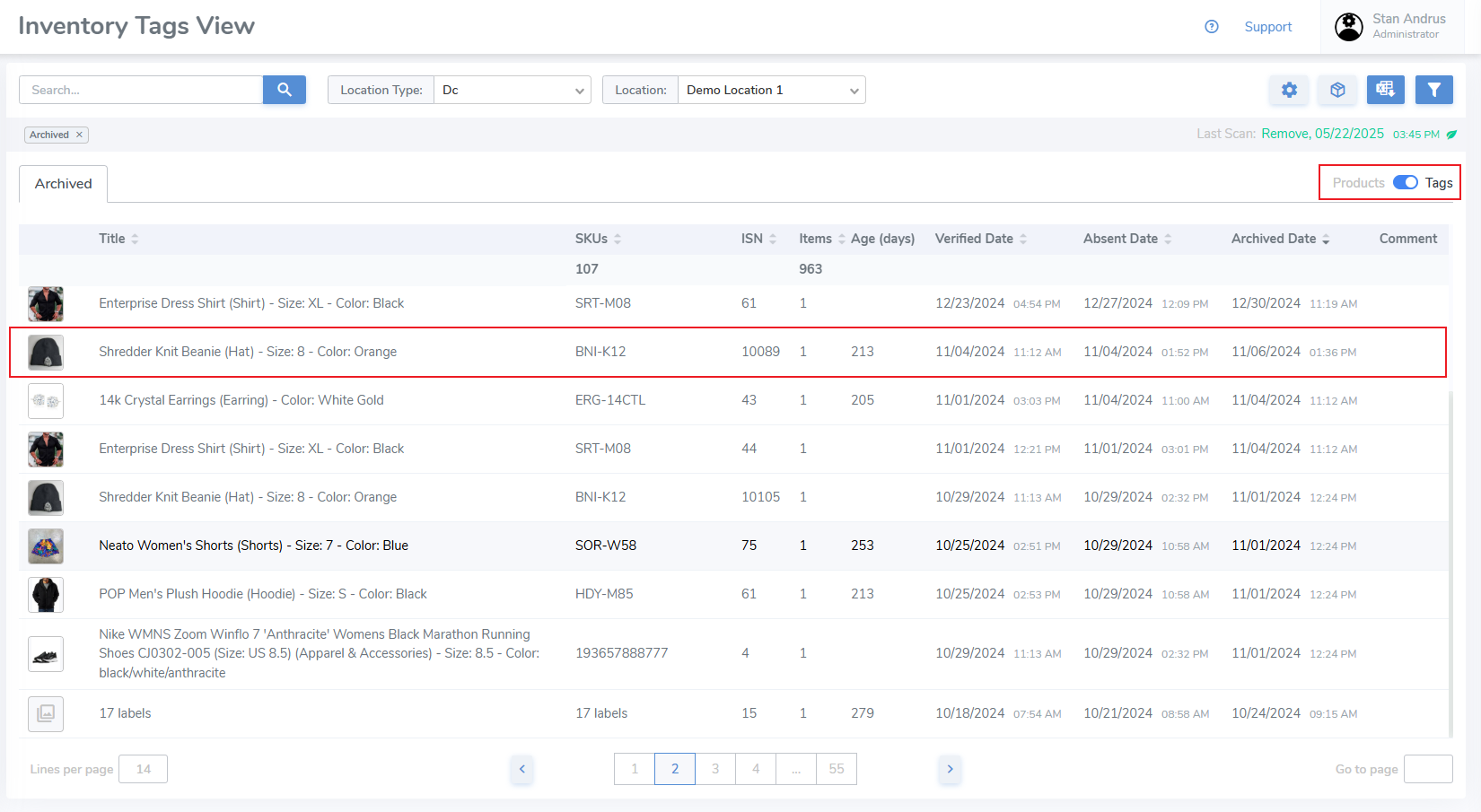
Or view inventory by Archived Tags level to see individual items
[](https://kb.simplerfid.com/uploads/images/gallery/2025-05/ykYimage.png)
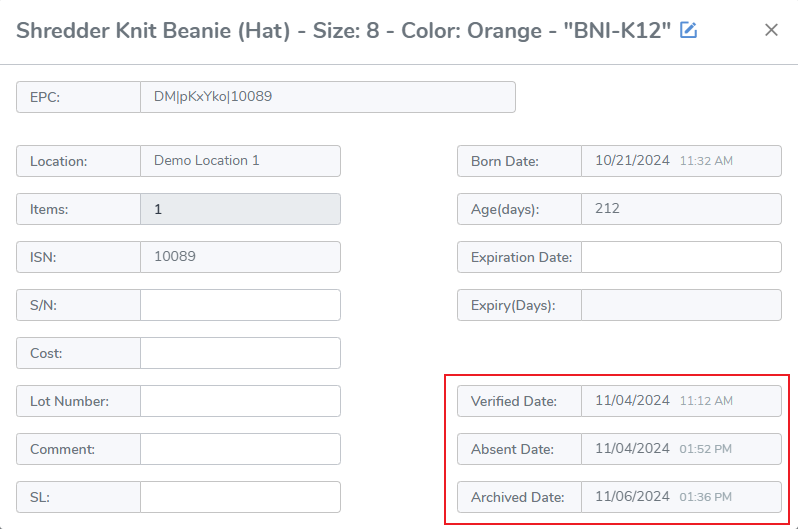
##### ****Archived > Tags View Pop-up****
- Clicking an individual item opens that item's pop-up which displays Verified, Absent & Archived dates. If item item doesn't have an Absent date it is because it was archived via a scan or a sales order verification.
[](https://kb.simplerfid.com/uploads/images/gallery/2025-05/WOXimage.png)