First select the order type for which you wish to create orders. Only orders of the same type can be uploaded.
For this example we are creating ****Purchase Orders**** - Select order type [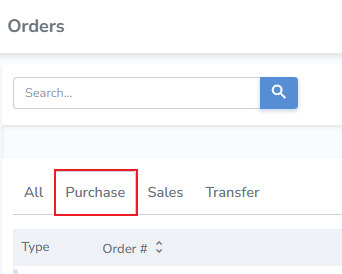](https://kb.simplerfid.com/uploads/images/gallery/2025-06/image.png) - Next, click the "Import Orders" button [](https://kb.simplerfid.com/uploads/images/gallery/2025-06/6Sbimage.png) Orders can be imported using a template provided by Simple RFID, or you can use your own spreadsheet. --- ##### ****Import using Simple RFID Template**** [](https://kb.simplerfid.com/uploads/images/gallery/2025-06/FM3image.png) The sheet contains: - ****Order Number (required)**** - ****Origin (required)**** - ****Destination (required)**** - ****SKU (required)**** - ****Quantity (required)**** - Lot Number - Exp Date - cost - Born Date - Serial Number - Sell By Date Input details for the sheet. [](https://kb.simplerfid.com/uploads/images/gallery/2025-06/G8qimage.png) - Click the "+ Choose" button - Locate your file on your computer [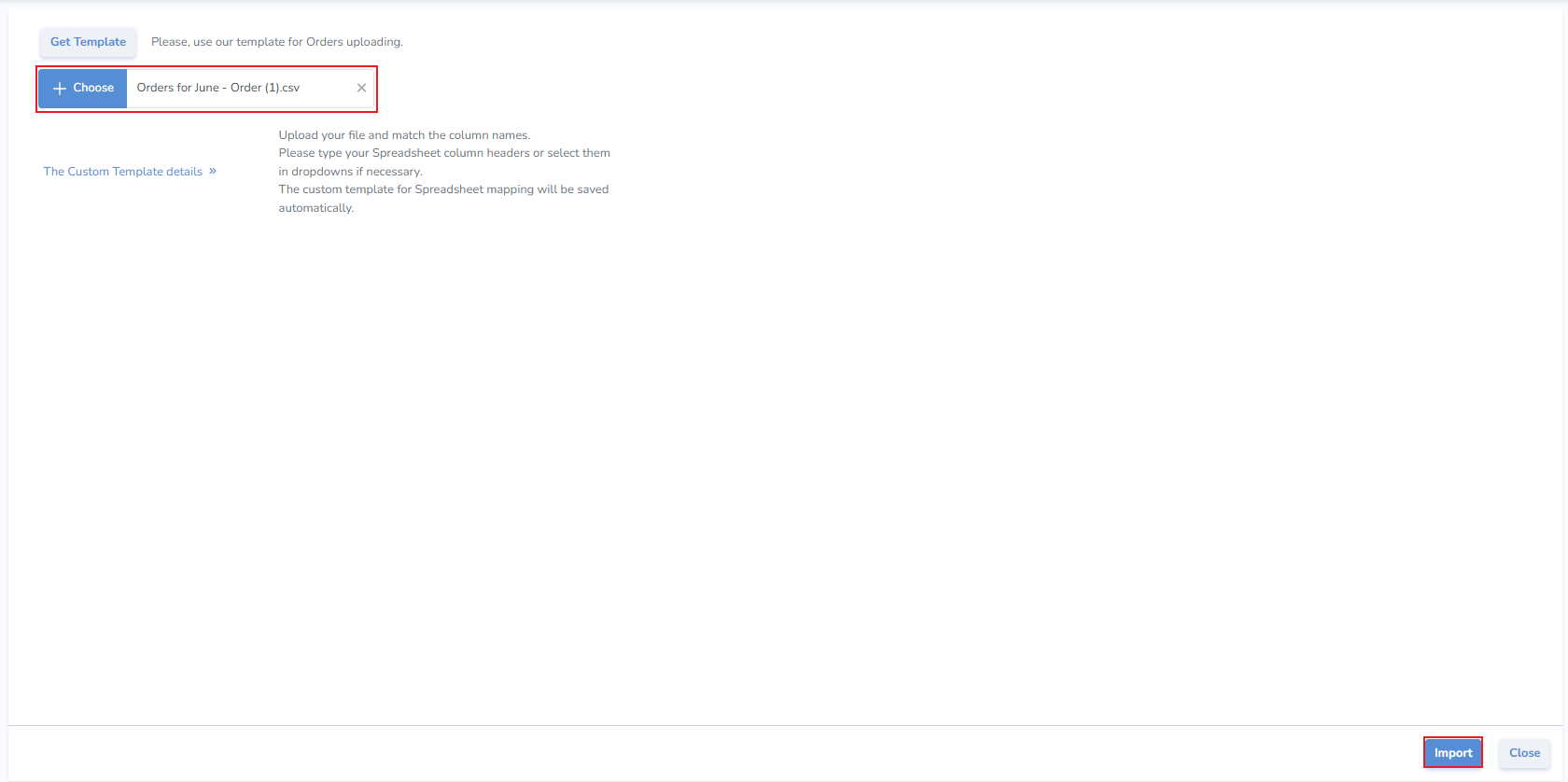](https://kb.simplerfid.com/uploads/images/gallery/2025-06/NYjimage.png) - Click Import ##### ****Import Using Your Own Sheet**** If the information for your orders already exists on a sheet you can use your own spreadsheet to create the orders. ****It's critical that the sheet contain all required fields:**** - ****Order Number (required)**** - ****Origin (required)**** - ****Destination (required)**** - ****SKU (required)**** - ****Quantity (required)**** After selecting the order type [](https://kb.simplerfid.com/uploads/images/gallery/2025-06/image.png) - And clicking the "Import Orders" button [](https://kb.simplerfid.com/uploads/images/gallery/2025-06/6Sbimage.png) - Click the "+ Choose" button - Locate your file on your computer [](https://kb.simplerfid.com/uploads/images/gallery/2025-06/NYjimage.png) - Next, click on the "The Custom Template Details" button to expose the field mapping - Choose whether you wish to map by Title (such as SKU, Quantity, etc.), or if you wish to map by Index (Column Headers A, B, C) - Choose the related Simple RFID field - Click Import [](https://kb.simplerfid.com/uploads/images/gallery/2025-06/vV9image.png) --- ##### ****Import Orders view**** We can see the two orders from our spreadsheet. Any validation errors must be resolves before the orders can be saved. For our example we wrote "Warehouse" on our spreadsheet, however the location is named "Warehouse Location" [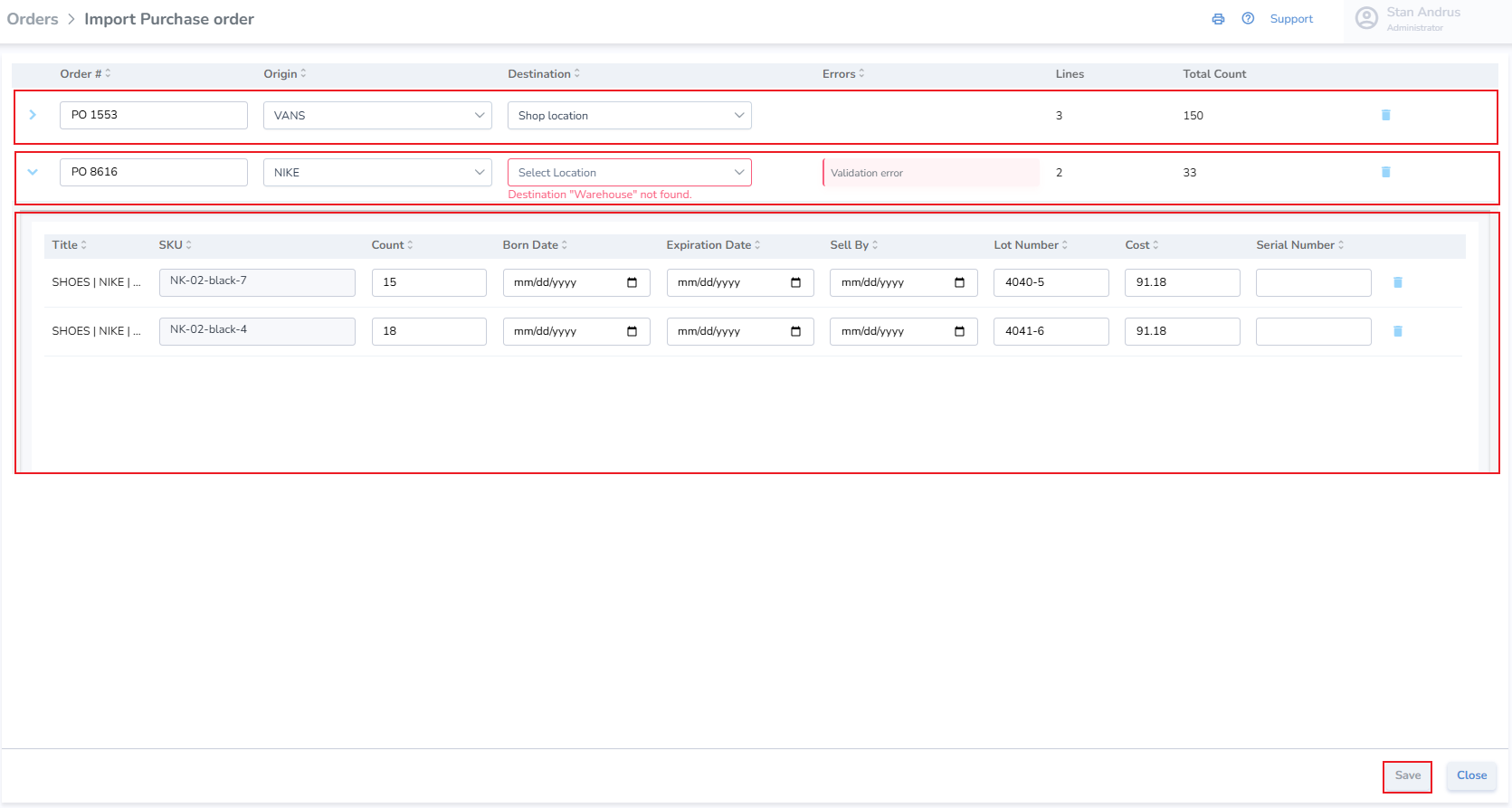](https://kb.simplerfid.com/uploads/images/gallery/2025-06/97Himage.png) - Once the validation error has been resolved, click the Save button [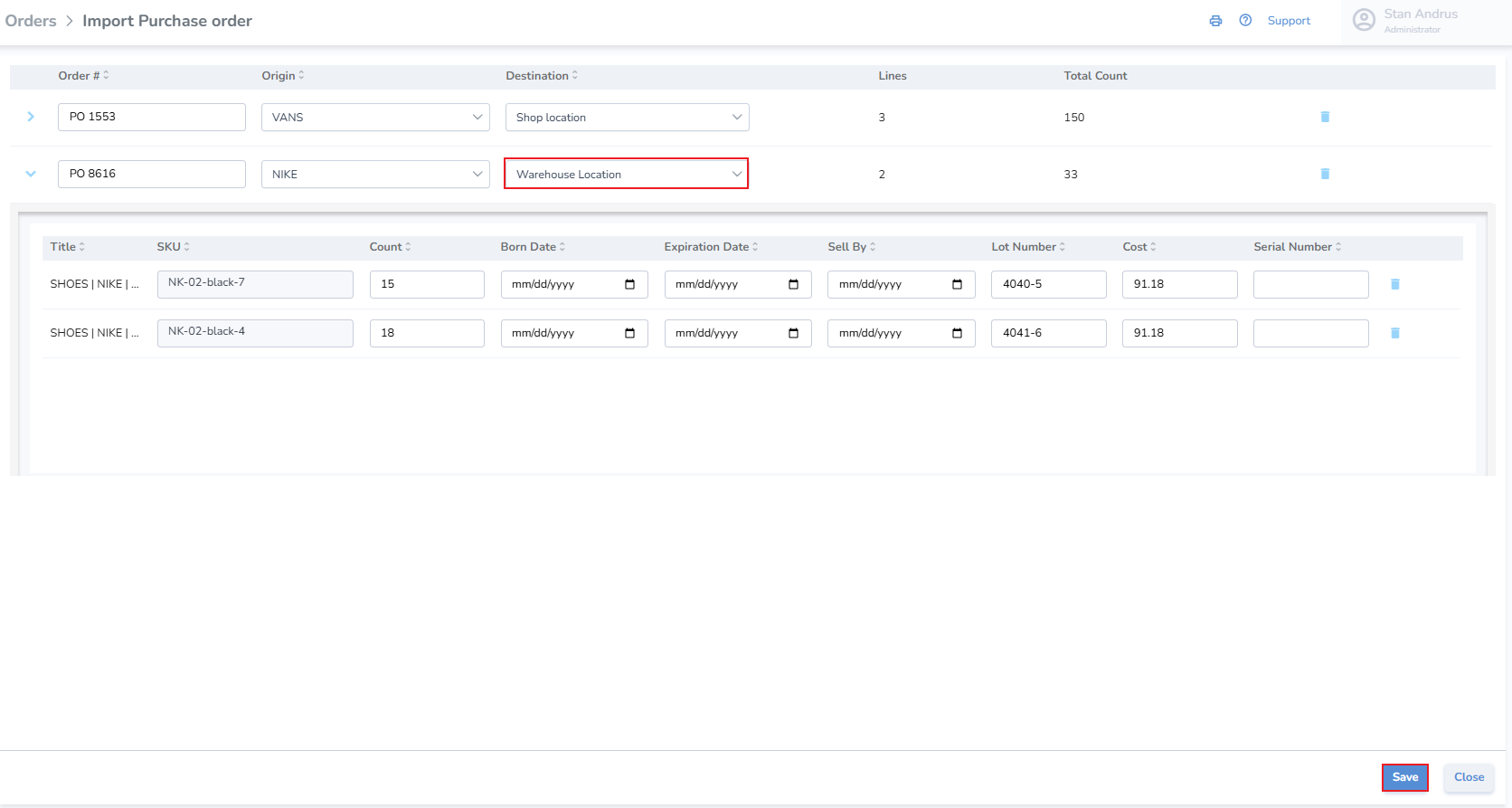](https://kb.simplerfid.com/uploads/images/gallery/2025-06/hgVimage.png) Our orders have now been created and are in Receiving status, able to be printed and received. [](https://kb.simplerfid.com/uploads/images/gallery/2025-06/YmPimage.png) #####