User / Manager Menu
Top right navigation menu provides hardware views, settings, label designer, User menu, Locations menu, and more.
- Change Customer
- Customer Profile
- Printers List
- Printers > Station Settings
- Label Layouts > All Layouts
- Label layouts > Label Designer
- Fonts
- Layouts > Create from file
- Handheld Readers
- Fixed Readers
- Users
- Location Framework
- Locations
- Resources
- Logout
- Printer Profile: Calibrate Printer from web
- Deactivating User
Change Customer
If you have more than one account in Simple RFID you will see a "Change Customer" button
Currently the system operates on two frameworks, so some pages are on the URL "web.simplerfid.com" and other pages are on "portal.simplerfid.com" This article shows how to change the vendor from both.
Portal.SimpleRFID.com
To change customer from Portal:
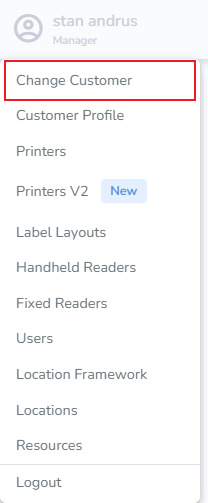
- A pop-up will appear allowing you to select the vendor
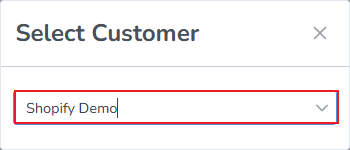
Web.SimpleRFID.com
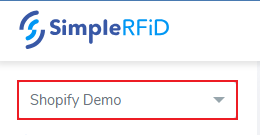
To change customer from Web:
- From the Web you will see the selector is on the far left
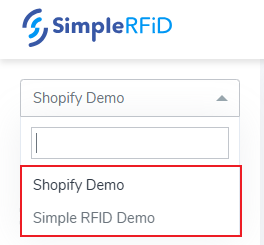
- From the drop-down select the desired vendor
Customer Profile
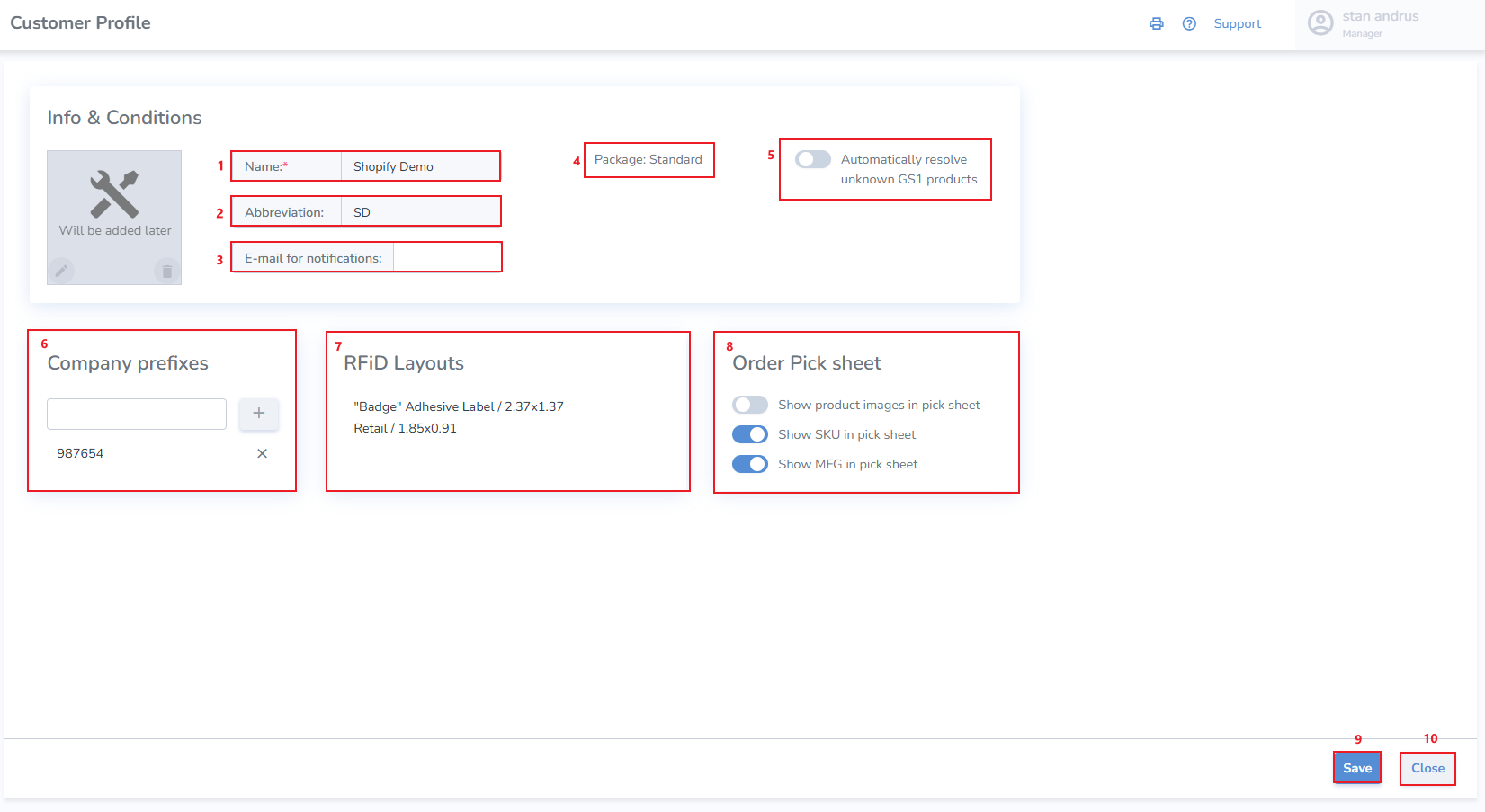
This page provides an overview of the account including:
- Account Name
- Abbreviation - This must be a two letter abbreviation. Example 'DM'
- Email address where you wish to have general notifications sent
- 'Package' indicates the your plan such as "Trial" or "Standard"
- Brand Magic - Automatically resolve unknown GS1 products. Scanned unknown tags are converted it into a Draft products
- Company Prefixes - Enter a company prefix to print and scan tags using the SGTIN schema
- RFID Layouts - These are the label sizes which are available in your Label Designer
- Order Pick Sheet - These are controls for the order pick sheet to add or hide elements
- Save - saves changes
- Cancel - cancels operation and navigates away from the Customer Profile page
If you don't see your label size available in the RFID Layouts list, please request that it be added via our support
Printers List
Provides a view of all print stations and connected printers. It includes:
- Printer Station
Location it is connected to
Printers list
Print Client Version
Settings Icon
Printers > Station Settings
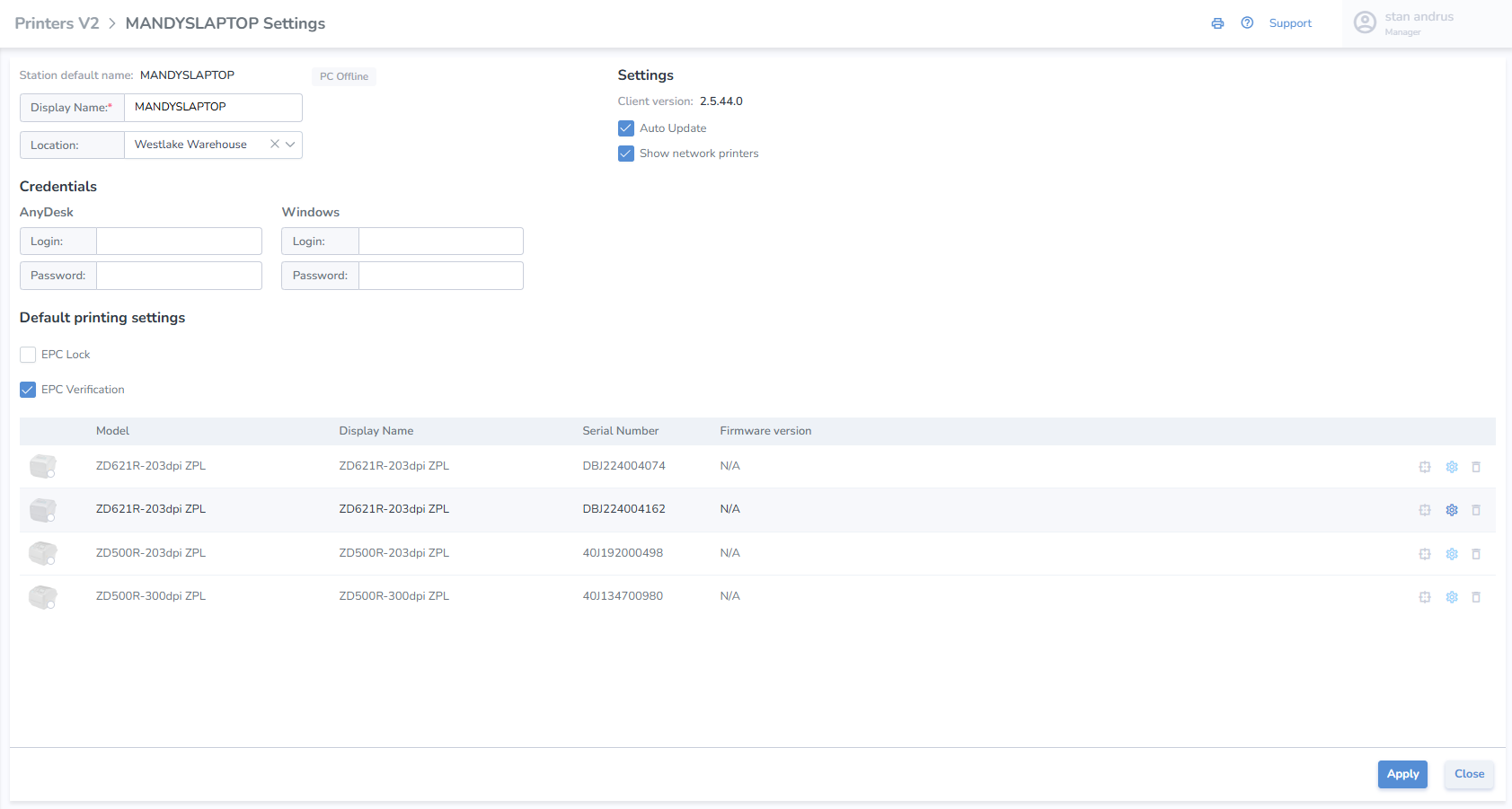
This page allows for the assignment and view of all printers including settings.
Label Layouts > All Layouts
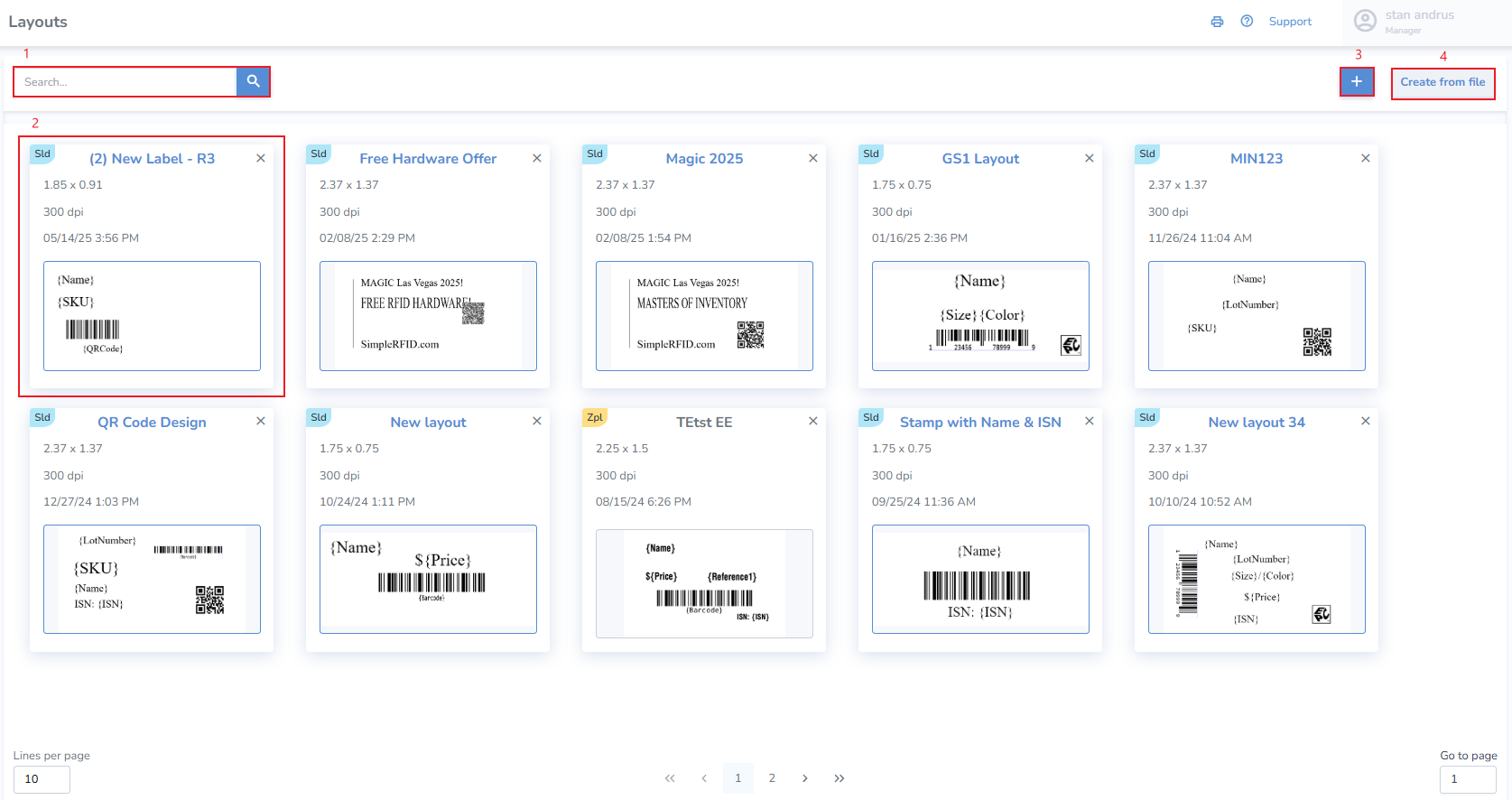
Label layouts are the label designs which have been created and saved. From this page a user may also create new label designs.
1. Search window provides ability to search saved designs
2. Card for each saved design and includes Name, Label size, DPI, Saved date and time, and a preview of the design
4. Ability to import an existing design from another label editor
Label layouts > Label Designer
The design editor allows a user to quickly design a label with any properties which appear for the Product, including description, size, color, price, barcode & QR code, image and more.
Adding Fields to Label Layout
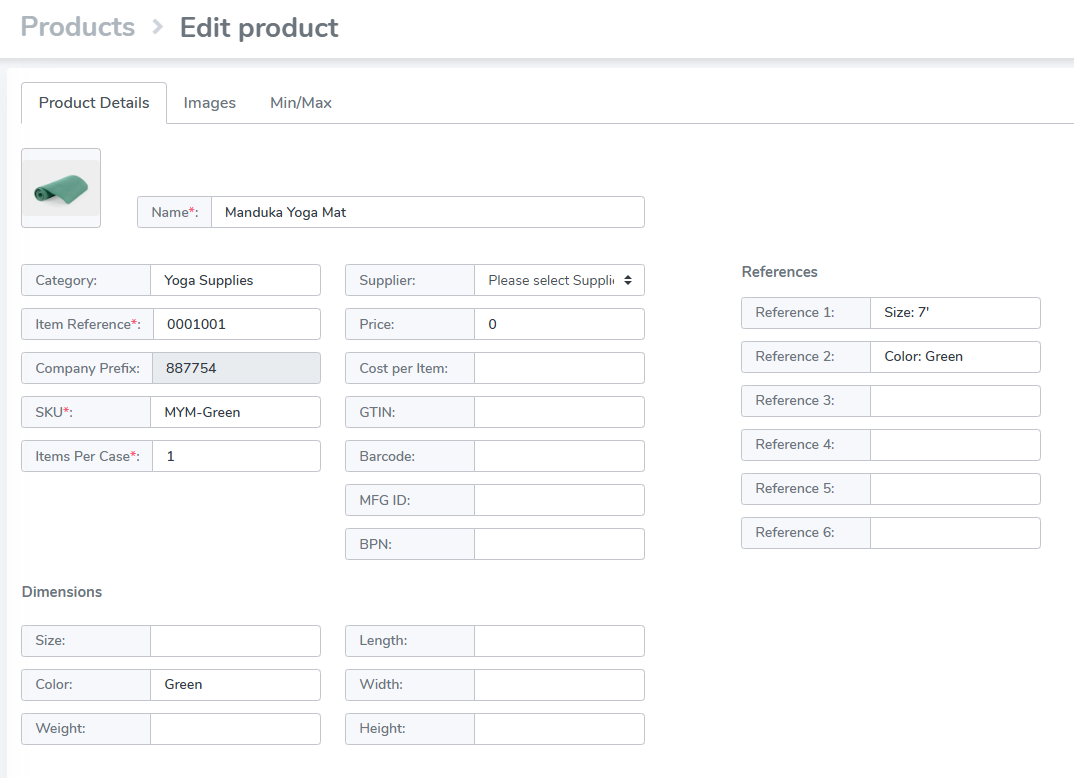
Add any property from the Edit Product screen to your label by placing the name of the property in curly brackets as a text element in the Label Designer.
Is your printed label missing properties? Search the product you are printing and check the fields to confirm that the product contains the field.
E.g. In the example below: to print "Size: 7'" on the label, you would add a text element with {Reference1}
Overview of Label Designer

Template
1. Choose label size - Don't see your label size available in the Size dropdown? Email support@simplerfid.com and notify us.
2. Name Label
Add Block: Text, Barcode, Symbol, Shape & Image
3. Text - This is any place where text will appear such as name, description, size, color, style, price, etc. in any font desired
4. Barcode - This allows you to add a barcode or QR code
Unless you have a specific barcode type, such as UPC or EAN, you'll generally want to use Code 128 by default.
5. Symbol - add EPC global symbol other popular symbols
6. Shape - add basic shapes to design including line, box, circle
7. Image - upload a basic image
8. Delete Block - remove a single block from the canvas
9. Clear Layout - remove all blocks and clear the canvas
10. Grid settings - adjust grid lines
11. Align options
12. Editor window for selected block
Edit Block
Click on the Block you wish to edit
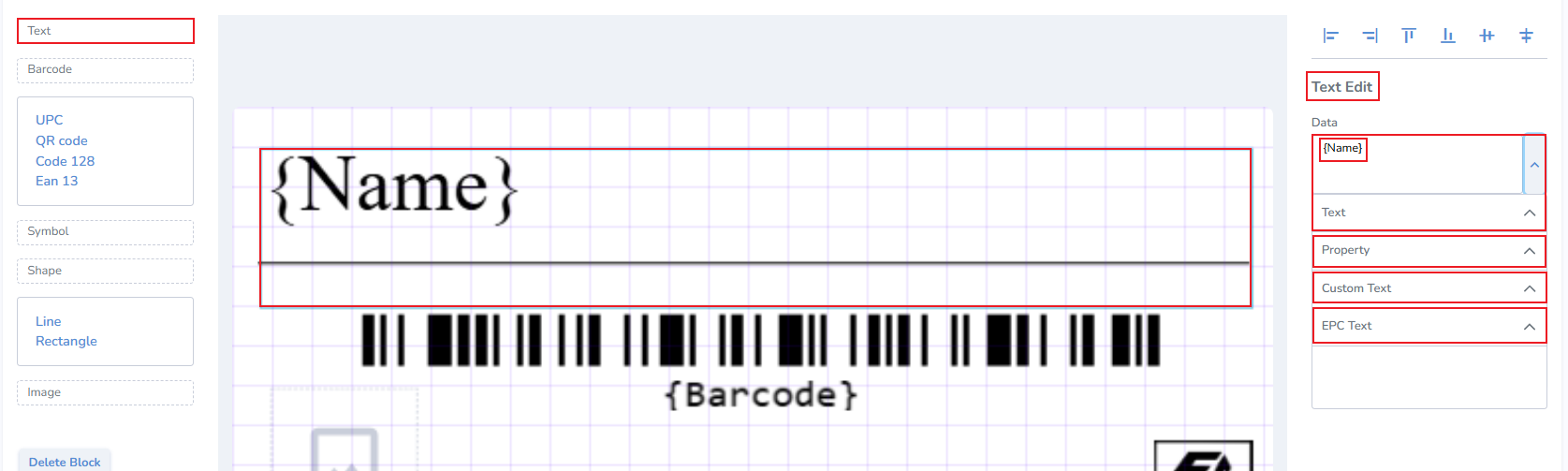
Text
Click Text
Choose the Data source: Text, Property, Custom Text & EPC Text from the right in the Text Edit section
- Text: ID, Name, Category, MFG ID, SKU, Price, Item Number, Barcode, QR Code, BPN, & Items Per Tag
- Font: Choose existing font or add any font
- Property: Size, Color, Weight, Length, Width, Height, Full Description
- Custom Text: Pulls information from Ref 1-Ref 6 in the Products > Edit Product view
- EPC Text: tag level properties which include Items per tag, Cost, Cost per item, Born Date, Expiration Date, Lot Number, Sell by date, EPC, EPC ASCII, ISN, SN, or GTIN
Barcode
Click on the Barcode option on the right to view the Barcode Edit window
Choose Data source. This allows you to use any text or number from any field and turn it into a barcode or QR code
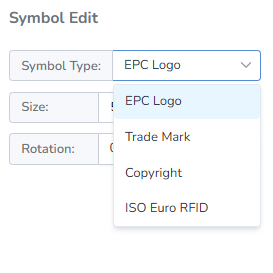
Symbol
Add a common symbol such as ISO, Trademark, Copyright, or EPC logo
Shape
Add common shape like a box, circle, or line
Image
Fonts
Adding New Fonts
Choose Font
- To select the desired font navigate to the Label Layouts page
- Open the template you wish to edit.
- Click on the text object you wish to edit.
- On the right side click the Font" drop-down
- Choose the desired font
- Click Save
Please note that the new font won't appear in the preview, however it will print on the label. Our next improvement will display this new font in the label design template.
Layouts > Create from file
Use an existing design via the Create New Label From File pop-up
Click the Create from File button from the Layouts page

Handheld Readers
This page provides visibility to all of your Handheld RFID readers connected to your account. It provides visibility to all devices, identifies who last used the device, where they were located, and when it was used. It displays the device firmware to help identify the devices which must be updated.

- Model Number
- Serial Number of all devices
- First connected date
- Last connected date
- Location it was last at
- The user who last used the device
- Firmware of the device - find the current firmware version here
Fixed Readers
Users
User:
Create a User
If you are a regular user (not manager), please contact your manager and ask to create an account.
Reset Password
1. Go to Login Page
2. Click "Forgot password?"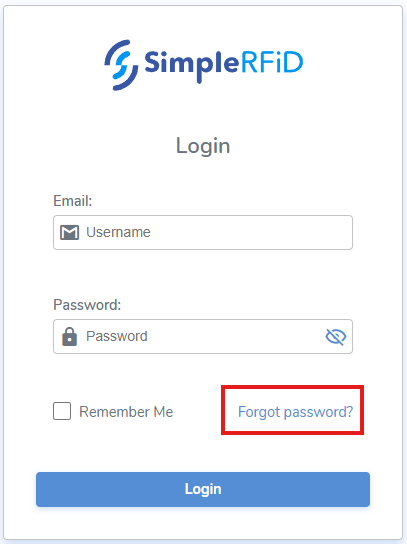
3. Enter your email
4. Click "Send a link to email"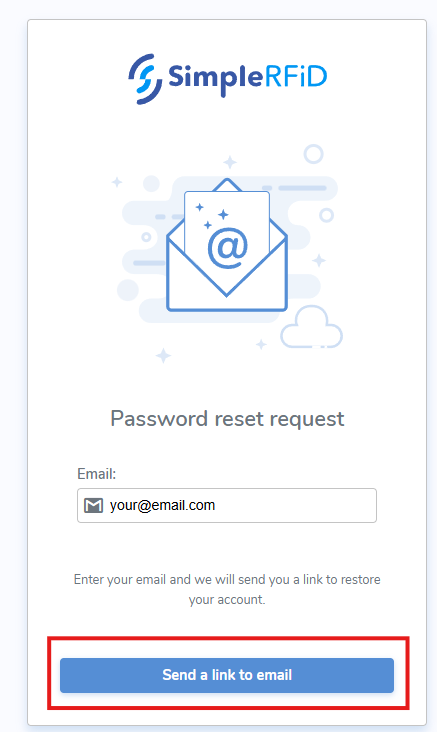
5. Open your email inbox
6. Open noreply email
7. Click "Reset Password"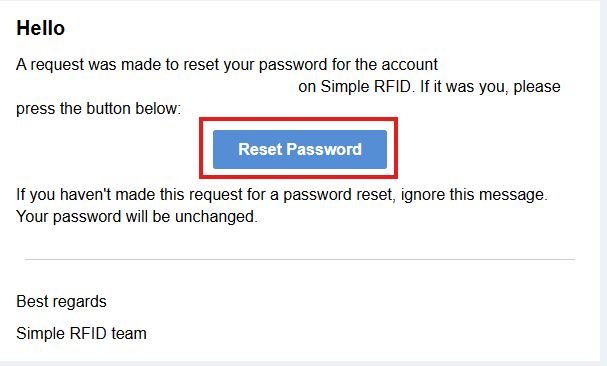
8. Enter the new password twice
9. Click "Save new password"
Deactivate User
If you are a regular user (not manager), please contact your manager to deactivate your user.
Manager:
Create a User
- Go to Users (logged in as Manager)
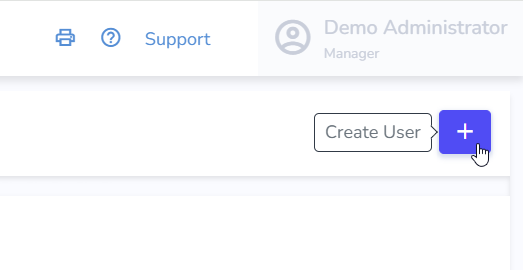
- Click the “+” button to add a new user.
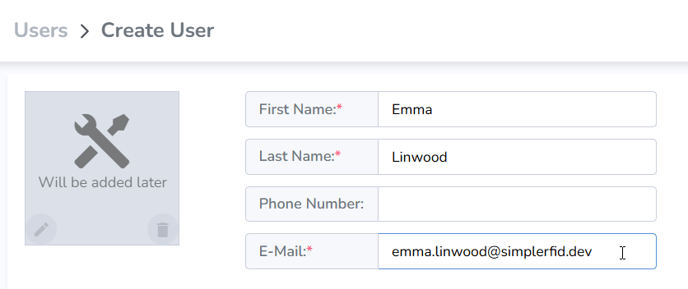
- Enter the user’s first and last name, email address, and optionally a phone number.
- Select the locations this user will have access to.
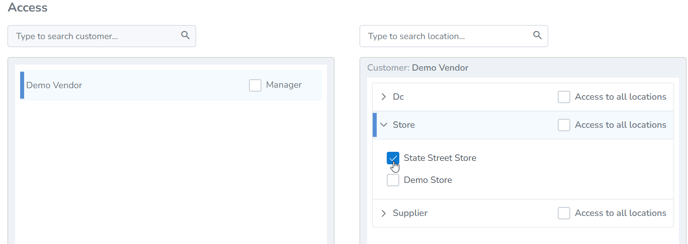
OR
4. Give them Manager access for full access to all locations.
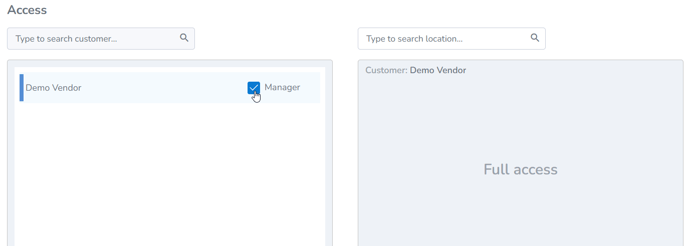
5. Finally, click Create.
The user will then receive an email to set their password and log in.
Resetting User Password
Same as User.
OR
1. Go to Users list
2. Click on the desired User to open it
3. Click "Reset Password" > "Reset"
A "Reset Password" email should is sent to the user. User will need to Reset the password as above in user's "Reset Password" after step 5.
Deactivating a User
1. Go to Users list
2. Click on the desired User to open it
3. Click "Deactivate User" > "Deactivate"
Location Framework
The Location Framework provides the ability to create properties that can be assigned to tags via a drop-down menu. Although this is called "Location" Framework, these properties can include anything you wish to associate with your items such as:
- Sublocations - Create rows, bins, isles, etc.
- Flags - Set items to status such as alterations, embroidery, layaway, etc.
- Process - Assembly, Packaging, QA, etc.
List tab
The Location Frameworks list tab displays all created frameworks.
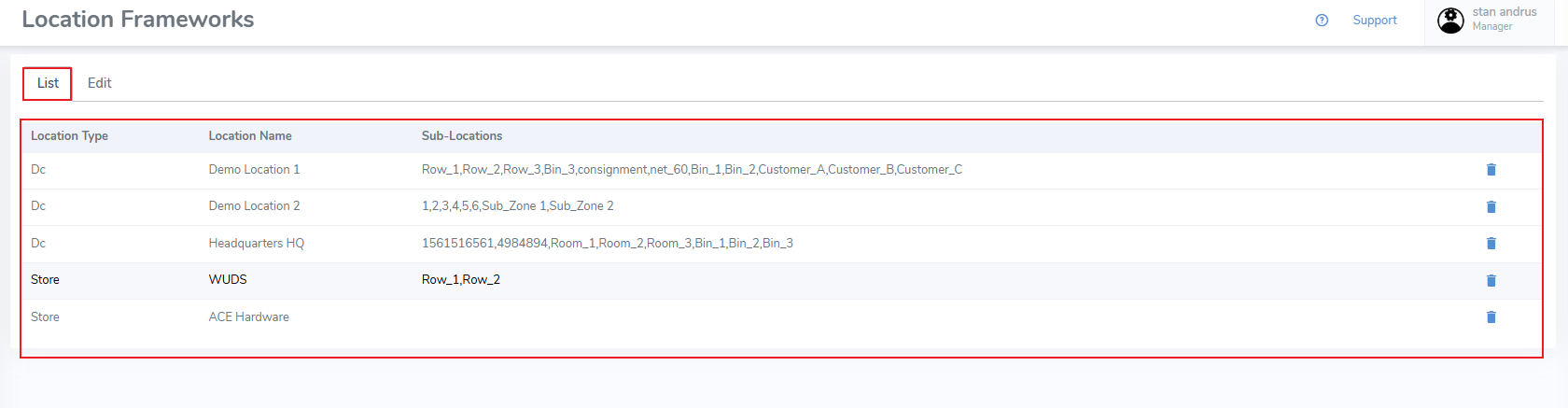
Edit tab
The Edit tab allows for creation of new frameworks and editing of existing frameworks
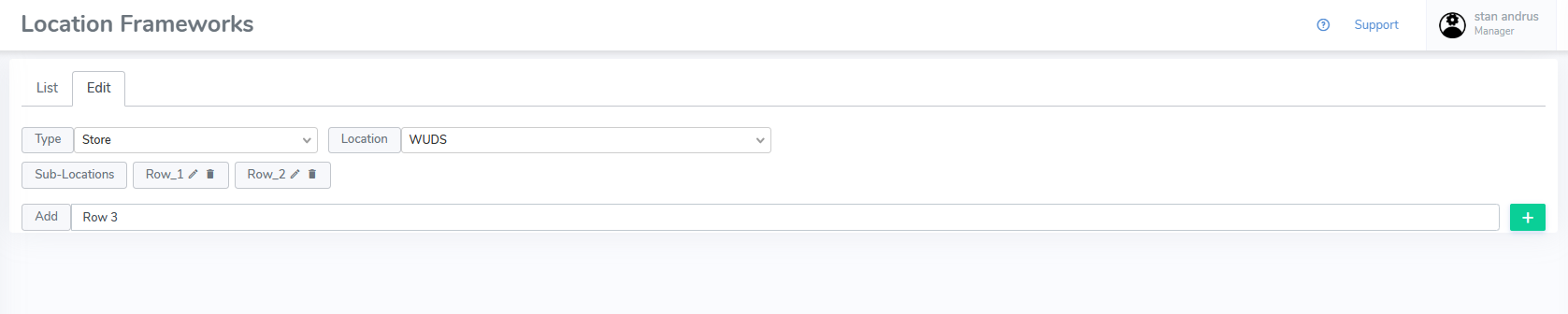
Create a Framework
From the Edit tab:
- Type & Location - Select the type & location you wish to apply the framework to
- Add - From the add section, enter the values separated by a comma
- Click the "+" button to add them
Edit a Framework
From the List tab:
- Select the desired framework
From the Edit tab:
- Click the pencil icon to edit an existing value
- Click the Trash Can icon to delete the value
- Or use the Add row to add a new property
These frameworks appear on the web portal Inventory tab Tag level views, and can be edited there.
These frameworks can be set from the mobile device Write Tags page when using Single Tag Encoding
Locations
This article covers the different types of locations that can be created, and how to create them.
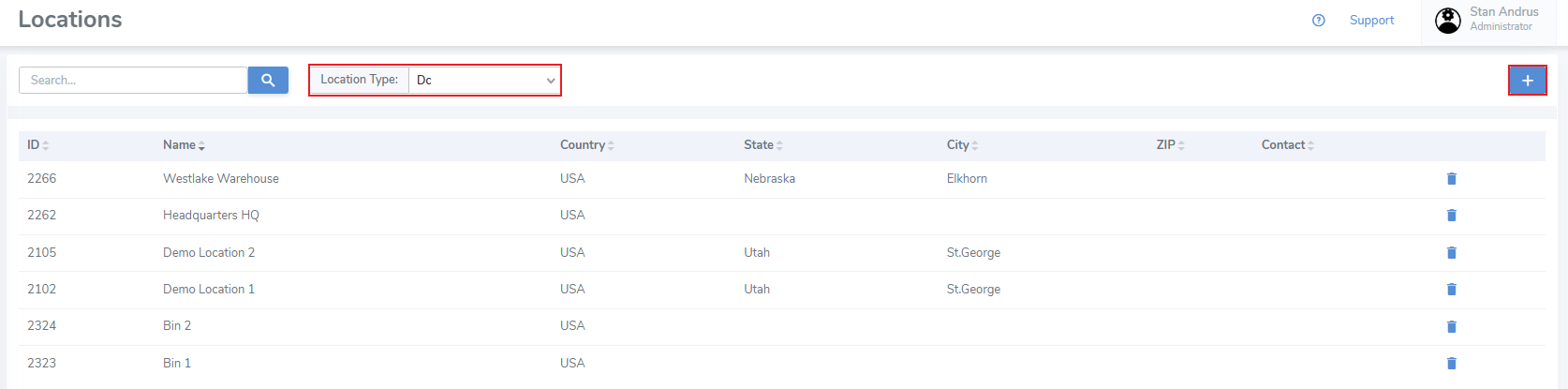
Location Types
There are three types of locations which can be created in Simple RFID.
- 'DC' or Distribution Center (Warehouse)
- Store (Retail Space)
- Supplier (any external vendor)
Create a Location
- Set the location type to the entity you wish to create
- Click the "+" button located in the upper right corner
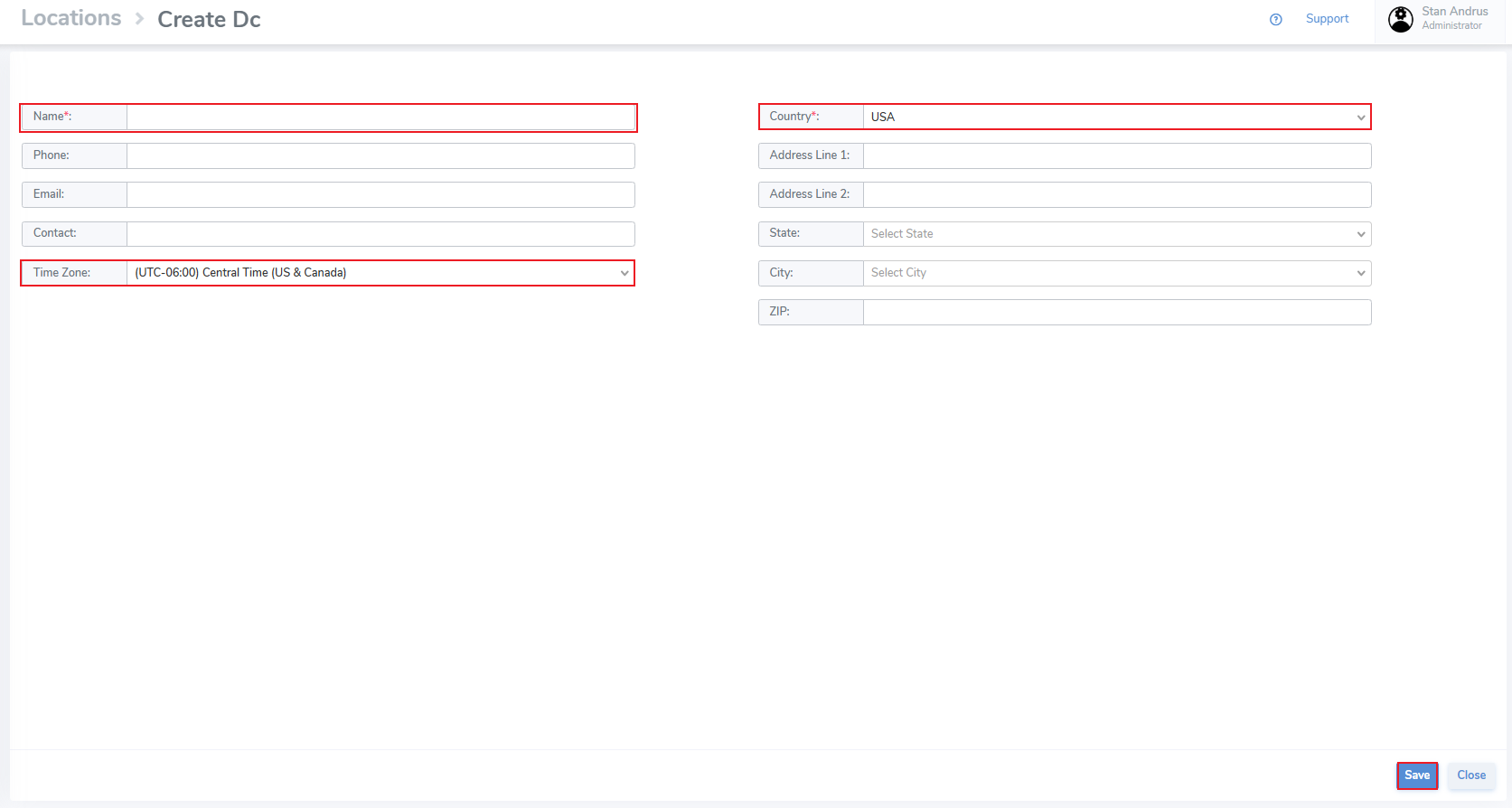
Enter information for the location including:
- Name
- Phone
- Contact
- Time Zone
- Country
- Address (including City, State & Zip Code)
It's important that your addresses are up-to-date. This address is used to ship supplies.
- Finally click "Save" to save the results
A current bug requires that the page be reloaded to display the new location. Switch the filter to a different location type and return back to what you created and it will appear.
Resources
Access the Resources tab by clicking on the Admin menu (top right corner), then select Resources
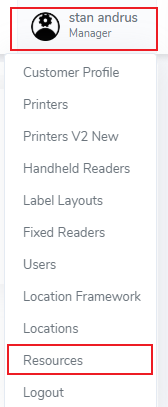
Resources
The Resources tab provides important links required for setup and maintenance.
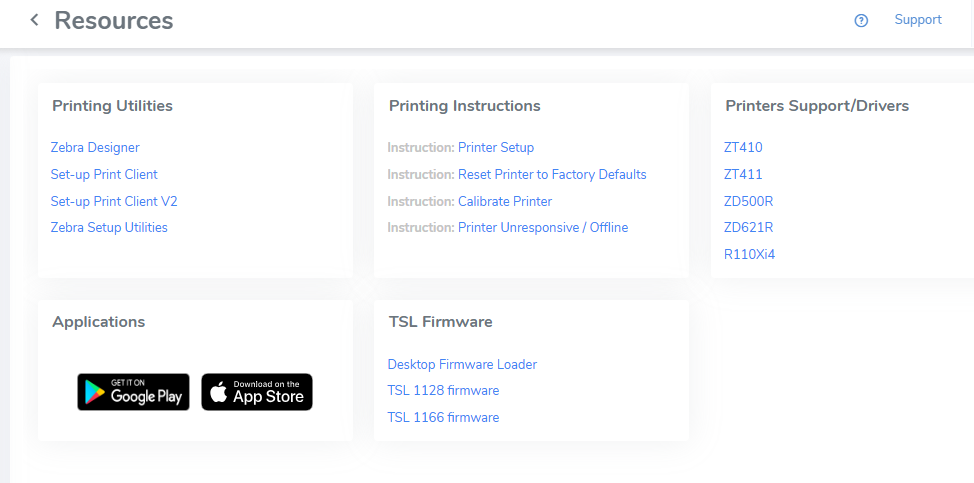
The sections include:
Printing Utilities
Download the print client and Zebra tools (Zebra Designer & Setup Utilities)
Printing Instructions
Instruction on setup, and common issues
Printers Support/Drivers
Drivers for various printer models
- MacOS Print Client -
Applications
Links to install the mobile app (Play Market & App Store)
TSL Firmware
Firmware to update your TSL handheld RFID reader
Logout
Instructions of how to log out of the web portal
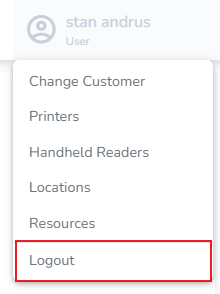
- Click 'Logout'
This will forward you to the login screen
Printer Profile: Calibrate Printer from web
The printer profile page contains details for each connected printer. Users can navigate to this page from the Available Printers pop-out menu, or the Station Settings
Printer Profile Details
- Location the printer is connected to
- 'Station' (Host PC) the printer is connected to
- Serial Number of the Printer
- Firmware Version of the Printer
- Date the printer was setup
- Printer DPI: 203, 300, or 600
- Connection Method: USB or Ethernet
- Print Station connectivity indicator
- Printer connectivity indicator
- Notes section
- Calibrate Printer button
- Save button to save changes
- Close button to exit the page
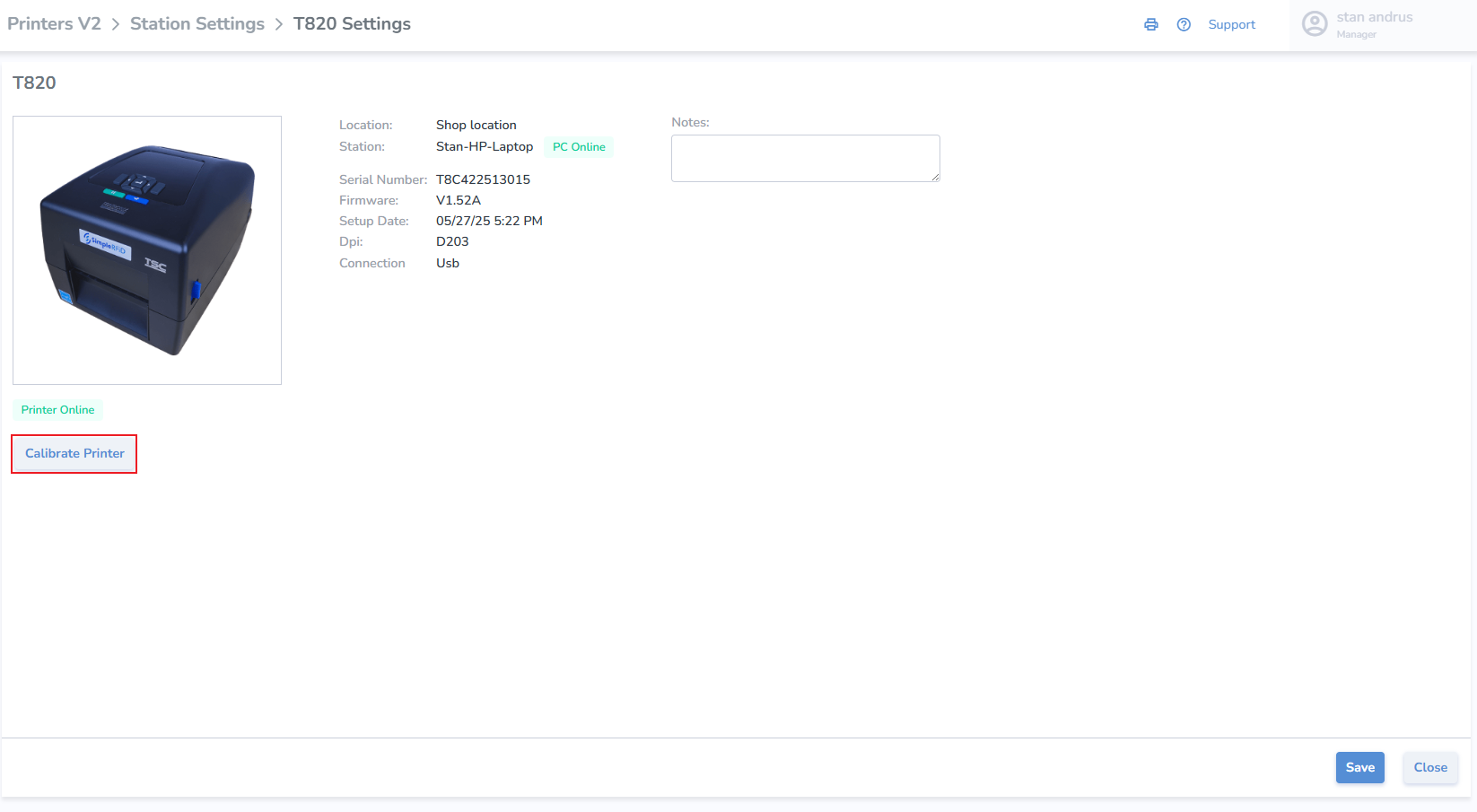
Calibrate Printer from Printer Profile
- Calibrate click the button
- Click 'Calibrate' on pop-up
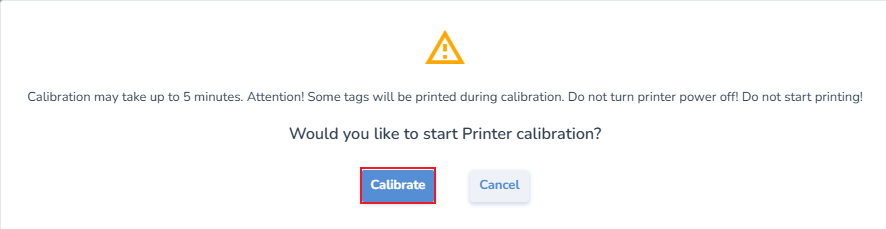
- Accepting this prompt will then send both the media and ribbon and RFID calibrations to the printer, which will proceed automatically with the following steps:
- Media and Ribbon.
- Then a pause for roughly 10 seconds.
- And then the RF calibration, which will take longer; the labels will periodically inch out of the printer for approximately one minute. At the end of the process it will feed out 2 or 3 labels before stopping completely.
- After the calibration has completed:
- Open the printer and roll back the labels so the blank tags may be used—precision is not necessary
- Un-pause the printer
- Now you are ready to print.
If the printer continues to VOID labels, repeat the process. If the issue persists, perform a calibration directly from the printer itself.
Deactivating User
To deactivate an account, go to the SimpleRFID web portal and click Users. 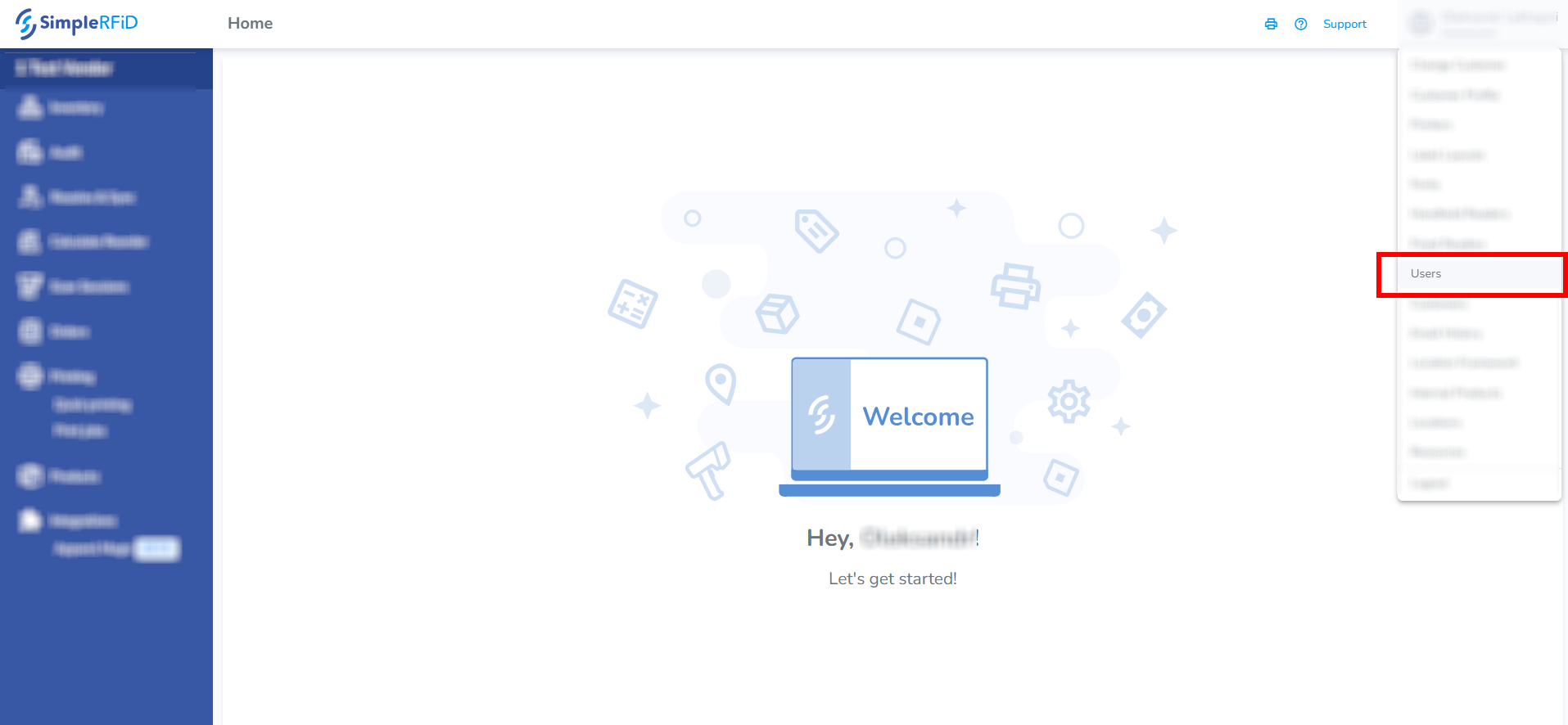
You need to have the Manager role in the SimpleRFID web portal.
Find the account by typing the name in the search box. Click on the account that appears in the search results.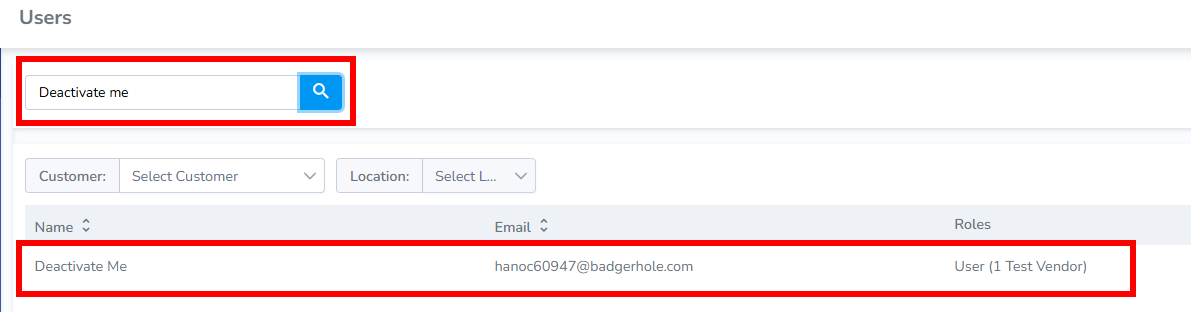
Click Deactivate user.
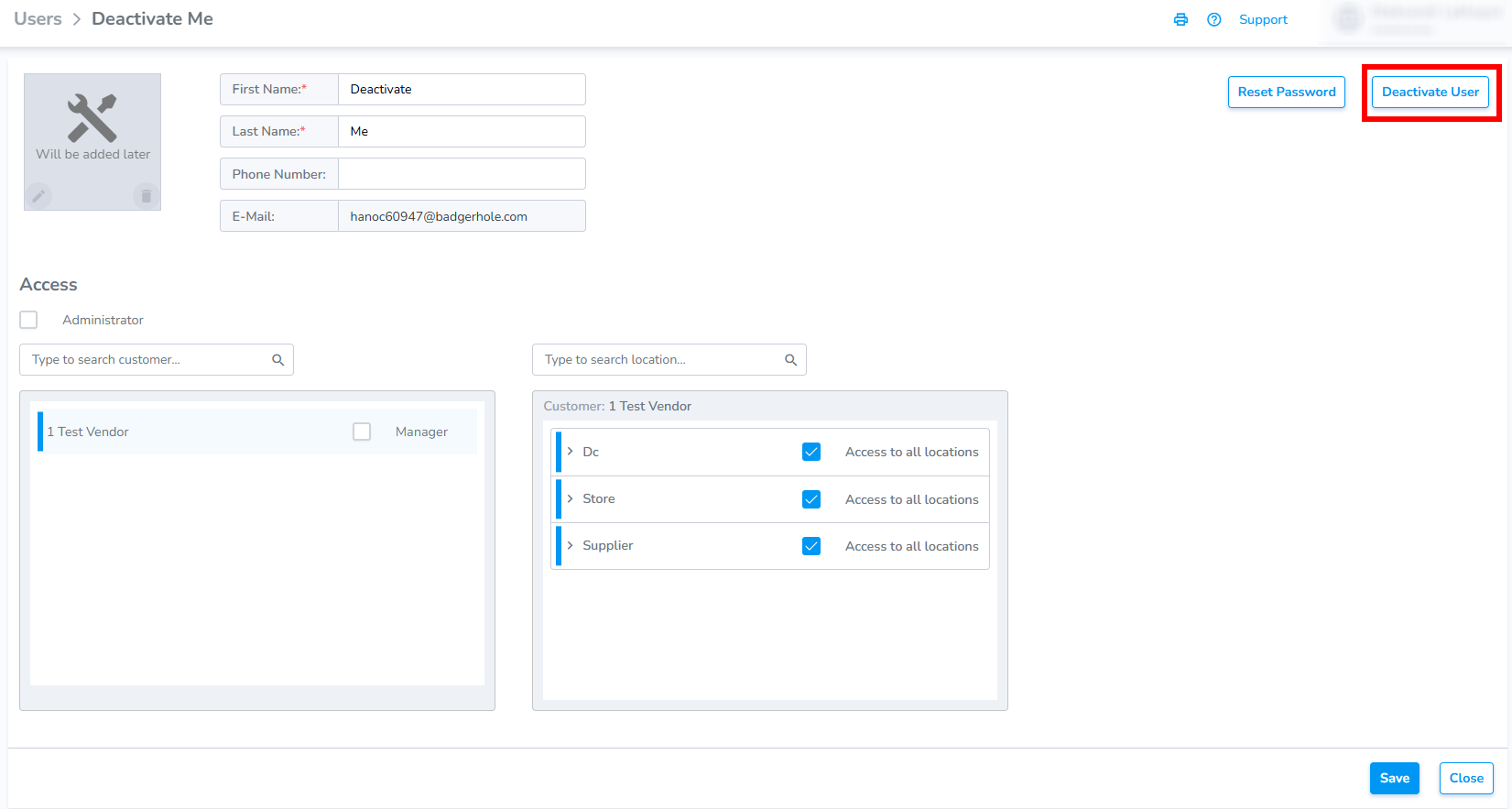
Now, we can see that the account is deactivated.
