# Navigation Menu: Calculate Reorder

Set Min &amp; Max thresholds to streamline reordering

# Calculate Reorder

## Manage your inventory using Min/Max templates to create Orders.

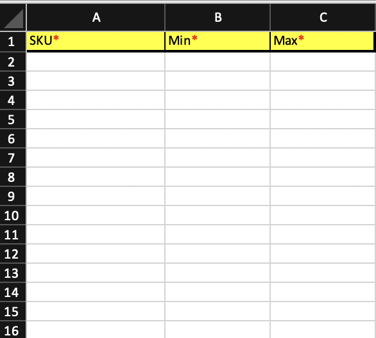
Creating Stock Templates is a great way to manage on-hand inventory. These templates allow you to set inventory thresholds which provide the framework for what should be on-hand and what you need to order.

****Original Stock Template****
  
![Screen Shot 2022-06-03 at 12.20.36 PM](https://s3.amazonaws.com/cdn.freshdesk.com/data/helpdesk/attachments/production/157004830089/original/5Ki6ZVlfY5MYJlItnjqZuMdk64W4uCr5Ig.png?1744409503)

[How to Create a Stock Template](https://support.simplerfid.com/support/solutions/create-stock-template.html)

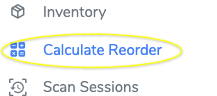
- Go to the "Calculate Reorder" feature
  
![Screen Shot 2022-06-03 at 12.21.39 PM](https://s3.amazonaws.com/cdn.freshdesk.com/data/helpdesk/attachments/production/157004830090/original/oQ7UuRLm__QfiLF7PI4zzaN1xoE9z_QvDg.png?1744409510)

- <span style="white-space: pre-wrap;">Select the Template </span>

  
![Screen Shot 2022-06-03 at 12.21.23 PM](https://s3.amazonaws.com/cdn.freshdesk.com/data/helpdesk/attachments/production/157004830091/original/ochZWn3kygRspU_Q9_dL_L077VxUvAh49Q.png?1744409515)

- Fill out the template then upload

  
![Screen Shot 2022-06-03 at 12.22.16 PM](https://s3.amazonaws.com/cdn.freshdesk.com/data/helpdesk/attachments/production/157004830095/original/nyLXWIMfd-JmiBqHndfkIkm5LOgYQfHe6g.png?1744409519)

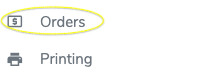
- Wait for the icon to say "Successful" then confirm order has been sent as-well as other features

  
![Screen Shot 2022-06-03 at 12.31.29 PM-1](https://s3.amazonaws.com/cdn.freshdesk.com/data/helpdesk/attachments/production/157004830096/original/is5rggzQRhTlIFWwzODomvnx8IJRerEA2Q.png?1744409524)

  
![Screen Shot 2022-06-03 at 12.31.53 PM-1](https://s3.amazonaws.com/cdn.freshdesk.com/data/helpdesk/attachments/production/157004830098/original/mc7eMN8BtTle8G5giihHP58XK7m1Ag7MGg.png?1744409529)

# Setting Thresholds

The Calculate Reorder tab allows users to set thresholds for what they wish to have in stock, and allows them to set a par of how much they must restock.

##### ****Set Thresholds from Product profile****

From the Products tab, search for the item you wish to set pars

Locate it and open it

[![image.png](https://kb.simplerfid.com/uploads/images/gallery/2025-05/scaled-1680-/oWAimage.png)](https://kb.simplerfid.com/uploads/images/gallery/2025-05/oWAimage.png)
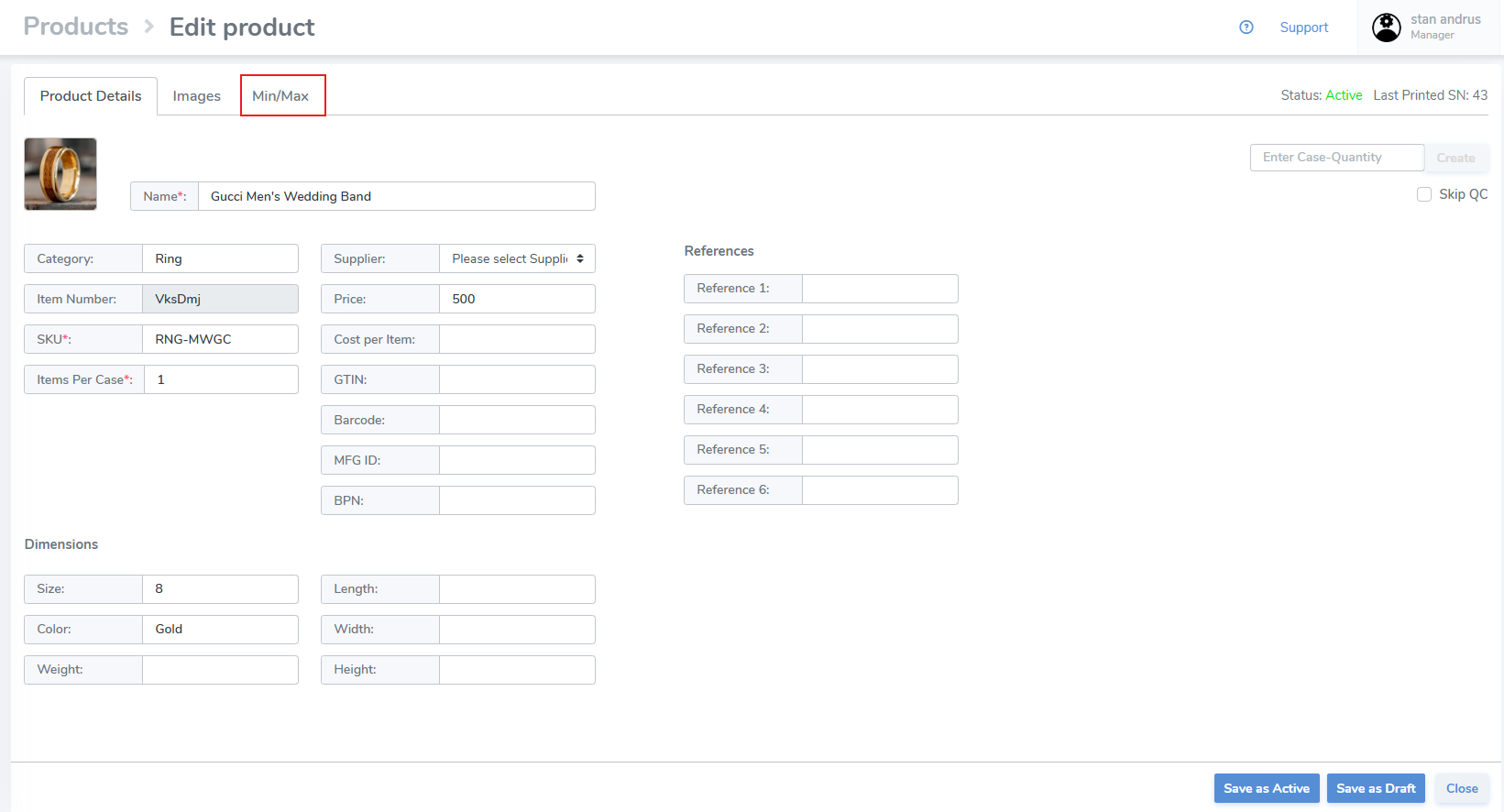
Click on the Min/Max tab

- <span style="white-space: pre-wrap;">Choose the Location Type for the location(s) you wish to set thresholds, or choose 'All' to include all entity types </span>
- Click the checkboxes on the left
- At the top enter the Min and Max
- Click 'Apply'
- The quantities will be applied to the location(s) and will be 'enabled'

[![image.png](https://kb.simplerfid.com/uploads/images/gallery/2025-05/scaled-1680-/REuimage.png)](https://kb.simplerfid.com/uploads/images/gallery/2025-05/REuimage.png)
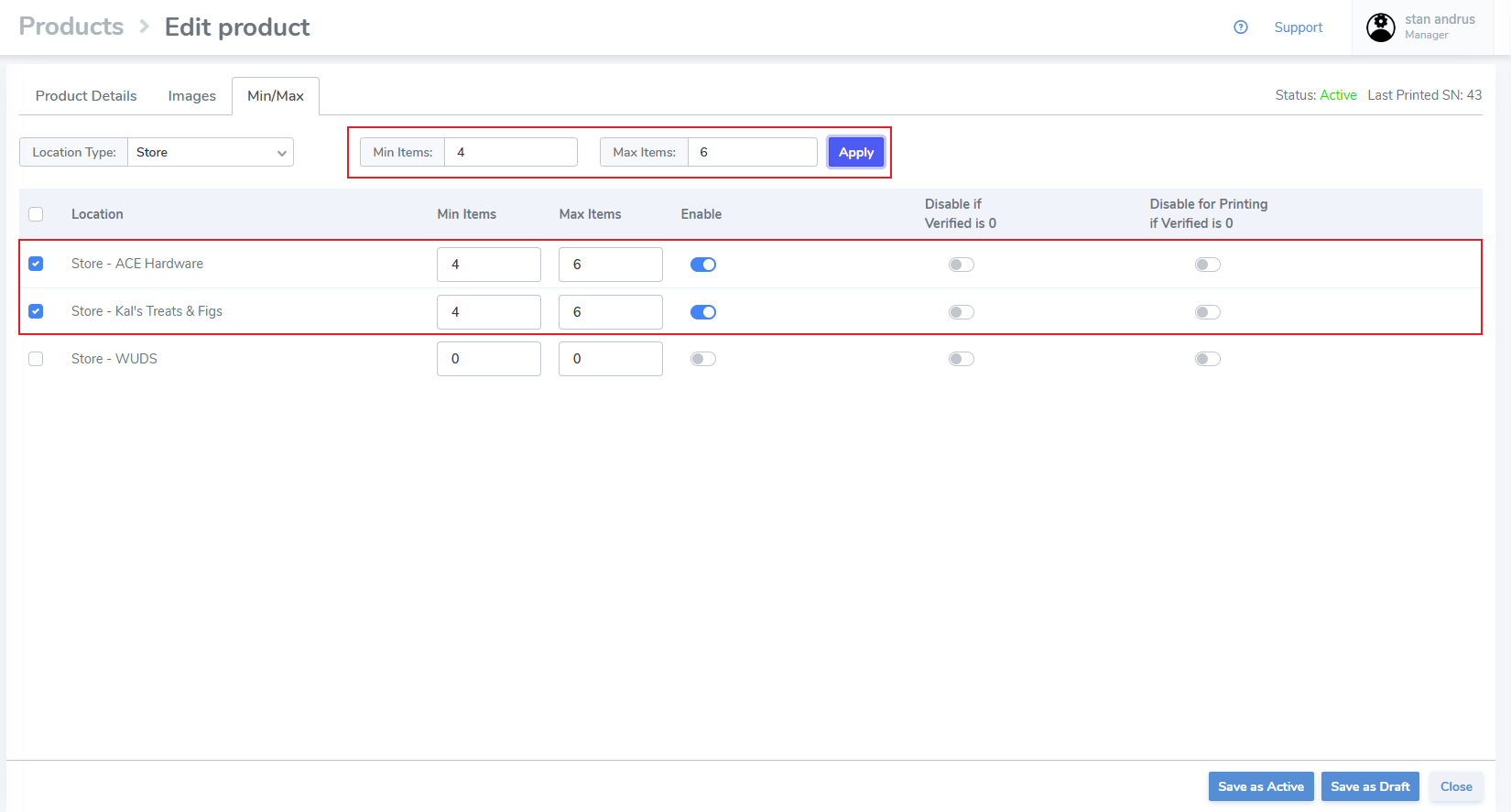
Settings to Disable if Verified is 0 and Disable for Printing if Verified is 0 will be explained in a later article.

- Click "Save as active"

##### ****Set from Calculate Reorder****  


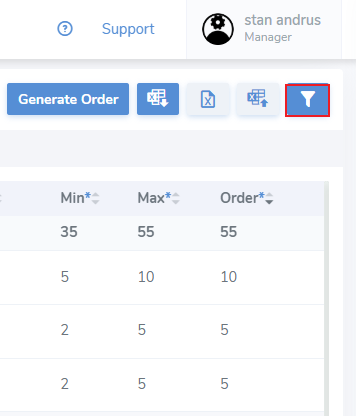
****To quickly identify items that have not been assigned a Min &amp; Max click the filter icon****

[![image.png](https://kb.simplerfid.com/uploads/images/gallery/2025-05/scaled-1680-/KRzimage.png)](https://kb.simplerfid.com/uploads/images/gallery/2025-05/KRzimage.png)

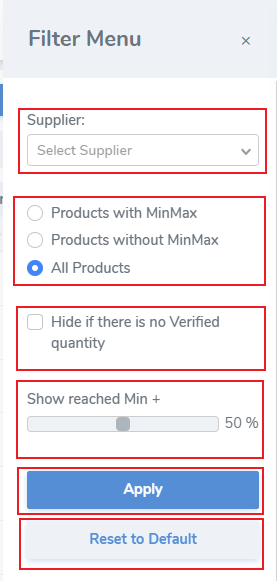
This will open the side filter menu

1\. Supplier - Set the supplier filter if products have been assigned a supplier to quickly filter them

<span style="white-space: pre-wrap;">2. Limit the items </span>

[![image.png](https://kb.simplerfid.com/uploads/images/gallery/2025-05/scaled-1680-/Yt8image.png)](https://kb.simplerfid.com/uploads/images/gallery/2025-05/Yt8image.png)

##### ****Template Uploader****

[![image.png](https://kb.simplerfid.com/uploads/images/gallery/2025-05/scaled-1680-/hJ6image.png)](https://kb.simplerfid.com/uploads/images/gallery/2025-05/hJ6image.png)
# Update Min/Max Values via Spreadsheet

##### Instructions on how to update min/max values for products via spreadsheet.

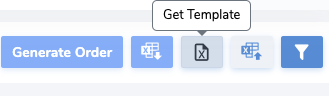
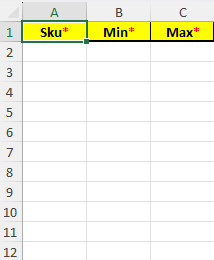
<span style="white-space: pre-wrap;"> To set min-max values via spreadsheet, navigate to the calculate reorder page and click on the "Get Template" button to download the template excel sheet.</span>

  
![Screen Shot 2022-05-02 at 2.14.10 PM](https://kb.simplerfid.dev/HubSpot%202/support.simplerfid.com/hs-fs/hubfs/Screen%20Shot%202022-05-02%20at%202.14.10%20PM0440.png?width=398&name=Screen%20Shot%202022-05-02%20at%202.14.10%20PM.png)

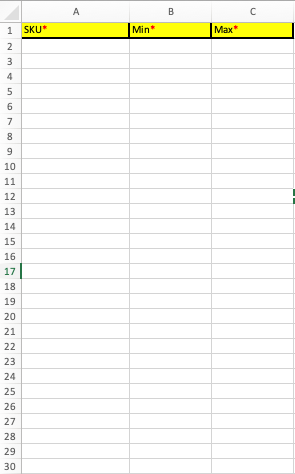
Next, fill in the required fields. Save the spreadsheet.
  
![Screen Shot 2022-05-02 at 2.04.47 PM](https://kb.simplerfid.dev/HubSpot%202/support.simplerfid.com/hs-fs/hubfs/Screen%20Shot%202022-05-02%20at%202.04.47%20PM8e31.png?width=295&name=Screen%20Shot%202022-05-02%20at%202.04.47%20PM.png)

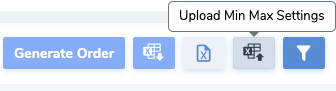
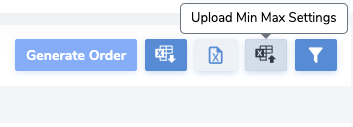
<span style="white-space: pre-wrap;">Click on the "Upload Min Max Settings" button. </span>
![Screen Shot 2022-05-02 at 2.05.44 PM](https://kb.simplerfid.dev/HubSpot%202/support.simplerfid.com/hs-fs/hubfs/Screen%20Shot%202022-05-02%20at%202.05.44%20PMbf80.png?width=353&name=Screen%20Shot%202022-05-02%20at%202.05.44%20PM.png)

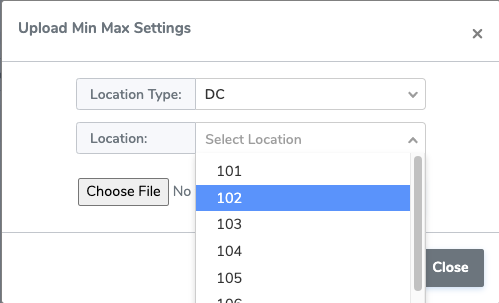
<span style="white-space: pre-wrap;">Select the location type (DC, Store, or Supplier), and select the specific location you wish to update. </span>
  
![Screen Shot 2022-05-02 at 2.06.17 PM](https://kb.simplerfid.dev/HubSpot%202/support.simplerfid.com/hs-fs/hubfs/Screen%20Shot%202022-05-02%20at%202.06.17%20PM3be1.png?width=499&name=Screen%20Shot%202022-05-02%20at%202.06.17%20PM.png)

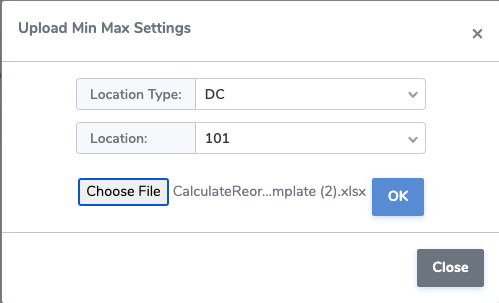
<span style="white-space: pre-wrap;">Upload the saved template and click OK to apply changes. </span>
  
![Screen Shot 2022-05-02 at 2.06.31 PM](https://kb.simplerfid.dev/HubSpot%202/support.simplerfid.com/hs-fs/hubfs/Screen%20Shot%202022-05-02%20at%202.06.31%20PM6d51.png?width=499&name=Screen%20Shot%202022-05-02%20at%202.06.31%20PM.png)

<span style="white-space: pre-wrap;"> Note that this method only updates the specified SKUs at one location. </span>