# Accessing the Portal

Accessing, logging in &amp; out, &amp; resetting password.

# Account Creation

The following outlines the steps to getting an account created with Simple RFID.

<span style="white-space: pre-wrap;">Once your account has been created, you will be added as the Super User. Your email address is your Username. </span>

##### ****Set Password Email****

An email will be sent to the email address provided with a link to set your password.

Open the email

Click on the link

Enter Your Password

Repeat Your Password

Click Save

<span style="white-space: pre-wrap;">If you forget your password you can </span>[reset it](https://kb.simplerfid.com/books/web-portal/page/resetting-password).

<span style="white-space: pre-wrap;">Now you can </span>[login to the web portal](https://kb.simplerfid.com/books/web-portal/page/log-in)<span style="white-space: pre-wrap;"> &amp; mobile app using these credentials.</span>

# Log In

Instructions on logging into the web portal

- <span style="white-space: pre-wrap;">To access the portal login scree, enter </span>[portal.simplerfid.com](https://portal.simplerfid.com/)<span style="white-space: pre-wrap;"> into a web browser</span>

##### ****Login Screen****

- Enter your email and password into the login fields.

[![image.png](https://kb.simplerfid.com/uploads/images/gallery/2025-05/scaled-1680-/R6wimage.png)](https://kb.simplerfid.com/uploads/images/gallery/2025-05/R6wimage.png)

- If you want to stay logged in on this device, check the "Remember me" box.
- Finally, click "Login" to enter the portal.
- If you have forgotten your password click the 'Forgot password?' link

<p class="callout info">If you don't remember your password, click "Forgot Password", then enter your email address and click "Send a link to email". You should then receive an email with a link to reset your password.</p>

<p class="callout info">If your account hasn't yet been created, contact your manager or support@simplerfid.com</p>

# Resetting Password

Instructions for how to reset your password.

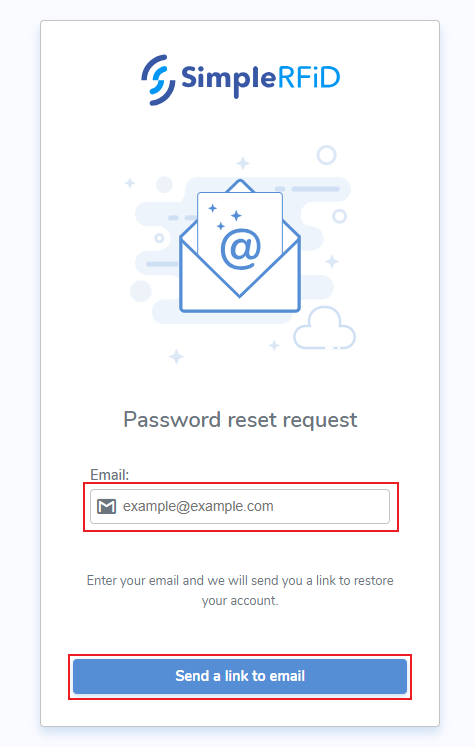
From the login screen click 'Forgot password?'

##### ****Password Reset****

- Enter the associated email address
- <span style="white-space: pre-wrap;">Click </span>****Send a link to email****

[![image.png](https://kb.simplerfid.com/uploads/images/gallery/2025-05/scaled-1680-/71Kimage.png)](https://kb.simplerfid.com/uploads/images/gallery/2025-05/71Kimage.png)

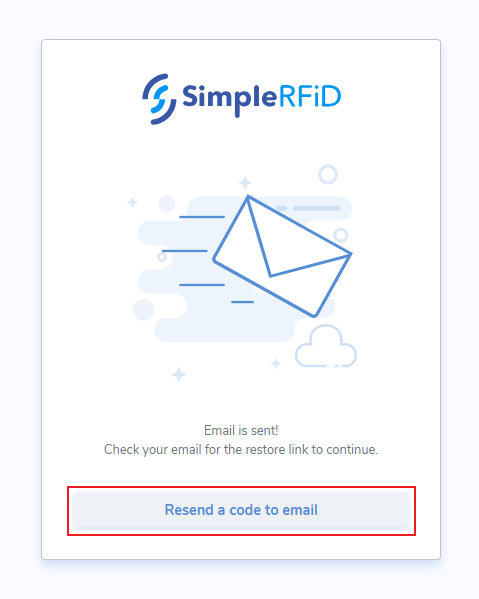
##### ****Reset Notification****

Once sent, a notification will appear advising that the email has been sent.

The pop-up also contains a link to '****Resend the code to email****<span style="white-space: pre-wrap;">' </span>

[![image.png](https://kb.simplerfid.com/uploads/images/gallery/2025-05/scaled-1680-/DcXimage.png)](https://kb.simplerfid.com/uploads/images/gallery/2025-05/DcXimage.png)

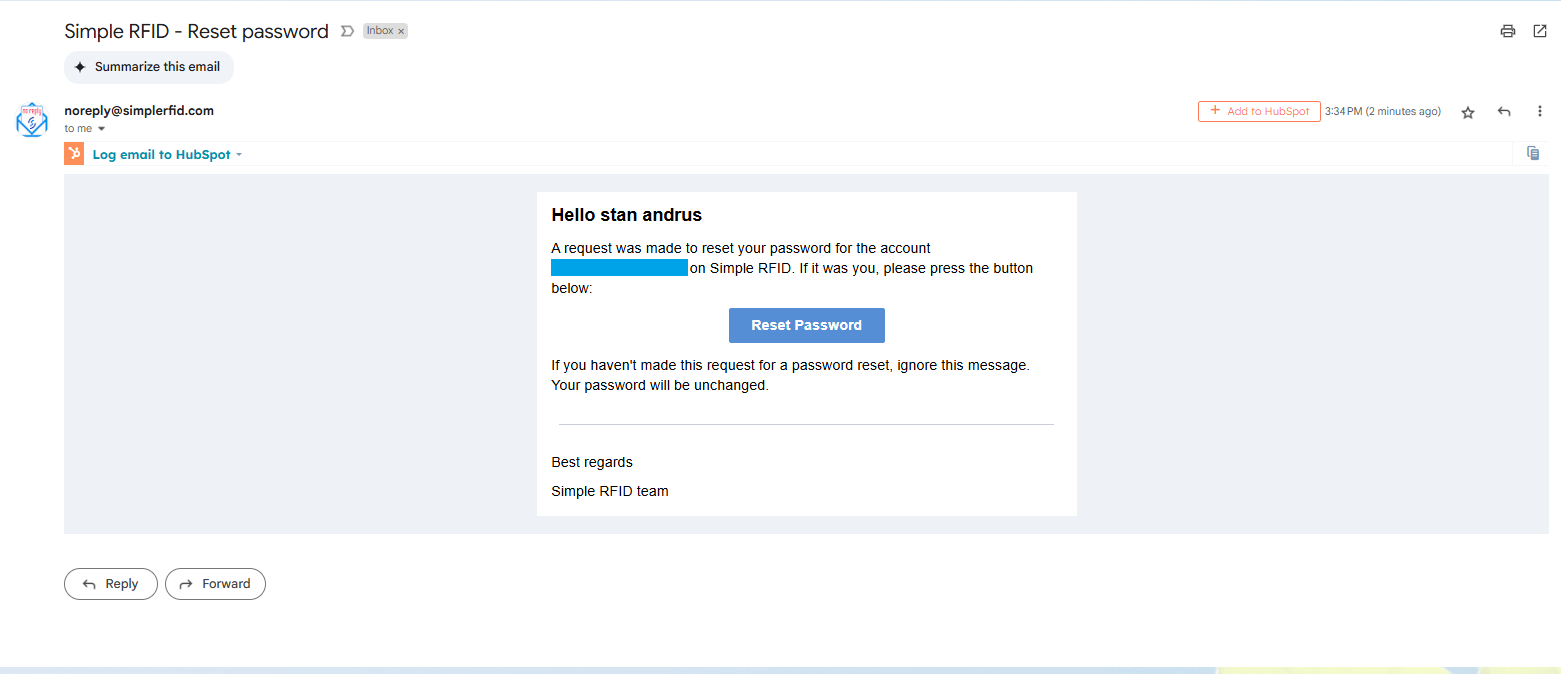
##### ****Reset Email****

An email will then be sent to the associated email with a button to reset your password

- Click 'Reset Password'

[![image.png](https://kb.simplerfid.com/uploads/images/gallery/2025-05/scaled-1680-/z8gimage.png)](https://kb.simplerfid.com/uploads/images/gallery/2025-05/z8gimage.png)
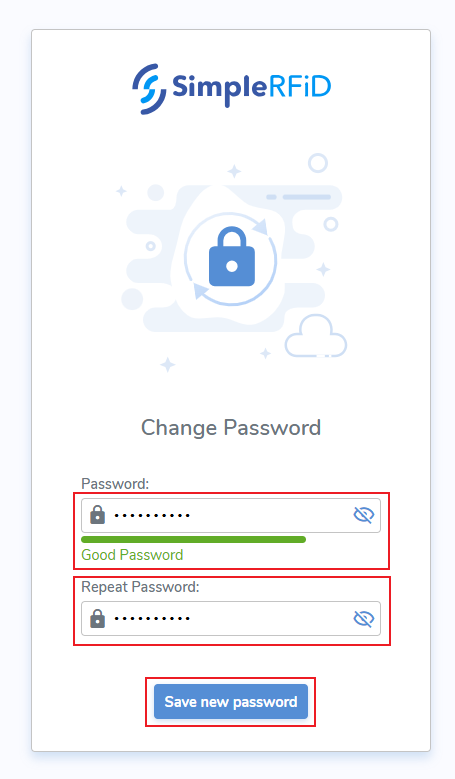
##### ****Change Password screen****

- Enter password
- Repeat password
- Click 'Save new password'

[![image.png](https://kb.simplerfid.com/uploads/images/gallery/2025-05/scaled-1680-/JSOimage.png)](https://kb.simplerfid.com/uploads/images/gallery/2025-05/JSOimage.png)
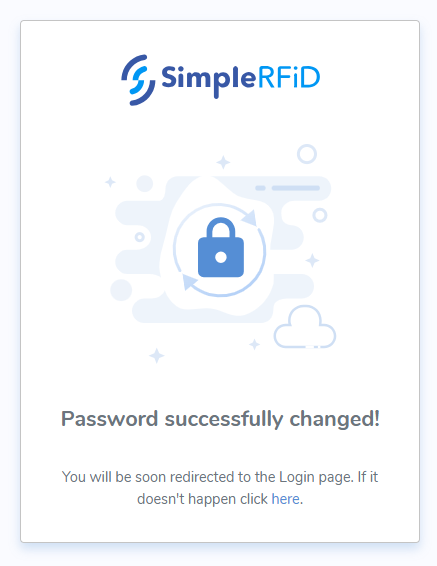
##### ****Confirmation Notification****

A pop-up message will confirm that your password was changed successfully

[![image.png](https://kb.simplerfid.com/uploads/images/gallery/2025-05/scaled-1680-/oVFimage.png)](https://kb.simplerfid.com/uploads/images/gallery/2025-05/oVFimage.png)
# Logout

[To logout follow these steps](https://kb.simplerfid.com/books/web-portal/page/logout)<span style="white-space: pre-wrap;"> in the Admin menu</span>