Accessing the Portal
Accessing, logging in & out, & resetting password.
Account Creation
The following outlines the steps to getting an account created with Simple RFID.
Once your account has been created, you will be added as the Super User. Your email address is your Username.
Set Password Email
An email will be sent to the email address provided with a link to set your password.
Open the email
Click on the link
Enter Your Password
Repeat Your Password
Click Save
If you forget your password you can reset it.
Now you can login to the web portal & mobile app using these credentials.
Log In
Instructions on logging into the web portal
- To access the portal login scree, enter portal.simplerfid.com into a web browser
Login Screen
- Enter your email and password into the login fields.
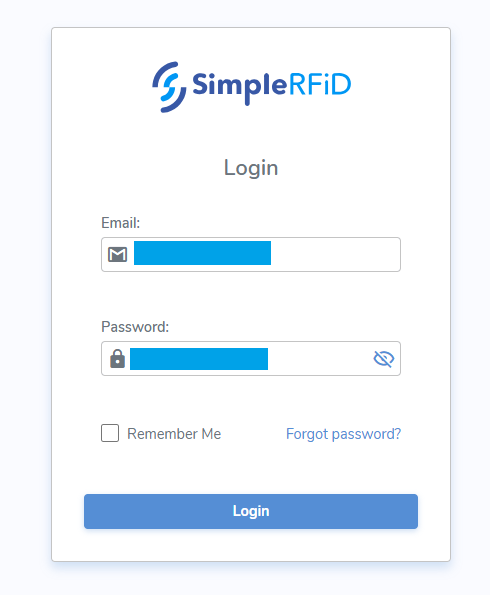
- If you want to stay logged in on this device, check the "Remember me" box.
- Finally, click "Login" to enter the portal.
- If you have forgotten your password click the 'Forgot password?' link
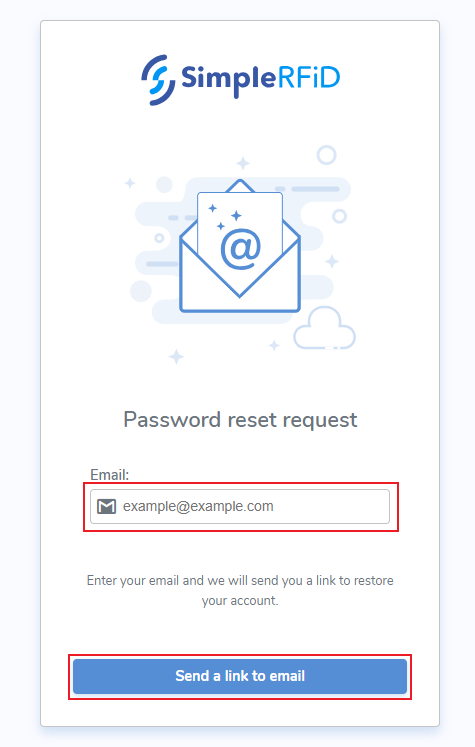
If you don't remember your password, click "Forgot Password", then enter your email address and click "Send a link to email". You should then receive an email with a link to reset your password.
If your account hasn't yet been created, contact your manager or support@simplerfid.com
Resetting Password
Instructions for how to reset your password.
From the login screen click 'Forgot password?'
Password Reset
- Enter the associated email address
- Click Send a link to email
Reset Notification
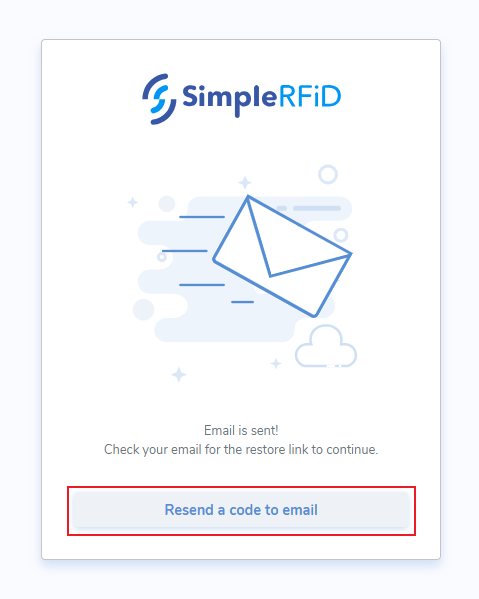
Once sent, a notification will appear advising that the email has been sent.
The pop-up also contains a link to 'Resend the code to email'
Reset Email
An email will then be sent to the associated email with a button to reset your password
- Click 'Reset Password'

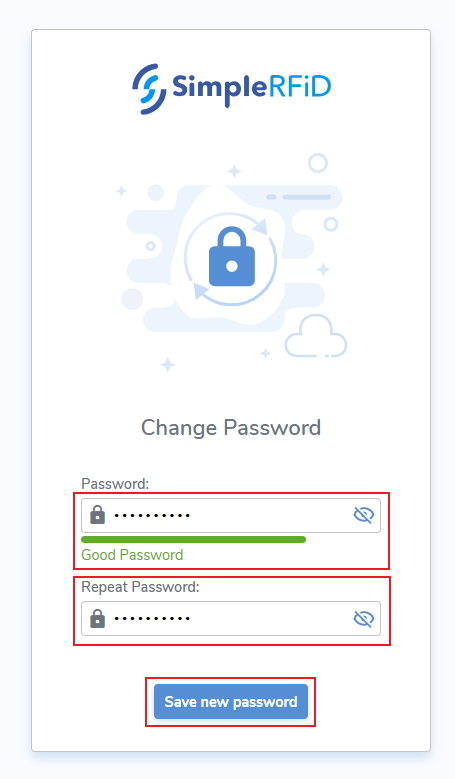
Change Password screen
- Enter password
- Repeat password
- Click 'Save new password'
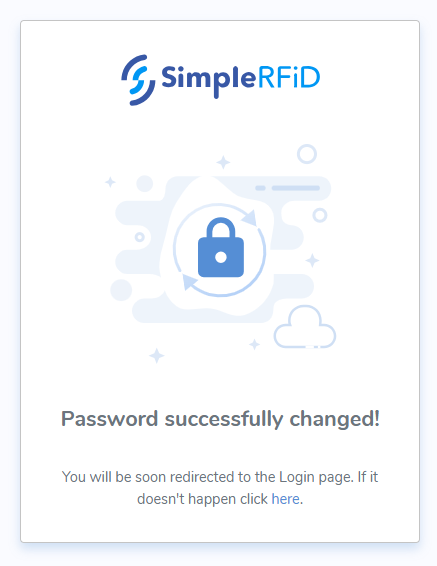
Confirmation Notification
A pop-up message will confirm that your password was changed successfully
Logout
To logout follow these steps in the Admin menu