Support Tool
- Support Tool Installation - Windows
- Refresh Print Client - Windows
- Repair Print Client - Windows
- Upgrading the Support Tool - Windows
- Support Tool Installation - Mac
- Refresh Print Client - Mac
- Repair Print Client - Mac
- Uninstall Print Client
Support Tool Installation - Windows
Note: You'll need Administrator permissions to complete this installation.
First, download the support tool.
Once downloaded double click to open the installer, then click Next.

Accept the terms in the Licensing Agreement, then click Next.

Choose the install location, then click Next.

Click Install

Click Yes to allow the app to make changes to your device.

The program will then install, and once completed click Finish.

Once installed an icon will appear in your system tray in the bottom right corner of the screen (by the clock). We advise that you drag this icon down so that it appears in the task bar for easier access.
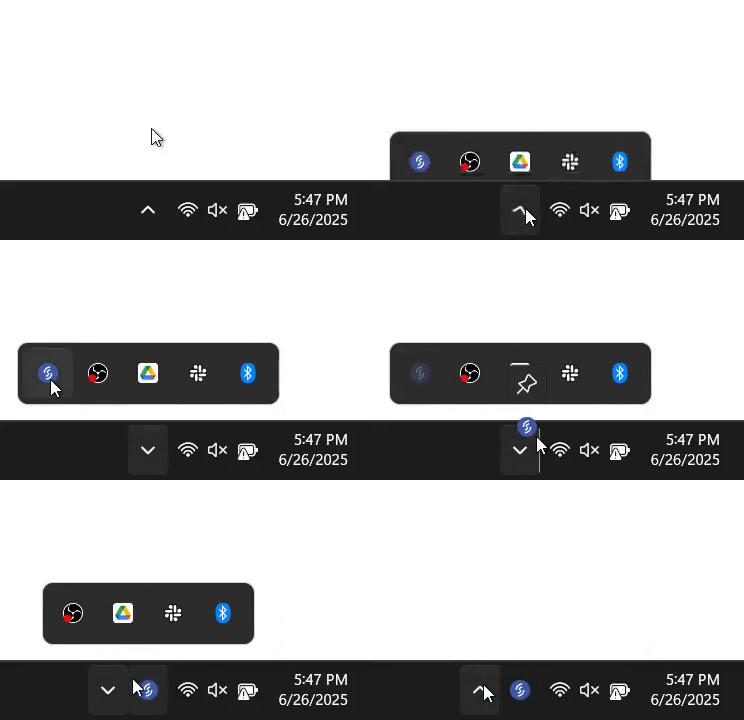
Refresh Print Client - Windows
If you find that your printer disconnects and goes offline you will want to install the Support Tool which will help you get back up and running.
Installation instructions can be found here: Support Tool: Installation
Refreshing the Print Client using the Support Tool
With the Support Tool installed, anytime you find your print client offline (indicated by "PC Offline"):
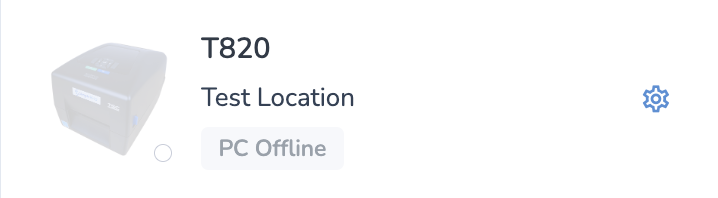
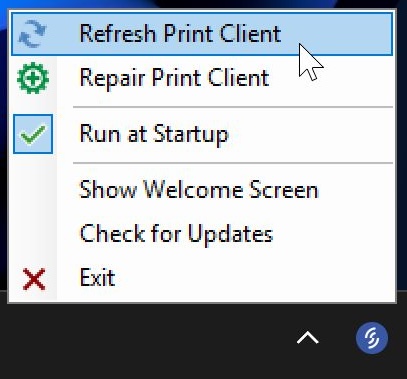
Simply click on the Support Tool icon in your taskbar, then click Refresh Print Client.
Once the client has restarted successfully you will see the following pop-up
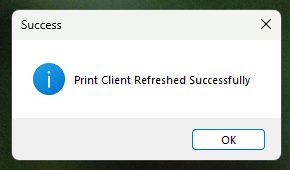
Close this pop-up and wait up to 30 seconds and your printer should reconnect.

Repair Print Client - Windows
Repairing the print client will download and run the installer in order to write over any parts of it that may have been damaged. This is particularly useful if the Refresh Print Client option throws an error.
Please make sure you are using the latest version of the Support Tool; previous versions will reset your station pairing, meaning you will need to contact support to re-attach your station if you use the Repair function on those older versions.
Direct download: Download Support Tool
OR
Github: Download Support Tool

Wait a few minutes after the repair process completes for your station to come online. If you continue to face issues, please contact support.
Upgrading the Support Tool - Windows
You may have previously installed an old version of the Support Tool, which was then called the Print Client Refresh Tool. This version did not support auto-update, so you should uninstall this version and download the latest installer.
Open Settings
Windows 11: Right-click the Start button and choose "Installed apps" (or open Settings > Apps > Installed apps).
Windows 10: Right-click Start and choose "Apps and Features", or go to Settings > Apps > Apps & features.
Find Print Client Refresh Tool
In the list of installed apps, type "Print Client Refresh Tool" into the search box to filter the list and locate it quickly.
Uninstall it
Windows 11: Click the three-dot menu next to the app and select "Uninstall."
Windows 10: Click the app, then click the "Uninstall" button that appears below it.
Confirm any prompts (including a User Account Control/UAC prompt) to proceed.
Wait for uninstall to finish
A separate uninstaller window may open and run automatically. Let it complete, then close any leftover windows. A restart is not usually required, but restart if prompted.
Install the new version
Next, follow the steps in this article to install the latest version of the Support Tool: Support Tool Installation - Windows
Support Tool Installation - Mac
Note: You'll need Administrator permissions to complete this installation.
First, download the support tool.
Open the downloaded .pkg file to launch the installer:
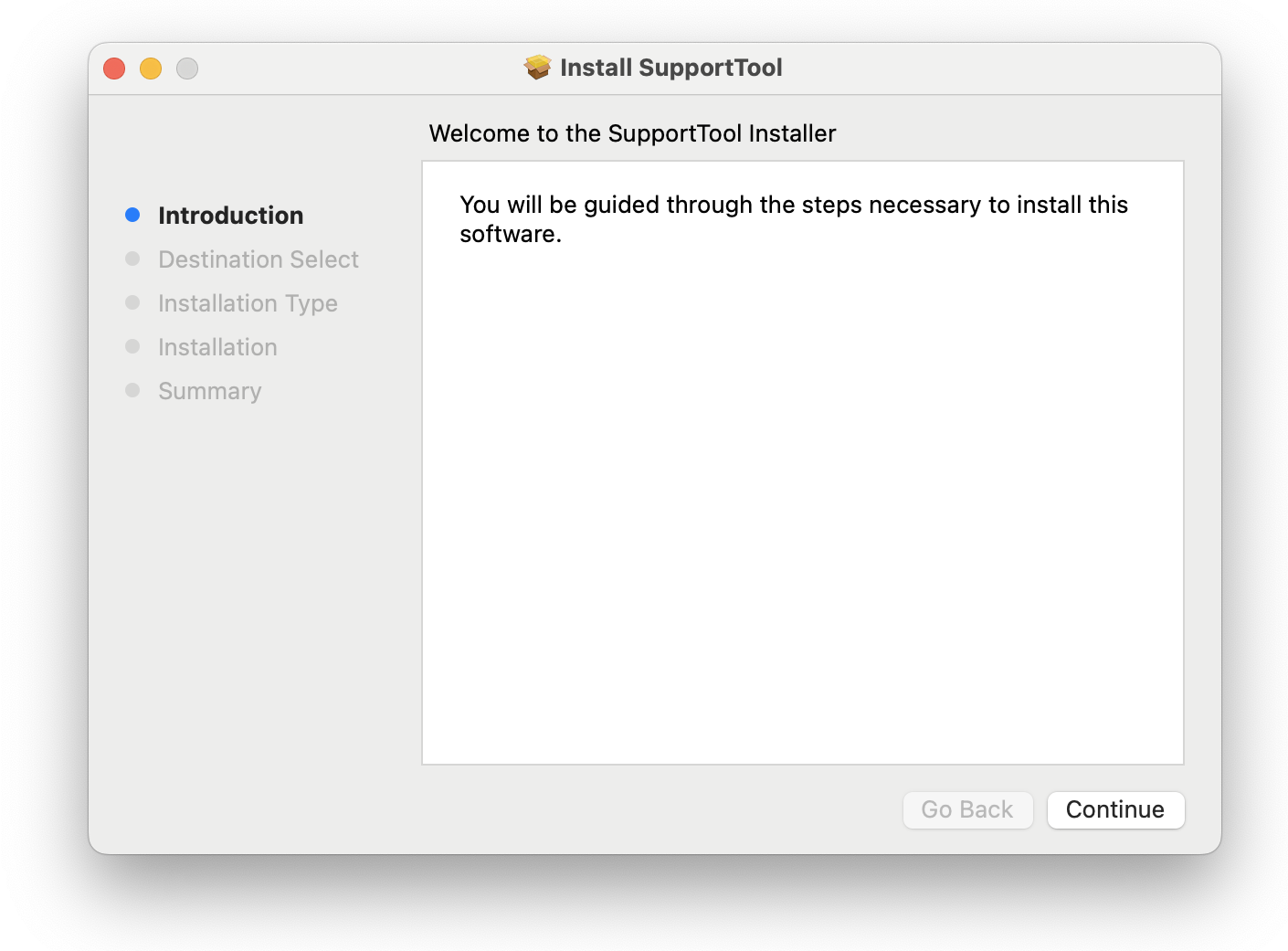
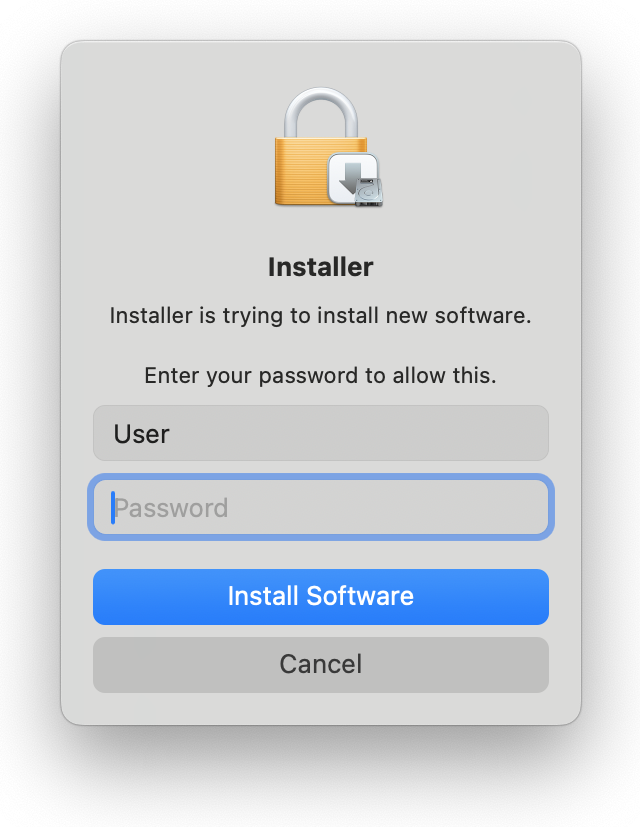
Next, press Continue then Install. You'll be asked to provide your administrator password.
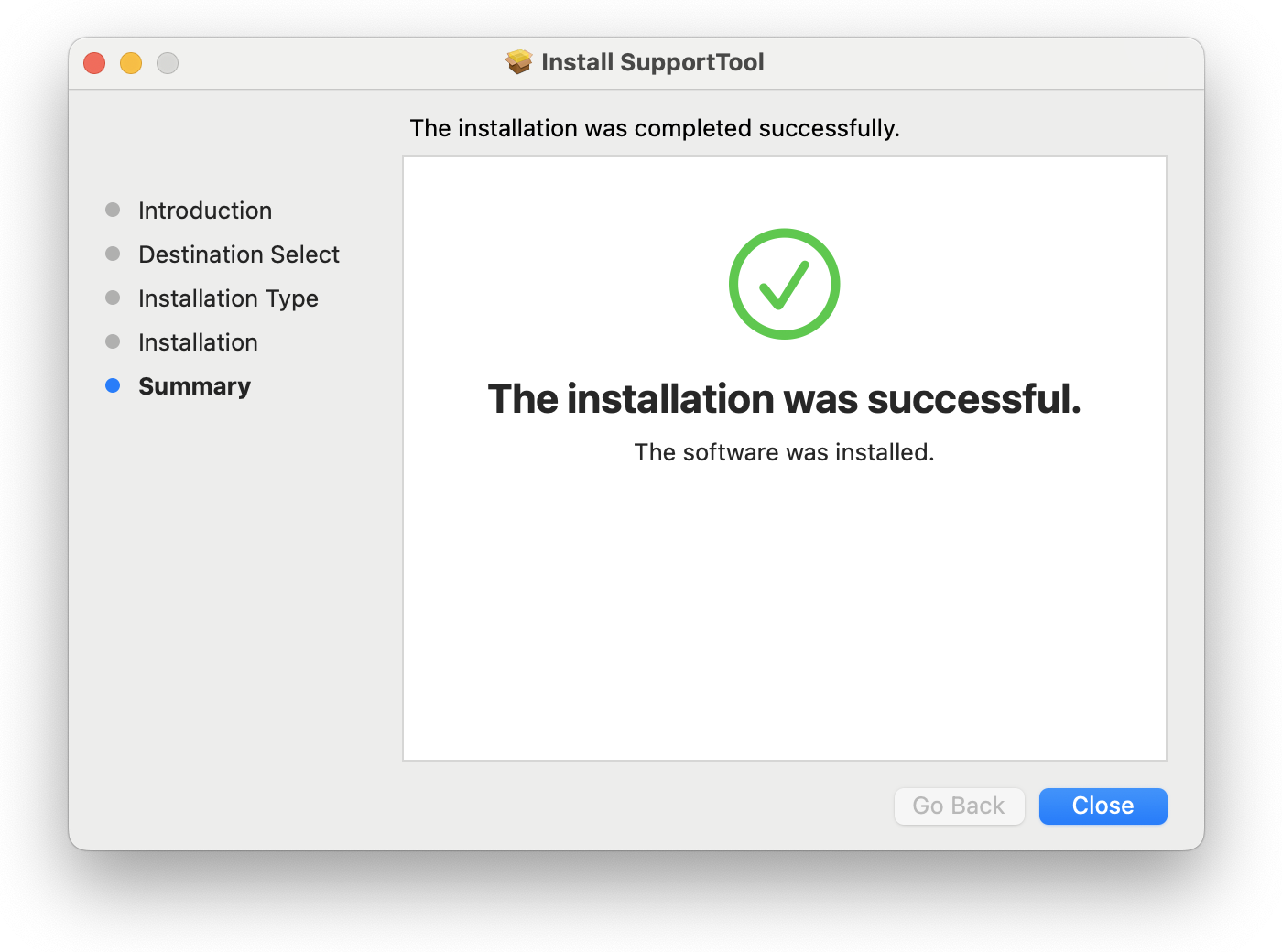
When the installation completes, you'll see a success message:
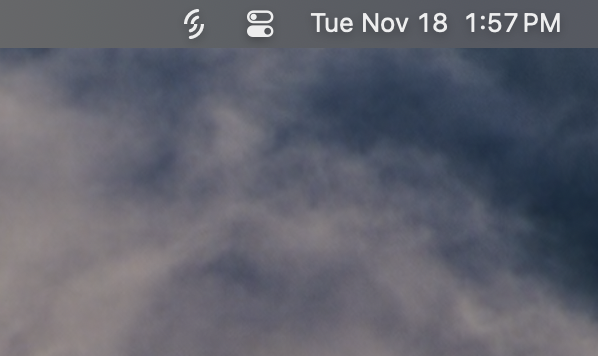
Now you'll see the Support Tool running at the right side of your menu bar, at the top of your screen:
Refresh Print Client - Mac
If you find that your printer disconnects and goes offline you will want to install the Support Tool which will help you get back up and running.
Installation instructions can be found here: Support Tool: Installation
Restarting the Printer using the Refresh Tool
With the Support Tool installed, anytime you find your print client offline (indicated by "PC Offline"):
Simply click on the Support Tool icon in your menu bar, then click Refresh Print Client.
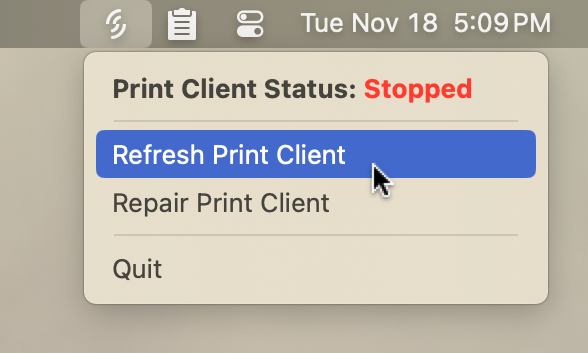
You'll see a progress window which will notify you when the refresh is complete:
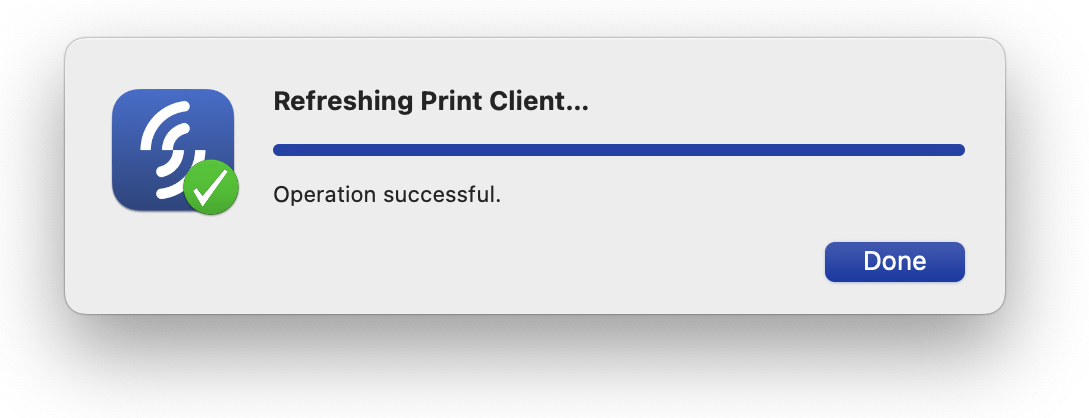
Press Done to close this window, then wait up to 30 seconds and your printer should reconnect.
Repair Print Client - Mac
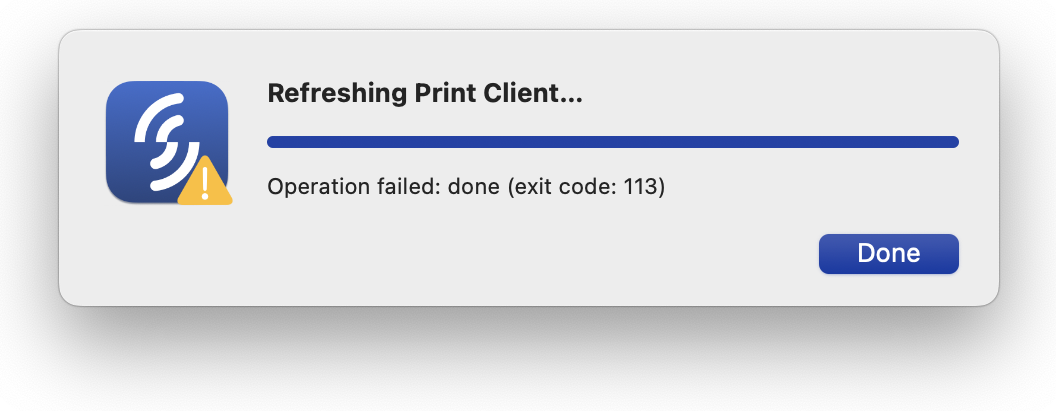
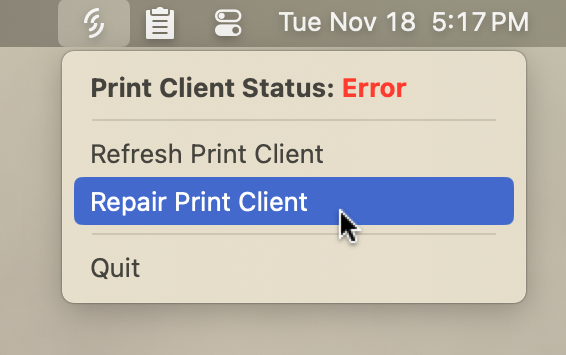
If the Print Client can't be refreshed, it often indicates an error with the installation. You can use the Repair Print Client option to resolve this issue.
Open the Support Tool on your menu bar, and select the Repair Print Client option:
You'll see a progress window with the steps the repair function is completing. Note that depending on your computer's internet speed and performance, the "Downloading installer..." and "Running Print Client installer..." steps may take a couple of minutes.
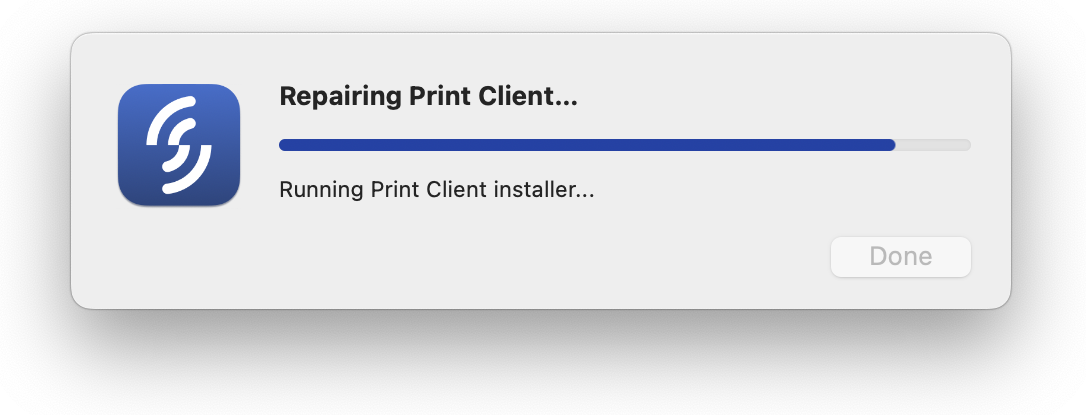
When the repair is complete, the progress window will indicate success:
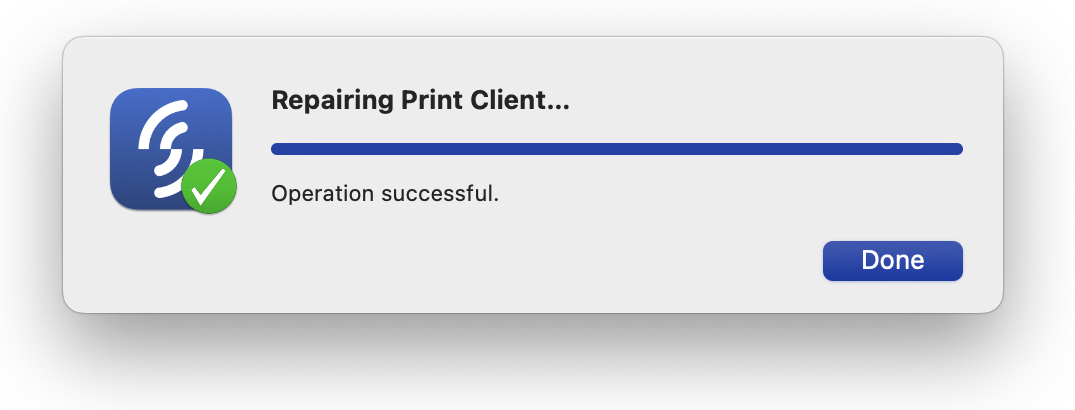
The Print Client should be online and ready to print.
Uninstall Print Client
This article covers the problem with uninstalling the Print Client on Windows 10 and Windows 11 systems.
This error will prevent a new version of the print client from being installed and functioning properly.

First step is to uninstall the Support Tool.
Via Settings -> Apps -> Installed apps.


Or by using the Windows Search and typing "Add or remove programs".

Download the official Program Install and Uninstall troubleshooter from Microsoft.

Launch MicrosoftProgram_Install_and_Uninstall.meta.diagcab

Click Advanced.

Uncheck Apply repairs automatically.

Choose Uninstalling.

Select Simple RFID Print Client Updater and click Next.

Choose Yes, try uninstall.

Make sure that Uninstall and cleanup? is checked. Click Next.

The resolve process might take up to 2 minutes.

Once the resolve process is done, the following screen will appear.

After it's done, you will need to reinstall the Support Tool from here.
The Support Tool will automatically install the Print Client once launched.


The Print Client is now installed correctly.
