Note: You'll need Administrator permissions to complete this installation.
First, [download the support tool](https://github.com/simplerfid/support-tool-releases/releases/download/v2.4.6/SupportToolSetup_2.4.6.msi). Once downloaded double click to open the installer, then click Next. 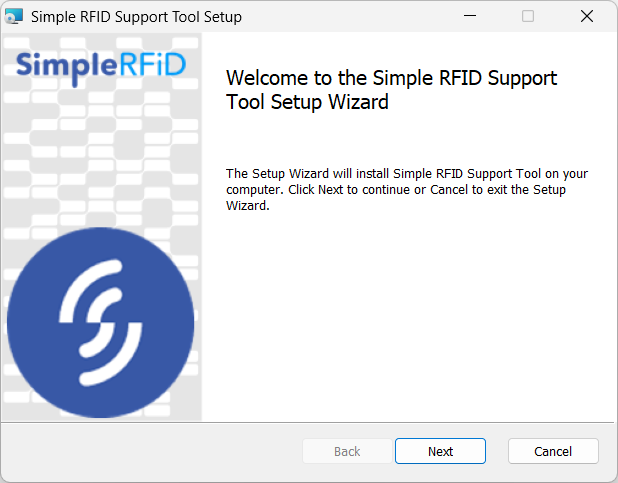 Accept the terms in the Licensing Agreement, then click Next. 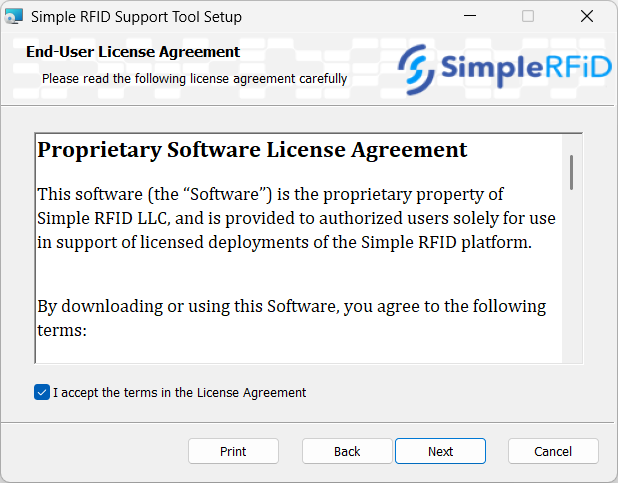 Choose the install location, then click Next.  Click Install  Click ****Yes**** to allow the app to make changes to your device. 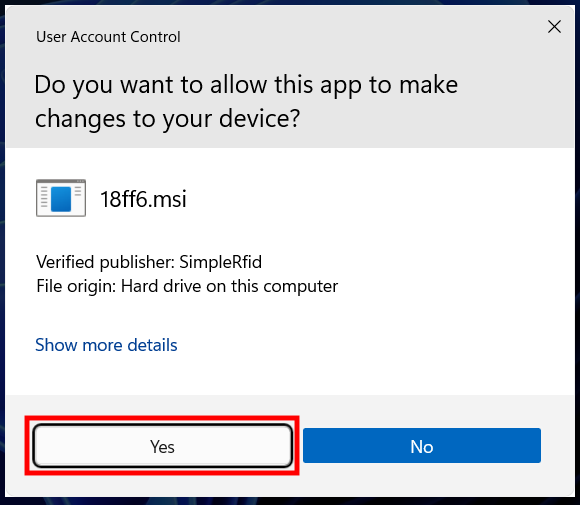 The program will then install, and once completed click Finish. 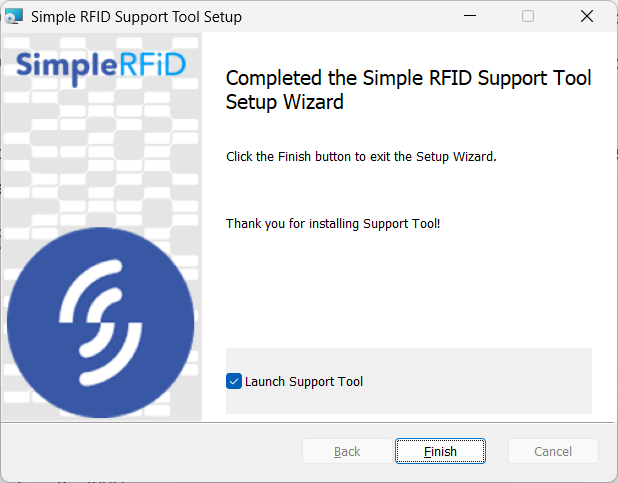 Once installed an icon will appear in your system tray in the bottom right corner of the screen (by the clock). We advise that you drag this icon down so that it appears in the task bar for easier access. [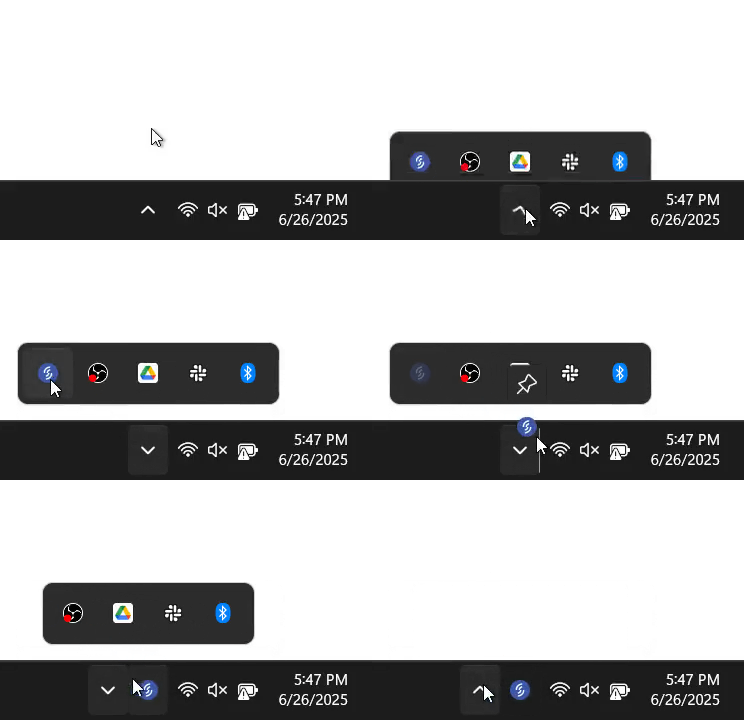](https://kb.simplerfid.com/uploads/images/gallery/2025-08/frame.gif) # Refresh Print Client - Windows ##### If you find that your printer disconnects and goes offline you will want to install the Support Tool which will help you get back up and running.Installation instructions can be found here: [****Support Tool: Installation****](https://kb.simplerfid.com/books/support-tool/page/support-tool-installation-windows)
--- ##### ****Restarting the Printer using the Refresh Tool**** With the Support Tool installed, anytime you find your print client offline (indicated by "PC Offline"): [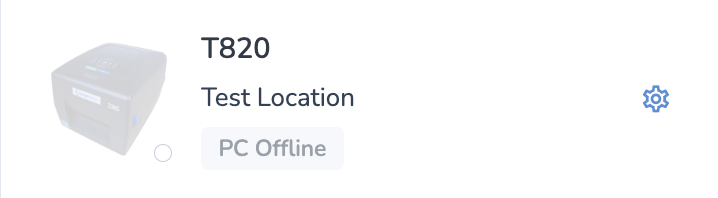](https://kb.simplerfid.com/uploads/images/gallery/2025-10/4VTimage.png) Simply click on the Support Tool icon in your taskbar, then click Refresh Print Client. [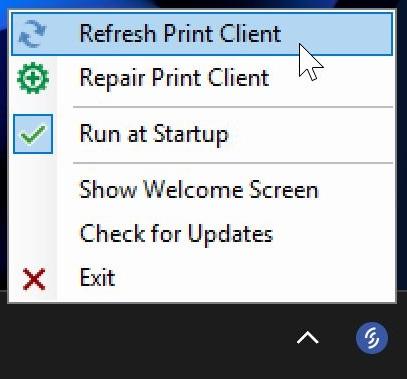](https://kb.simplerfid.com/uploads/images/gallery/2025-10/smTscreenshot-2025-10-20-at-18-27-20-pm.jpg) Once the client has restarted successfully you will see the following pop-up 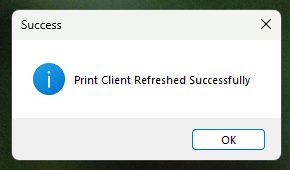 Close this pop-up and wait up to 30 seconds and your printer should reconnect. 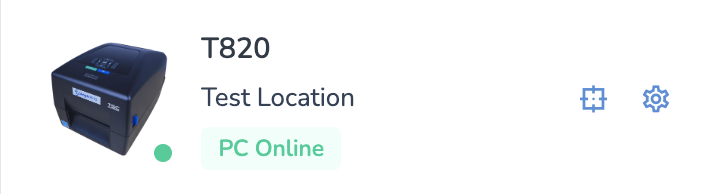 # Repair Print Client - Windows Repairing the print client will download and run the installer in order to write over any parts of it that may have been damaged. ****This is particularly useful if the Refresh Print Client option throws an error.********Please make sure you are using the**** [****latest version of the Support Tool****](https://github.com/simplerfid/support-tool-releases/releases/latest); previous versions will reset your station pairing, meaning you will need to contact support to re-attach your station if you use the Repair function on those older versions.
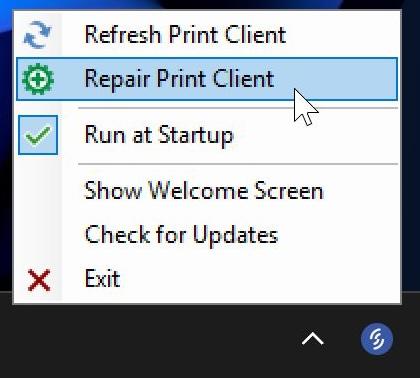 Wait a few minutes after the repair process completes for your station to come online. If you continue to face issues, please contact support. # Support Tool - Mac # Support Tool Installation - MacNote: You'll need Administrator permissions to complete this installation.
First, [download the support tool](https://github.com/simplerfid/mac-support-tool-releases/releases/latest/download/SupportTool.pkg). Open the downloaded .pkg file to launch the installer: [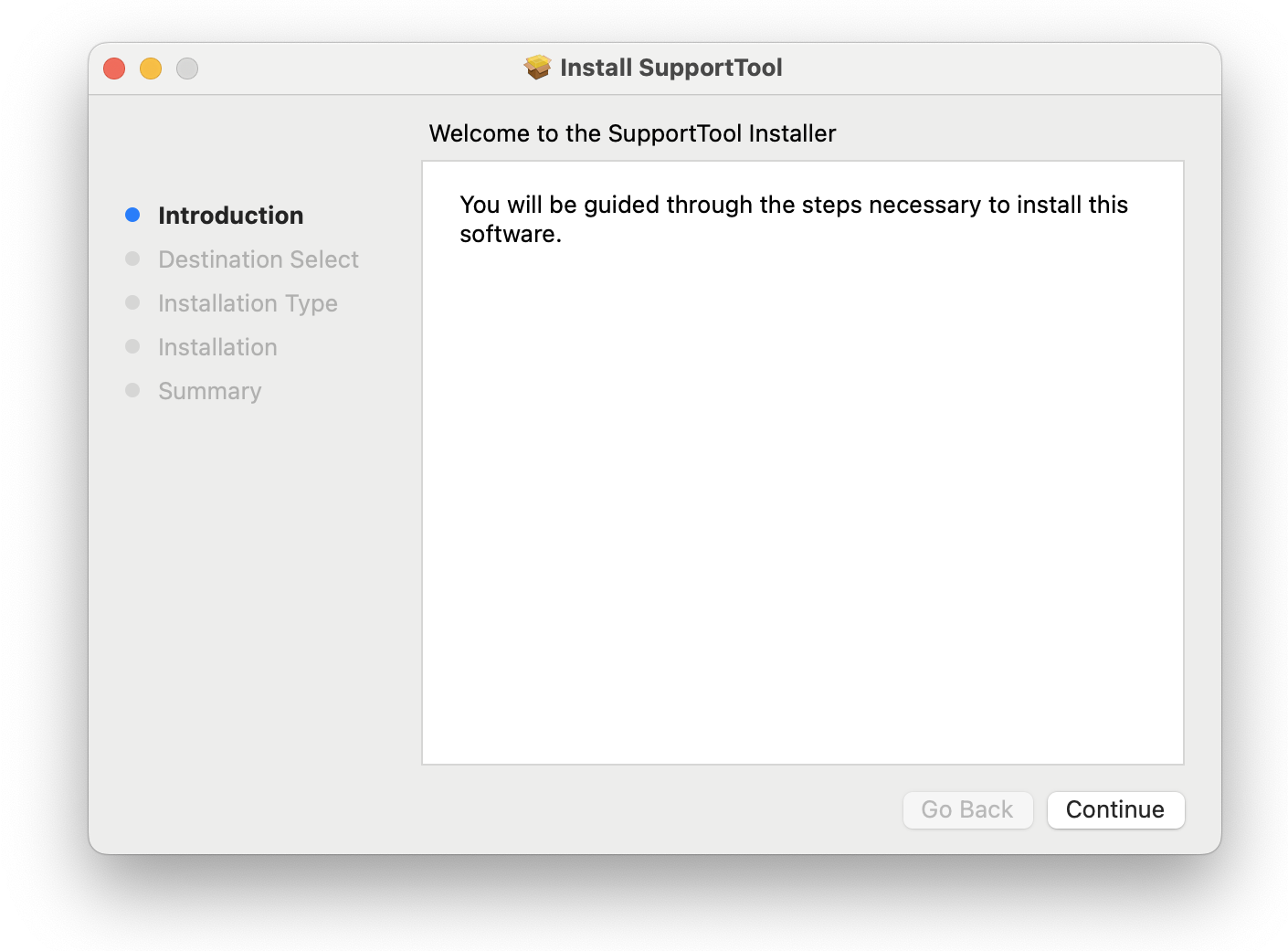](https://kb.simplerfid.com/uploads/images/gallery/2025-11/recimage.png) Next, press ****Continue**** then ****Install****. You'll be asked to provide your administrator password. [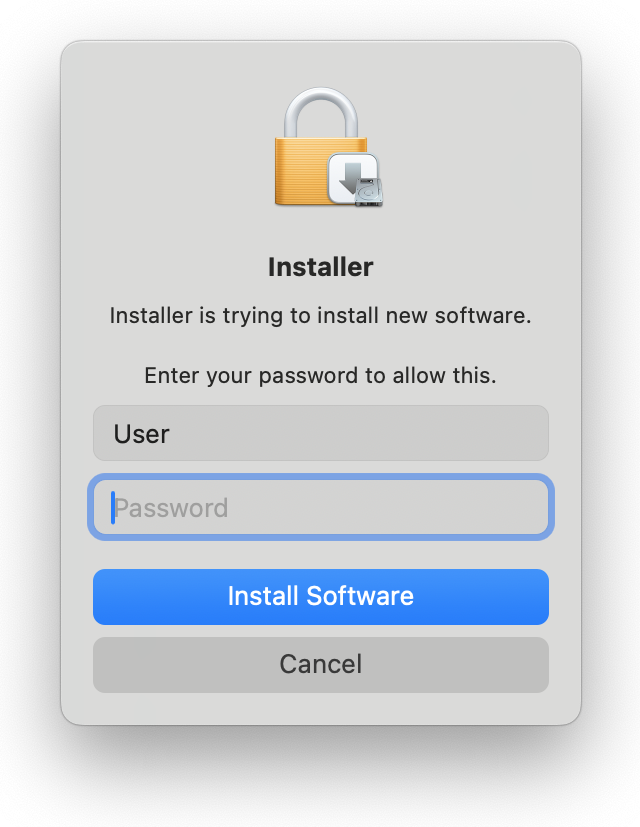](https://kb.simplerfid.com/uploads/images/gallery/2025-11/LLUimage.png) When the installation completes, you'll see a success message: [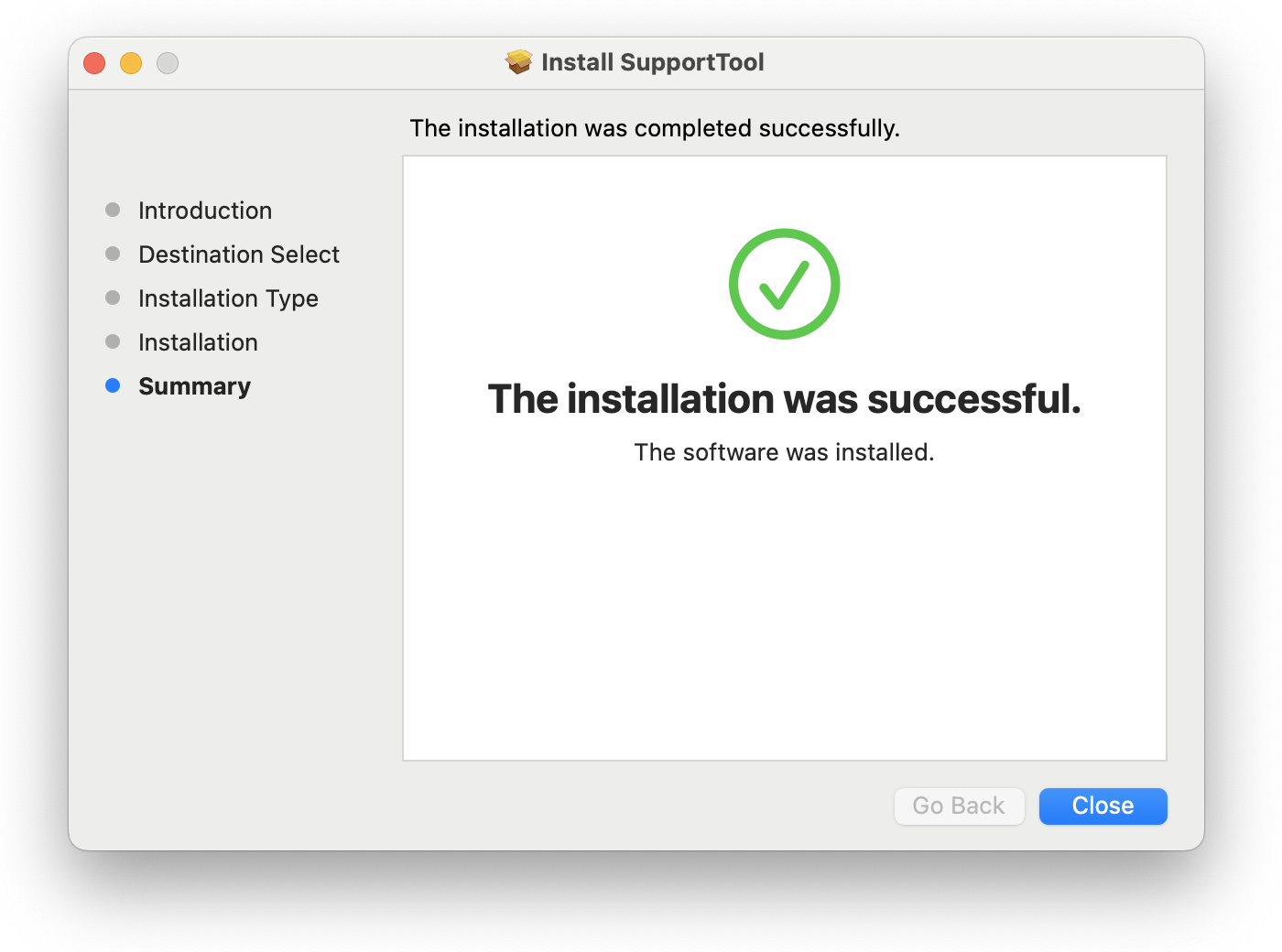](https://kb.simplerfid.com/uploads/images/gallery/2025-11/Pywimage.png) Now you'll see the Support Tool running at the right side of your menu bar, at the top of your screen: [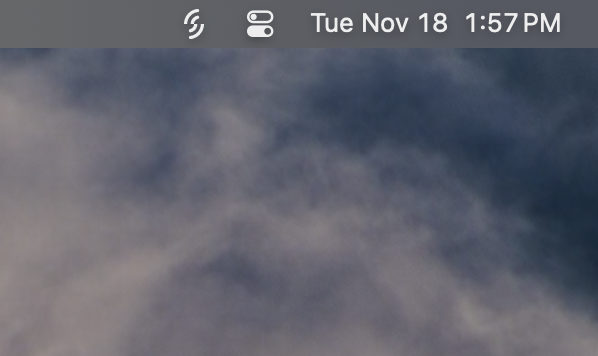](https://kb.simplerfid.com/uploads/images/gallery/2025-11/screenshot-2025-11-18-at-1-57-30-pm.png) # Refresh Print Client - Mac #### If you find that your printer disconnects and goes offline you will want to install the Support Tool which will help you get back up and running.Installation instructions can be found here: [Support Tool: Installation](https://kb.simplerfid.com/books/support-tool/page/support-tool-installation-mac)
--- ##### ****Restarting the Printer using the Refresh Tool**** With the Support Tool installed, anytime you find your print client offline (indicated by "PC Offline"): [](https://kb.simplerfid.com/uploads/images/gallery/2025-10/4VTimage.png) Simply click on the Support Tool icon in your menu bar, then click Refresh Print Client. [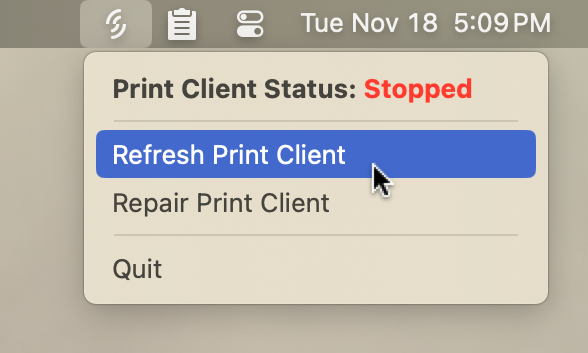](https://kb.simplerfid.com/uploads/images/gallery/2025-11/8eTimage.png) You'll see a progress window which will notify you when the refresh is complete: [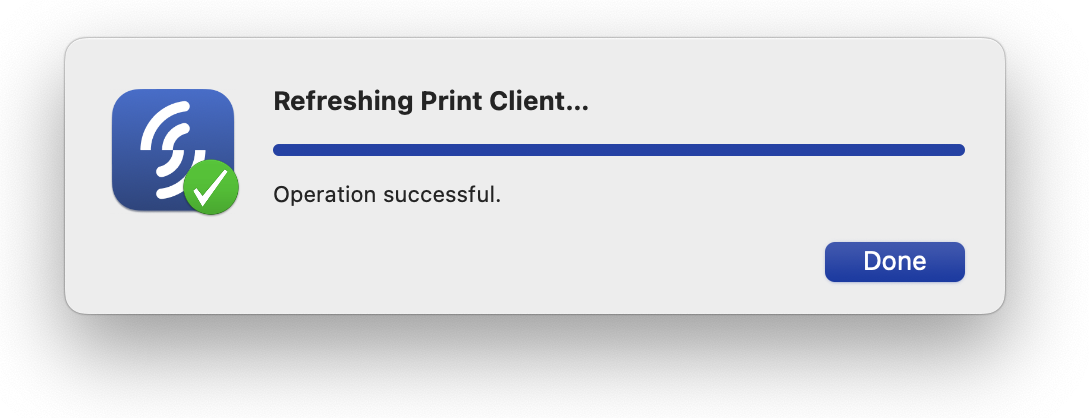](https://kb.simplerfid.com/uploads/images/gallery/2025-11/xWpimage.png) Press ****Done**** to close this window, then wait up to 30 seconds and your printer should reconnect.  # Repair Print Client - Mac #### If the Print Client can't be refreshed, it often indicates an error with the installation. You can use the Repair Print Client option to resolve this issue. [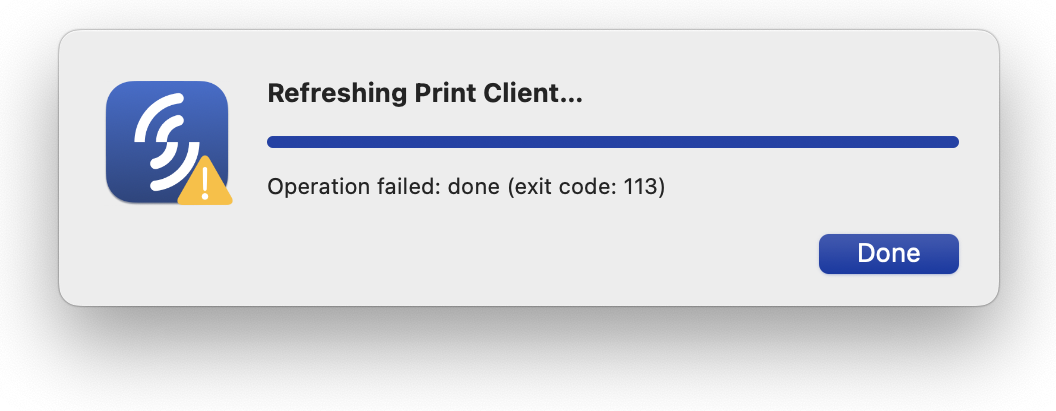](https://kb.simplerfid.com/uploads/images/gallery/2025-11/HVjimage.png) Open the Support Tool on your menu bar, and select the Repair Print Client option: [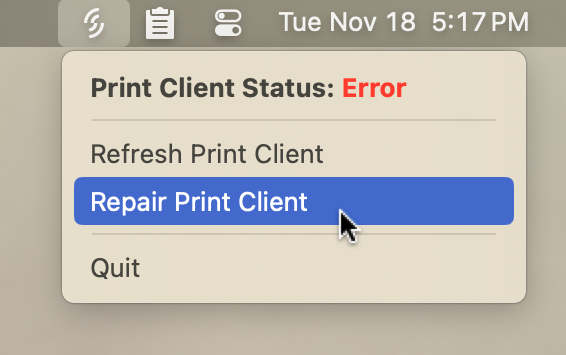](https://kb.simplerfid.com/uploads/images/gallery/2025-11/nwEimage.png) You'll see a progress window with the steps the repair function is completing. ****Note that depending on your computer's internet speed and performance, the "Downloading installer..." and "Running Print Client installer..." steps may take a couple of minutes.**** [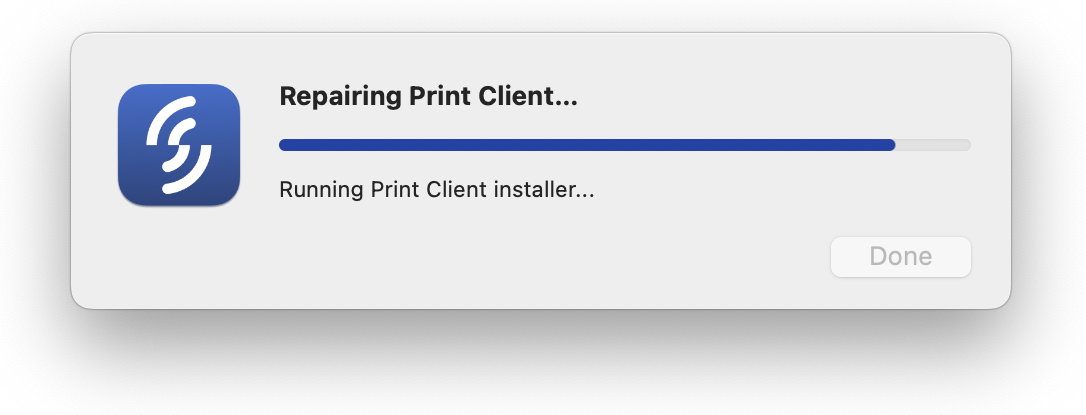](https://kb.simplerfid.com/uploads/images/gallery/2025-11/EMaimage.png) When the repair is complete, the progress window will indicate success: [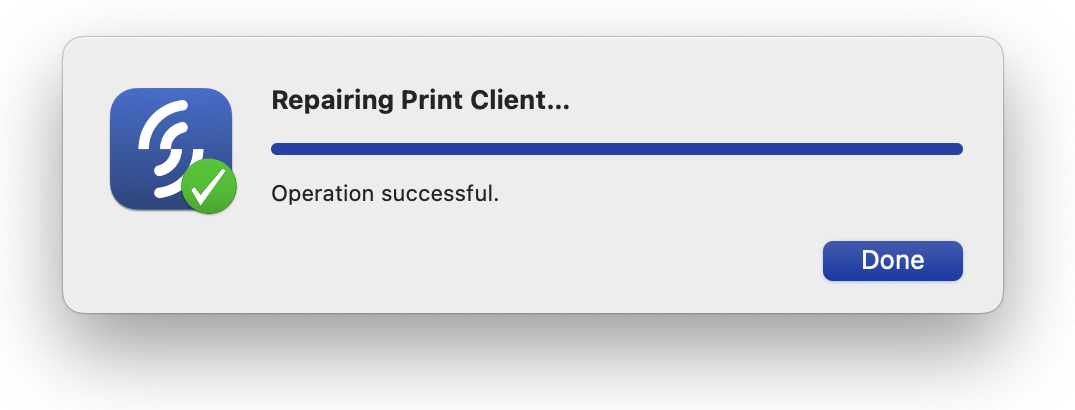](https://kb.simplerfid.com/uploads/images/gallery/2025-11/y6Oimage.png) The Print Client should be online and ready to print.