Note: You'll need Administrator permissions to complete this installation.
First, [download the support tool](https://github.com/simplerfid/mac-support-tool-releases/releases/latest/download/SupportTool.pkg). Open the downloaded .pkg file to launch the installer: [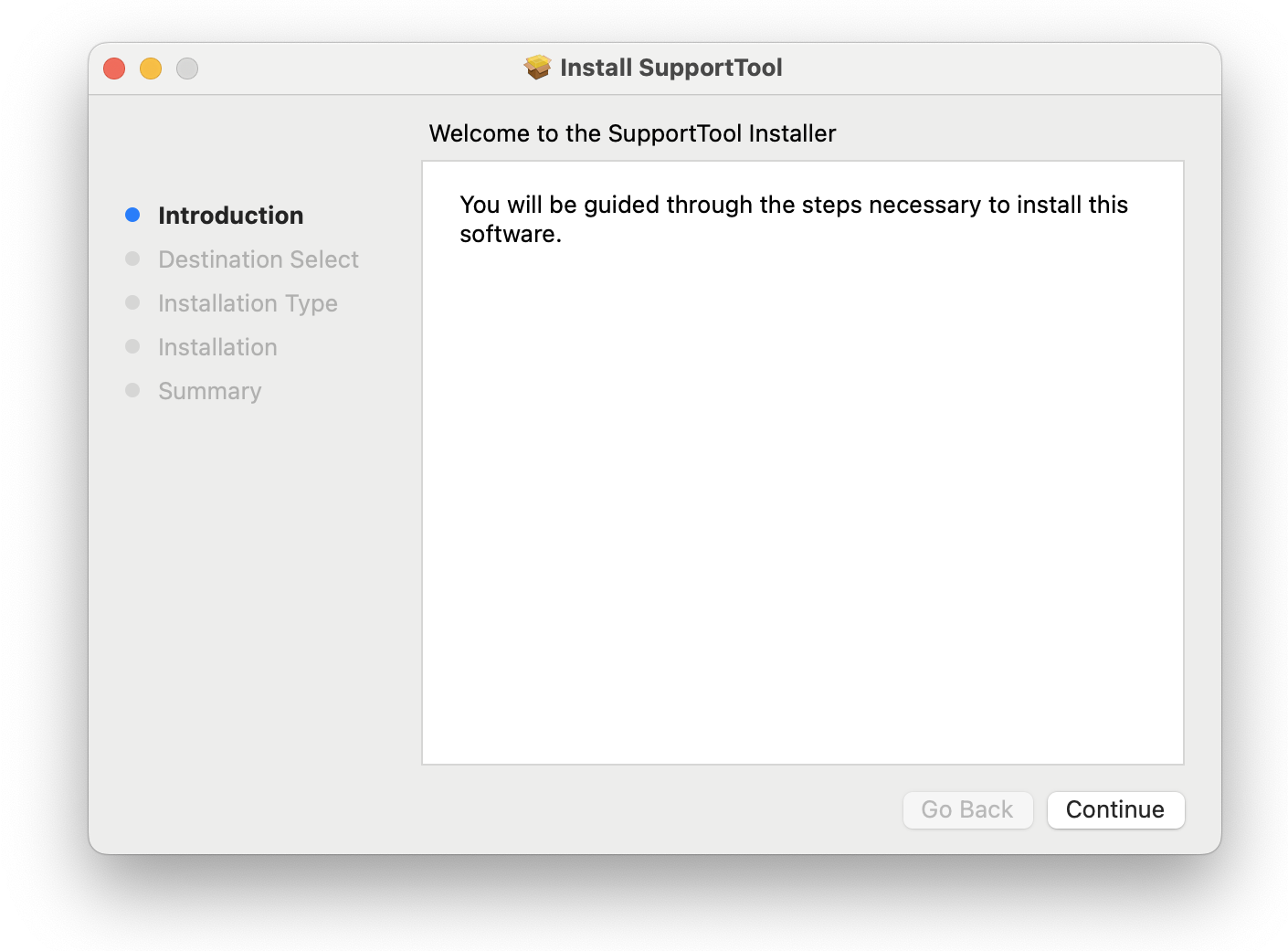](https://kb.simplerfid.com/uploads/images/gallery/2025-11/recimage.png) Next, press ****Continue**** then ****Install****. You'll be asked to provide your administrator password. [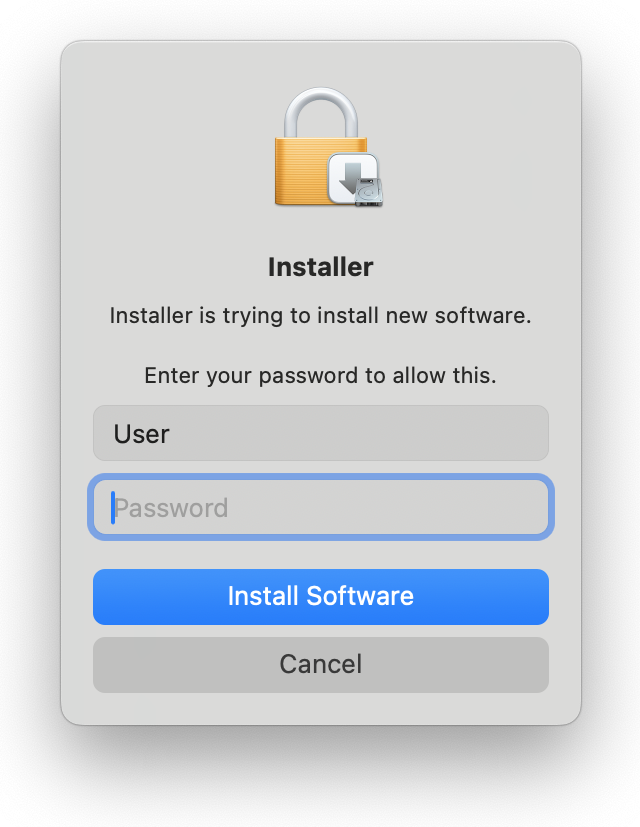](https://kb.simplerfid.com/uploads/images/gallery/2025-11/LLUimage.png) When the installation completes, you'll see a success message: [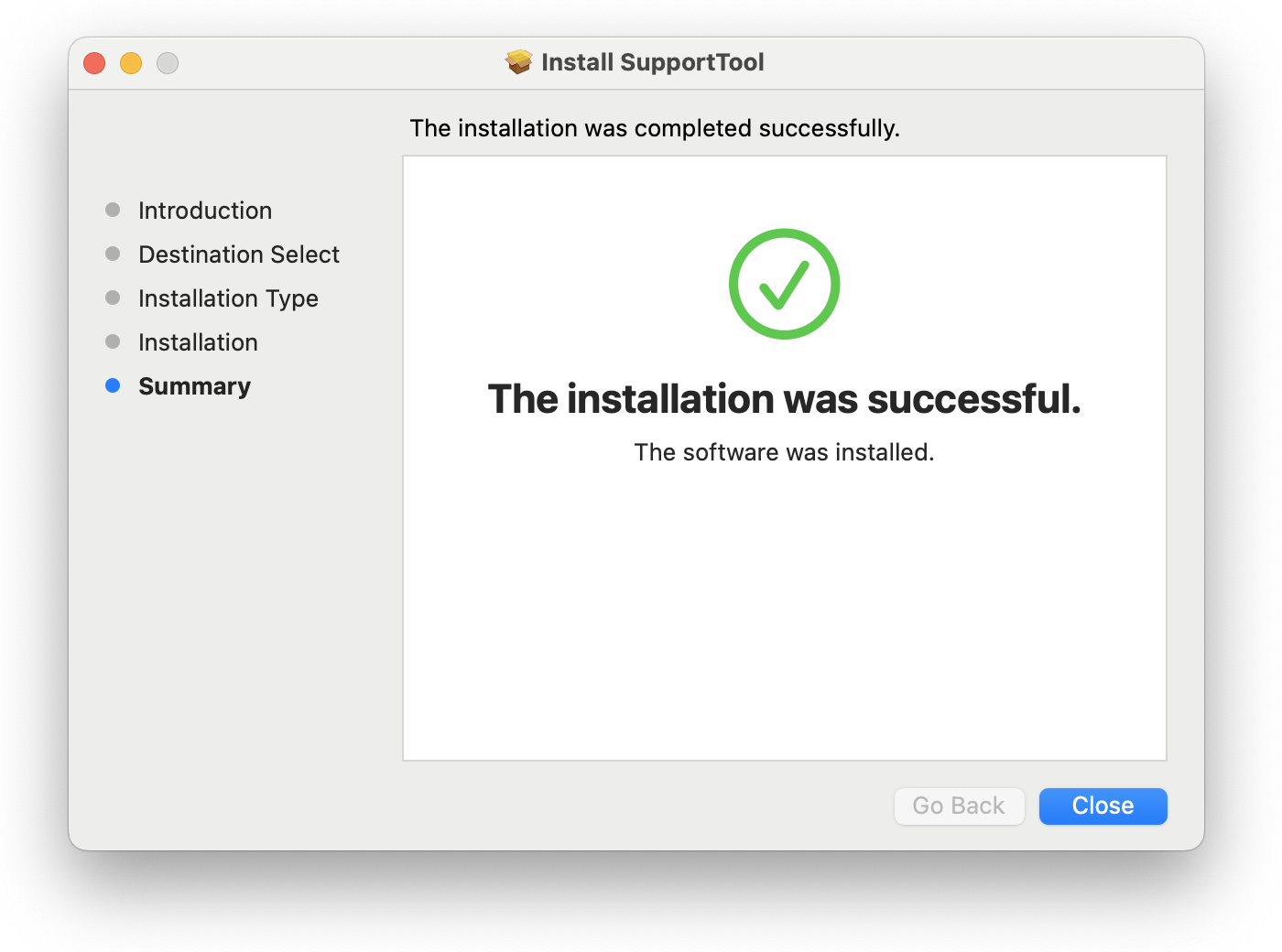](https://kb.simplerfid.com/uploads/images/gallery/2025-11/Pywimage.png) Now you'll see the Support Tool running at the right side of your menu bar, at the top of your screen: [](https://kb.simplerfid.com/uploads/images/gallery/2025-11/screenshot-2025-11-18-at-1-57-30-pm.png) # Refresh Print Client - Mac #### If you find that your printer disconnects and goes offline you will want to install the Support Tool which will help you get back up and running.Installation instructions can be found here: [Support Tool: Installation](https://kb.simplerfid.com/books/support-tool/page/support-tool-installation-mac)
--- ##### ****Restarting the Printer using the Refresh Tool**** With the Support Tool installed, anytime you find your print client offline (indicated by "PC Offline"): [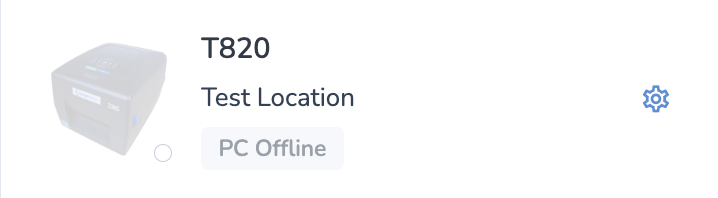](https://kb.simplerfid.com/uploads/images/gallery/2025-10/4VTimage.png) Simply click on the Support Tool icon in your menu bar, then click Refresh Print Client. [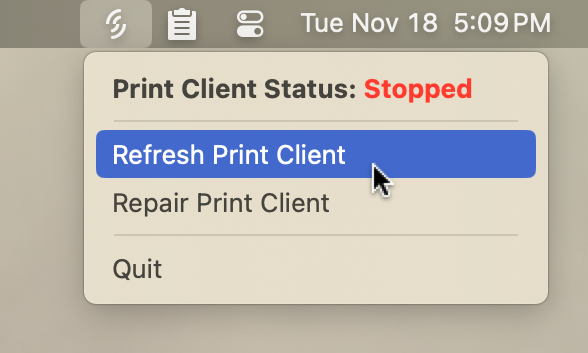](https://kb.simplerfid.com/uploads/images/gallery/2025-11/8eTimage.png) You'll see a progress window which will notify you when the refresh is complete: [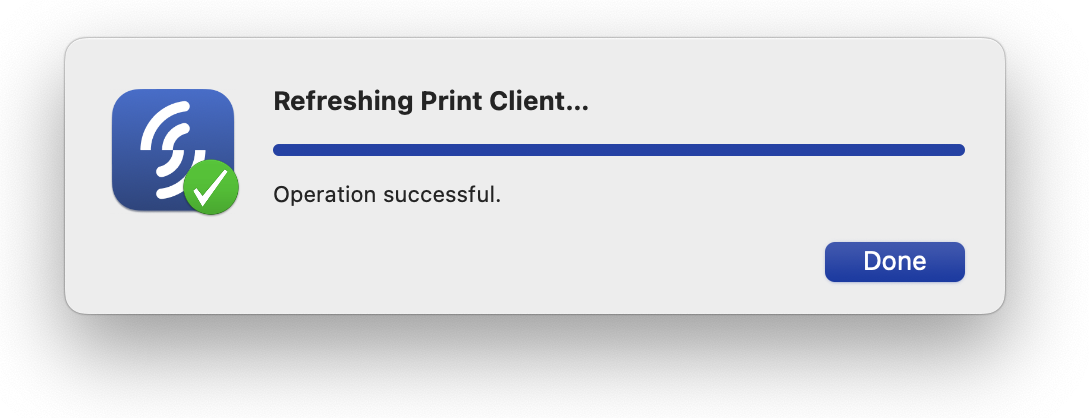](https://kb.simplerfid.com/uploads/images/gallery/2025-11/xWpimage.png) Press ****Done**** to close this window, then wait up to 30 seconds and your printer should reconnect. 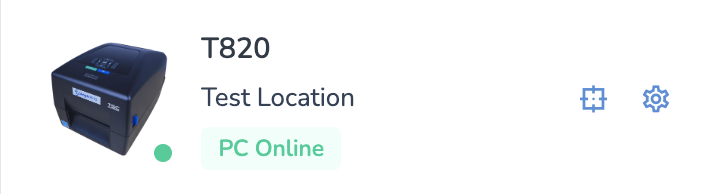 # Repair Print Client - Mac #### If the Print Client can't be refreshed, it often indicates an error with the installation. You can use the Repair Print Client option to resolve this issue. [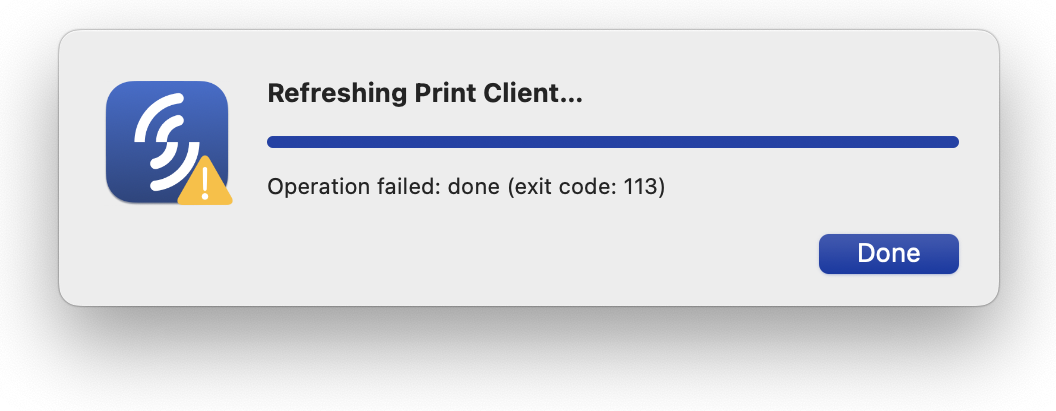](https://kb.simplerfid.com/uploads/images/gallery/2025-11/HVjimage.png) Open the Support Tool on your menu bar, and select the Repair Print Client option: [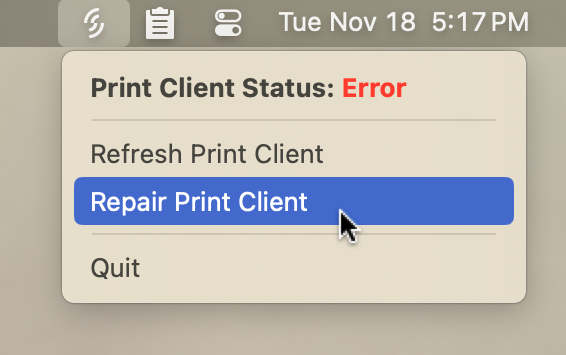](https://kb.simplerfid.com/uploads/images/gallery/2025-11/nwEimage.png) You'll see a progress window with the steps the repair function is completing. ****Note that depending on your computer's internet speed and performance, the "Downloading installer..." and "Running Print Client installer..." steps may take a couple of minutes.**** [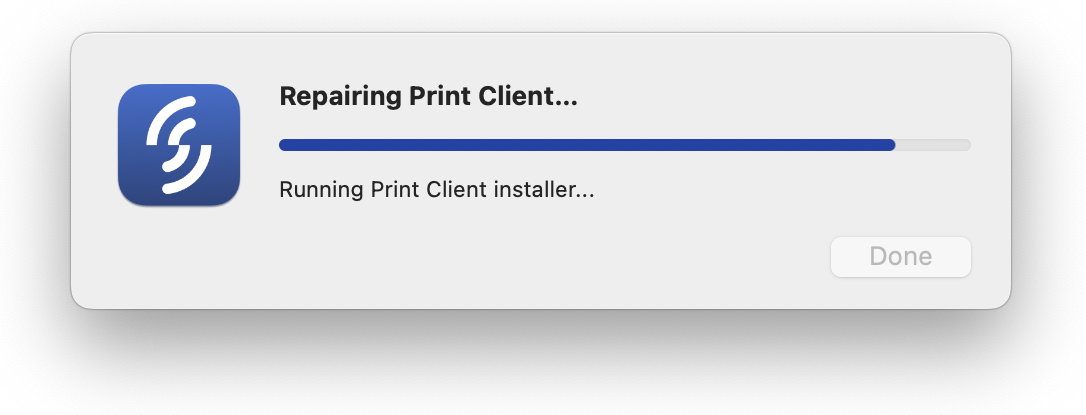](https://kb.simplerfid.com/uploads/images/gallery/2025-11/EMaimage.png) When the repair is complete, the progress window will indicate success: [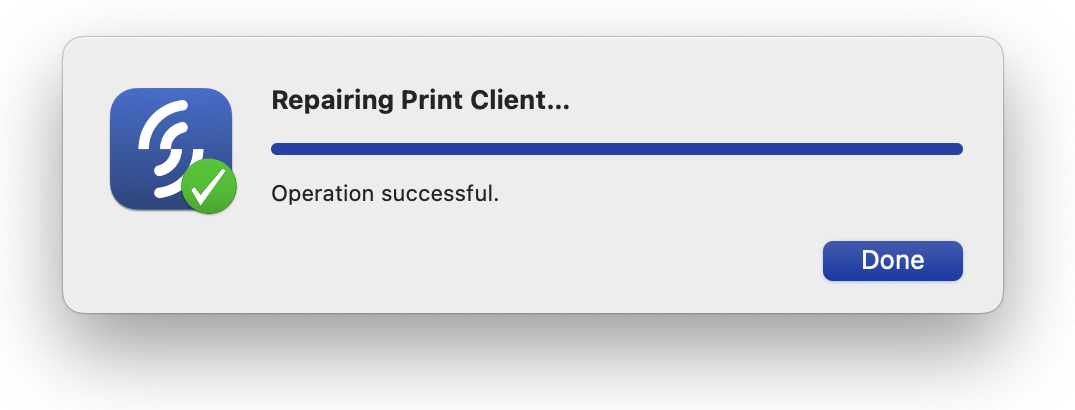](https://kb.simplerfid.com/uploads/images/gallery/2025-11/y6Oimage.png) The Print Client should be online and ready to print.