Do you want to create an audit using data from another system? This article walks through the steps to load your own data into an audit.
#### Steps To create an audit using our own data source, follow the same steps found in the Audit with an Integration article with a few small exceptions: From the ****Create New Audit**** pop-up: - Select ****Manual input**** as your Source - The Products selector will defaults to ****Partial**** [](https://kb.simplerfid.com/uploads/images/gallery/2026-07/GEHimage.png) - Finally, click "****Create****" to create The Audit will be created in ****Draft**** status. ## Add Products Manually/Spreadsheet to an Audit****Important:**** Once you click ****Start Audit****, the Audit is locked. You will no longer be able to add or remove products from the Audit.
Next, add products to your audit via two methods: - ****+ Add Items**** button to search and add items manually - ****Import from Excel**** button to upload a spreadsheet 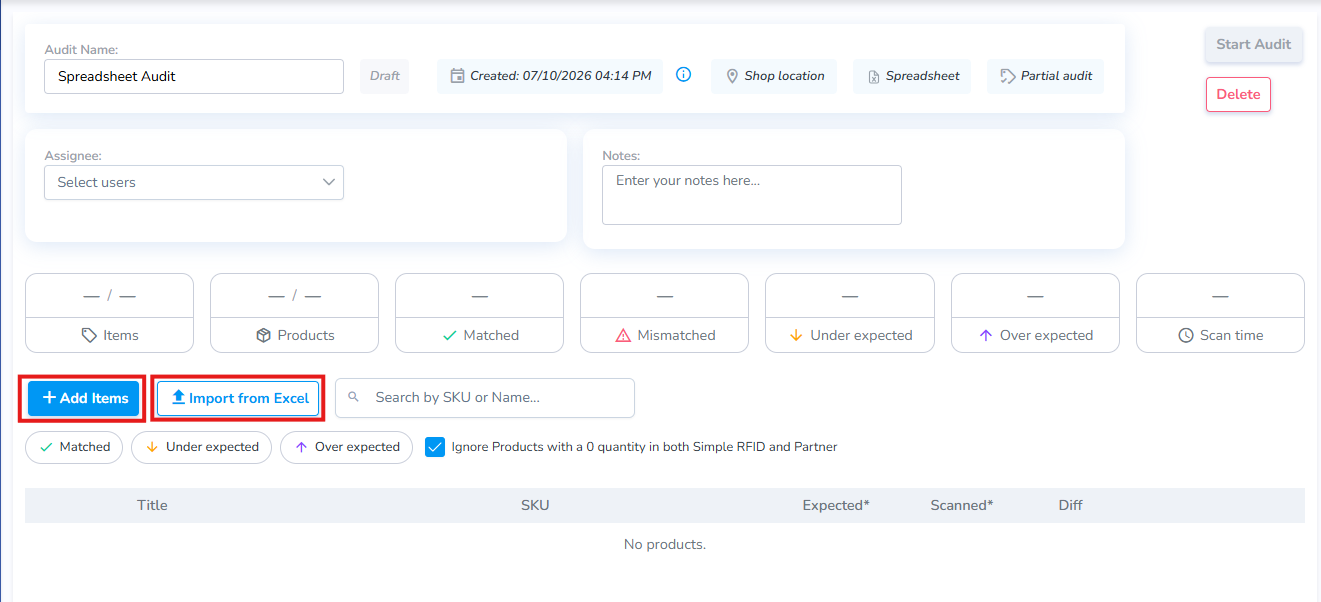### ****+ Add Items Manually**** Clicking ****+ Add Items**** opens the ****Add Items**** pop-up window which allows the user to search for and select the specific products to include in the Audit. [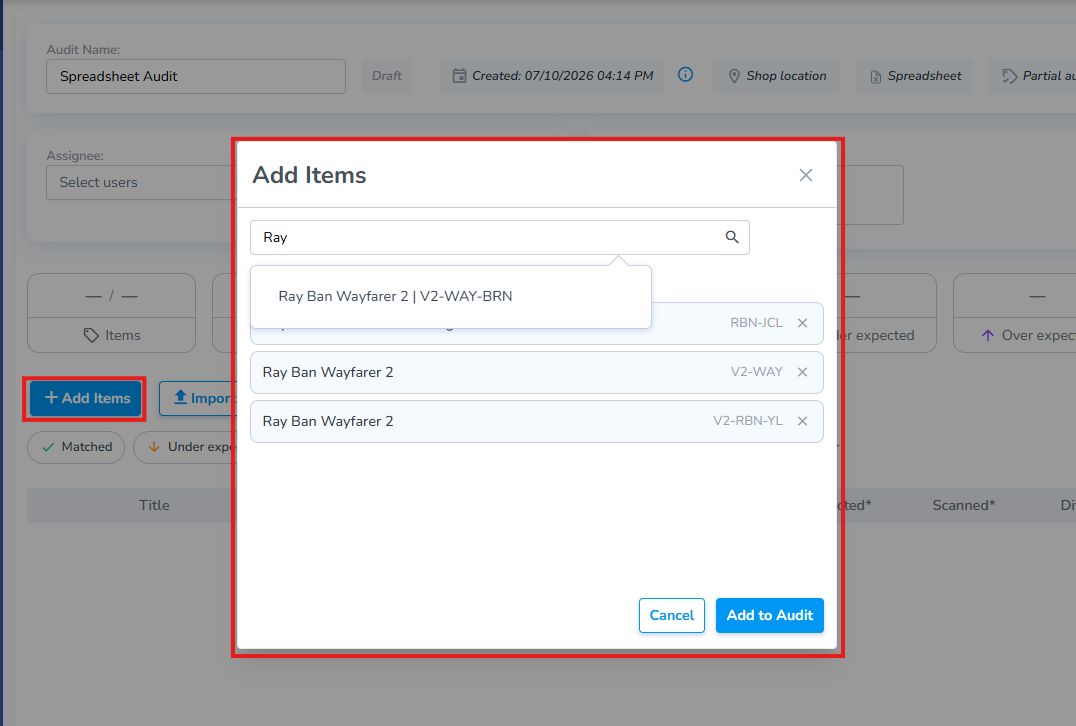](https://kb.simplerfid.com/uploads/images/gallery/2026-07/0jqimage.png) ### ****Import from Excel**** Clicking the Import from Excel button opens the Import Pop-up. You can use the template provided to enter details, or use your own sheet and map the corresponding columns. #### Use the Simple RFID Template - From the pop-up window click "Get Template" to download a formatted spreadsheet - The sheet contains two columns: SKU and Expected quantities [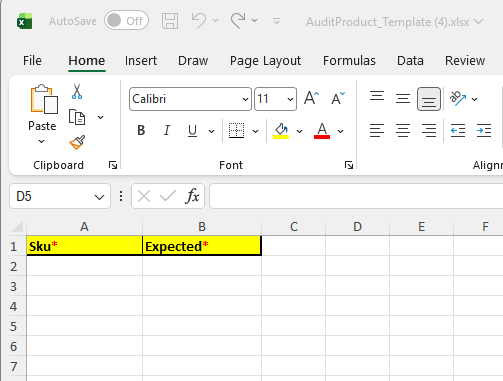](https://kb.simplerfid.com/uploads/images/gallery/2026-07/dJrimage.png) #### Use your Own Spreadsheet and Map Columns Click the ****Custom column mapping**** link to associate the corresponding columns from your own spreadsheet. Choose ****Match by Title**** if your sheet contains an identifiable column header [](https://kb.simplerfid.com/uploads/images/gallery/2026-07/8Oeimage.png) Choose ****Match by Index**** if you wish to map by the column letter: A, B, C, etc.[](https://kb.simplerfid.com/uploads/images/gallery/2026-07/gC5image.png) [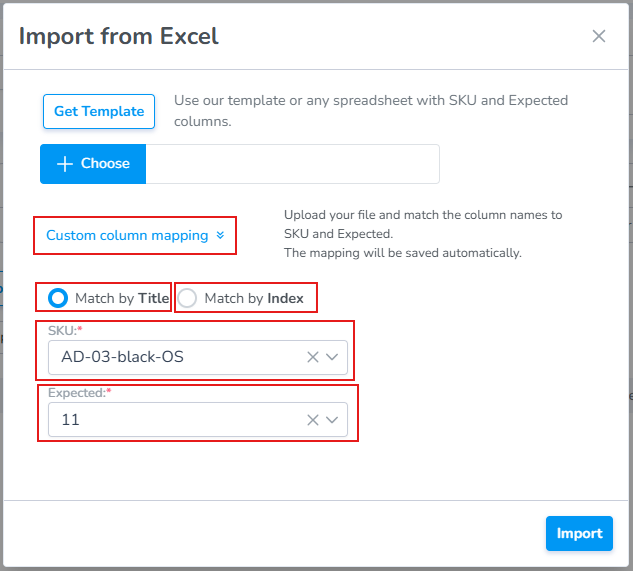](https://kb.simplerfid.com/uploads/images/gallery/2026-07/IkQimage.png) Finally, click Import to add the products to your audit.