This page is currently hidden and can be accessed by manually searching via the URL: portal.simplerfid.com/inventory-compare
From the inventory compare page a user can view RFID and Partner inventory numbers. This provides a simple interface which allows a user to review their products and initiate important actions. The compare page contains the following elements: - Search window - Location Selector - Filters for: Over expected, under expected, matched, and out of stock - Checkboxes on the right to select a record(s) Configurable Columns The page also allows the user to configure the product elements and display what matters to the user. Click on the configuration icon on the right corner - Choose the properties you wish included - Drag the property to the order you wish it to appear [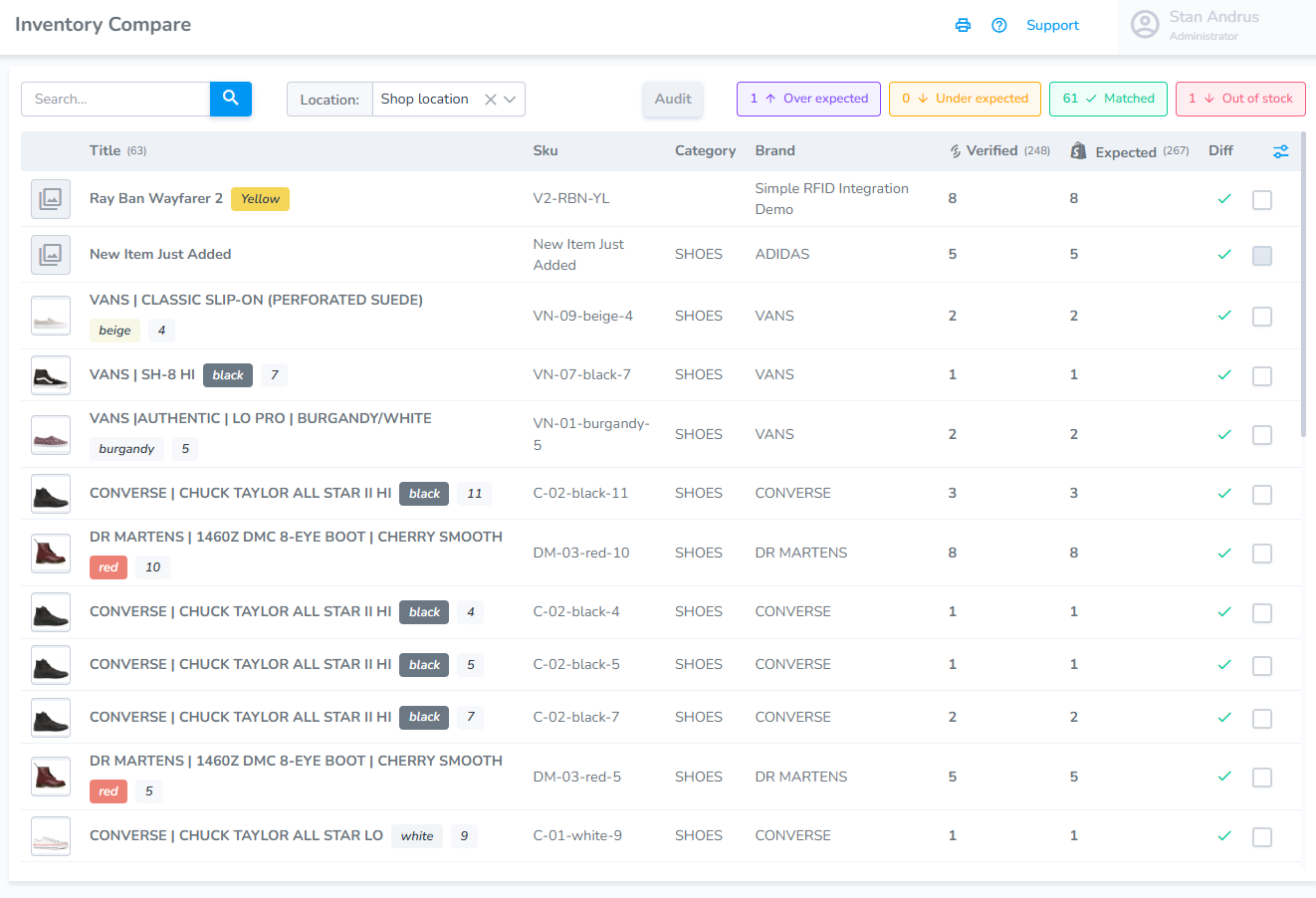](https://kb.simplerfid.com/uploads/images/gallery/2026-07/1rgimage.png) #### ****Starting an Audit from the Inventory Compare page**** To begin an audit from the Inventory Compare page: Select the products you wish to include checkbox Click the Audit button [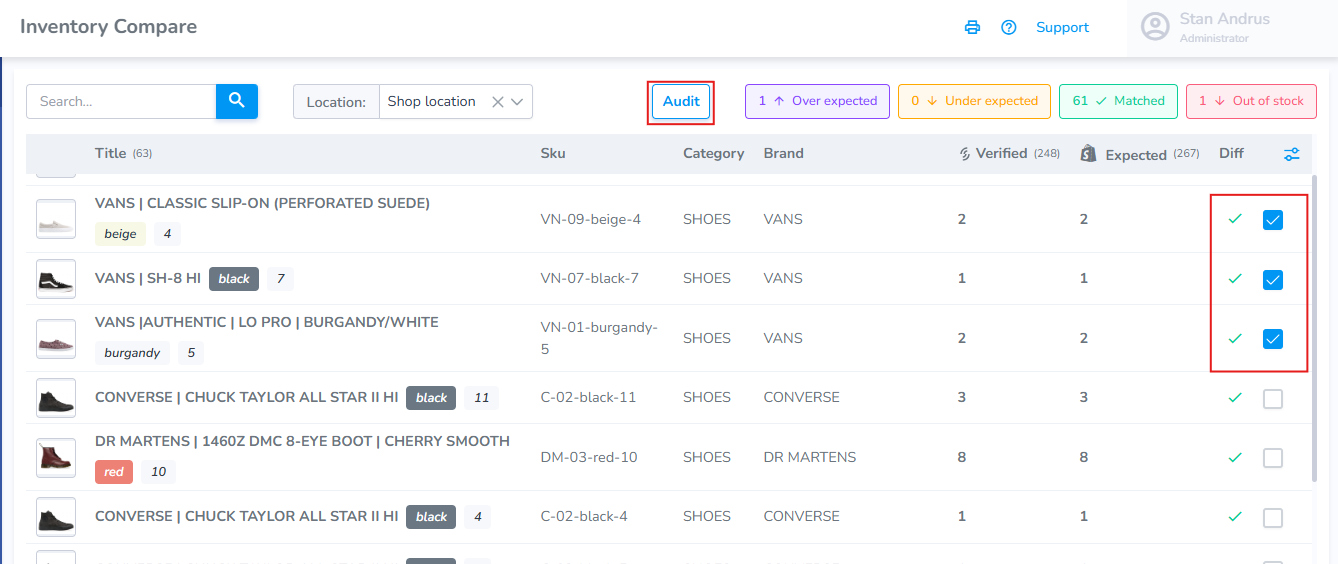](https://kb.simplerfid.com/uploads/images/gallery/2026-07/teCimage.png) After clicking Audit" you will be redirected to the Audit page with the associated products added to the Draft audit. Click "Start Audit" to Open the audit and begin scanning. [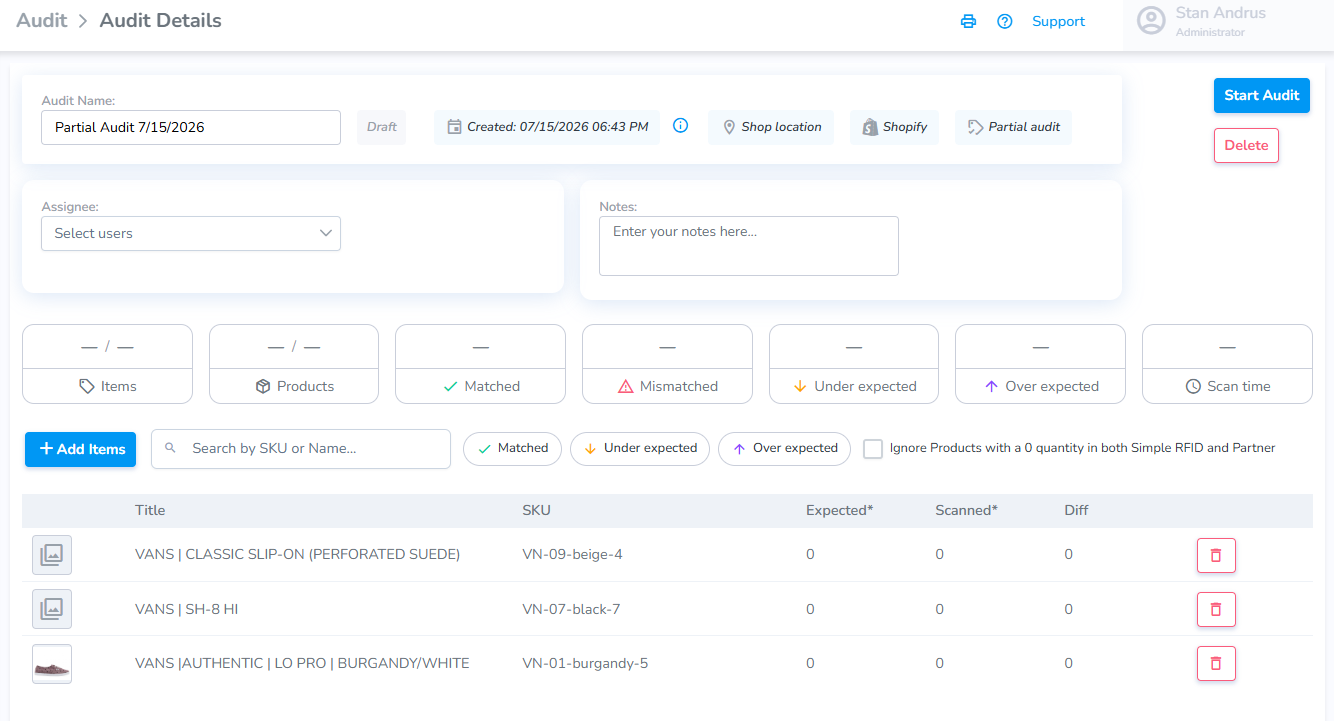](https://kb.simplerfid.com/uploads/images/gallery/2026-07/GXnimage.png) #### ****Printing from the Inventory Compare page****This feature is not yet available and is under development.