Web Portal: Audit: View, Create, Start, Close
All Audits View
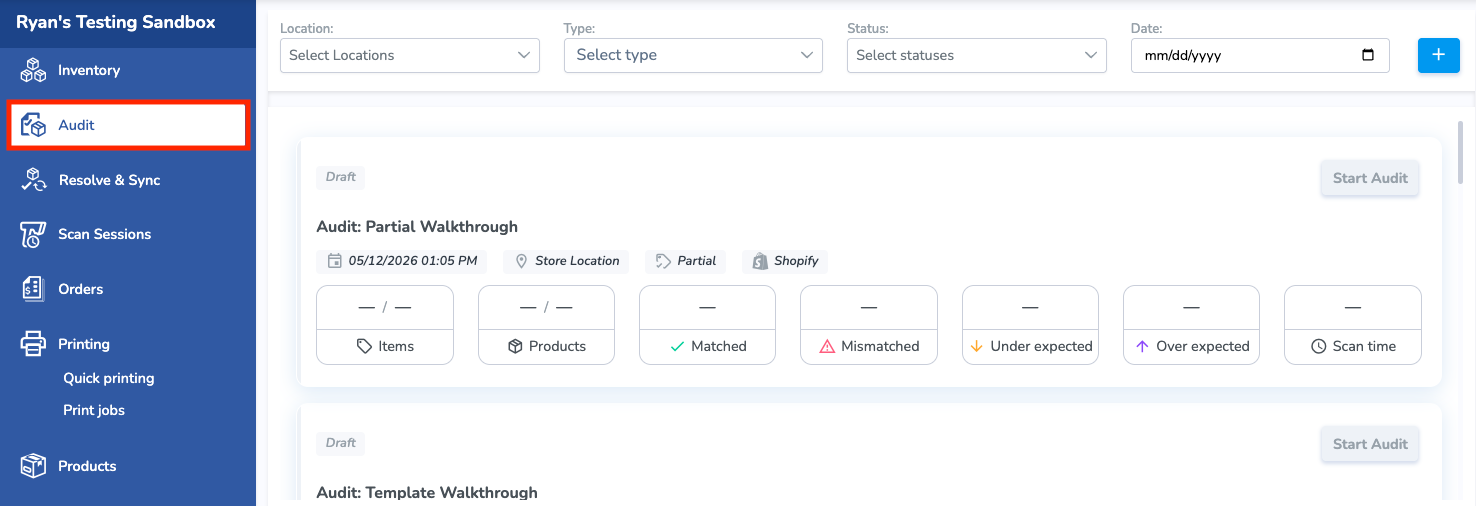
The Audit page in the Simple RFID Web Portal serves to create, manage, and review inventory audits.
To access the page, select Audit from the left navigation menu.
The Audit page displays a list of all Audits. Click any Audit to view its details, progress, and results.
Use the top filters to quickly locate an Audit:
- Location – Filter by location.
- Type – Filter by the type of Audit: Full, Partial, or Template.
- Status – Filter by the Audit's status: Draft, Open, or Completed.
- Date – Filter to view Audits created or performed within a specific date range.
To create a new Audit, click the blue + (plus) button in the upper-right corner of the page.
Create a New Audit
You can also create an Audit from the Mobile App
After clicking the + button the Create New Audit pop-up window will appear. Here you'll enter the Name of the Audit, the Source of the comparison, the Location where the audit is being conducted, and the Products being audited:
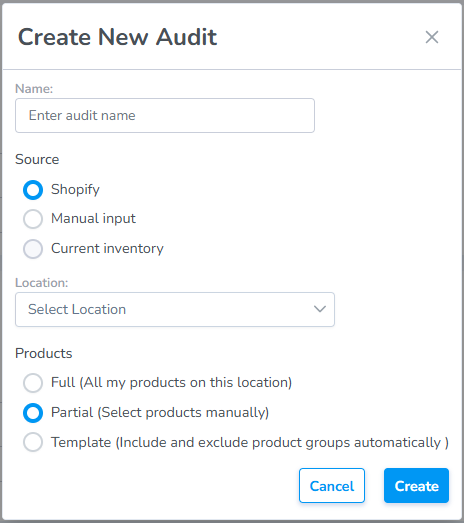
Name:
- This is a free text field to name the audit anything you choose. If you choose to keep this field blank the system will auto-generate an Audit Name for you.
Source:
- Integrated Platform: Shopify, Apparel Magic, etc.
- Manual Input: This option allows you to enter your own data (manually or uploaded from a spreadsheet). To learn how to add your own data source to an audit please follow the steps found in this article.
- Current Inventory: Not yet implemented.
Location:
- Choose the location where the audit is being conducted
Products:
- Full: All of the products in your location
- Partial: Specific products that you define
- Template: Products from a reusable template you define
Click "Create" to create
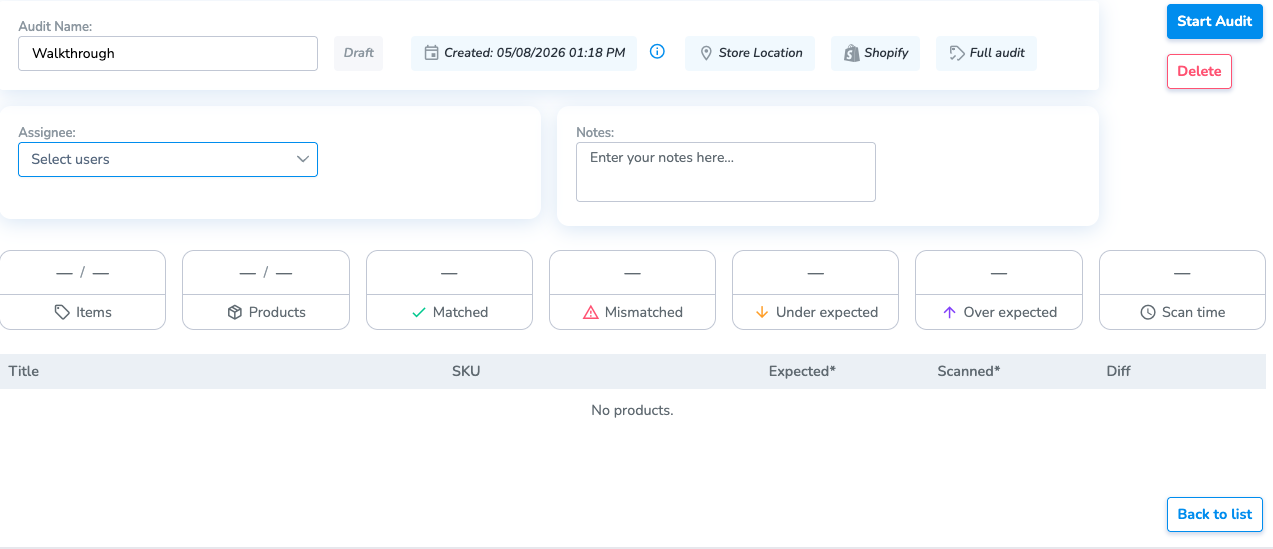
- The Audit will be created in Draft status.
- Once created, inside the Audit, you can Assign a user, add Notes for future reference, or Delete the audit.
Add Products to an Audit
No Integration?: Enter YOUR data (manually or uploaded from a spreadsheet) into the Audit using the steps found in this article.
The instructions below relate to Adding Products to an Audit via an integration
Product inventory quantities are not displayed until you click Start Audit. When the Audit is Started, Simple RFID retrieves the on hand inventory quantities from the selected Source (such as Shopify or Apparel Magic). These quantities become the baseline for comparing your RFID scan results during the Audit.
Important: Once you click Start Audit, the Audit is locked. You will no longer be able to add or remove products from the Audit.
Full Audit
If you select Full, you do not need to add products.
Clicking Start Audit loads all active products from the selected Source and Location automatically into the Audit along with their on hand inventory quantities.
Partial Audit
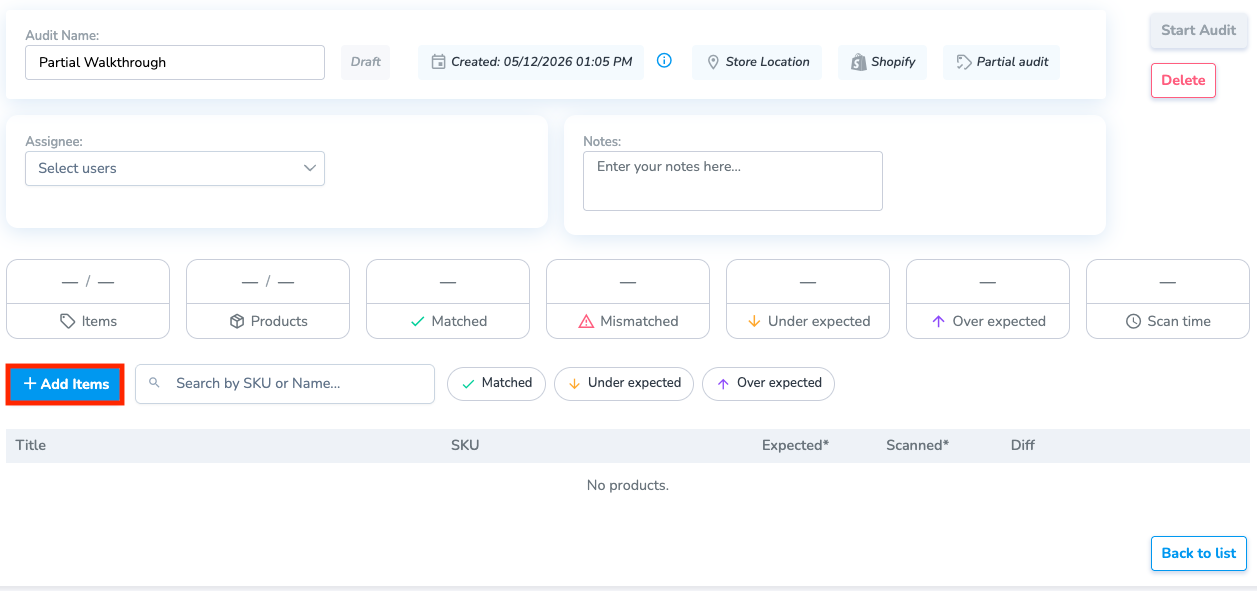
If Partial is selected, the Audit will include an Add Items button.
Click Add Items to search for and select the specific products you want to include in the Audit. Once you have added all desired products, click Start Audit to load their current inventory quantities and begin the Audit.
Template Audit
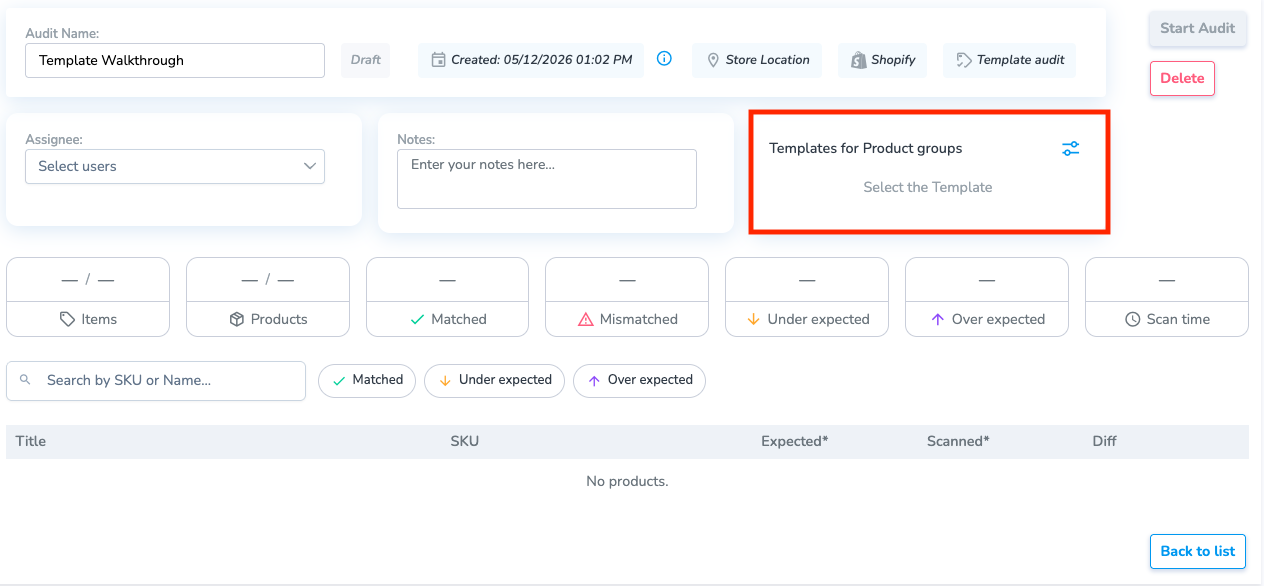
If you wish to add or exclude products from a specific category, brand or price select Template.
To create a new template or modify template settings:
- Click the Configuration icon in the Templates for Product groups window to open the Templates side menu.
Managing Audit Templates
Use the controls in the Templates window to create and manage your saved Audit Templates:
- Click the + (Plus) button to create a new template.
- Click the Pencil icon to edit an existing template.
- Click the Trash icon to permanently delete a template.
- Click Use Template (or Include) to apply the selected template to the current Audit.

Creating a New Template
When creating a new template, provide the following information:
- Name – A descriptive name for the template.
- Description – An optional description to help identify the template's purpose.
- Categories – Select the product categories to include in or exclude from the template.
Category values are populated from the product Type field in Shopify. Products are included in the template based on the categories you select.
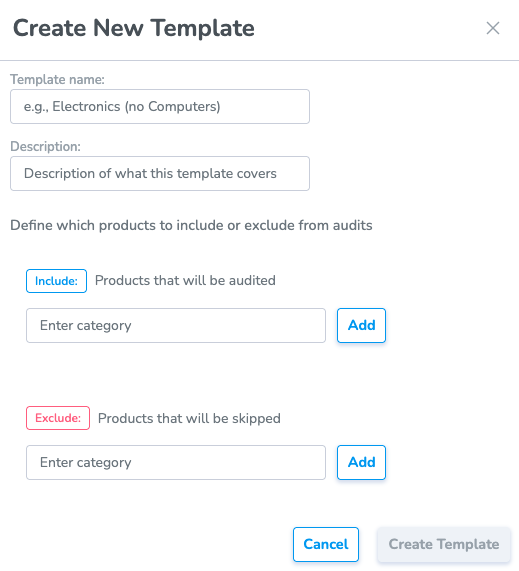
When you have finished configuring the template, click Create Template to save it.
After applying the template to the Audit, click Start Audit to retrieve the current On Hand inventory quantities for the selected products.
Start Audit (Status: Open)
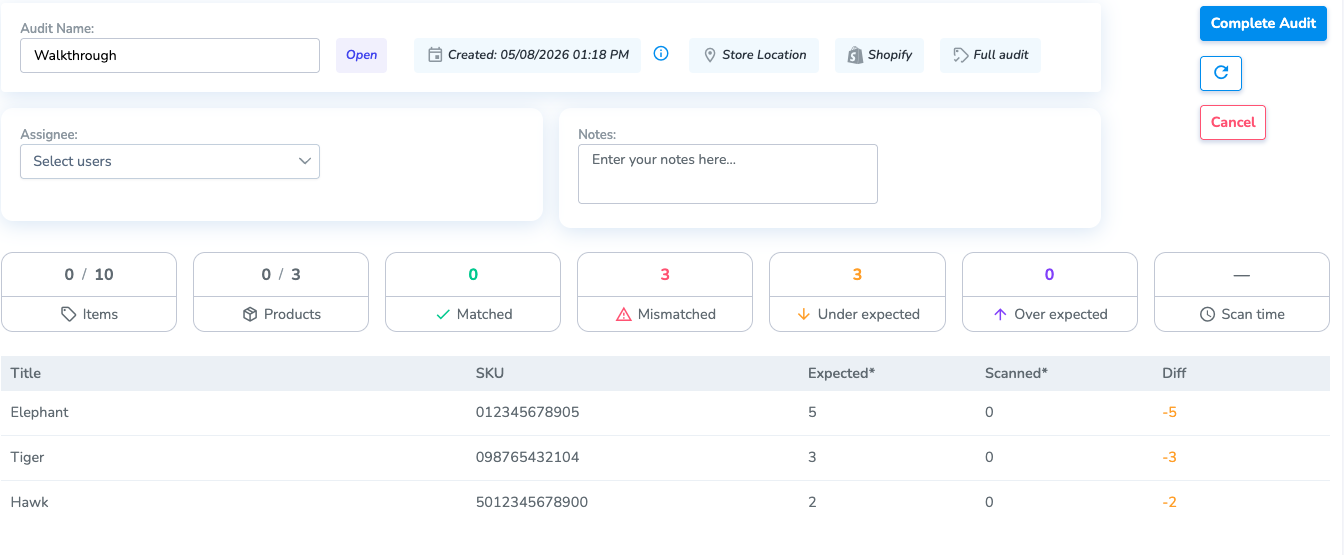
Once all desired products have been added to the Audit, click Start Audit to move the Audit to Open status.
The Audit grid displays information for each product including:
- Expected – Displays the current On Hand inventory quantity retrieved from the selected source (such as Shopify or Apparel Magic). This serves as the baseline for comparison during the Audit.
- Scanned – Initially displays 0 for every product because no RFID tags have been scanned. As RFID tags are scanned and uploaded, this value updates to reflect the total number of tags detected for each product during the current Audit.
- Diff – Displays the difference between the Expected and Scanned quantities, allowing you to quickly identify inventory discrepancies.
Scanning Items in Audit from Mobile App
Next the user will open the mobile device and scan the products. Please view the Mobile App: Audit: Scan Items in Audit article to view these steps.
Closing an Audit (Status: Completed)
After all RFID scans have been completed and uploaded, refresh the Audit page in the Simple RFID Web Portal to view the latest results.
The Audit displays the updated Expected, Scanned, and Diff values for each product, allowing you to quickly identify Matched, Over Expected, and Under Expected inventory counts. These results highlight any discrepancies between your partner system's inventory (such as Shopify or Apparel Magic) and the inventory detected through RFID scanning.
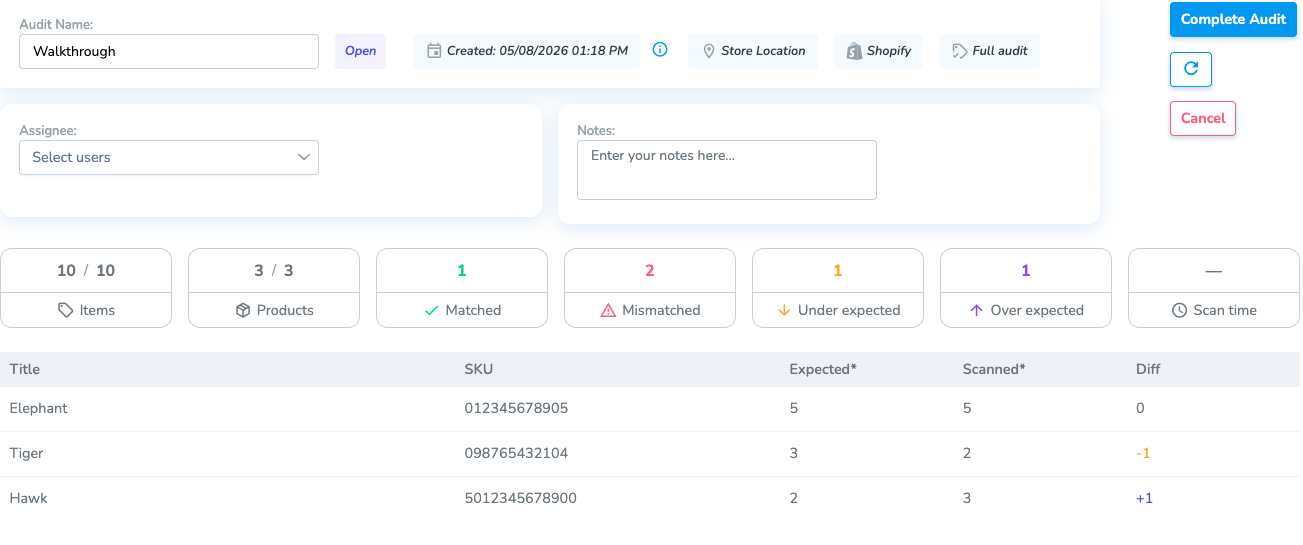
- When you have finished scanning and verified the Audit results, click Complete Audit.
Completing the Audit changes its status to Completed and prevents any additional RFID scans from being uploaded.
Manage Mismatches
After the Audit has been completed, navigate to the Resolve & Sync page to review all mismatches via the Manual Review process to determine the appropriate corrective actions that need to be completed.