# Update Min/Max Values via Spreadsheet
##### Instructions on how to update min/max values for products via spreadsheet.
To set min-max values via spreadsheet, navigate to the calculate reorder page and click on the "Get Template" button to download the template excel sheet.
[](https://kb.simplerfid.com/uploads/images/gallery/2026-09/rae25.png)
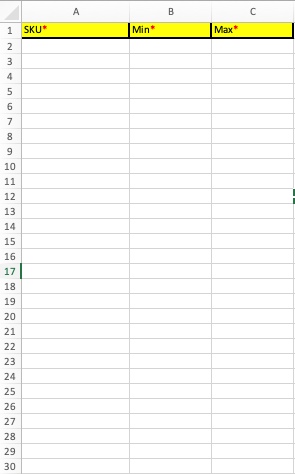
Next, fill in the required fields. Save the spreadsheet.
[](https://kb.simplerfid.com/uploads/images/gallery/2026-09/26.png)
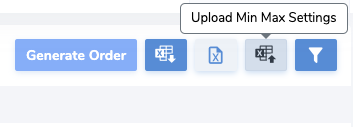
Click on the "Upload Min Max Settings" button.
[](https://kb.simplerfid.com/uploads/images/gallery/2026-09/frZ23.png)
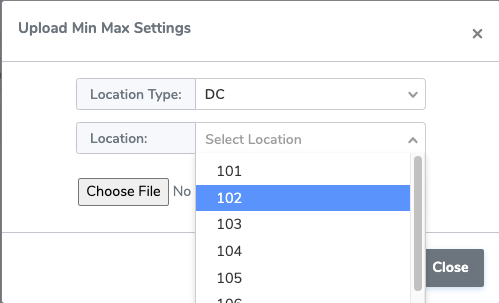
Select the location type (DC, Store, or Supplier), and select the specific location you wish to update.
[](https://kb.simplerfid.com/uploads/images/gallery/2026-09/0Qb24.png)
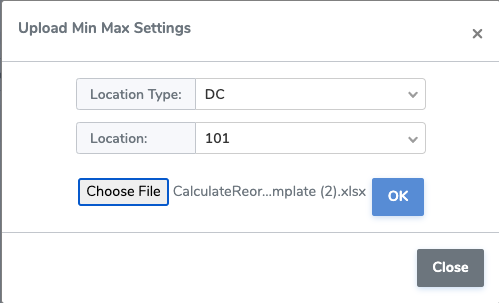
Upload the saved template and click OK to apply changes.
[](https://kb.simplerfid.com/uploads/images/gallery/2026-09/vmF22.png)
Note that this method only updates the specified SKUs at one location.