# Products: Draft
Instructions for creating and updating Draft Products.
Draft Products can be created manually, by integration, or via the Brand Magic feature.
[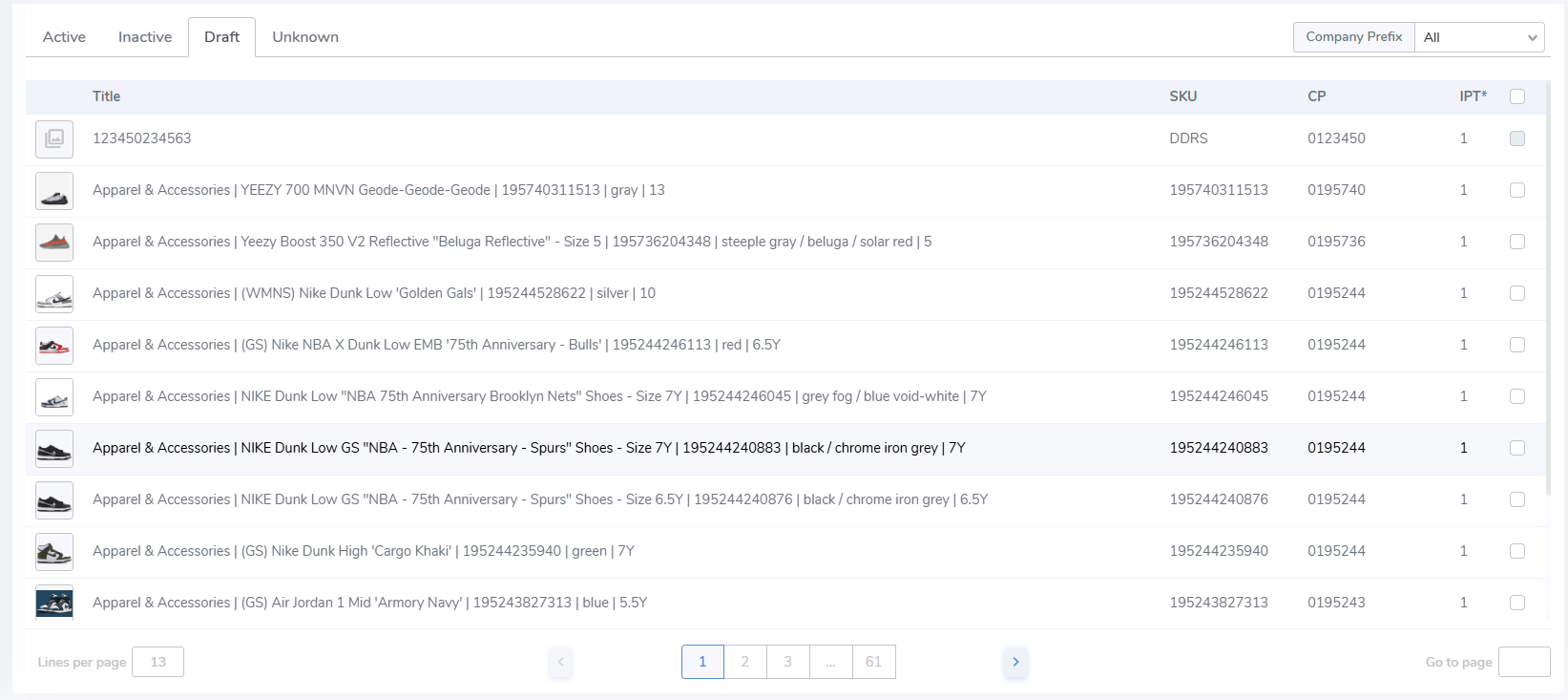](https://kb.simplerfid.com/uploads/images/gallery/2025-06/C8Simage.png)
##### ****Update Draft Products****
To update a Draft Product to Active / Inactive status, the product must have data in all required fields. If the product is missing a required value it cannot be imported until added.
****Move to Active or Inactive In Bulk****
- Update multiple Products in one action by clicking on the checkbox on the far right side.
- Then, click the Activate / Deactivate button which appears above.
[](https://kb.simplerfid.com/uploads/images/gallery/2025-06/2a6image.png)
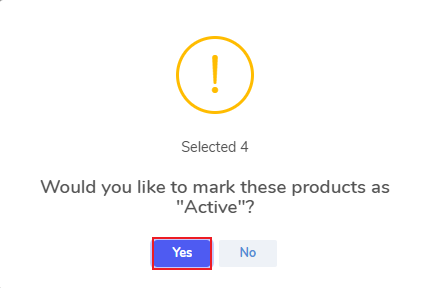
- Click "Yes" on the pop-up
[](https://kb.simplerfid.com/uploads/images/gallery/2025-06/6isimage.png)
- This moves the Draft Products to Active / Inactive status.
##### ****Move to Active / Save Draft Individually****
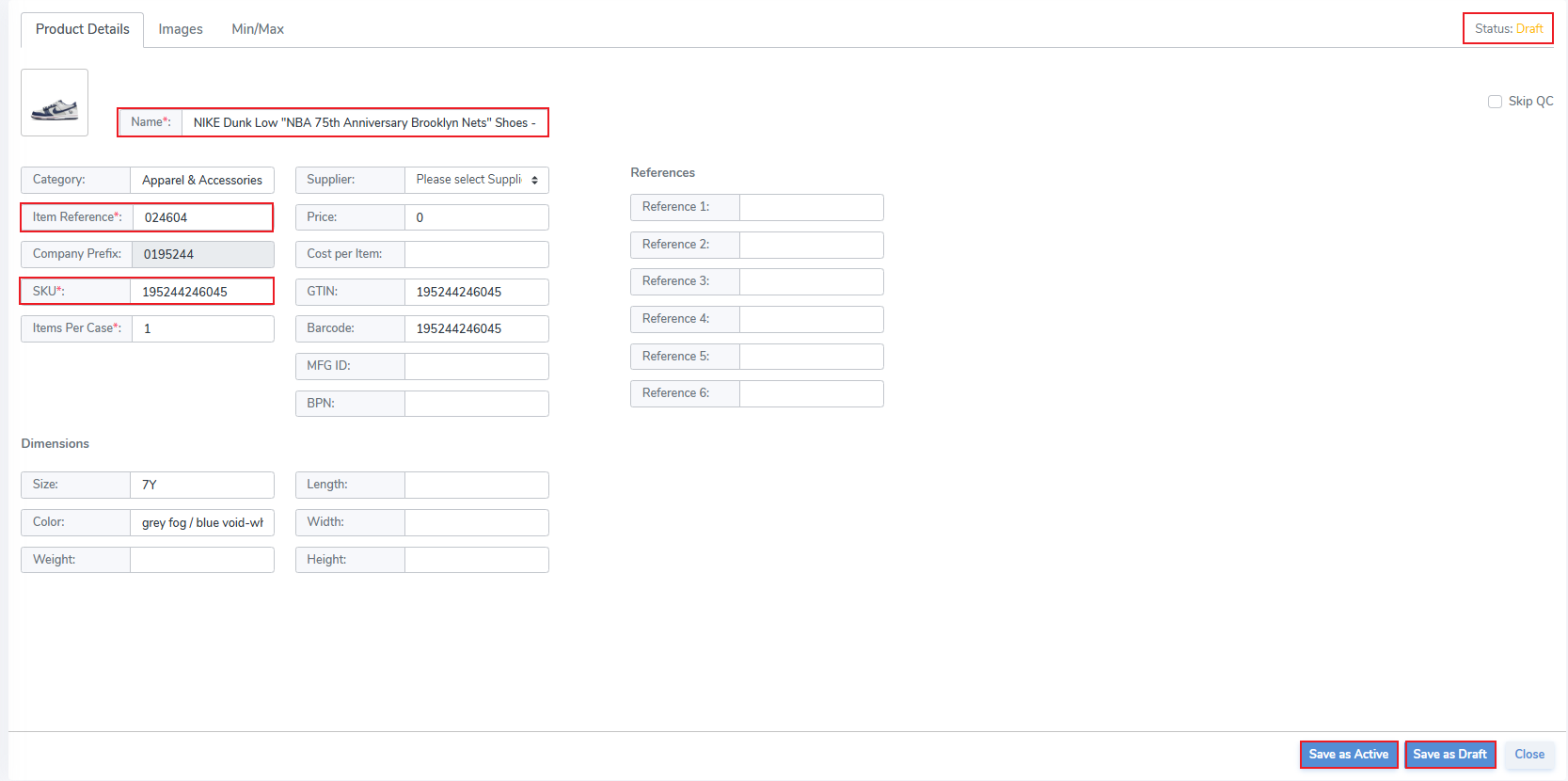
- Click an individual Product from the Draft page
- This opens the Edit Product tab
- Ensure that all required fields are completed
- Click Save as Active to move to Active status
- Click Save as Draft to update the Draft product
[](https://kb.simplerfid.com/uploads/images/gallery/2025-06/68mimage.png)