Navigation Menu: Calculate Reorder
Set Min & Max thresholds to streamline reordering
Calculate Reorder
Manage your inventory using Min/Max templates to create Orders.
Creating Stock Templates is a great way to manage on-hand inventory. These templates allow you to set inventory thresholds which provide the framework for what should be on-hand and what you need to order.
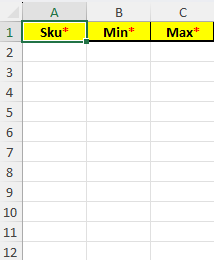
Original Stock Template
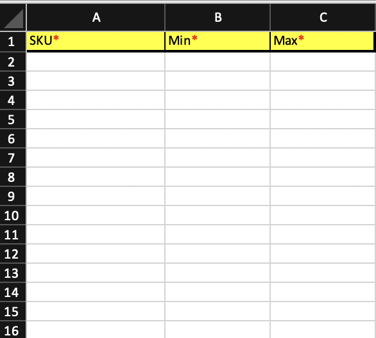
How to Create a Stock Template
- Go to the "Calculate Reorder" feature
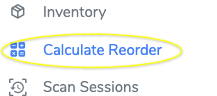
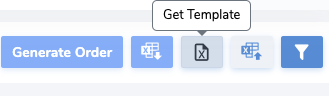
- Select the Template
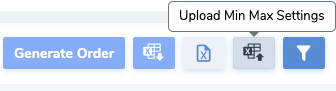
- Fill out the template then upload
- Wait for the icon to say "Successful" then confirm order has been sent as-well as other features

Setting Thresholds
The Calculate Reorder tab allows users to set thresholds for what they wish to have in stock, and allows them to set a par of how much they must restock.
Set Thresholds from Product profile
From the Products tab, search for the item you wish to set pars
Locate it and open it
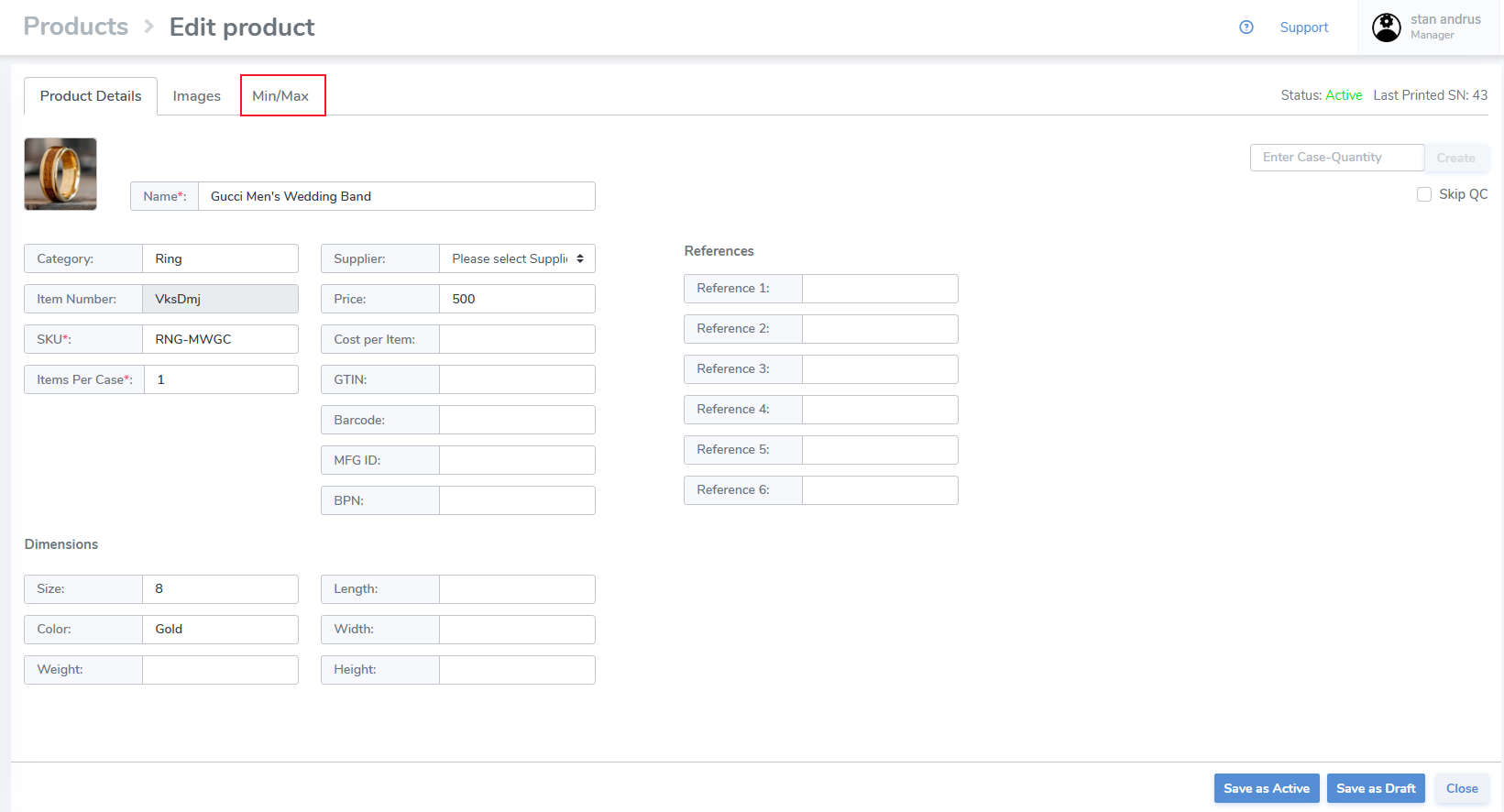
Click on the Min/Max tab
- Choose the Location Type for the location(s) you wish to set thresholds, or choose 'All' to include all entity types
- Click the checkboxes on the left
- At the top enter the Min and Max
- Click 'Apply'
- The quantities will be applied to the location(s) and will be 'enabled'
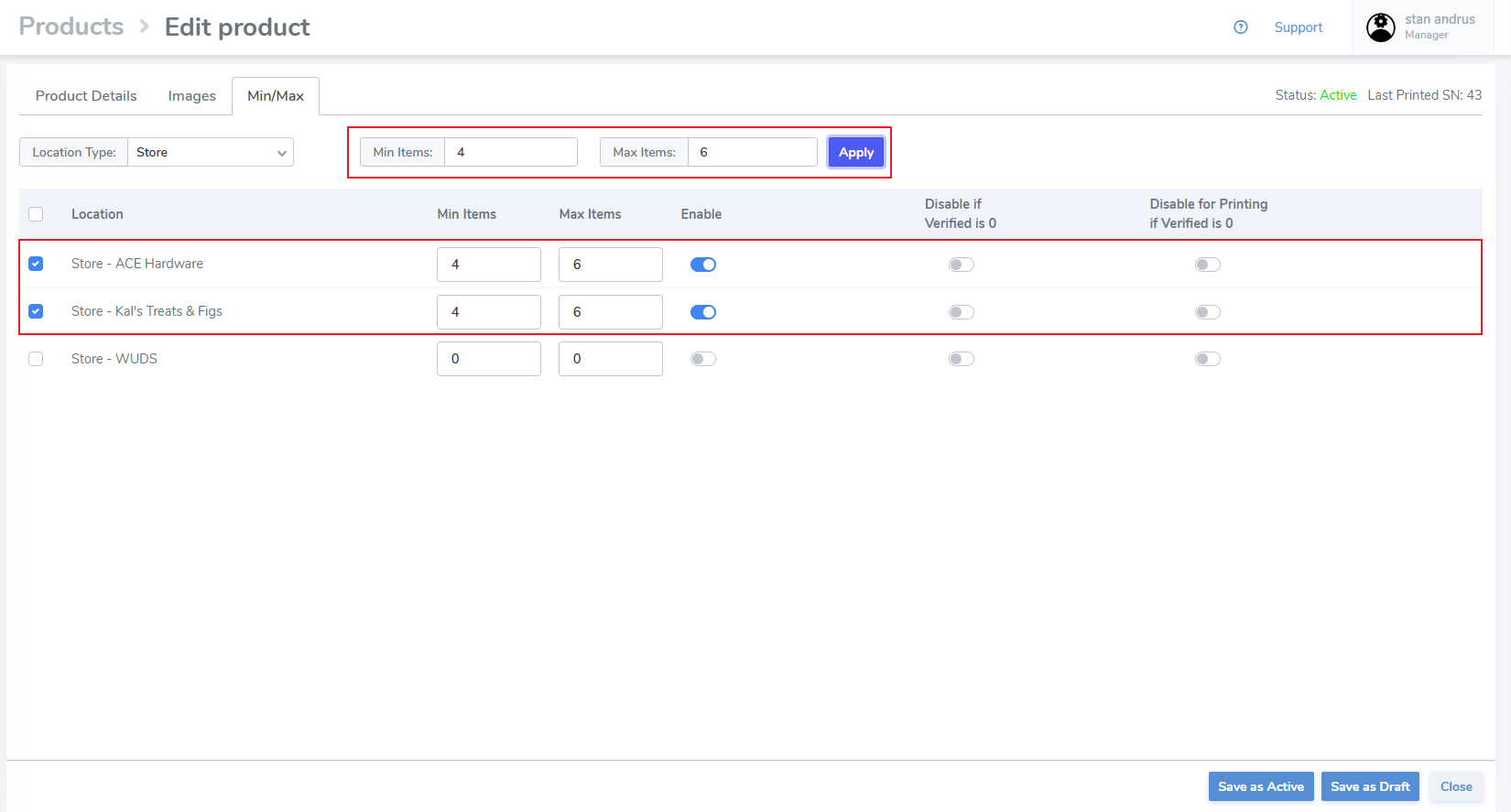
Settings to Disable if Verified is 0 and Disable for Printing if Verified is 0 will be explained in a later article.
- Click "Save as active"
Set from Calculate Reorder
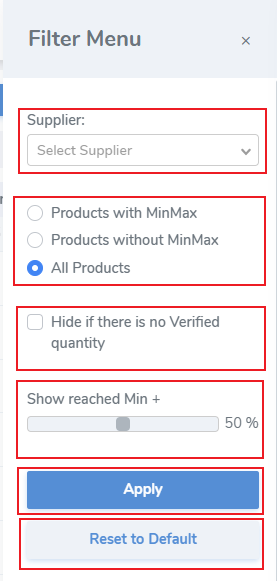
To quickly identify items that have not been assigned a Min & Max click the filter icon
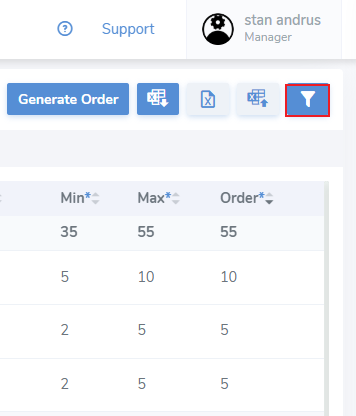
This will open the side filter menu
1. Supplier - Set the supplier filter if products have been assigned a supplier to quickly filter them
2. Limit the items
Template Uploader
Update Min/Max Values via Spreadsheet
Instructions on how to update min/max values for products via spreadsheet.
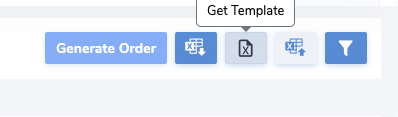
To set min-max values via spreadsheet, navigate to the calculate reorder page and click on the "Get Template" button to download the template excel sheet.
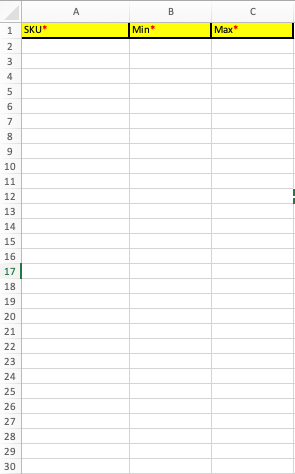
Next, fill in the required fields. Save the spreadsheet.
Click on the "Upload Min Max Settings" button.

Select the location type (DC, Store, or Supplier), and select the specific location you wish to update.
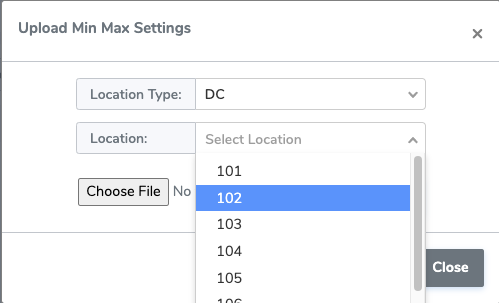
Upload the saved template and click OK to apply changes.
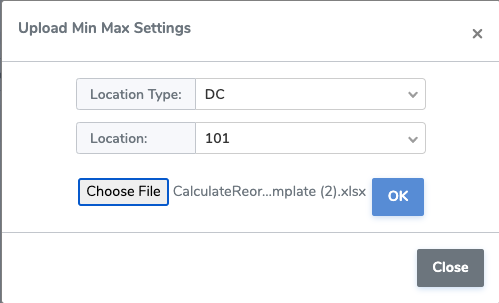
Note that this method only updates the specified SKUs at one location.