For information on the different settings on the scan page, [please read here](https://kb.simplerfid.com/books/software-mobile-app/page/scan-settings)
### ****Starting a Compare Scan**** There are multiple places where you can perform a Compare Scan. These include: - [Audit with Shopify](https://kb.simplerfid.com/books/processes-audit-your-inventory/page/audit-using-an-integrated-data-source-shopify-apparel-magic-etc) It's important to note that the Compare Scan has the same function in both places you perform it: You want to compare an inventory is matched with your current physical inventory in real time. On the Scan page, there are two values for each product that you will want to keep track of - ****Scanned:**** The number of tags that have been scanned this session - ****Expected:**** The inventory count currently in the inventory [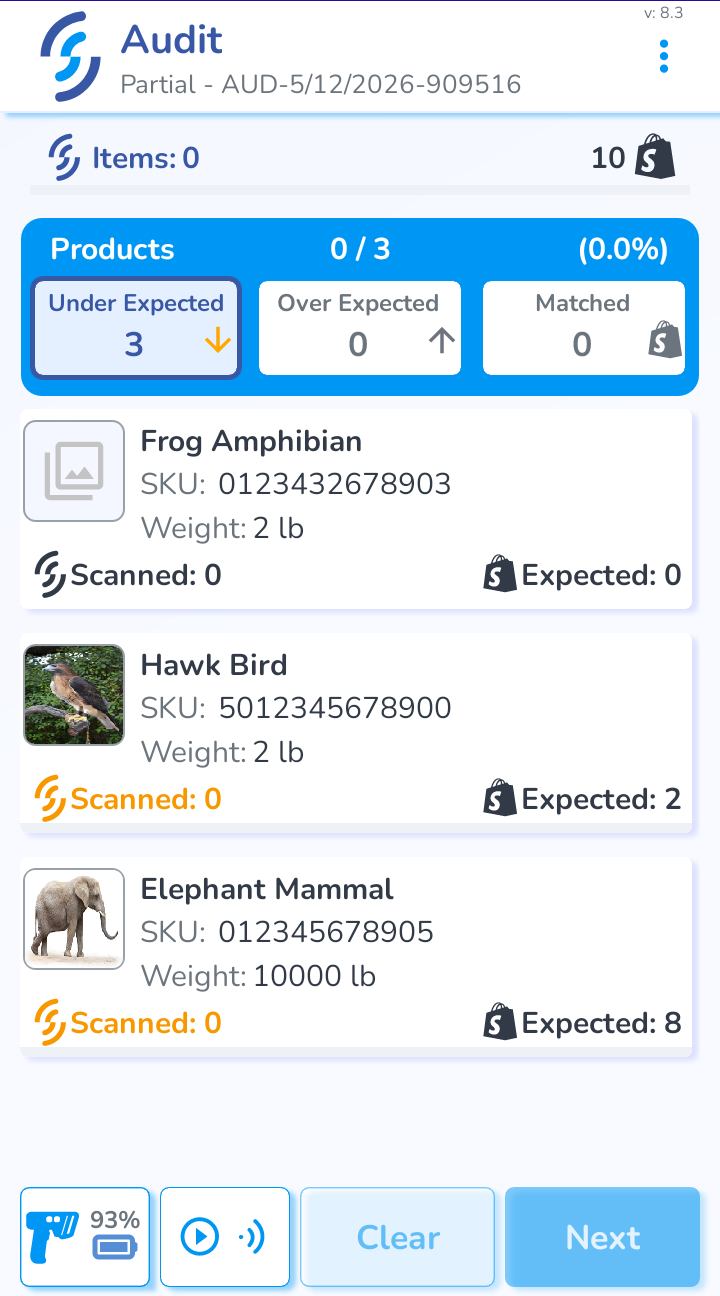](https://kb.simplerfid.com/uploads/images/gallery/2026-05/screenshot-20260512-1749412.png) There are three possible states that a product can have: - ****Under Expected:**** The ****Scanned**** amount is less than the ****Expected**** amount - ****Over Expected:**** The ****Scanned**** about is more than the ****Expected**** amount - ****Matched:**** The ****Scanned**** amount is equal to the ****Expected**** amountEvery product will be in the ****Under Expected**** section, because the ****Scanned**** amount starts at 0
### ****Scanning Process**** As you scan products, they will be put into the three sections explained previously. You can click on a section to view all of the products in that section.While the scanner is active, there will be a loading screen in the product area. To view the counts for your products, stop scanning.
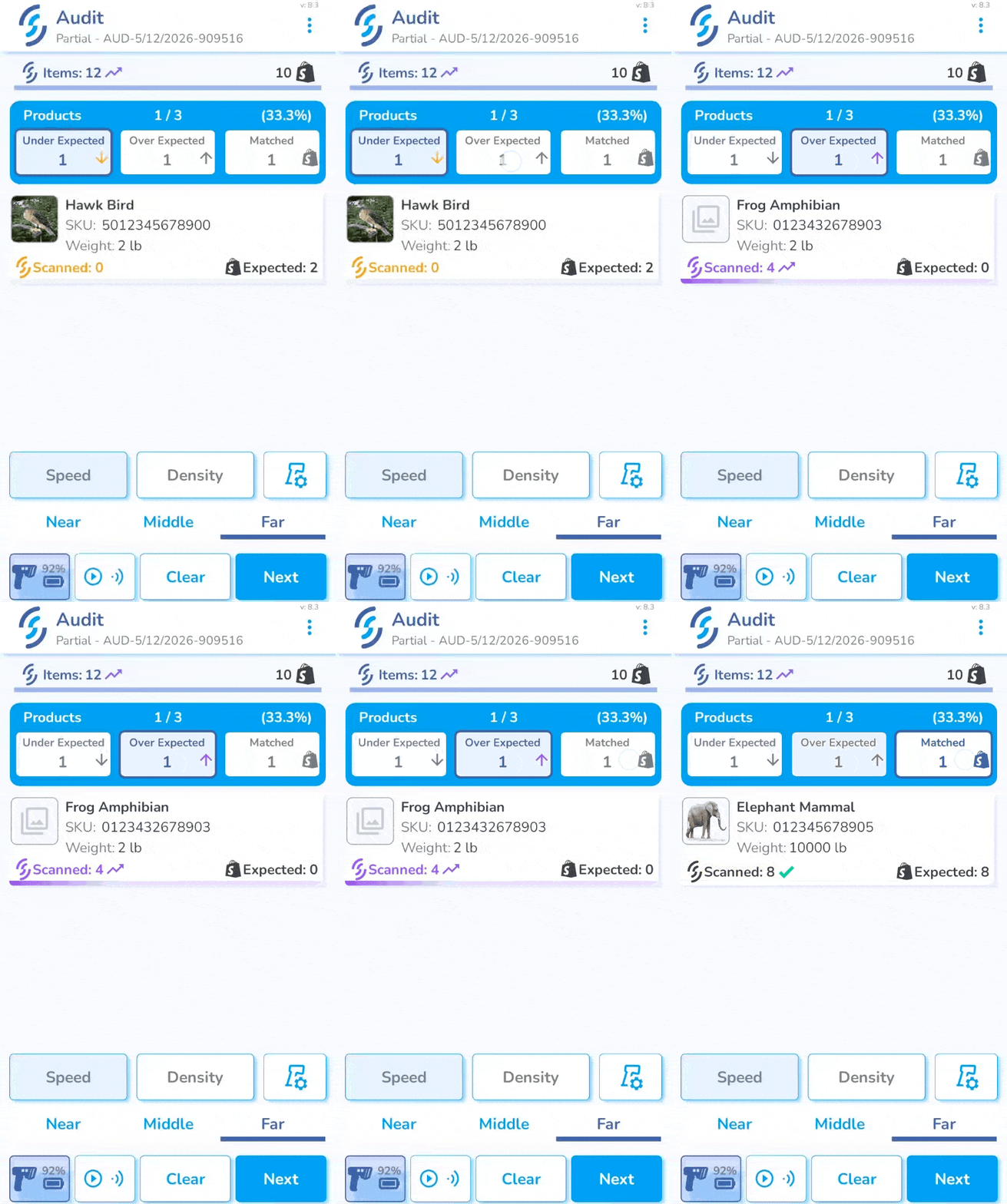Once you feel confident that you have picked up everything, press ****Next****. This will take you to the ****Summary Page.**** [](https://kb.simplerfid.com/uploads/images/gallery/2026-05/img-5229.jpg) From here, you can see how many products are in each section, and how many items you picked up. There are two options on this page: 1. ****Control Scan:**** Perform another scan on ****Density**** mode to pick up any tags you may have missed 2. ****Upload:**** Upload the scan to an Audit, or inventory A ****Control Scan**** is recommended for greater accuracy, but you can click the checkbox below to go straight to an ****Upload**** ### ****Viewing Compare Scan History**** You can view all of the Scans you have performed in the [****Scan Sessions****](https://kb.simplerfid.com/books/software-web-portal/page/scan-sessions) page on the [****Web Portal****](https://portal.simplerfid.com/)****.**** The ****Scan Type**** for the Scan will be a ****Reset****. [](https://kb.simplerfid.com/uploads/images/gallery/2026-06/image.png)