# Review & Resolve
# Mobile App: Review Mismatches
Create page for Review Mismatches on mobile once completed.
# Mobile App: RFID Actions (Pending Actions)
Once items are processed through the Mismatch Review page, actions are generated to realign the RFID and Partner quantities. If the actions involve RFID Actions the mobile user will follow this flow:
##### ****Pending Actions****
[](https://kb.simplerfid.com/uploads/images/gallery/2026-07/Q4Jimage.png)
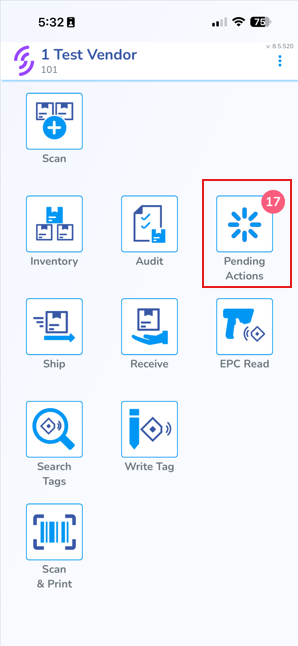
- Open the mobile app
- Click on the Pending Actions tab
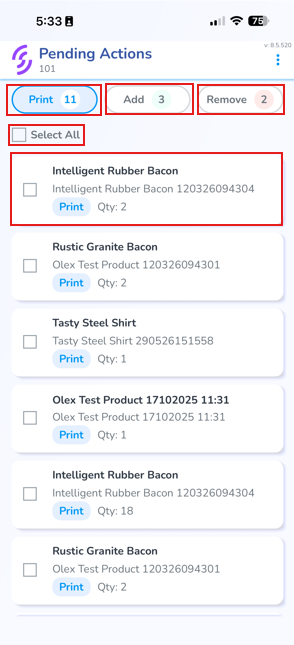
****Pending Actions tab (Mismatch Review)****
[](https://kb.simplerfid.com/uploads/images/gallery/2026-07/Aoximage.png)
Choose a single product, or use the checkboxes on the left to choose multiple
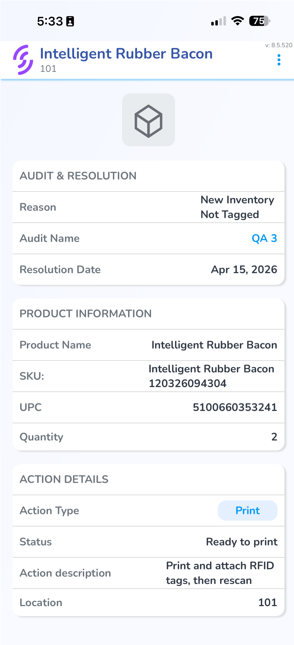
##### ****Individual Product View****
[](https://kb.simplerfid.com/uploads/images/gallery/2026-07/IOIimage.png)
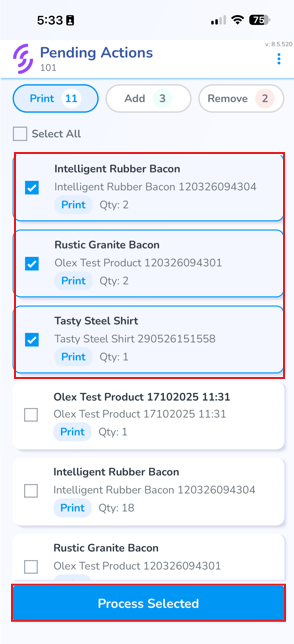
****Printing****
[](https://kb.simplerfid.com/uploads/images/gallery/2026-07/pAIimage.png)
- Select one or more checkboxes
- Click "Process Selected"
[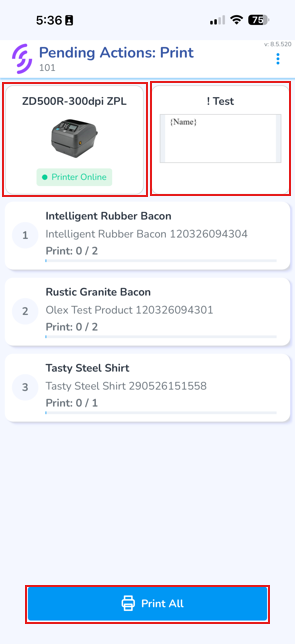](https://kb.simplerfid.com/uploads/images/gallery/2026-07/9xdimage.png)
Choose the Printer
[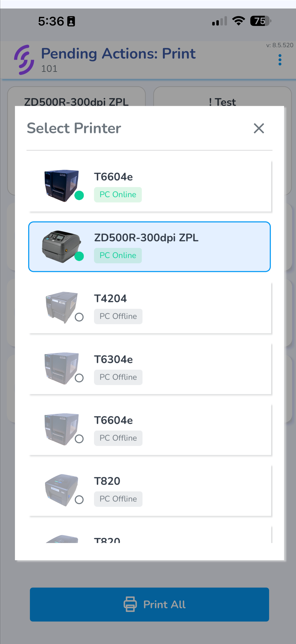](https://kb.simplerfid.com/uploads/images/gallery/2026-07/lkBimage.png)
& Label layout you wish to use
[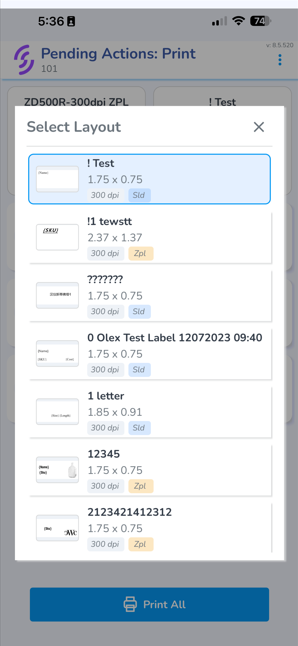](https://kb.simplerfid.com/uploads/images/gallery/2026-07/9Inimage.png)
Click Print All
As tags are printed the screen updates the number printed against expected.
Once the print job has been completed, click "Complete" to end the print process and return to the list view.
[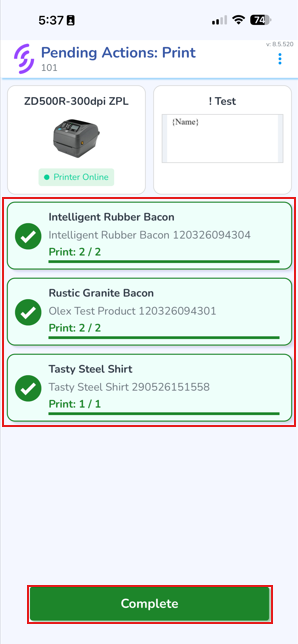](https://kb.simplerfid.com/uploads/images/gallery/2026-07/tyHimage.png)
---
##### ****Add Scans****
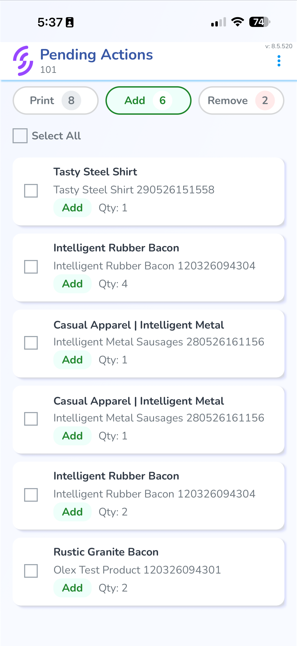
Once needed labels have been printed an "Add Scan" task will be generated. The Add scan list represents all items which have been printed and are ready to be scanned and added to inventory.
[](https://kb.simplerfid.com/uploads/images/gallery/2026-07/5ABimage.png)
- Select one or more checkboxes
- Pair the RFID reader
- Scan the items you wish to add
- Confirm that the progress bar indicates that all items are added
---
##### ****Remove (Archive) Scans****
Select one or more checkboxes