Shopify: Installation
From Shopify Admin, type "Simple RFID" in the search bar, then select Search "Simple RFID" in Shopify App Store.

Click on Simple RFID Inventory Solution. You may see a few advertisements in the search results before our app.

Next, click Install near the left side of the page.

Confirm the installation on the next screen by clicking Install.

If you're already logged into the web portal on this browser, you will automatically be logged in to the app as well. Otherwise, type in your Simple RFID username and password and log in.
You'll be greeted with this screen: press Next to continue.

Mapping your Shopify & Simple RFID Locations from the Web Portal
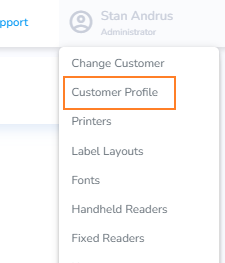
We have moved the mapping process from the Shopify extension to the web portal, Customer Profile tab.
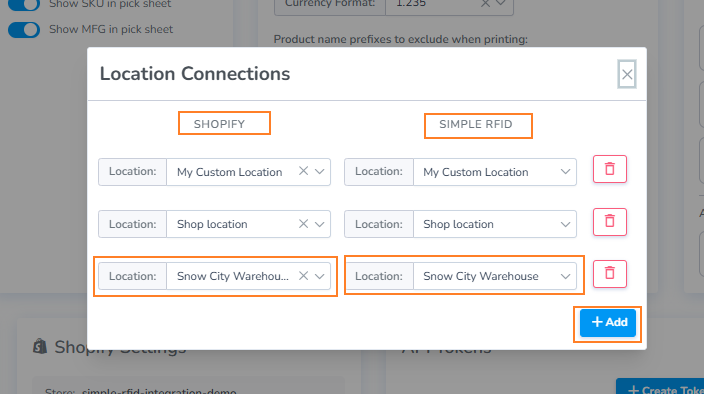
If you are a new user to Simple RFID, you can use Create Location to automatically create a location in Simple RFID with the corresponding name.
Locations can be created as either:
- DC or Distribution Center is any warehouse format locations
- Store is any retail location
If you wish to use Shopify Supplier locations
On the next screen, you'll map your Shopify locations to your Simple RFID locations.
Old Mapping Flow
If you're setting up the app for the first time, select Create new for each location that you want to track with Simple RFID.
Then, select which field in your Shopify products is unique. Simple RFID requires a unique property for every product and variant; choose whether the SKU or Barcode is more suitable for your products. Last, click Finish.

The Simple RFID app is now fully installed.